> ## Documentation Index
> Fetch the complete documentation index at: https://support.locker.io/llms.txt
> Use this file to discover all available pages before exploring further.
# Back up and restore your Locker data
> Your data in Locker Vault is backed up regularly on our server. You can also manually export your data to back up the current version.
## Back up data
Your data in Locker Vault is backed up regularly on our server. You can also manually export your data to back up the current version.
### On Locker Web Vault and Desktop app
Go to the **Settings** tab → **Import/Export** → **Export Items**.
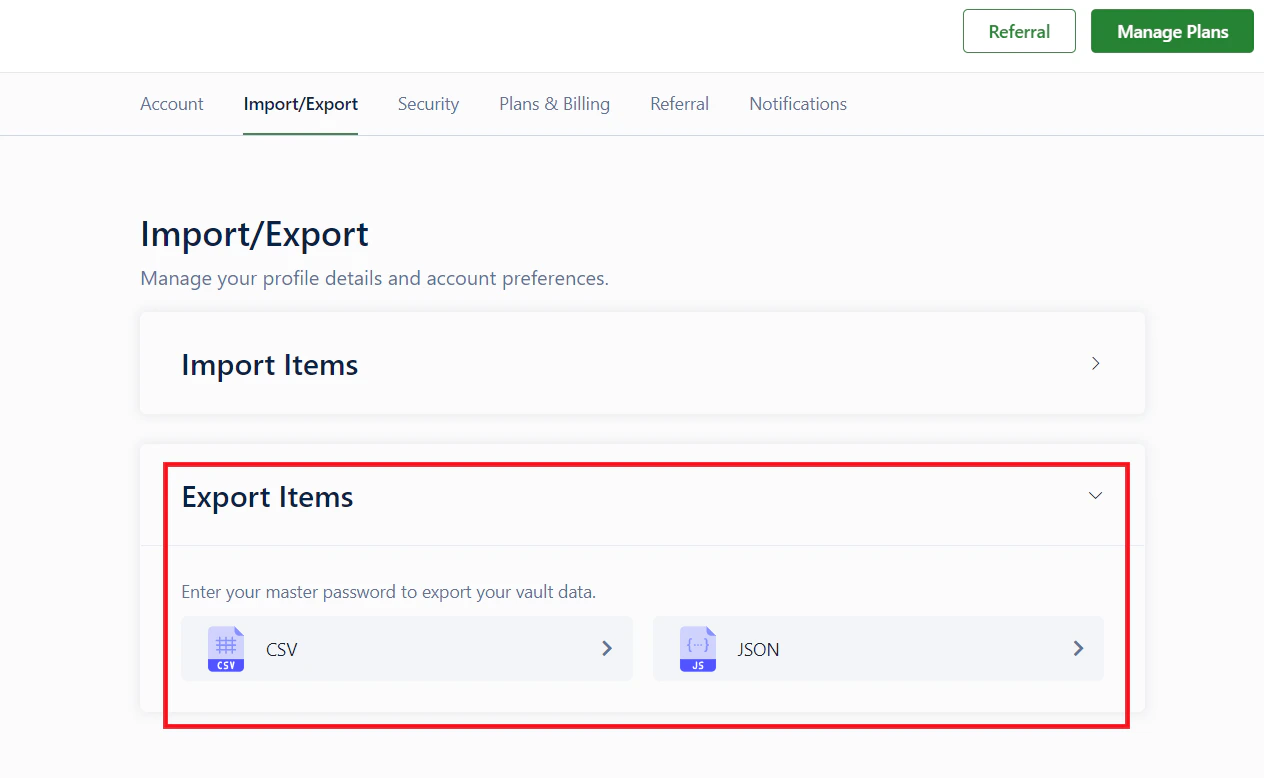 Select whether to export to a `CSV` or `JSON` file. Then enter your **Master Password** to confirm exporting.
### On Locker Mobile app
Go to the **Menu** tab → **Settings** → **Export Data**.
Select whether to export to a `CSV` or `JSON` file. Then enter your **Master Password** to confirm exporting.
### On Locker Mobile app
Go to the **Menu** tab → **Settings** → **Export Data**.
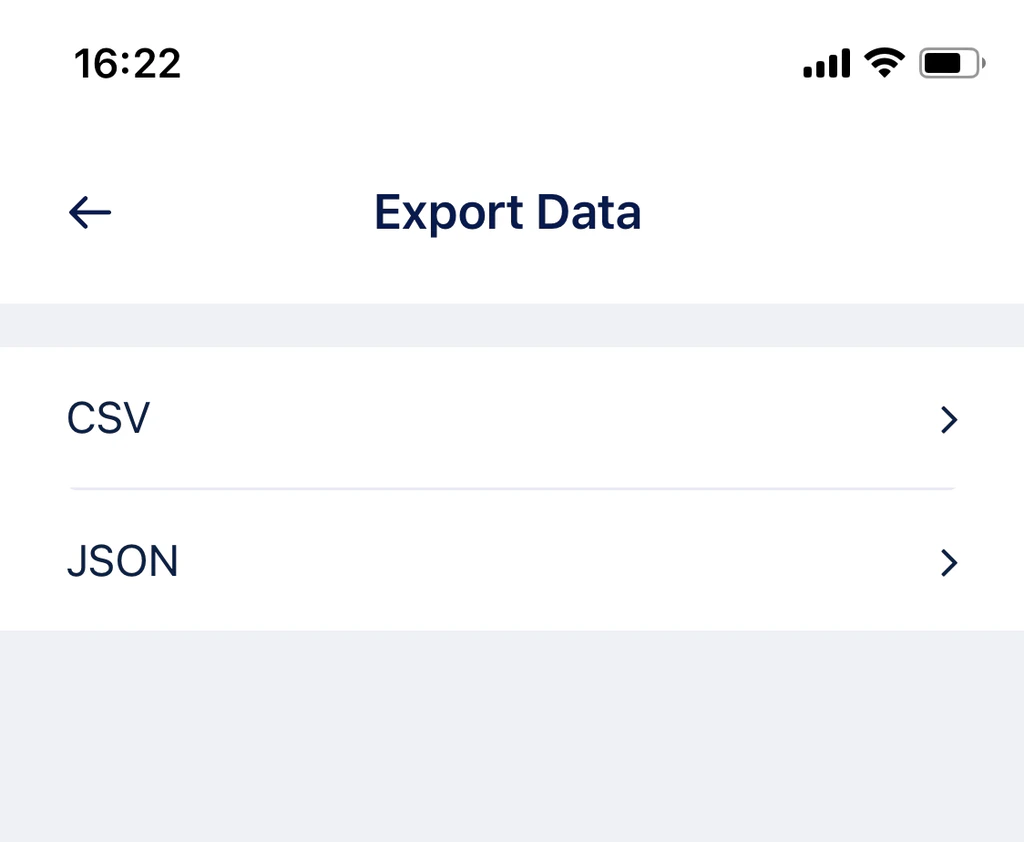 Select the file format and enter your **Master Password** to complete the process.
***
## Restore data
Locker allows you to restore deleted items within **30 days** from the date of deletion. After this period, the data will be permanently deleted.
### On Locker Web Vault and Desktop app
Go to the **Vault** tab → Select **Trash**.
Hover over the item you want to restore → Click on the 3-dot button `...` at the **Actions** column → Select **Restore**.
Select the file format and enter your **Master Password** to complete the process.
***
## Restore data
Locker allows you to restore deleted items within **30 days** from the date of deletion. After this period, the data will be permanently deleted.
### On Locker Web Vault and Desktop app
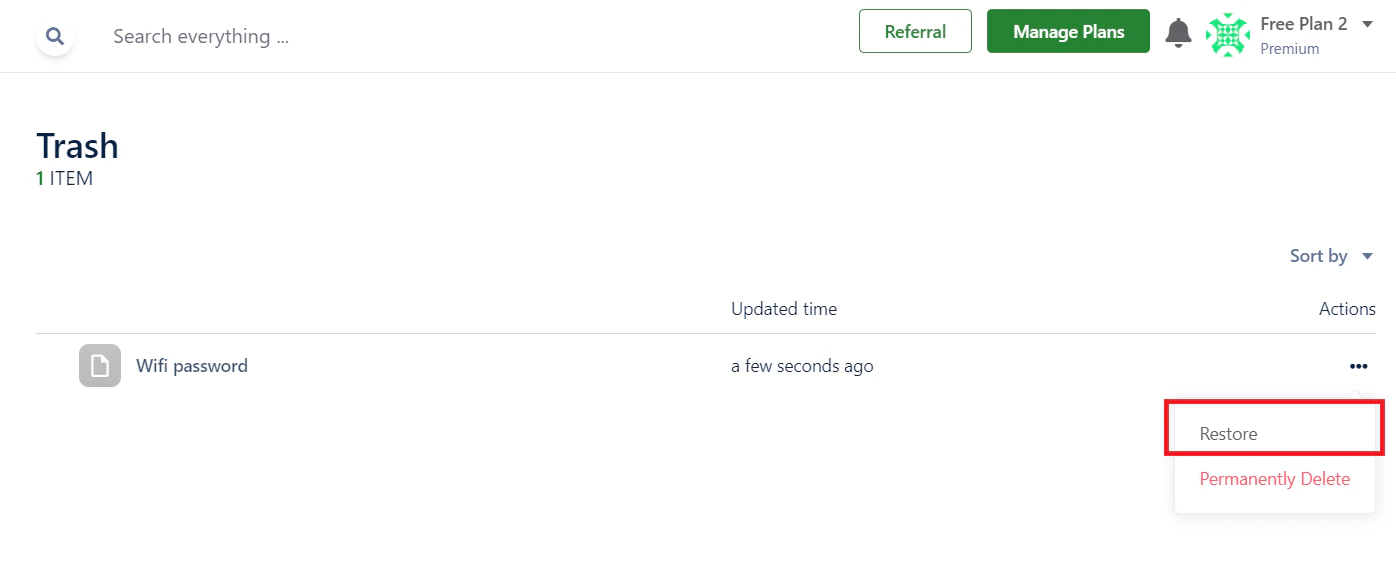
Go to the **Vault** tab → Select **Trash**.
Hover over the item you want to restore → Click on the 3-dot button `...` at the **Actions** column → Select **Restore**.
 ### On the Locker Mobile app
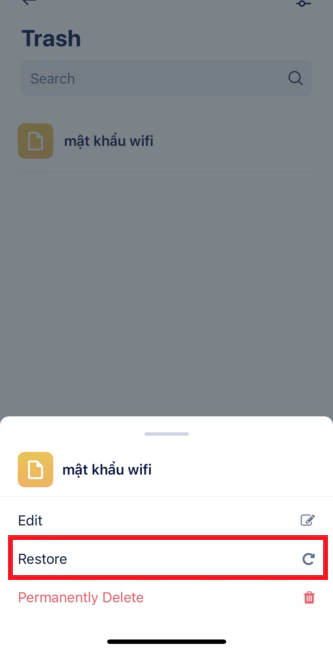
Go to the **Browse** tab → Select **Trash**.
Select the item you want to restore and tap the **Restore** button.
### On the Locker Mobile app
Go to the **Browse** tab → Select **Trash**.
Select the item you want to restore and tap the **Restore** button.