> ## Documentation Index
> Fetch the complete documentation index at: https://support.locker.io/llms.txt
> Use this file to discover all available pages before exploring further.
# Adjust timeout options
> How to configure auto-lock or logout timing to protect your Locker Vault
The timeout setting determines what Locker does after a period of inactivity. This helps keep your data safe when you step away from your device.
## Timeout actions
You can choose one of two actions when the timeout is reached:
* **Lock**: Requires unlocking with biometrics (fingerprint/face) or Master Password to continue.
* **Log out**: The session is terminated completely. You will need to re-enter your Master Password and 2FA code (if enabled) to access your Vault again.
***
## How to configure
### On Web Vault and Desktop app
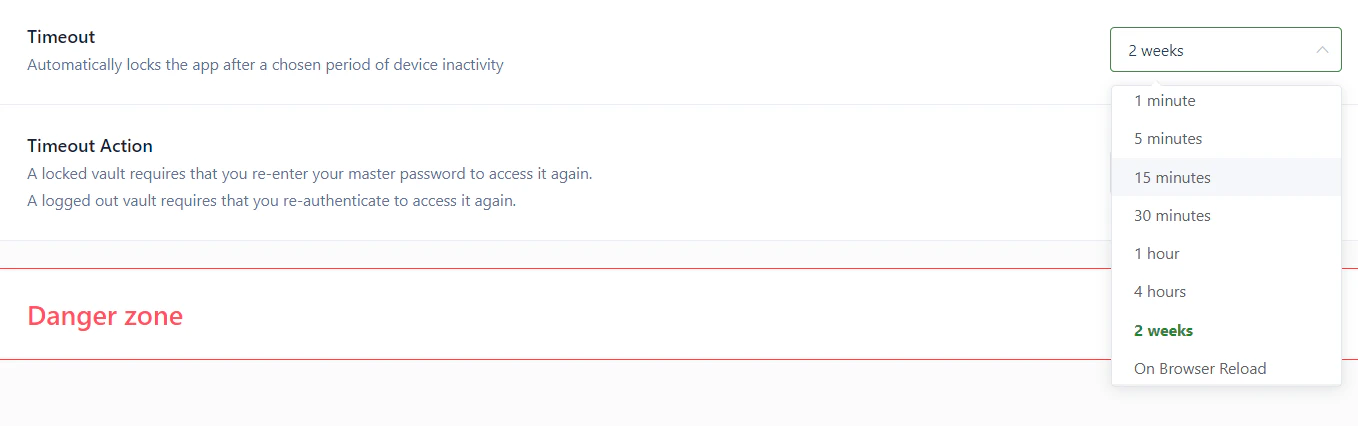
Go to **Settings** > the **Account** tab.
Scroll down to the **Timeout** and **Action** sections to select your preferred duration and behavior (Lock/Log out).
 **Web Vault specific behavior:**
* When you **refresh the browser**: The Vault will be **Locked**.
* When you **close the tab** or **quit the browser**: You will be **Logged out** completely.
### On Mobile app
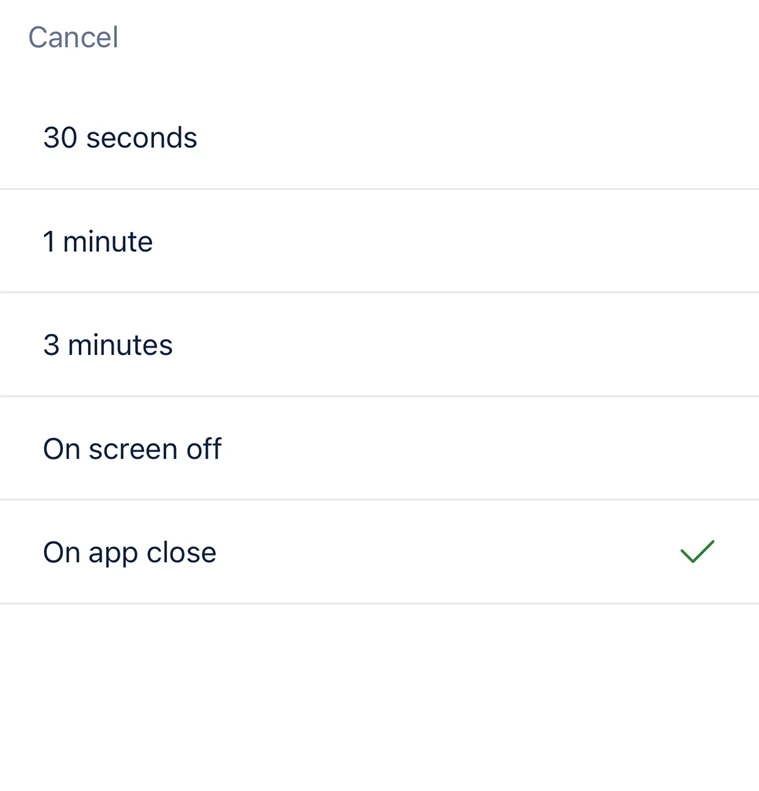
Open the **Menu** tab > **Settings** > scroll down to the **Security** section.
Tap **Auto-lock** and select a time interval that suits you.
**Web Vault specific behavior:**
* When you **refresh the browser**: The Vault will be **Locked**.
* When you **close the tab** or **quit the browser**: You will be **Logged out** completely.
### On Mobile app
Open the **Menu** tab > **Settings** > scroll down to the **Security** section.
Tap **Auto-lock** and select a time interval that suits you.
 ### On Browser Extension
Click the **Settings** (gear) icon on the Extension.
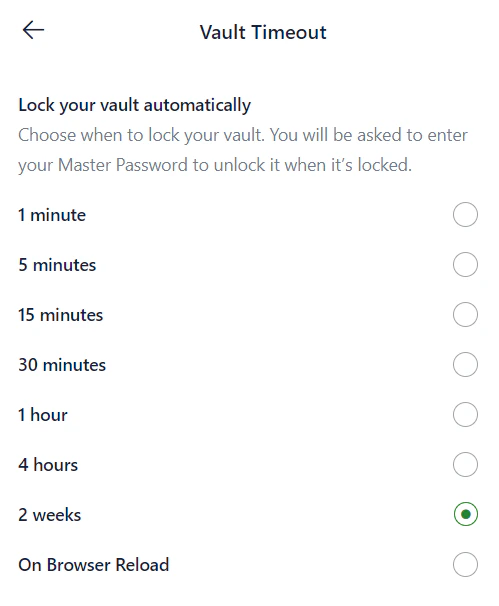
Under **Options**, select **Lock Timer** and set your preferred duration.
### On Browser Extension
Click the **Settings** (gear) icon on the Extension.
Under **Options**, select **Lock Timer** and set your preferred duration.