> ## Documentation Index
> Fetch the complete documentation index at: https://support.locker.io/llms.txt
> Use this file to discover all available pages before exploring further.
# Login methods
> A detailed guide to the different ways you can log in to your Locker account
Locker separates two processes: **Account Login** (identity authentication) and **Vault Unlock** (data decryption). You can choose from several authentication methods.
## Log in with a verification code (Default)
This is the quickest and most convenient method, allowing you to access your account without remembering your account password.
Go to the login page, enter your **email address**, and click `Continue`.
Locker will automatically send a **6-digit verification code** to your email.
Enter the **verification code** in the field on the login screen.
Enter your **Master Password** to decrypt and access your data Vault.
## Log in with your account password
If you prefer not to check your email, you can log in using the account password you set during registration.
On the verification code screen, select `Log in with password`.
Enter your **Account Password**.
If you have enabled two-factor authentication, you will need to enter a code from your Authenticator app or use a security key.
Enter your **Master Password** to complete access.
***
## Log in with Passkeys
Passkeys simplify the login process by using biometrics or a device PIN instead of remembering your account password.
[What are Passkeys? How to create passkeys](/en/locker-general/login-unlock/what-are-passkeys-how-to-create-passkeys-with-locker)
Go to [Locker.io/login](https://locker.io/login), enter your **email**, and click `Continue`.
A popup will prompt you to use a passkey. Choose a compatible method:
#### **Using Windows Hello**
* Select `Windows Hello or external security key` > choose `Fingerprint` or `PIN`.
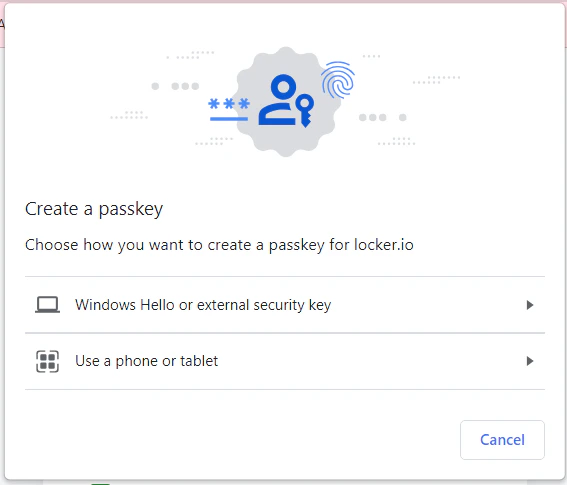 * Scan your **fingerprint** or enter your device **PIN**.
#### **Using a physical security key**
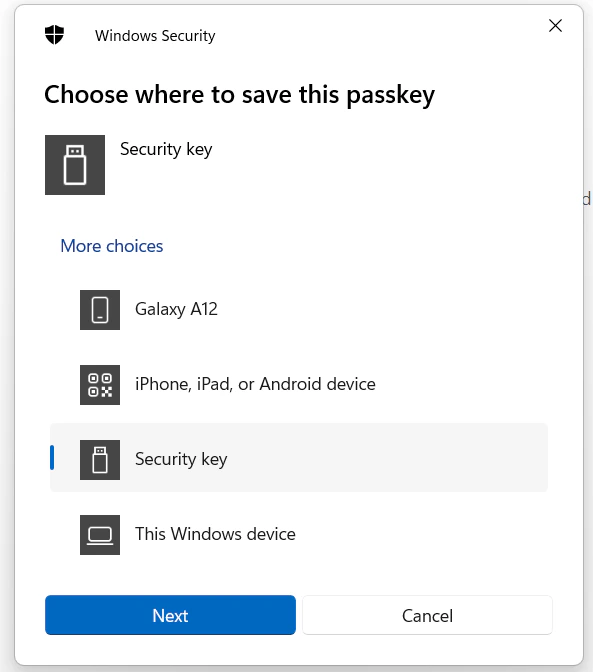
* Select `Windows Hello or external security key` > choose `Security key`.
* Authenticate with the key's **PIN** or **fingerprint**.
* Scan your **fingerprint** or enter your device **PIN**.
#### **Using a physical security key**
* Select `Windows Hello or external security key` > choose `Security key`.
* Authenticate with the key's **PIN** or **fingerprint**.
 #### **Using a phone or tablet**
* Select `Use a phone or tablet` to display a **QR code**.
#### **Using a phone or tablet**
* Select `Use a phone or tablet` to display a **QR code**.
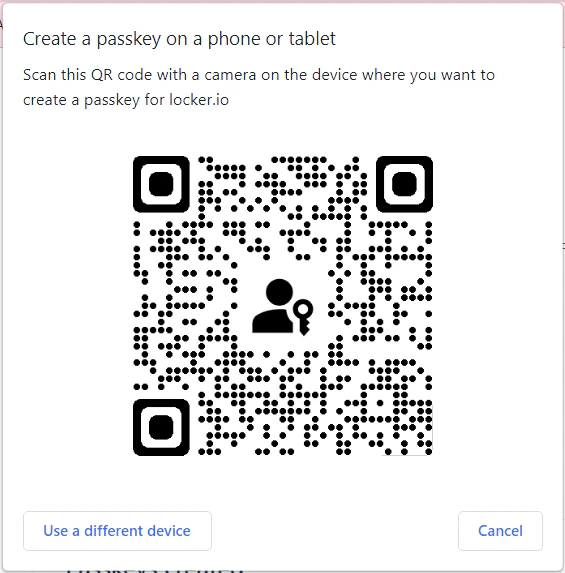 * Use the device storing your passkey to scan the **QR code** and confirm with **biometrics**.
Enter your **Master Password** to access the Vault.
Open the Locker mobile app, enter your **email**, and tap `Continue`.
Choose the passkey option compatible with your device:
* **On iOS:** Use a passkey stored in `iCloud Keychain` or a security key.
* **On Android:** Use a passkey stored in your `Google Account`.
Enter your **Master Password** to access the Vault.
***
## Log in with a physical security key
Physical security keys (YubiKey, VinCSS key, TrustKey, etc.) can replace both your password and 2FA method, allowing you to log in faster in a single step.
### Set up a physical security key
Log in to [id.locker.io](https://id.locker.io) > `Security` > `Login with Passkey`.
* Use the device storing your passkey to scan the **QR code** and confirm with **biometrics**.
Enter your **Master Password** to access the Vault.
Open the Locker mobile app, enter your **email**, and tap `Continue`.
Choose the passkey option compatible with your device:
* **On iOS:** Use a passkey stored in `iCloud Keychain` or a security key.
* **On Android:** Use a passkey stored in your `Google Account`.
Enter your **Master Password** to access the Vault.
***
## Log in with a physical security key
Physical security keys (YubiKey, VinCSS key, TrustKey, etc.) can replace both your password and 2FA method, allowing you to log in faster in a single step.
### Set up a physical security key
Log in to [id.locker.io](https://id.locker.io) > `Security` > `Login with Passkey`.
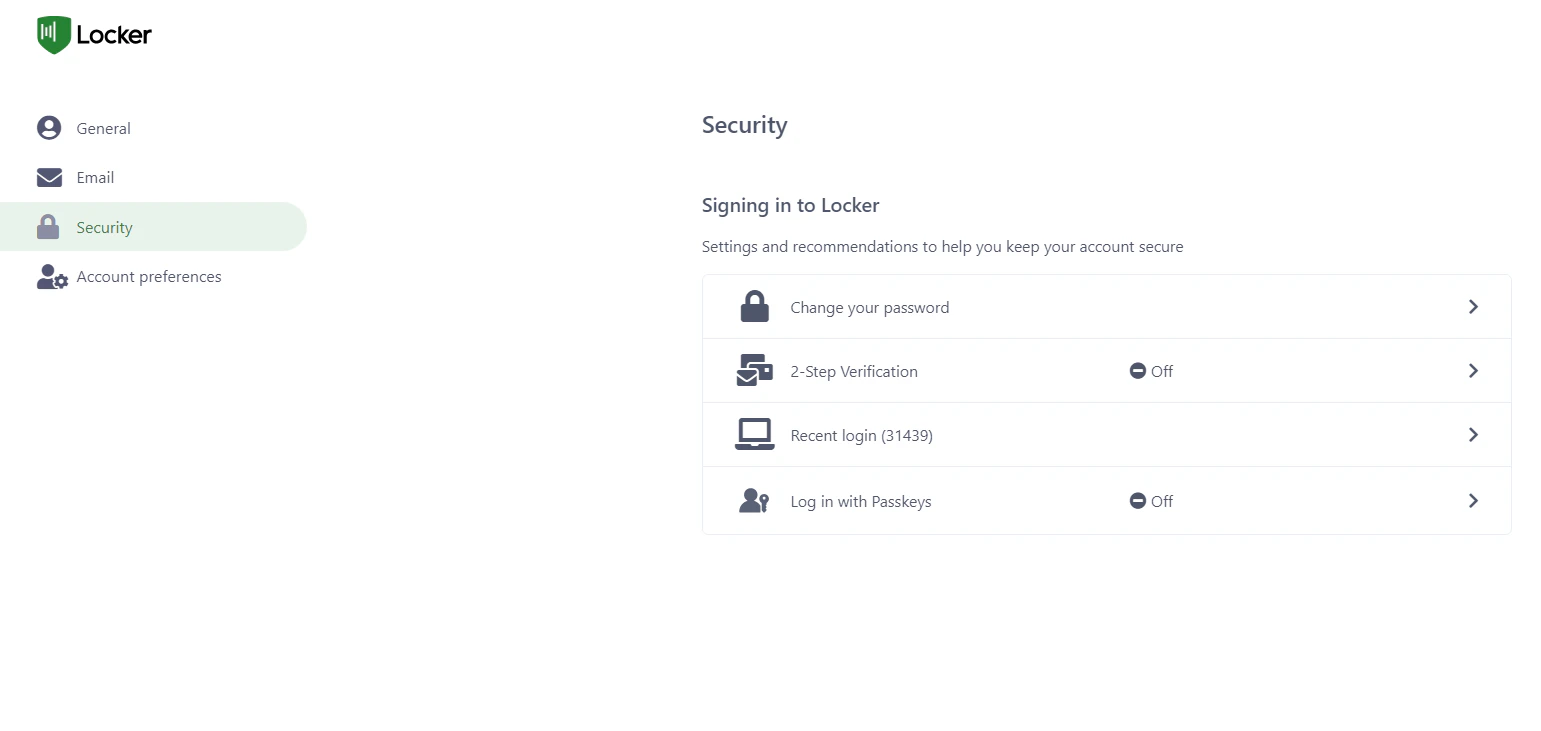 Click the `Create Passkey` button.
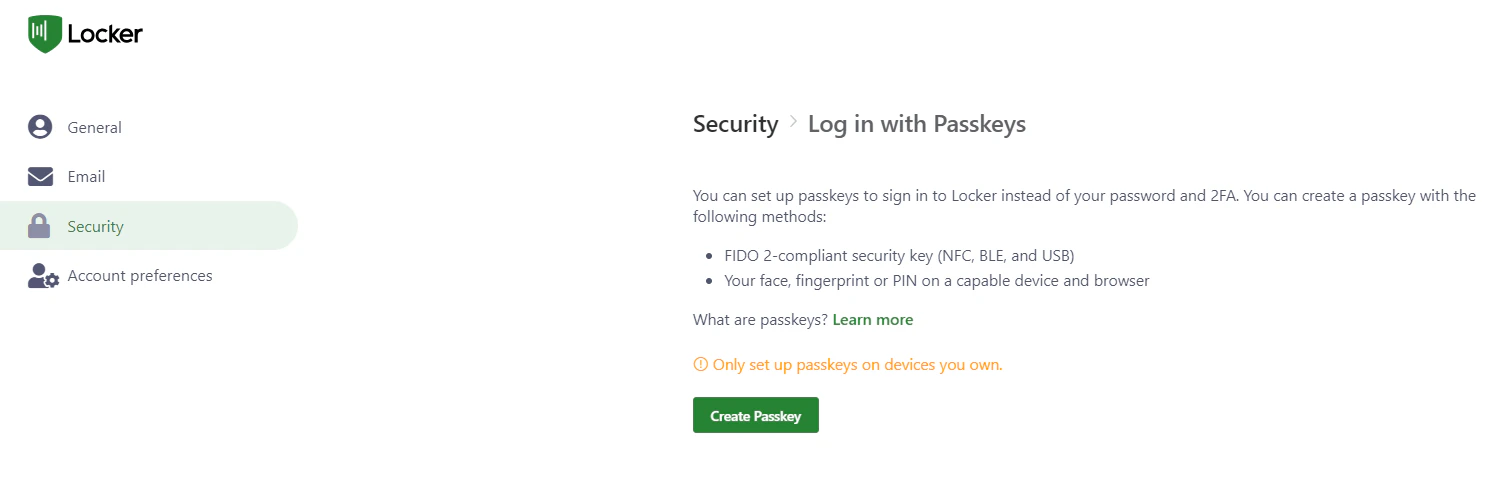 Select `Use another device` > `Security key` > `Next`. Connect the physical key to your computer.
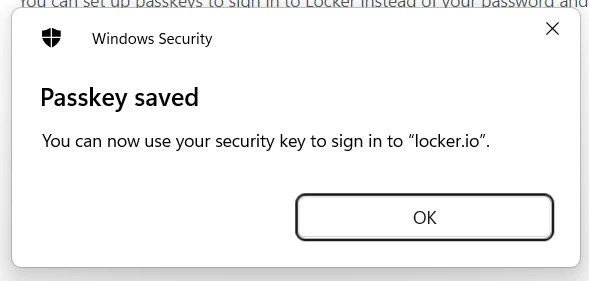
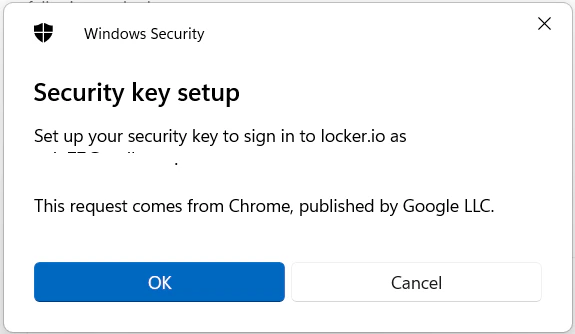 Authenticate with the key using its **PIN** or **fingerprint** until you see a success message.
 Currently, logging in with a physical security key on mobile is only supported on **iOS** devices.
Go to `Menu` > `Settings` > `Login with passkeys`. The system will redirect you to a browser for setup.
Tap `Create Passkey` > `Other Options` > `Security Key`.
Currently, logging in with a physical security key on mobile is only supported on **iOS** devices.
Go to `Menu` > `Settings` > `Login with passkeys`. The system will redirect you to a browser for setup.
Tap `Create Passkey` > `Other Options` > `Security Key`.
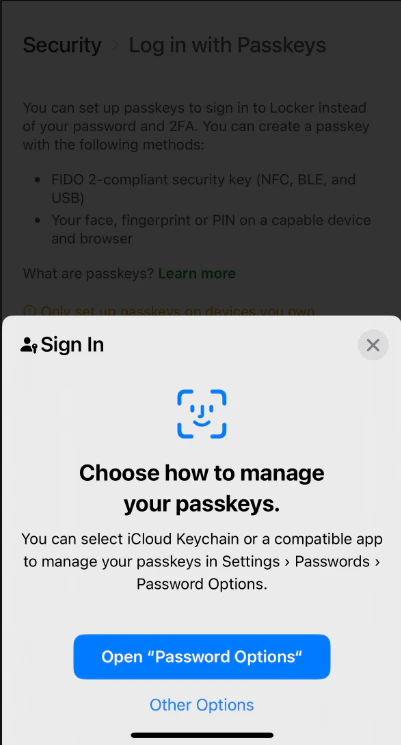 Plug in the key or tap it via **NFC** on your phone. Authenticate with **PIN** or **fingerprint**.
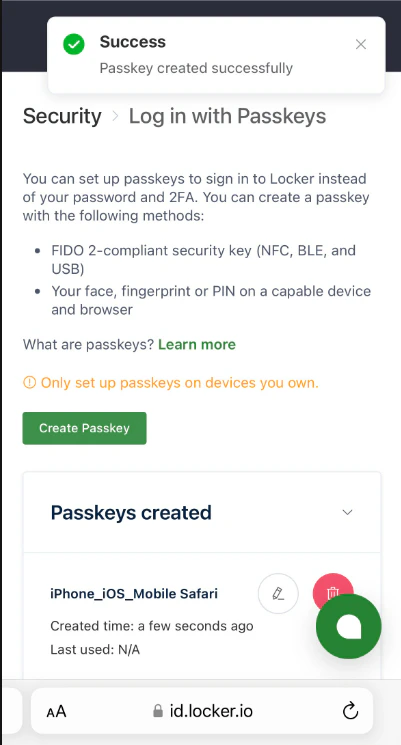
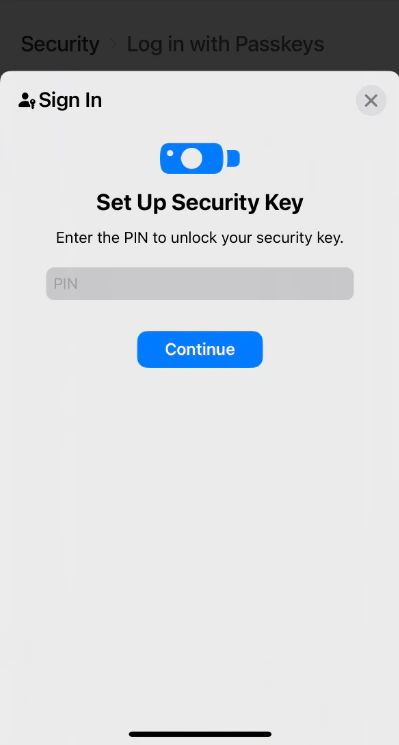 Once you see the success message, you can use this key to log in.
 ### How to log in with a physical security key
On the login page, enter your **email** and click `Continue`.
Select `Security key` > `Next` on the popup.
Connect the key to your computer and authenticate with **PIN** or **fingerprint**.
Enter your **Master Password** to access your data.
Open the app, enter your **email**, and tap `Continue`.
Choose `Security key` > `Continue`.
### How to log in with a physical security key
On the login page, enter your **email** and click `Continue`.
Select `Security key` > `Next` on the popup.
Connect the key to your computer and authenticate with **PIN** or **fingerprint**.
Enter your **Master Password** to access your data.
Open the app, enter your **email**, and tap `Continue`.
Choose `Security key` > `Continue`.
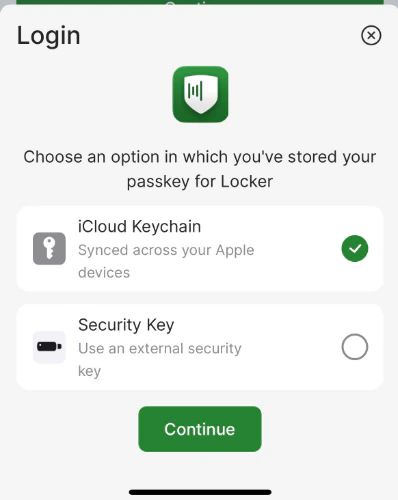 Connect the key via the port or **NFC** and authenticate with **biometrics** or **PIN**.
Enter your **Master Password** to access your data.
Connect the key via the port or **NFC** and authenticate with **biometrics** or **PIN**.
Enter your **Master Password** to access your data.