> ## Documentation Index
> Fetch the complete documentation index at: https://support.locker.io/llms.txt
> Use this file to discover all available pages before exploring further.
# What are Passkeys? Create passkeys for your Locker account
> A detailed guide on creating and managing passkeys for passwordless login to Locker
## What are Passkeys?
Passkeys are a replacement for passwords. While a password is something you memorize and type in, a passkey is a public-private key pair stored on your device, unlocked with **biometrics** or a device **PIN**.
## Devices that support Passkeys
### You can create passkeys on the following devices
* Laptops or desktops running **Windows 10**, **macOS Ventura**, or **ChromeOS 109** or later.
* Mobile devices running **iOS 16** or **Android 9** or later.
* Hardware security keys supporting the **FIDO2** protocol, such as YubiKey or [VinCSS security keys](https://passwordless.vincss.net/authenticator/).
### Using passkeys across multiple devices
**Passkeys created on iOS or iPadOS can be used on:**
* The same iPhone or iPad where they were created.
* Other iPhones, iPads, and Macs signed in with the same **Apple ID** (synced via iCloud Keychain).
* Other devices using cross-device authentication: Windows (Edge/Chrome), Chromebook, Ubuntu.
**Passkeys created on Android can be used on:**
* The same Android device where they were created.
* Other Android devices signed in with the same **Google Account**.
* Other devices (iPhone, Mac, Windows) by scanning a QR code.
***
## Create and manage passkeys with Locker
You can create multiple passkeys on your devices to log in to **Locker** instead of using a password and two-factor authentication (2FA).
### Create a passkey with Locker
Go to [id.locker.io](https://id.locker.io) in your browser and log in.
Or on the mobile app, go to `Menu` > `Settings` > `Login with passkeys`.
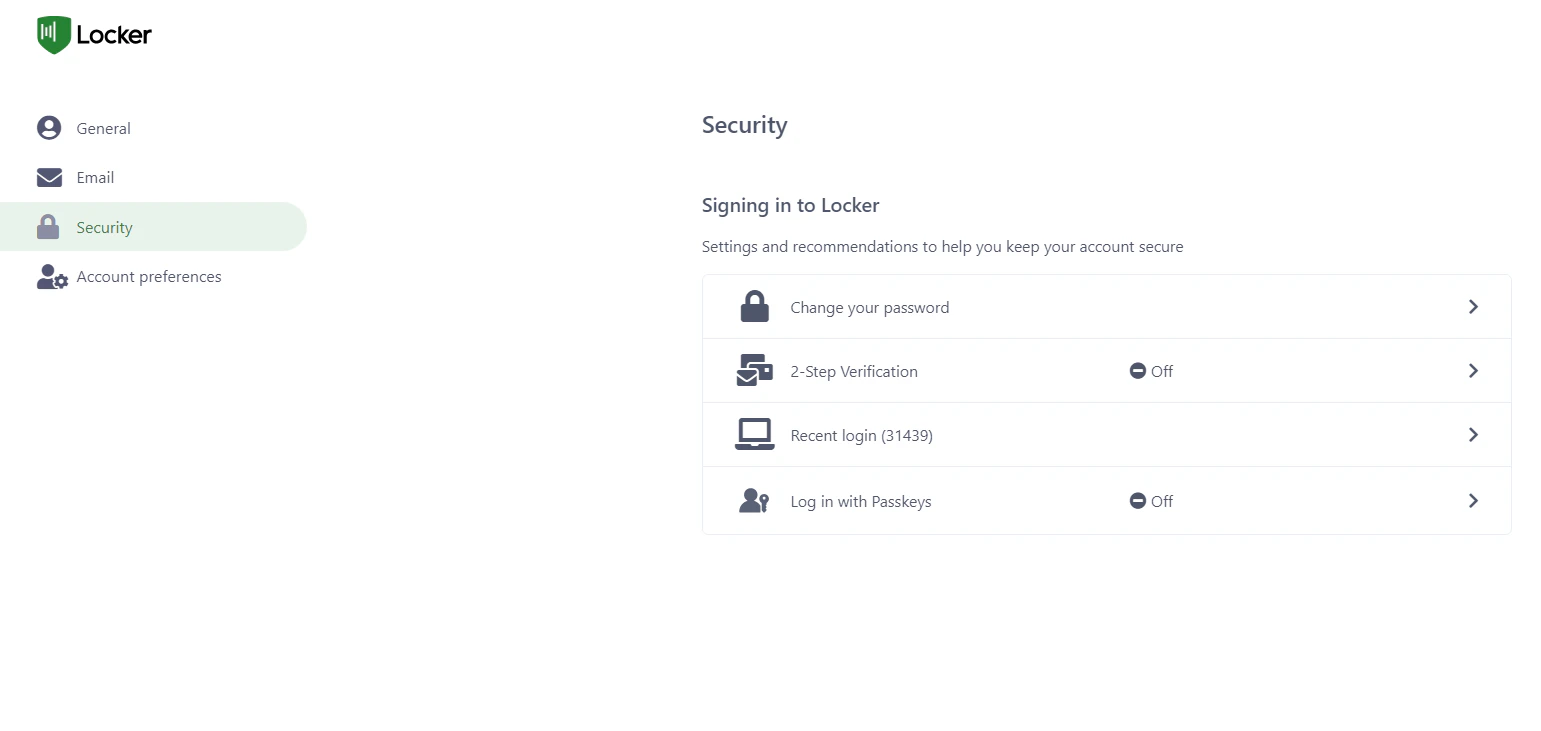
Click the `Security` tab and select `Login with Passkey`.
 Click the `Create Passkey` button.
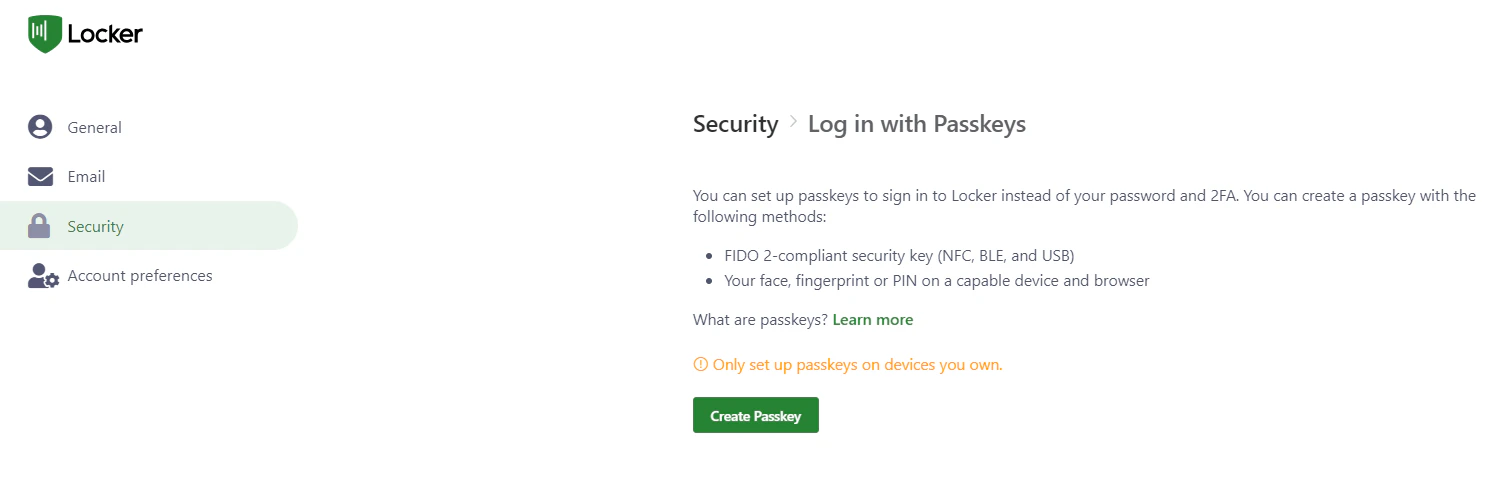 The system will display an authentication window. Choose the method that suits you:
#### **Using Windows Hello**
* Select `Windows Hello or external security key` > Choose `Fingerprint` or `PIN`.
The system will display an authentication window. Choose the method that suits you:
#### **Using Windows Hello**
* Select `Windows Hello or external security key` > Choose `Fingerprint` or `PIN`.
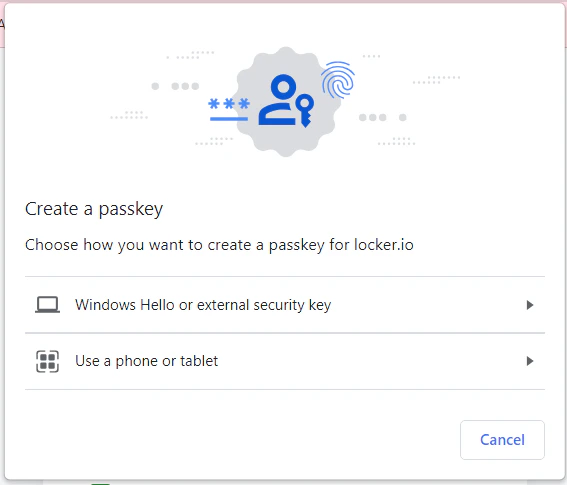 * Scan your **fingerprint** or enter your computer **PIN** to confirm.
#### **Using a physical security key**
If you own a security key (such as YubiKey or VinCSS) and have connected it to your computer (via USB/BLE):
* Select `Windows Hello or external security key` > choose `Security key`.
* Scan your **fingerprint** or enter your computer **PIN** to confirm.
#### **Using a physical security key**
If you own a security key (such as YubiKey or VinCSS) and have connected it to your computer (via USB/BLE):
* Select `Windows Hello or external security key` > choose `Security key`.
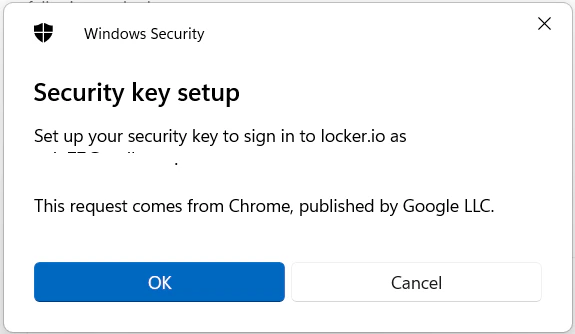 * Scan your **fingerprint** or enter the security key **PIN** to confirm.
#### **Using a phone or tablet**
You can save your login credential on a personal mobile device:
* Select `Use a phone or tablet`. A **QR code** will appear on your computer screen.
* Scan your **fingerprint** or enter the security key **PIN** to confirm.
#### **Using a phone or tablet**
You can save your login credential on a personal mobile device:
* Select `Use a phone or tablet`. A **QR code** will appear on your computer screen.
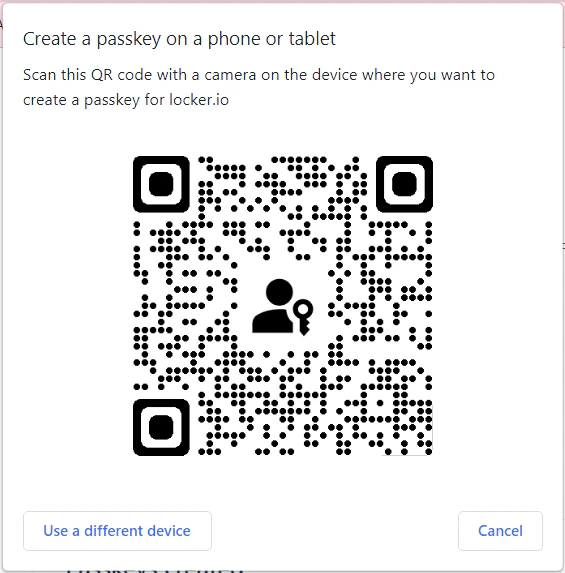 * Use your phone or tablet to scan the **QR code** and confirm with **face**, **fingerprint**, or device **PIN**.
You are all set! You can now log in to **Locker** using the passkey you just created.
### View your created passkeys
To view and manage your passkeys, go to `Security` > `Login with Passkey`. The list shows:
* The device where the passkey was created.
* Creation date.
* Last used date.
* Use your phone or tablet to scan the **QR code** and confirm with **face**, **fingerprint**, or device **PIN**.
You are all set! You can now log in to **Locker** using the passkey you just created.
### View your created passkeys
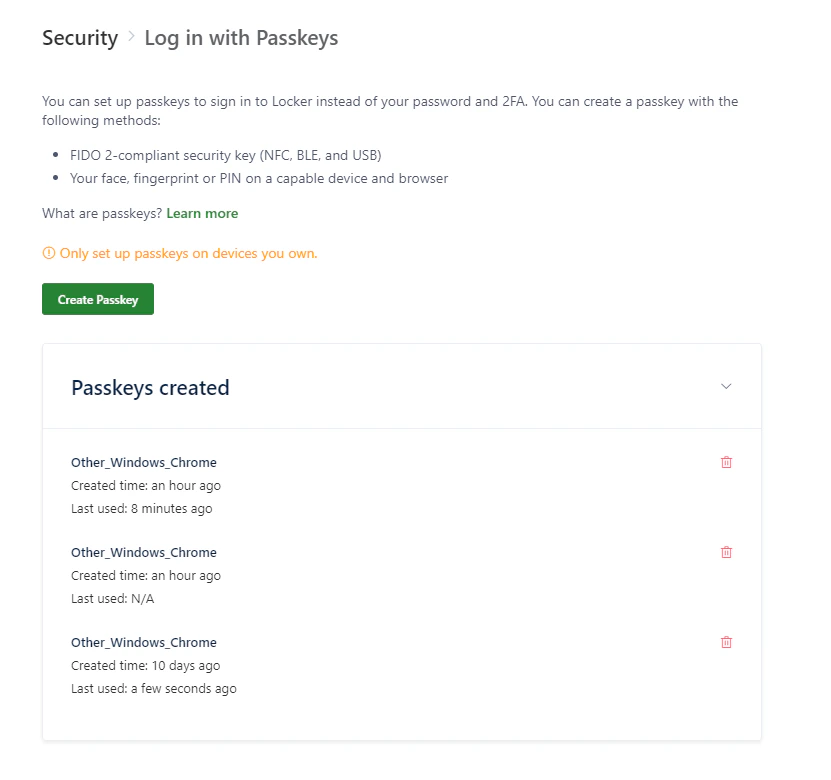
To view and manage your passkeys, go to `Security` > `Login with Passkey`. The list shows:
* The device where the passkey was created.
* Creation date.
* Last used date.
 ### Delete a passkey
If you no longer want to use a specific passkey, you can remove it from your account:
In the list of created passkeys, click the `Delete` (trash) icon next to the passkey you want to remove.
### Delete a passkey
If you no longer want to use a specific passkey, you can remove it from your account:
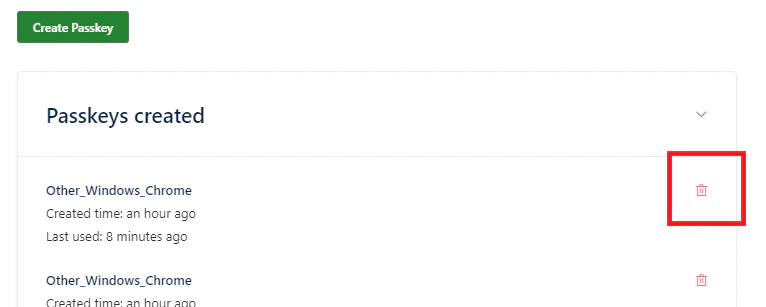
In the list of created passkeys, click the `Delete` (trash) icon next to the passkey you want to remove.
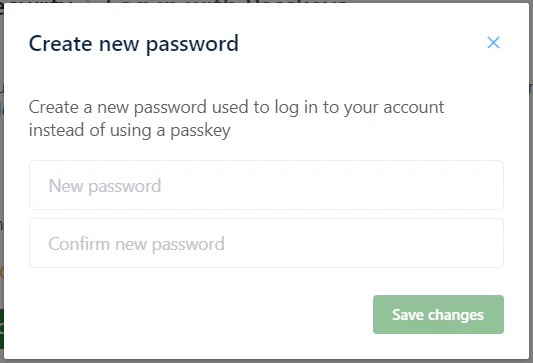
 **Note:** If you delete your last or only passkey, the system will require you to create a password as an alternative login method.
Enter a **new password** and click `Save Changes` to complete the deletion.
**Note:** If you delete your last or only passkey, the system will require you to create a password as an alternative login method.
Enter a **new password** and click `Save Changes` to complete the deletion.