> ## Documentation Index
> Fetch the complete documentation index at: https://support.locker.io/llms.txt
> Use this file to discover all available pages before exploring further.
# Two-factor authentication for Locker account
> Add an extra layer of security to your Locker account by setting up two-factor authentication (2FA)
Add an extra layer of security to your Locker account by setting up two-factor authentication (2FA). Follow the instructions below to enable 2FA for Locker.
## Getting started with 2FA
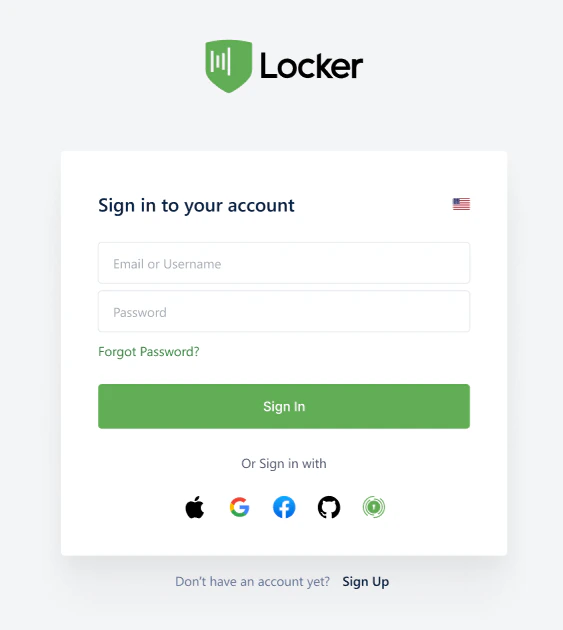
Log in to your Locker account on the web app.
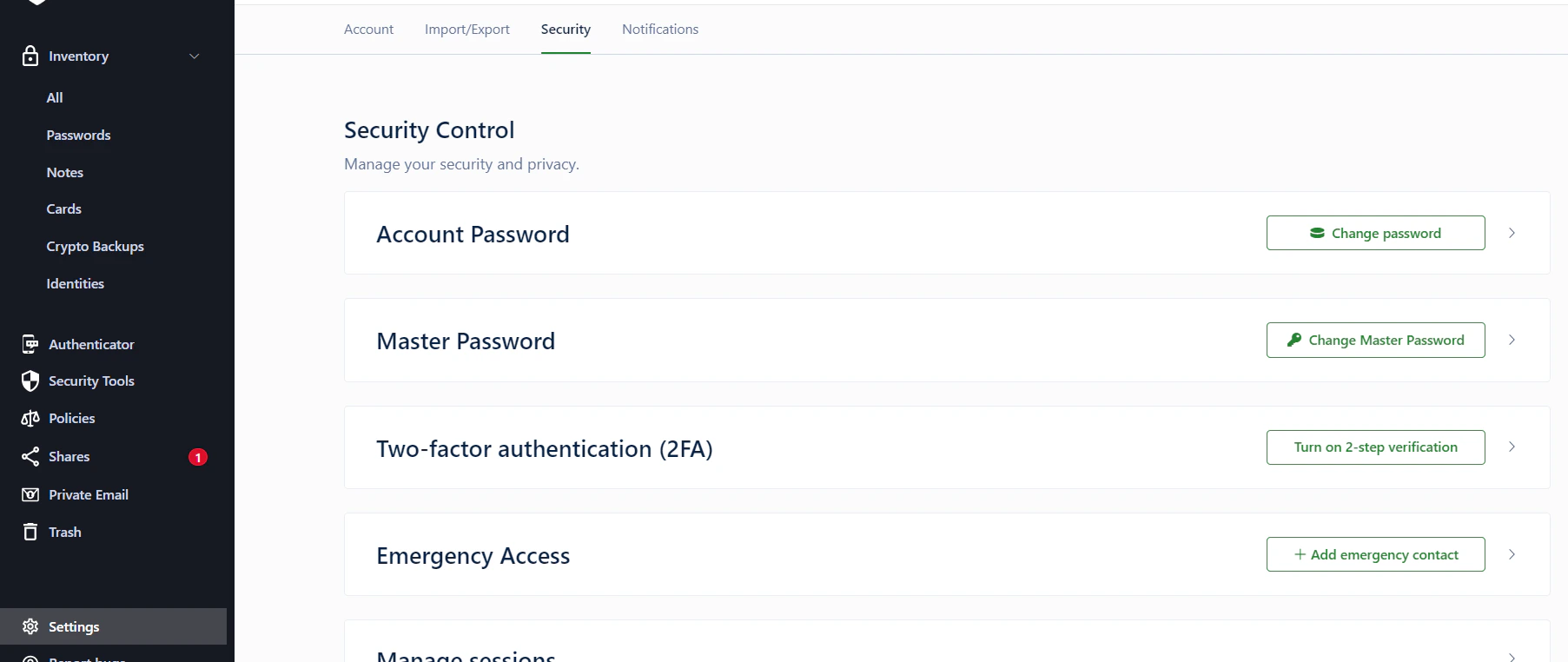
 Go to `Settings` > `Security` > `Two-factor Authentication (2FA)`. Click the `Enable authentication` button.
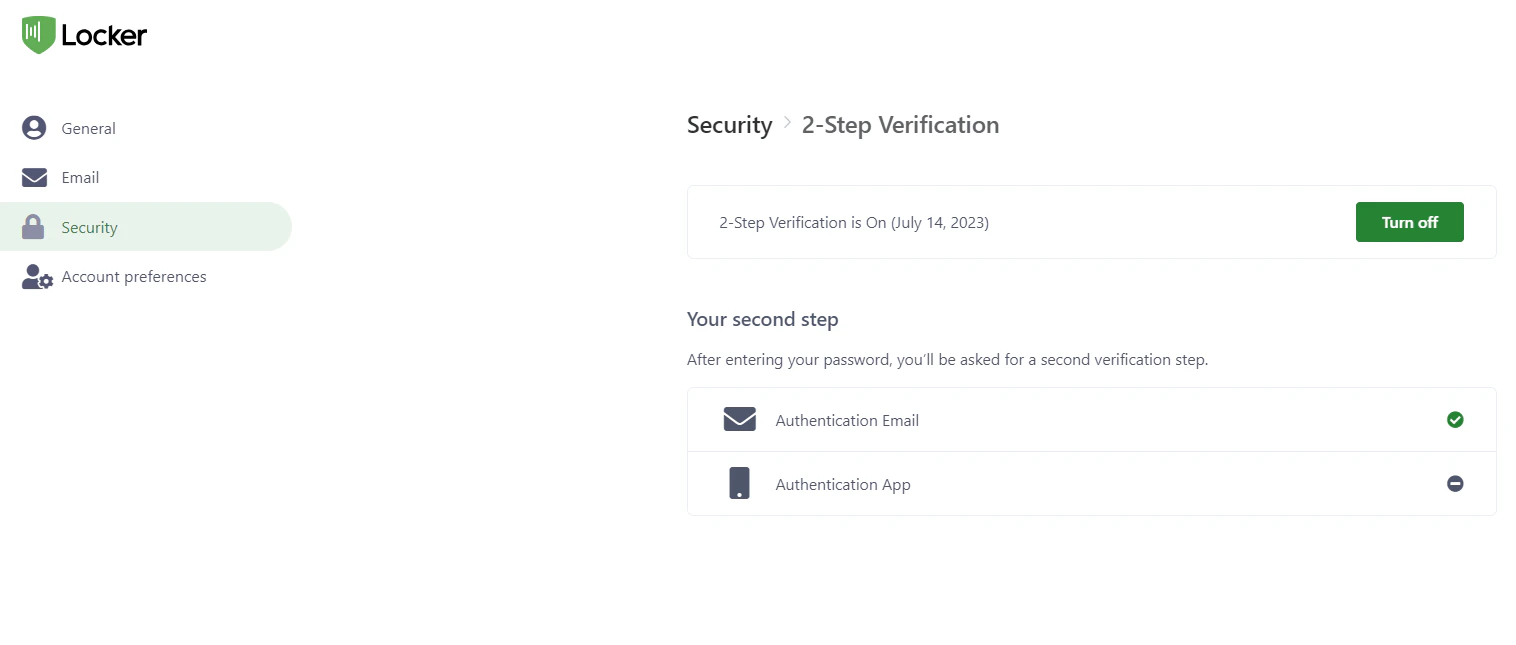
 You will be redirected to the configuration page where you can select your preferred method.
 ***
## Setup methods
Select **Email authentication** and click the `Activate` button.
***
## Setup methods
Select **Email authentication** and click the `Activate` button.
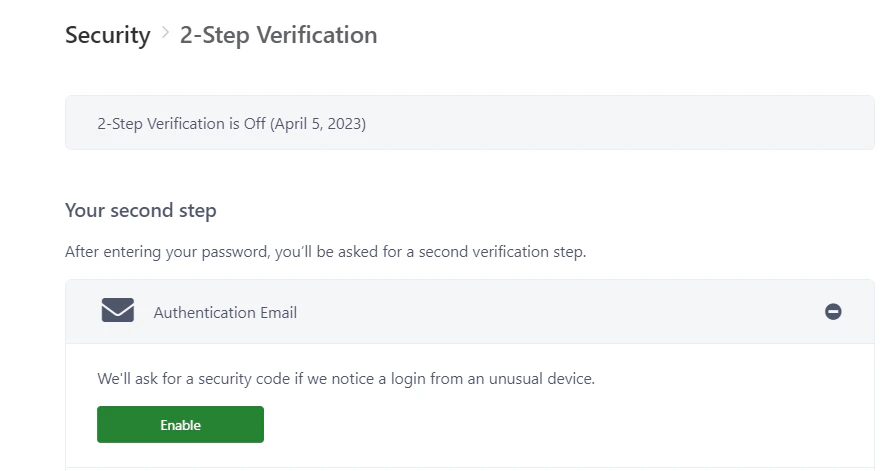 In the popup that appears, click `Continue` to receive an OTP code via your registered email.
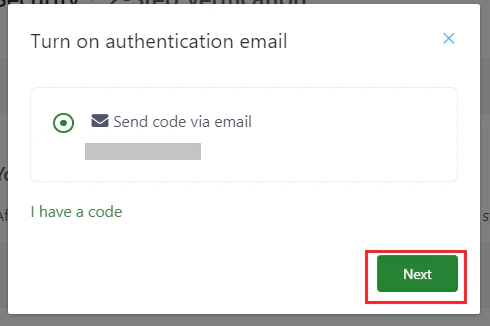 Enter the OTP sent to your email and click `Confirm`.
**Note:** To disable this method, click the `Disable` button in this section and enter the OTP from your email to confirm.
### Set up 2FA steps
Select **Authenticator app**.
Enter the OTP sent to your email and click `Confirm`.
**Note:** To disable this method, click the `Disable` button in this section and enter the OTP from your email to confirm.
### Set up 2FA steps
Select **Authenticator app**.
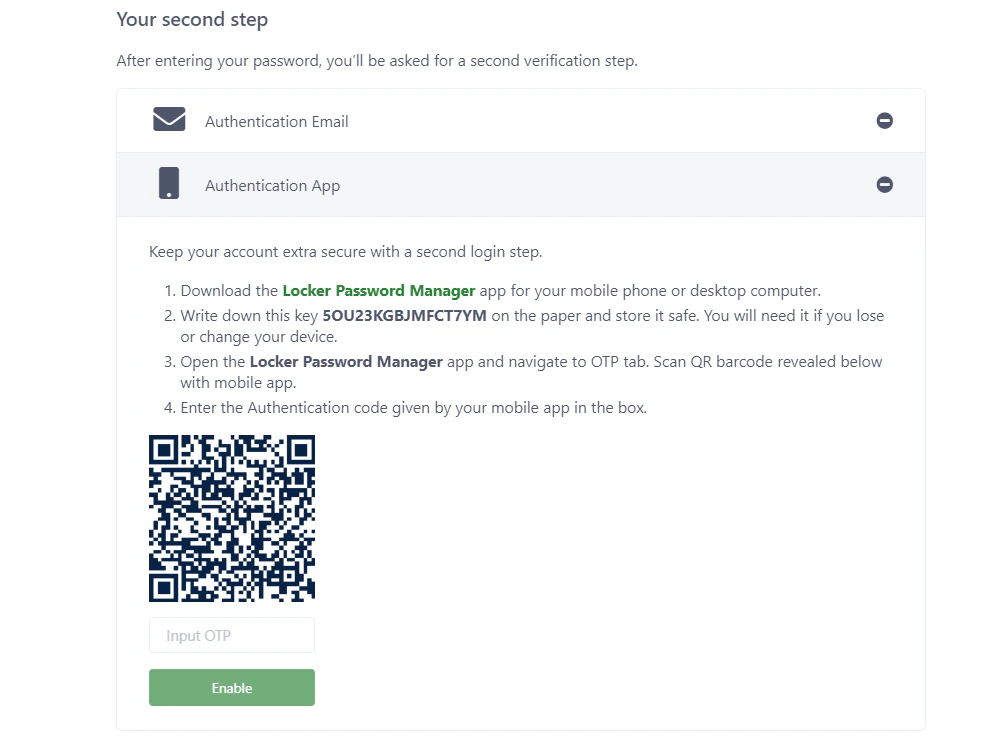 [Install the Locker app](https://locker.io/download) for desktop or mobile on another device to use as your authenticator app, or use another authenticator app like Google Authenticator, Authy,...
Log in and follow the on-screen instructions to enable 2FA.
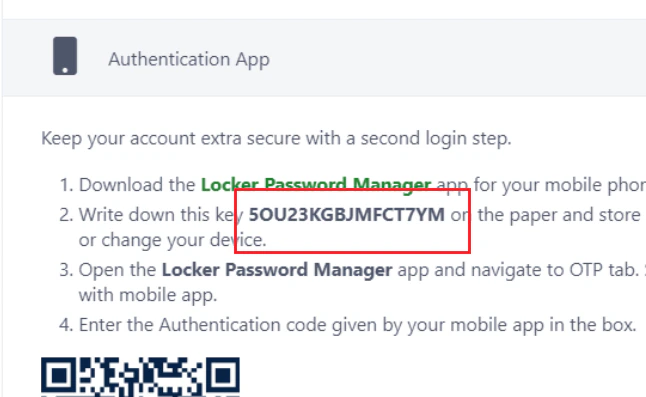
You should write down your **Recovery code** and keep it in a safe place in case you lose access to your base device.
[Install the Locker app](https://locker.io/download) for desktop or mobile on another device to use as your authenticator app, or use another authenticator app like Google Authenticator, Authy,...
Log in and follow the on-screen instructions to enable 2FA.
You should write down your **Recovery code** and keep it in a safe place in case you lose access to your base device.
 ### 2FA recovery
If you lose access to your authenticator app, you can use your recovery code to generate a login OTP:
Open the Locker authenticator (or any authenticator app) and choose to add a new OTP code.
Name the OTP entry and enter the **recovery code** that was provided to you earlier.
### 2FA recovery
If you lose access to your authenticator app, you can use your recovery code to generate a login OTP:
Open the Locker authenticator (or any authenticator app) and choose to add a new OTP code.
Name the OTP entry and enter the **recovery code** that was provided to you earlier.
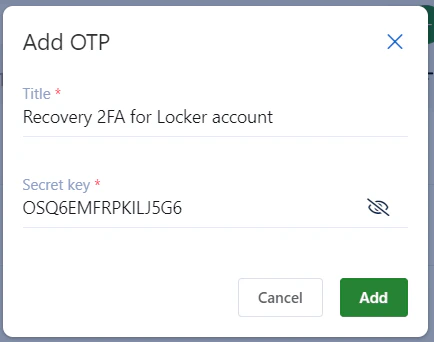 Click the `Add` button. The app will generate a 6-digit TOTP code.
Use the newly generated TOTP code to complete the second login step for your Locker account.
Click the `Add` button. The app will generate a 6-digit TOTP code.
Use the newly generated TOTP code to complete the second login step for your Locker account.