> ## Documentation Index
> Fetch the complete documentation index at: https://support.locker.io/llms.txt
> Use this file to discover all available pages before exploring further.
# Accept an Emergency Access invitation
> How to accept an invitation and request emergency access to another user's vault
When another Locker user invites you as a trusted contact, you will receive an email notification. You can manage and exercise these permissions through the web app.
## Accepting the invitation
You can accept an invitation in two ways:
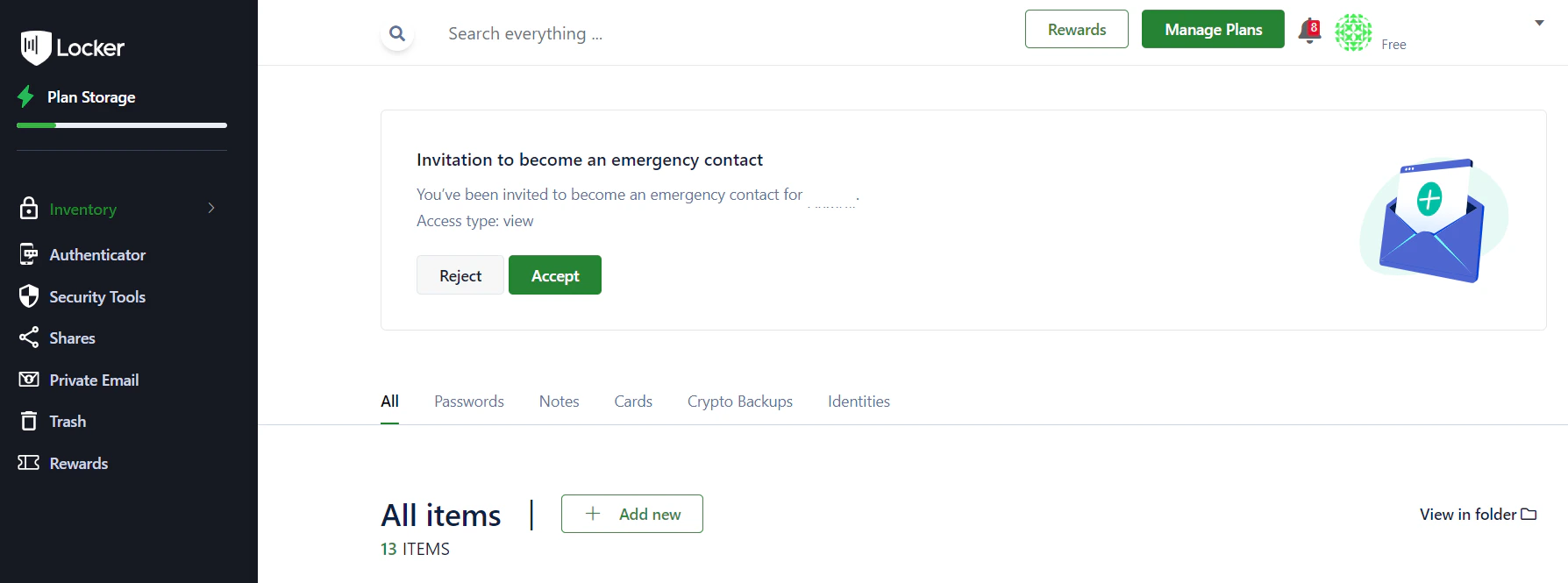
Log in to your Locker account on the web app.
On the homepage, you will see the invitation notification. Click `Accept`.
 Navigate to `Settings` > `Security` > scroll down to the **Emergency Access** section.
In the pending invitations list, click the three-dot button next to the user's name and select `Accept` or `Remove`.
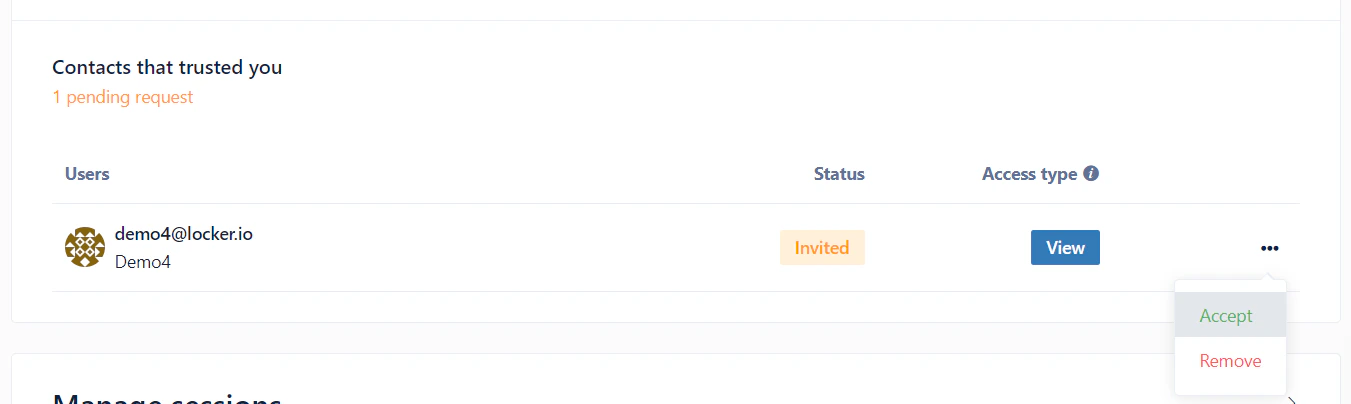
Navigate to `Settings` > `Security` > scroll down to the **Emergency Access** section.
In the pending invitations list, click the three-dot button next to the user's name and select `Accept` or `Remove`.
 ***
## Requesting emergency access
Once you are a trusted contact, you can request access to the grantor's vault when needed:
Go to `Settings` > `Security` > **Emergency Access**, click the three-dot button next to the grantor's name and select `Request access`.
When the confirmation dialog appears, click `Yes`.
***
## Requesting emergency access
Once you are a trusted contact, you can request access to the grantor's vault when needed:
Go to `Settings` > `Security` > **Emergency Access**, click the three-dot button next to the grantor's name and select `Request access`.
When the confirmation dialog appears, click `Yes`.
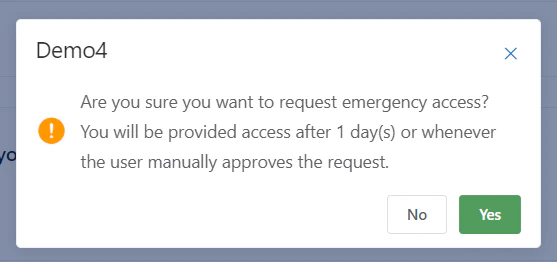 You will be granted access after the wait time configured by the grantor has elapsed, or immediately if they manually approve your request.
***
## Accessing the vault
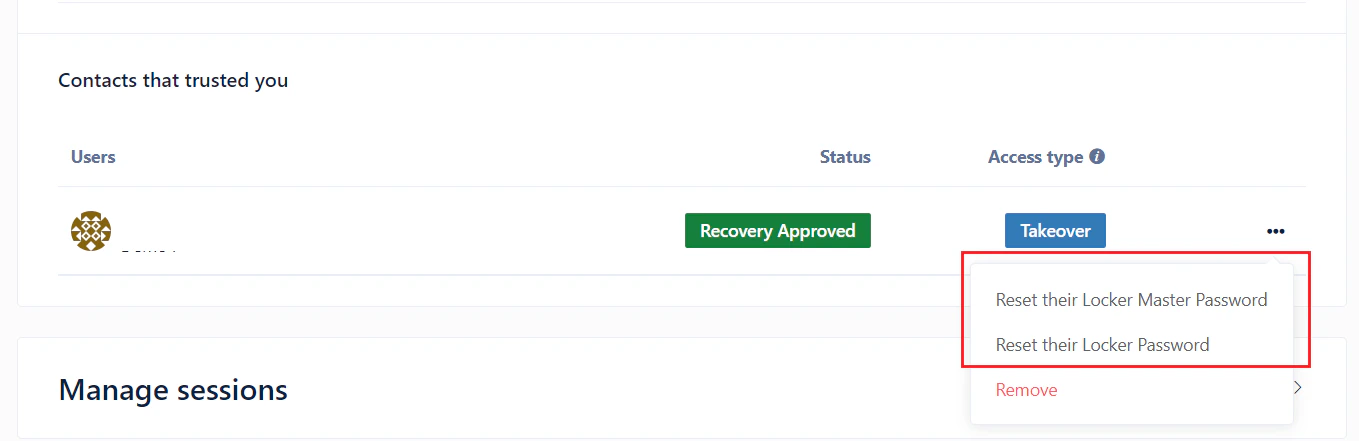
After your request is approved, click the three-dot button next to the grantor's name to choose your access method:
The items in the grantor's vault will be displayed directly on your screen.
You will be granted access after the wait time configured by the grantor has elapsed, or immediately if they manually approve your request.
***
## Accessing the vault
After your request is approved, click the three-dot button next to the grantor's name to choose your access method:
The items in the grantor's vault will be displayed directly on your screen.
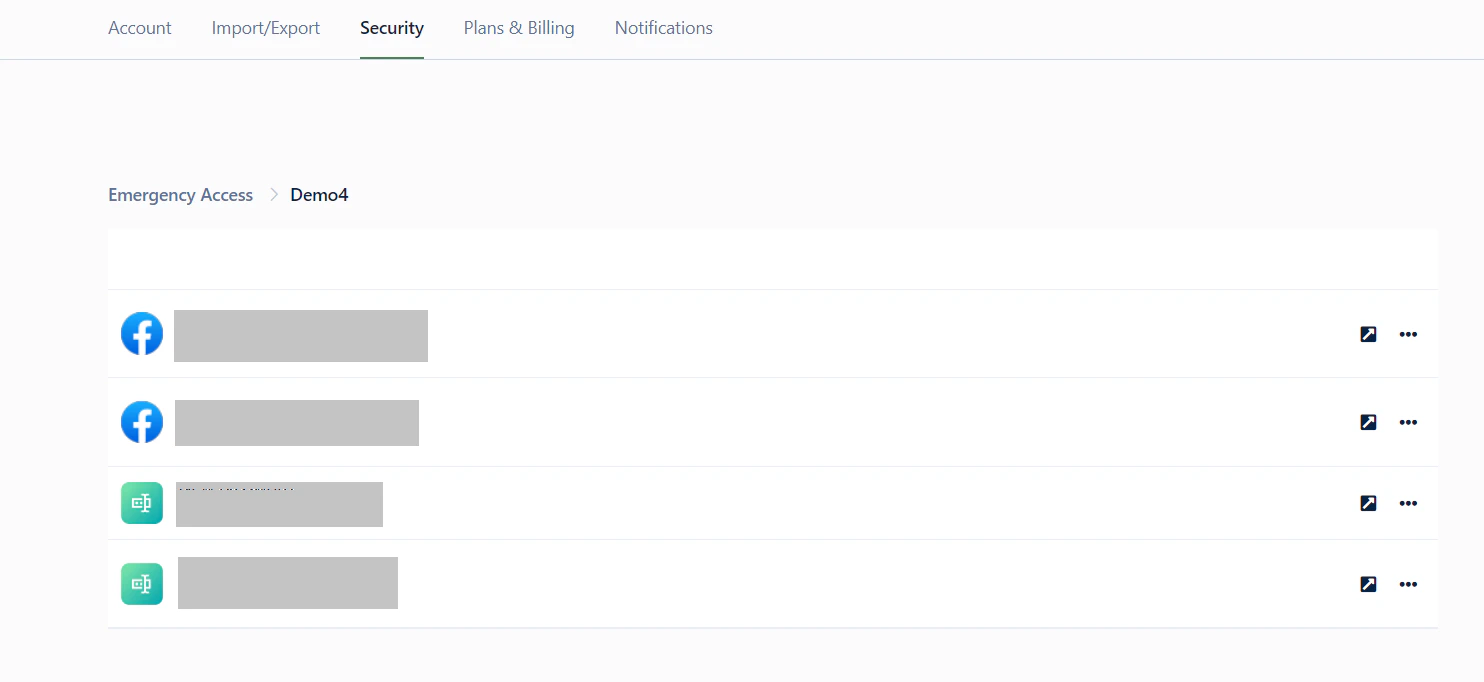 You can reset the grantor's password or Master Password. After saving, log in with their email and the newly created credentials to manage their entire vault.