> ## Documentation Index
> Fetch the complete documentation index at: https://support.locker.io/llms.txt
> Use this file to discover all available pages before exploring further.
# Use FIDO2 security keys as Passkeys
> Replace traditional passwords and MFA with a physical security key for fast and secure Locker login
Locker supports physical security keys as a standalone login method (**Passkey**). Once set up, you can use a FIDO2 key to completely replace both the password entry step and traditional 2FA.
## Why can a security key replace both passwords and MFA?
Using a physical security key meets the highest security standards by combining:
* **Something you have:** The physical security key.
* **Something you know:** The PIN code of the security key.
* **Something you are:** A fingerprint (biometric) stored on the key.
When using a security key to log in, you will not need to enter a password or complete 2FA verification (if enabled).
***
## Setting up a security key as a Passkey
You can create Passkeys with multiple different security keys on the same account.
### On the Web App
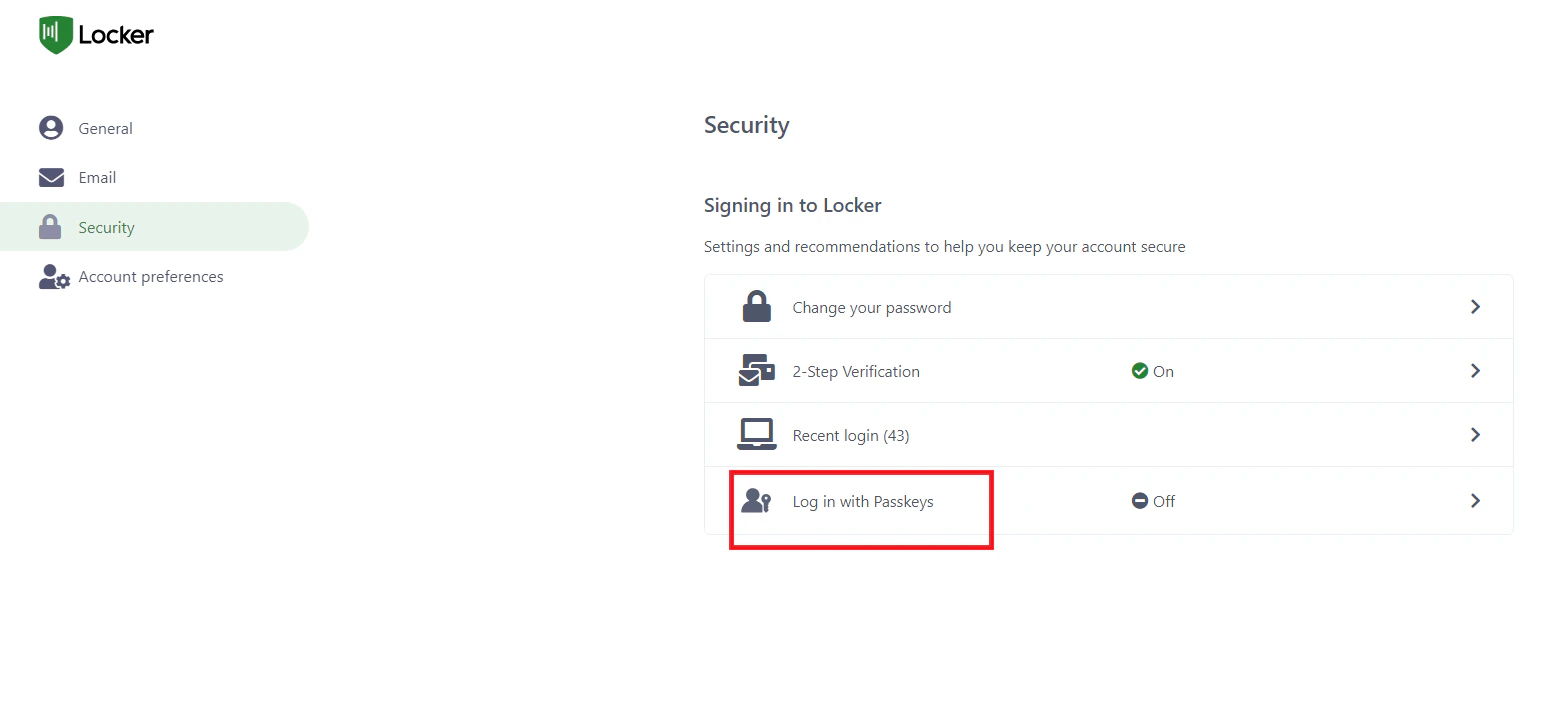
Navigate to [id.locker.io](https://id.locker.io), log in to your account and go to the `Security` page > `Login with passkey`.
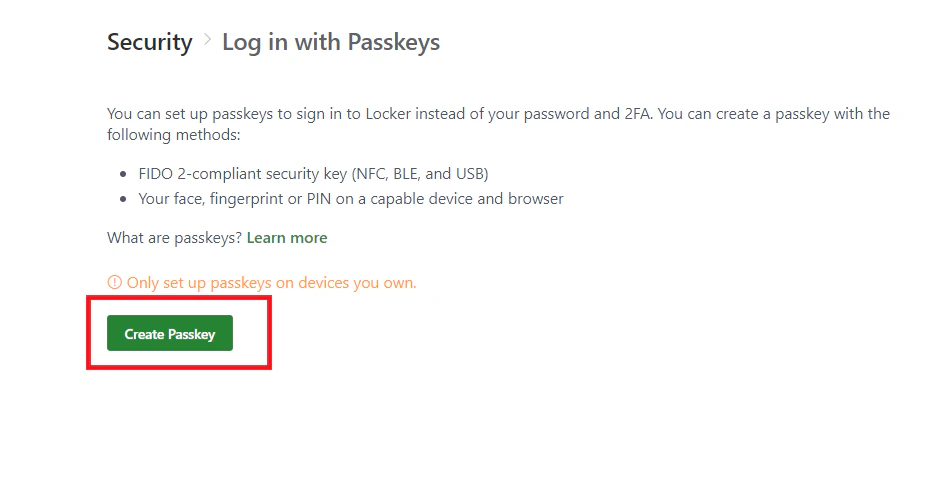
 Plug your security key into a USB port or connect it via Bluetooth, then click the `Create Passkey` button.
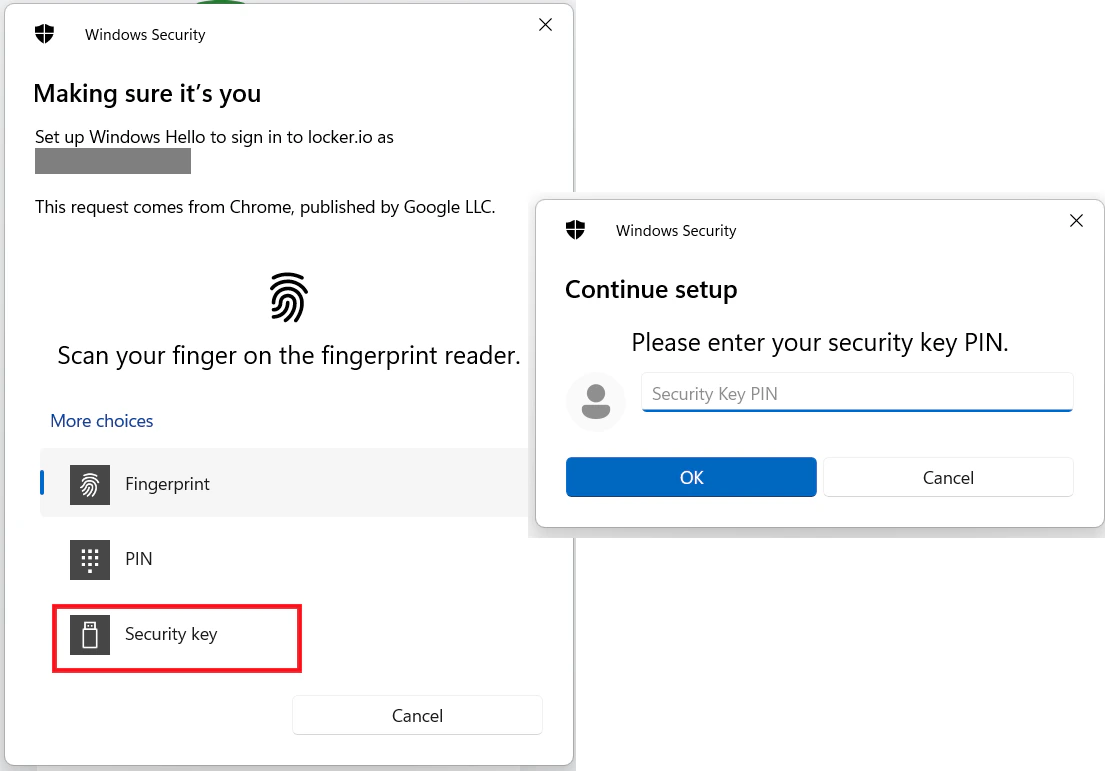
 In the system dialog, select the **Security key** option. Enter the key's PIN or touch your fingerprint to authenticate.
 ### On mobile devices
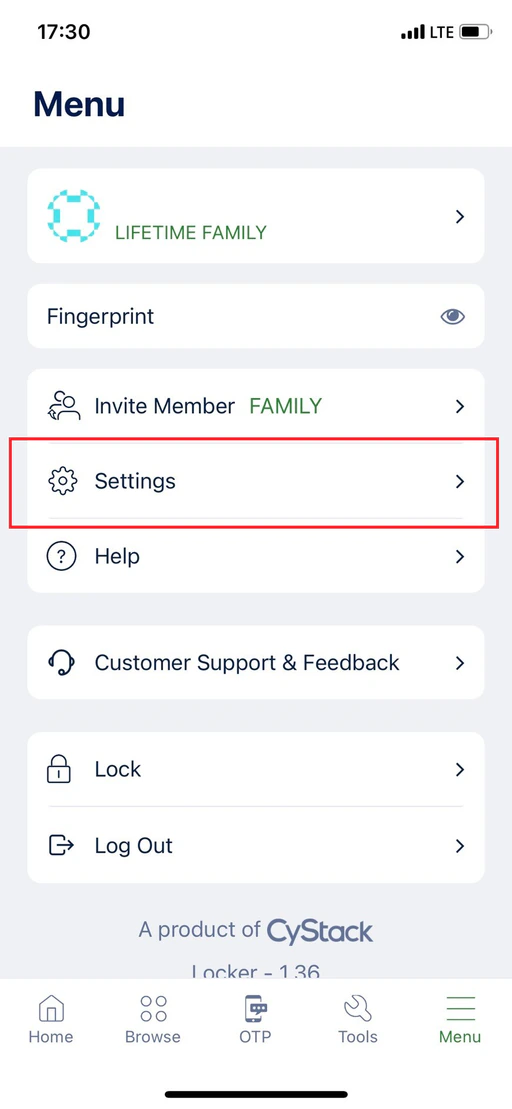
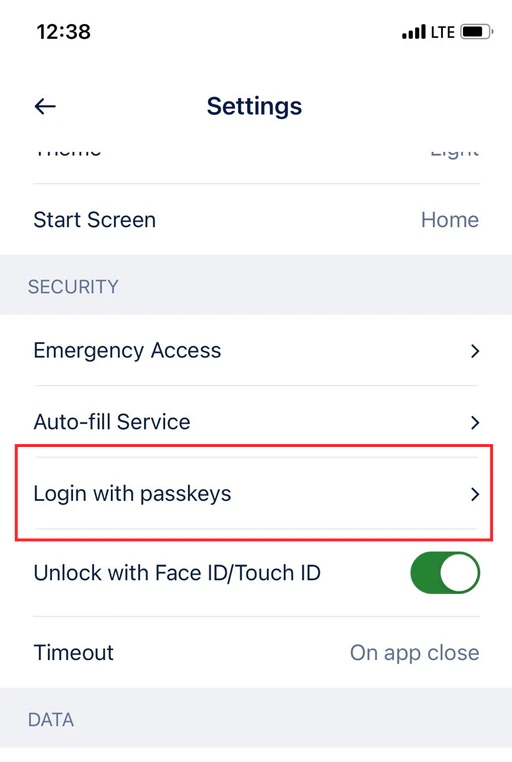
Log in to the mobile app, go to the `Menu` tab > `Settings`.
### On mobile devices
Log in to the mobile app, go to the `Menu` tab > `Settings`.
 Choose `Login with passkeys`.
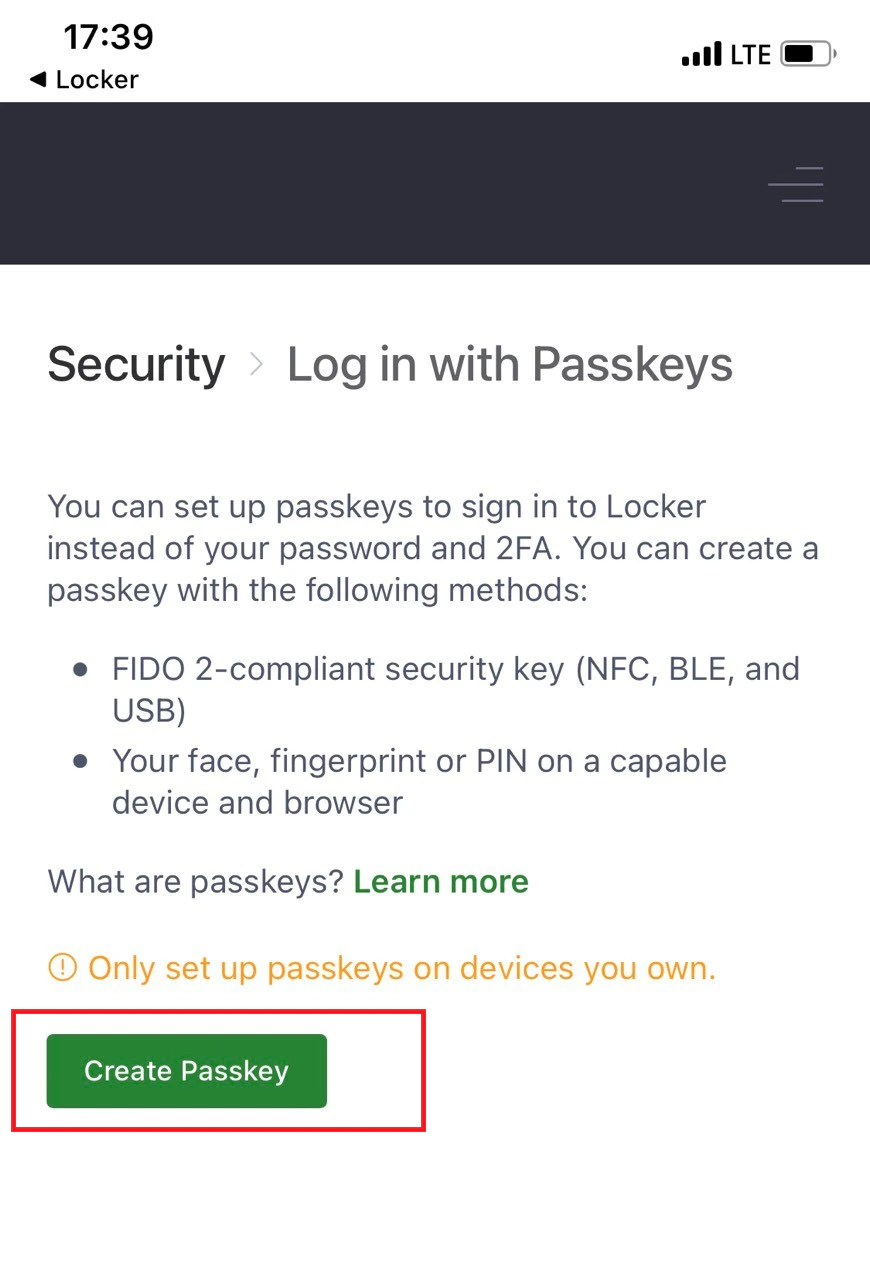
 Connect the key to your phone via NFC or Bluetooth, then tap the `Create passkey` button.
 Select the **Security key** option from the popup, then enter your PIN or use your fingerprint to complete the setup.
***
Once the setup is complete, your security key will appear in the list and you can use it to log in to Locker in a single step.
Select the **Security key** option from the popup, then enter your PIN or use your fingerprint to complete the setup.
***
Once the setup is complete, your security key will appear in the list and you can use it to log in to Locker in a single step.