> ## Documentation Index
> Fetch the complete documentation index at: https://support.locker.io/llms.txt
> Use this file to discover all available pages before exploring further.
# Autofill logins from extensions
> Autofill is the key feature that helps you enjoy a safe and seamless internet experience. Once you save any login credentials, Locker will automatically detect the corresponding website and fill in your login information.
Autofill is the key feature that helps you enjoy a safe and seamless internet experience. Once you save any login credentials, Locker will automatically detect the corresponding website and fill in your login information.
## Add passwords while browsing the web
You can add passwords to your vault through the Locker browser extension in several ways - while logging into a website, signing up for a new account, or adding directly to the extension.
See how to add passwords below:
### When logging into a website
Navigate to your desired website.
Enter your username and password for that website and proceed to complete the login process.
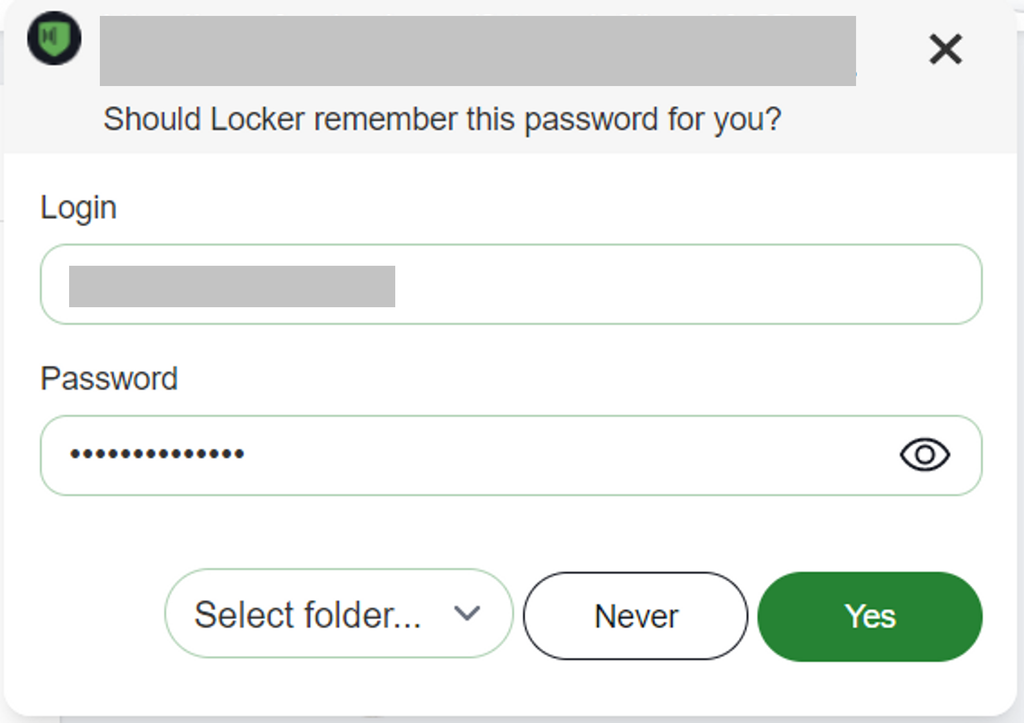
Locker will offer to save these credentials to your vault. When prompted, click **Yes** to add the website entry as a new item.
 ### When signing up for a new online account
Navigate to your desired website.
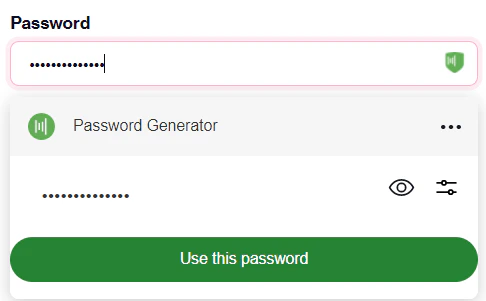
Fill in the required information to register a new account. You can use the strong password suggested by Locker. Click the Locker icon next to the password input field and select **Generate a strong password**.
### When signing up for a new online account
Navigate to your desired website.
Fill in the required information to register a new account. You can use the strong password suggested by Locker. Click the Locker icon next to the password input field and select **Generate a strong password**.
 Proceed to log in with your new account.
Locker will offer to save these login credentials to your vault. On the extension popup, click **Add** to add it as a new item.
## Autofill passwords
If you have already saved login credentials for a website, Locker will automatically log you in depending on your settings.
To autofill with Locker on a specific website:
Click inside the login input field. Locker will display a dropdown list of matching login credentials for that website.
The dropdown list will appear empty if you have not saved any login credentials for that website.
Select the login credentials you want to fill and Locker will automatically fill in the username and password for you.
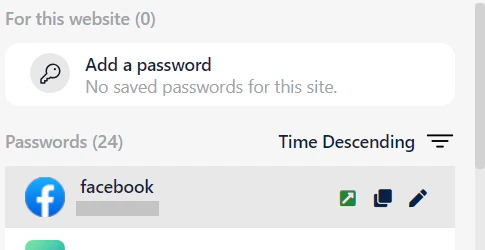
You can also visit any website from the Locker extension or web app and autofill and log in. Simply click the **Open website** icon of a saved password in your Vault to navigate to the corresponding website.
Proceed to log in with your new account.
Locker will offer to save these login credentials to your vault. On the extension popup, click **Add** to add it as a new item.
## Autofill passwords
If you have already saved login credentials for a website, Locker will automatically log you in depending on your settings.
To autofill with Locker on a specific website:
Click inside the login input field. Locker will display a dropdown list of matching login credentials for that website.
The dropdown list will appear empty if you have not saved any login credentials for that website.
Select the login credentials you want to fill and Locker will automatically fill in the username and password for you.
You can also visit any website from the Locker extension or web app and autofill and log in. Simply click the **Open website** icon of a saved password in your Vault to navigate to the corresponding website.