> ## Documentation Index
> Fetch the complete documentation index at: https://support.locker.io/llms.txt
> Use this file to discover all available pages before exploring further.
# Autofill OTP for online accounts
> Setting up Two-Factor Authentication with Locker adds an extra layer of security to your online accounts. You can then autofill TOTP when logging into websites and apps quickly and easily.
Setting up Two-Factor Authentication with Locker adds an extra layer of security to your online accounts. You can then autofill TOTP when logging into websites and apps quickly and easily.
First, you need to set up 2FA for your account or link your account to an existing OTP.
## Autofill TOTP from the extension
From the Locker extension, you can autofill TOTP along with login credentials for any website or service.
Visit the website you want to log into.
Locker will automatically fill in your login credentials.
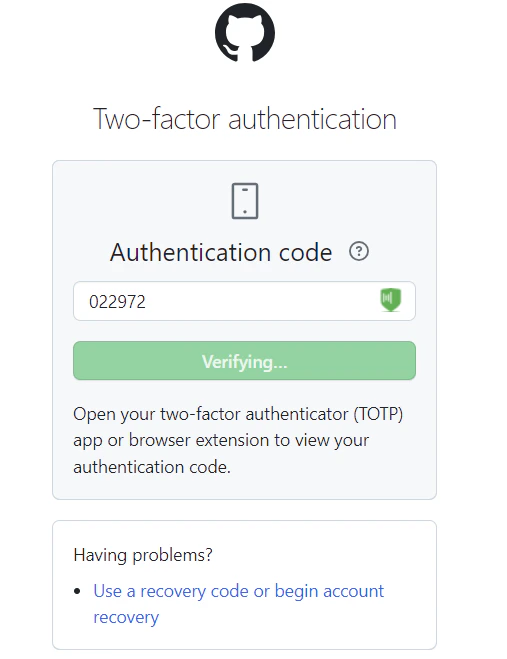
On the Two-Factor Authentication screen, Locker automatically detects the TOTP linked to your login credentials and autofills it. You will be authenticated successfully.
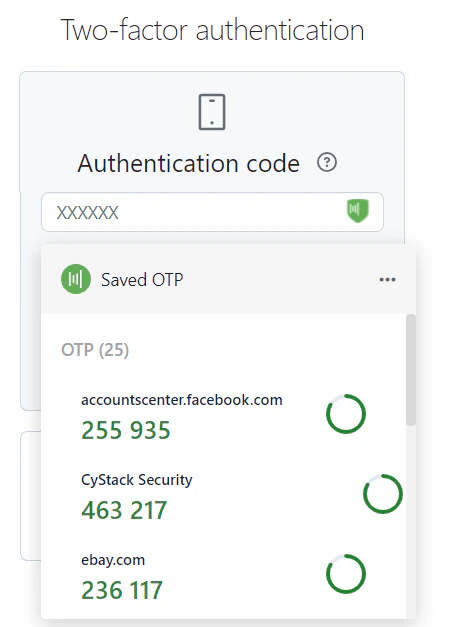
 If you have created 2FA for your account but have not linked it to your login credentials, the code will not be autofilled. In this case, you can click the Locker icon inside the TOTP input field, then scroll down to select the correct TOTP for the website you are logging into.
 ## Autofill TOTP on mobile devices
From the Locker mobile app, you can autofill TOTP along with login credentials for any website or app on your phone.
### On iOS
Open the website or app that you want to log into.
Tap the email input field and tap the Locker suggestion that appears on the keyboard. Locker will automatically fill in your login credentials.
After you log in, the TOTP linked to your account will be saved to the clipboard.
On the Authentication screen, tap the TOTP input field and hold for a second. You will see the **Paste** option appear.
## Autofill TOTP on mobile devices
From the Locker mobile app, you can autofill TOTP along with login credentials for any website or app on your phone.
### On iOS
Open the website or app that you want to log into.
Tap the email input field and tap the Locker suggestion that appears on the keyboard. Locker will automatically fill in your login credentials.
After you log in, the TOTP linked to your account will be saved to the clipboard.
On the Authentication screen, tap the TOTP input field and hold for a second. You will see the **Paste** option appear.
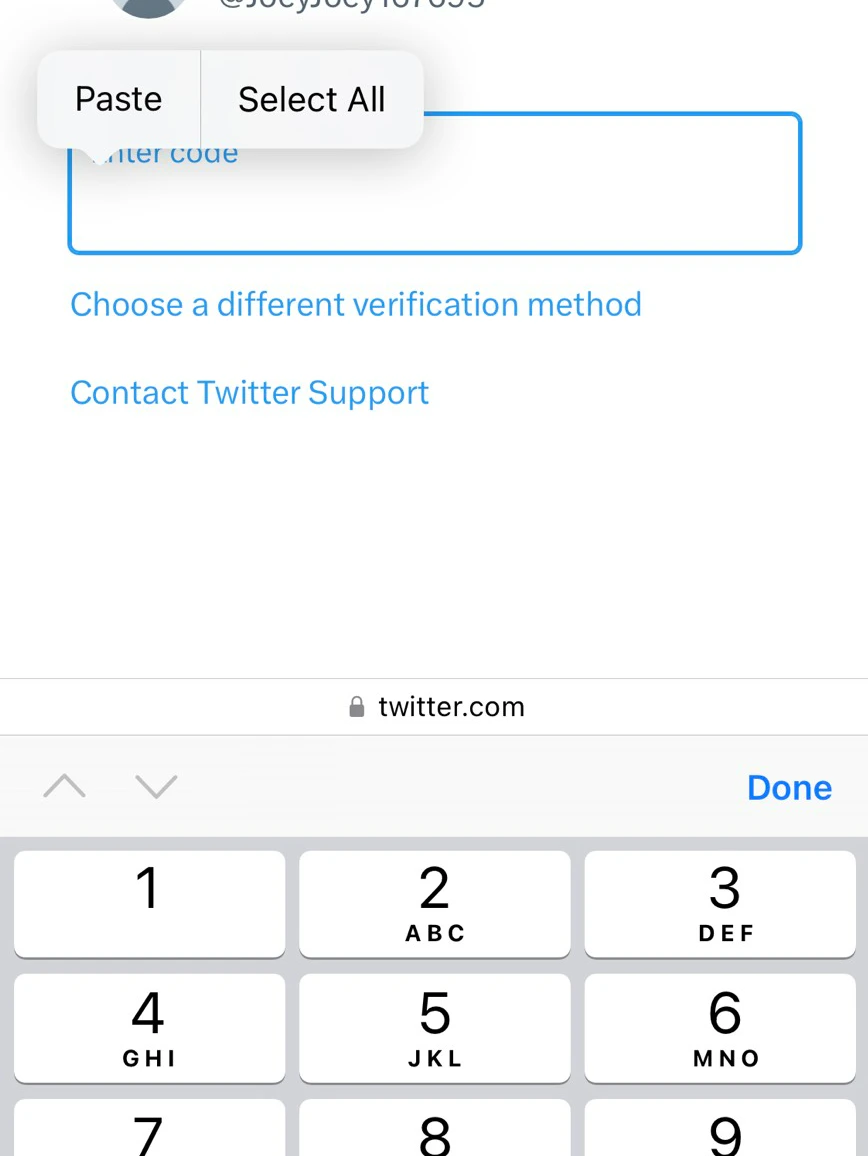 Tap the **Paste** option to autofill the TOTP code from the clipboard. You will be authenticated successfully.
The TOTP will expire after 30 seconds. After that, you may need to open the Locker app to get a new TOTP.
### On Android
Open the website or app that you want to log into.
Tap the email input field and tap the Locker suggestion that appears on the keyboard. Locker will automatically fill in your login credentials.
After you log in, the TOTP linked to your account will be saved to the clipboard.
On the **Authentication** screen, tap the TOTP input field. You will see the TOTP code suggested on the keyboard.
Tap the TOTP to autofill the TOTP input field. You will be authenticated successfully.
The TOTP will expire after 30 seconds. After that, you may need to open the Locker app to get a new TOTP.
Tap the **Paste** option to autofill the TOTP code from the clipboard. You will be authenticated successfully.
The TOTP will expire after 30 seconds. After that, you may need to open the Locker app to get a new TOTP.
### On Android
Open the website or app that you want to log into.
Tap the email input field and tap the Locker suggestion that appears on the keyboard. Locker will automatically fill in your login credentials.
After you log in, the TOTP linked to your account will be saved to the clipboard.
On the **Authentication** screen, tap the TOTP input field. You will see the TOTP code suggested on the keyboard.
Tap the TOTP to autofill the TOTP input field. You will be authenticated successfully.
The TOTP will expire after 30 seconds. After that, you may need to open the Locker app to get a new TOTP.