> ## Documentation Index
> Fetch the complete documentation index at: https://support.locker.io/llms.txt
> Use this file to discover all available pages before exploring further.
# Data Breach Scanner
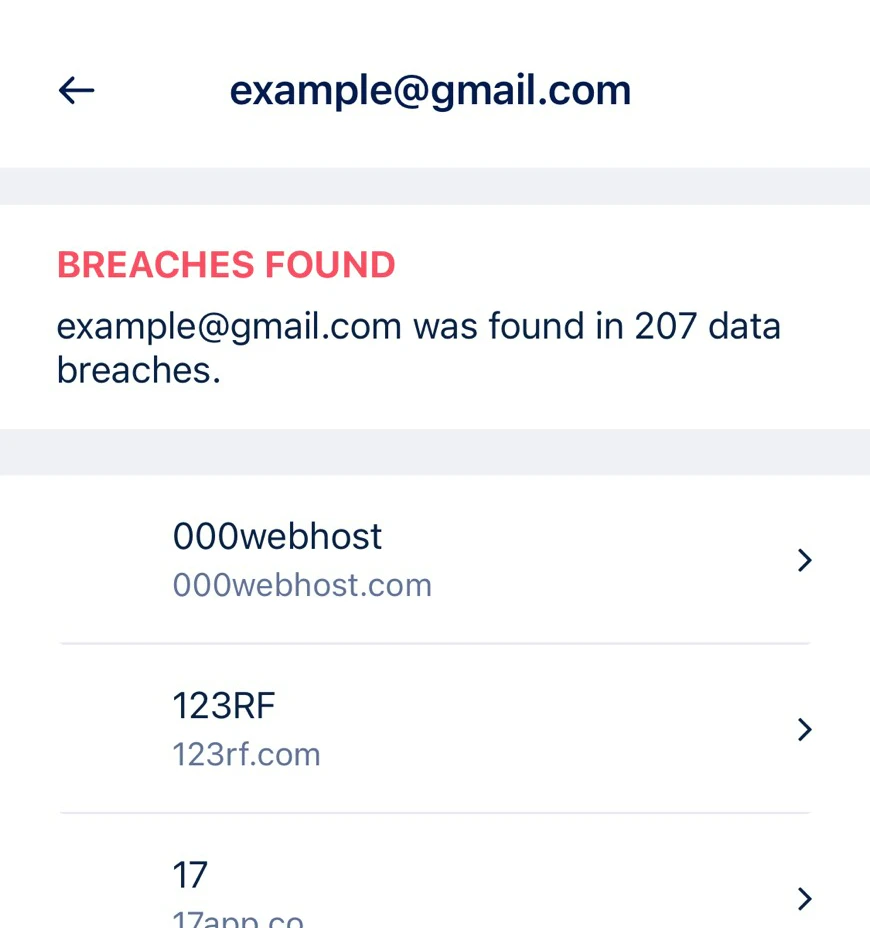
> Locker's Data Breach Scanner automatically scans all leaked databases, compares them with any email you want to check, and displays the results.
A data breach is a security incident in which cybercriminals gain unauthorized access to confidential data or sensitive user information.
Locker's Data Breach Scanner automatically scans all leaked databases, compares them with any email you want to check, and displays the results if your email has been leaked anywhere.
The Data Breach Scanner is only available for Premium and Family users.
## On Web Vault and Desktop App
Click the **Security Tools** tab on the sidebar.
Select **Data Breach Alert**.
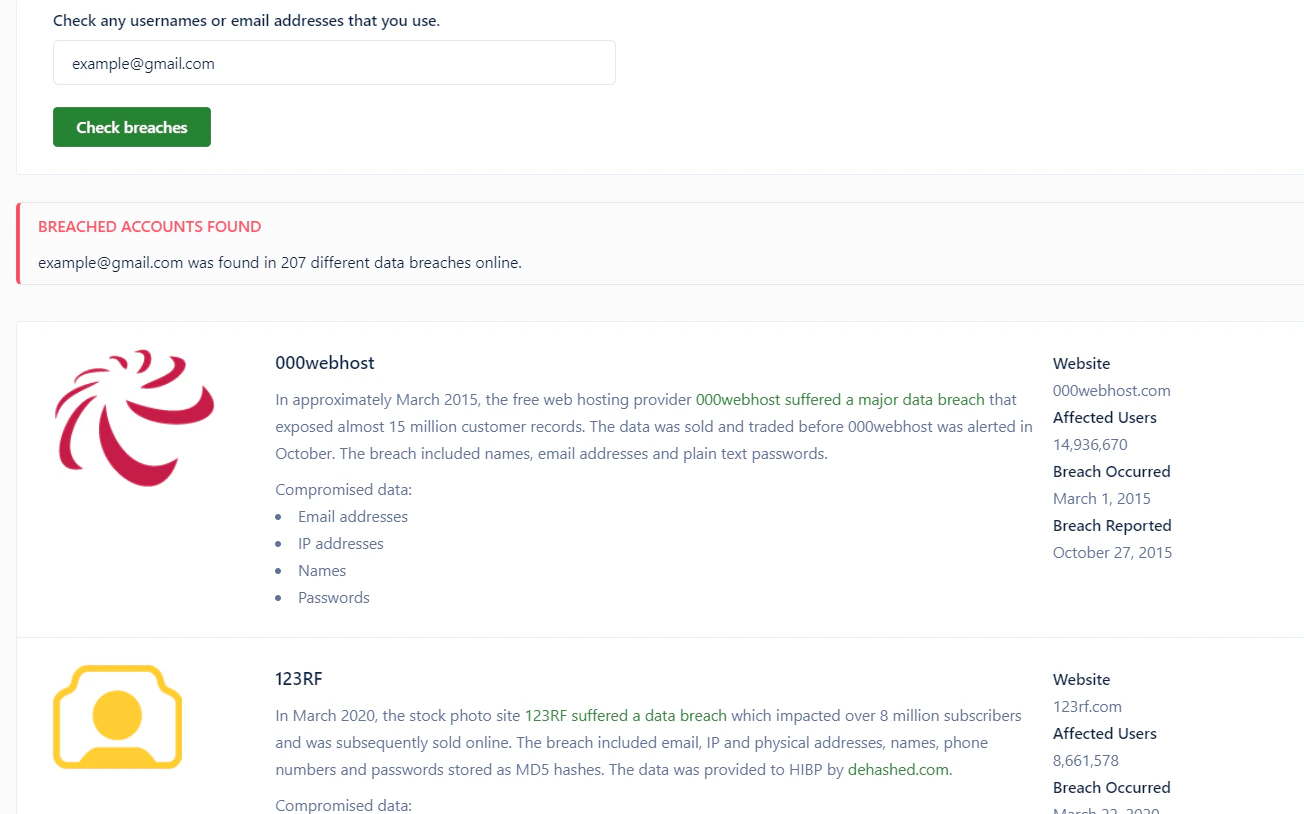
Enter any email address you want to scan for data breaches.
Click **Check Breaches** to start the scan.
The system will display results if your information has been leaked in any data breaches. You can view detailed information about the breaches on screen.
 ## On Mobile App
Log in to the Locker app on your mobile device.
Tap **Tools**.
Tap **Data Breach Alert**. Enter any email address you want to scan for data breaches.
## On Mobile App
Log in to the Locker app on your mobile device.
Tap **Tools**.
Tap **Data Breach Alert**. Enter any email address you want to scan for data breaches.
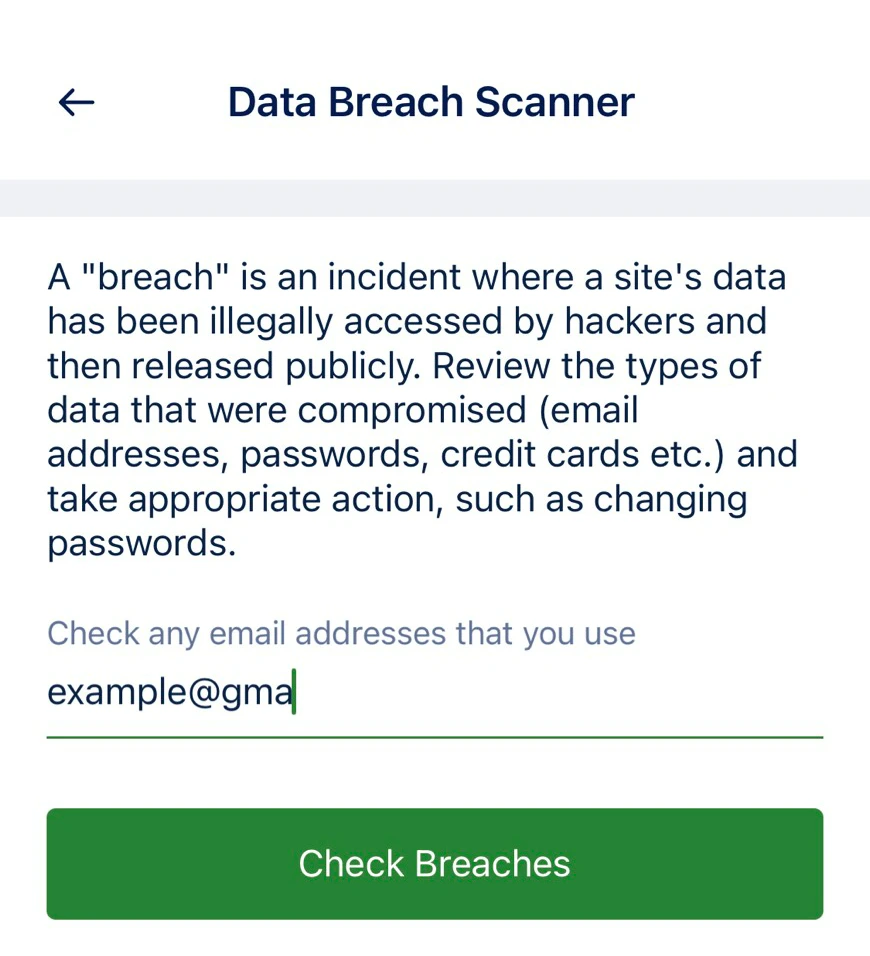 Tap **Check** to start the scan. The system will display results if your information has been leaked in any data breaches.