> ## Documentation Index
> Fetch the complete documentation index at: https://support.locker.io/llms.txt
> Use this file to discover all available pages before exploring further.
# Store 2FA Recovery Codes in Locker
> Online service providers typically provide a recovery code that allows you to regain access to your account if you lose your two-factor authentication (2FA) code.
Online service providers typically provide a recovery code that allows you to regain access to your account if you lose your two-factor authentication (2FA) code. This recovery code can be securely stored in Locker as a note, or as an additional custom field in the corresponding account saved in Locker.
Follow the instructions below to save 2FA recovery codes in Locker.
Find the 2FA recovery code for the website/service you want to save in Locker. Typically, you can find it under **Settings** > **Security** > the **2FA Methods** section.
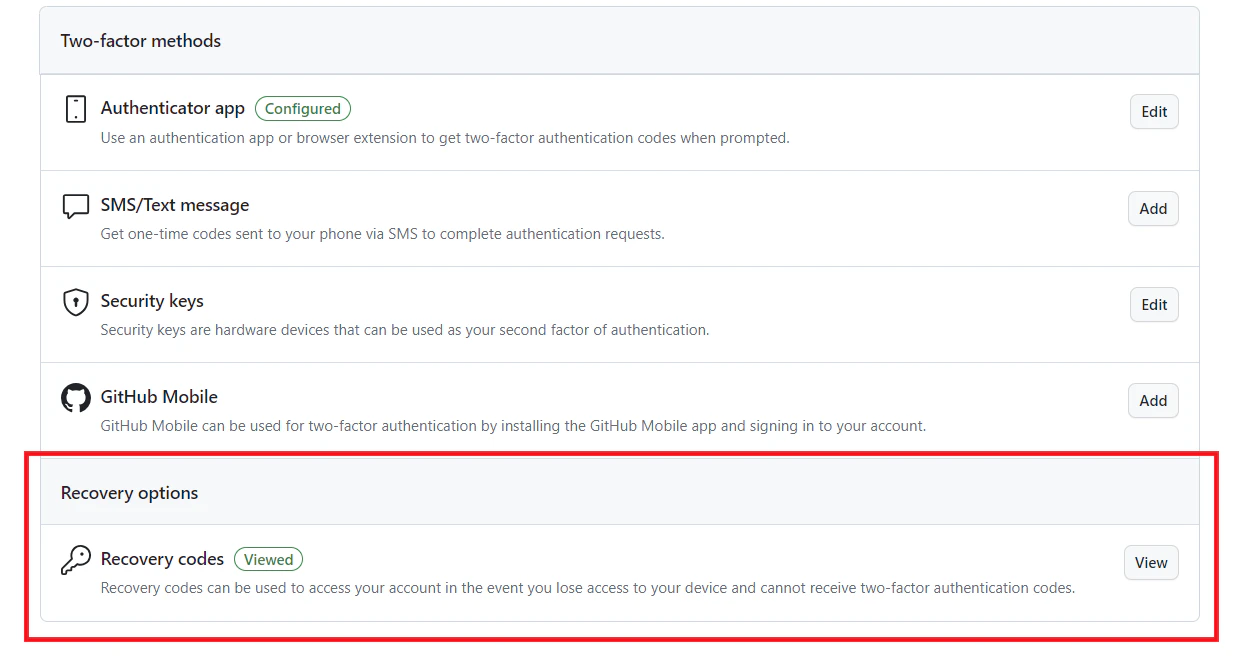 Click the corresponding button to reveal the recovery code > then copy the code.
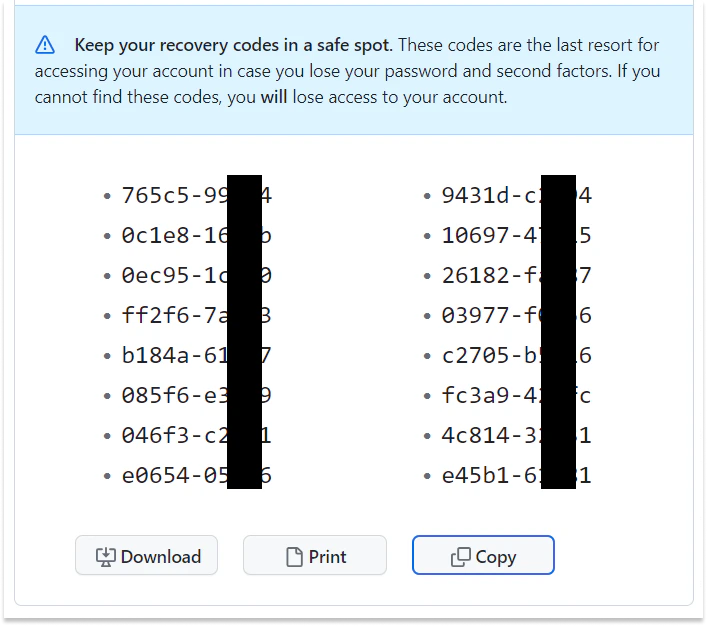 You may need to verify with your password or a two-factor authentication code to retrieve the recovery code.
Log in to Locker on any platform (web browser, mobile app, desktop app, or browser extension), then start saving the recovery code:
## Save the recovery code as a note
Click the **Add New** button or the **+** icon to create a new note.
On the note creation screen, fill in the item name and paste the recovery code.
You may need to verify with your password or a two-factor authentication code to retrieve the recovery code.
Log in to Locker on any platform (web browser, mobile app, desktop app, or browser extension), then start saving the recovery code:
## Save the recovery code as a note
Click the **Add New** button or the **+** icon to create a new note.
On the note creation screen, fill in the item name and paste the recovery code.
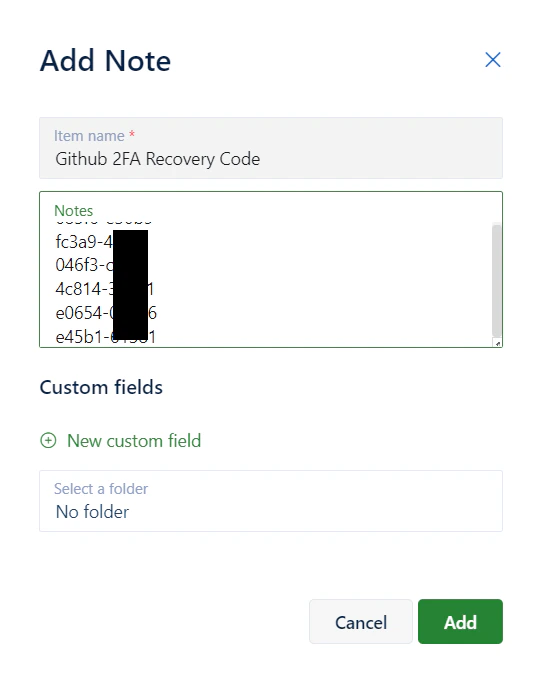 Click the **Add** button to save the code in Locker.
## Save the recovery code in the corresponding login item in Locker
If you have already saved the account's login information in Locker, you can also save the 2FA recovery code as an additional field in that account for easier management.
Click on the password where you want to save the 2FA recovery code, then select **Edit**.
In the password edit view, scroll down until you see the notes field. Paste the recovery code into the **Notes** field.
Alternatively, you can click the **New Custom Field** button to add a new text field > then paste the recovery code.
Click the **Add** button to save the code in Locker.
## Save the recovery code in the corresponding login item in Locker
If you have already saved the account's login information in Locker, you can also save the 2FA recovery code as an additional field in that account for easier management.
Click on the password where you want to save the 2FA recovery code, then select **Edit**.
In the password edit view, scroll down until you see the notes field. Paste the recovery code into the **Notes** field.
Alternatively, you can click the **New Custom Field** button to add a new text field > then paste the recovery code.
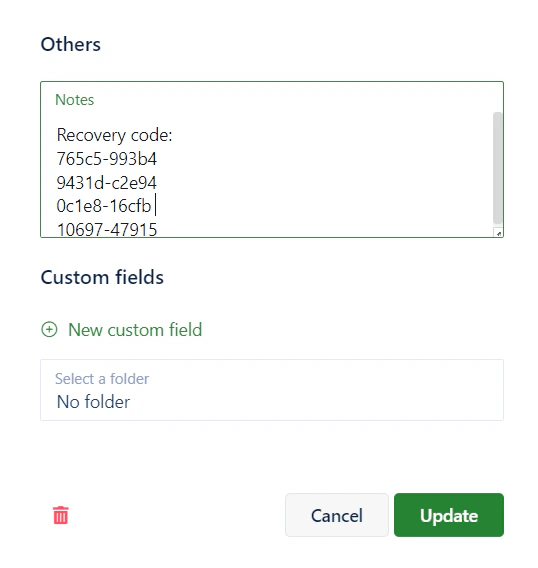 Click the **Update** button to save the recovery code.