> ## Documentation Index
> Fetch the complete documentation index at: https://support.locker.io/llms.txt
> Use this file to discover all available pages before exploring further.
# Set Up 2FA for Online Accounts
> Set up OTP for your online accounts with Locker to add an extra layer of security (2FA) when signing in to your accounts.
Set up OTP for your online accounts with Locker to add an extra layer of security (2FA) when signing in to your accounts.
## What is OTP?
OTP (One-Time Password) is a common form of two-factor authentication (2FA) that enhances access security by requiring two login steps -- in addition to your username and password -- to verify your identity.
You can use the Locker app on your mobile device as an authenticator app to sign in to accounts where you have enabled 2FA. Specifically, Locker can generate, store, and display a unique six-digit security code that you will need to complete the login process for your online accounts.
You can use Locker as an authenticator app to sign in to your Locker account as well.
Locker Authenticator is only available with websites or services that offer a two-step verification process. To start setting up 2FA with Locker:
1. Open the website or service you want to secure with two-step verification.
2. Go to **Account Settings** > **Security** and follow the steps to enable 2FA. At the end of the process, you will receive a QR code or a setup key to configure 2FA.
3. You can then choose to scan the QR code or enter the setup key to enable 2FA for that account.
## Generate OTP on the Web App
The Locker web app only supports setting up 2FA using a setup key.
### When adding or editing a Password
Log in to your Locker account on the Web Vault, then choose to add a new password or edit an existing one.
On the Password form, fill in the required information, then scroll to the **2FA Settings** section > select **Add New OTP**.
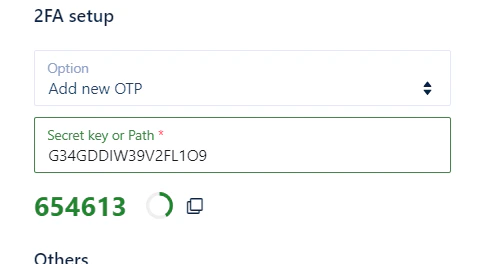
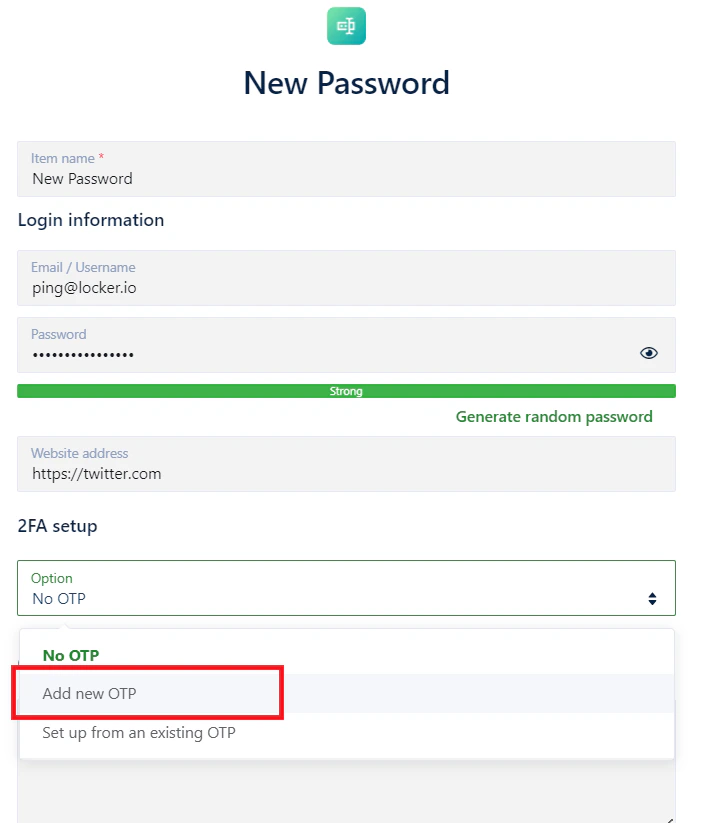 Enter the setup key obtained in the previous step into the field that Locker requires.
Locker will provide a 6-digit code. Copy this code, go back to the website you want to link, enter the code, and click confirm.
Enter the setup key obtained in the previous step into the field that Locker requires.
Locker will provide a 6-digit code. Copy this code, go back to the website you want to link, enter the code, and click confirm.
 ### By setting up 2FA from the Authenticator page
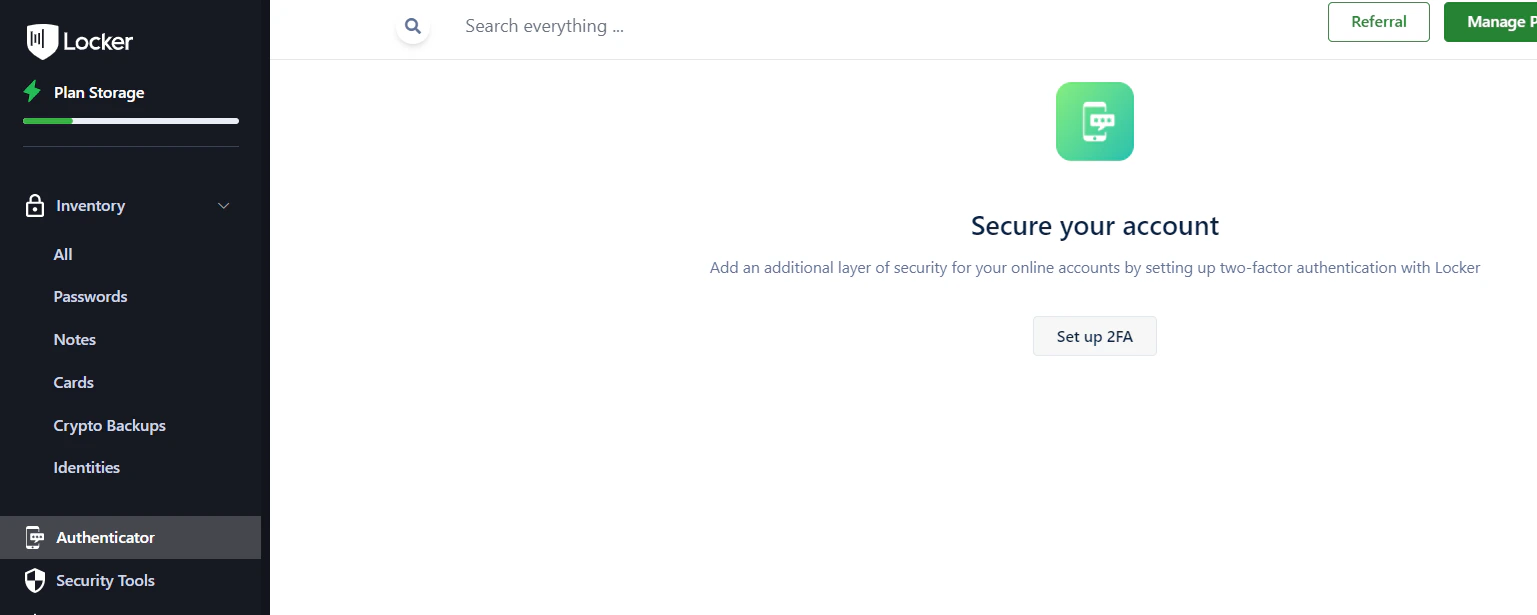
Log in to your Locker account on the Web Vault, then go to the **Authenticator** tab on the sidebar.
Set up your first 2FA for any of your online accounts by clicking **Set up 2FA**.
### By setting up 2FA from the Authenticator page
Log in to your Locker account on the Web Vault, then go to the **Authenticator** tab on the sidebar.
Set up your first 2FA for any of your online accounts by clicking **Set up 2FA**.
 Enter the OTP name and the setup key into the fields that Locker requires. Click **Add**.
Locker will provide a 6-digit code. Copy this code, go back to the website you want to link, enter the code, and click confirm.
### Link an existing OTP to your password
If you have already added an OTP from the Authenticator tab, you can link it to a new or existing password.
Log in to your Locker account on the Web Vault, then choose to add a new password or edit an existing one.
On the Password form, fill in the required information, then scroll to the **2FA Settings** section > select **Set up from an existing OTP**.
Enter the OTP name and the setup key into the fields that Locker requires. Click **Add**.
Locker will provide a 6-digit code. Copy this code, go back to the website you want to link, enter the code, and click confirm.
### Link an existing OTP to your password
If you have already added an OTP from the Authenticator tab, you can link it to a new or existing password.
Log in to your Locker account on the Web Vault, then choose to add a new password or edit an existing one.
On the Password form, fill in the required information, then scroll to the **2FA Settings** section > select **Set up from an existing OTP**.
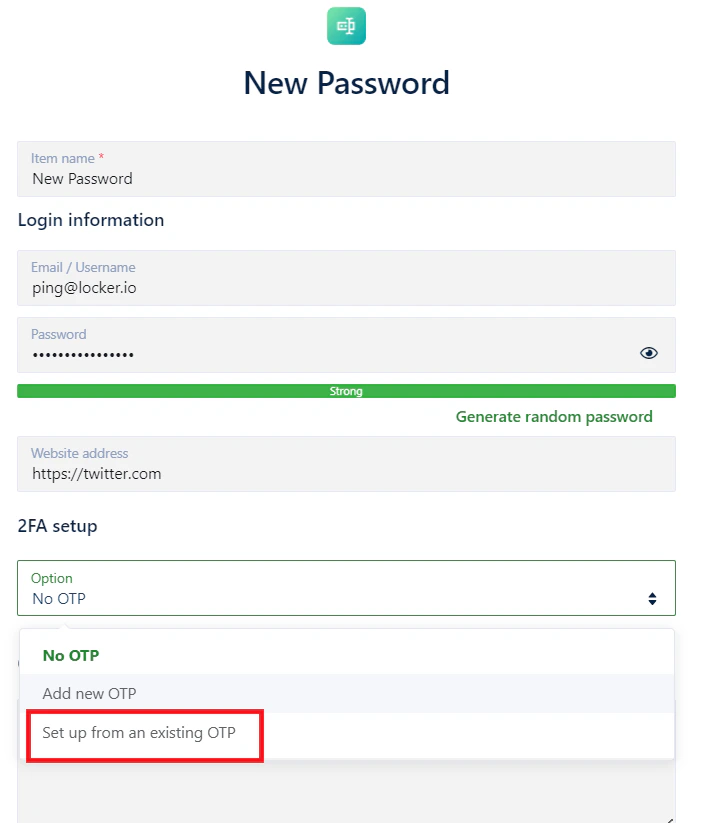 Scroll down to find, or type a keyword to search for the OTP from the list. The selected OTP should correspond to your account's login information. Then click **Add/Update**.
## Generate OTP on the Locker Mobile App
### When adding or editing a Password
Open the Locker app, then choose to add a new password or edit an existing one.
On the Password form, fill in the required information, then scroll down to the **2FA Settings** section > select **Add New OTP**.
Scroll down to find, or type a keyword to search for the OTP from the list. The selected OTP should correspond to your account's login information. Then click **Add/Update**.
## Generate OTP on the Locker Mobile App
### When adding or editing a Password
Open the Locker app, then choose to add a new password or edit an existing one.
On the Password form, fill in the required information, then scroll down to the **2FA Settings** section > select **Add New OTP**.
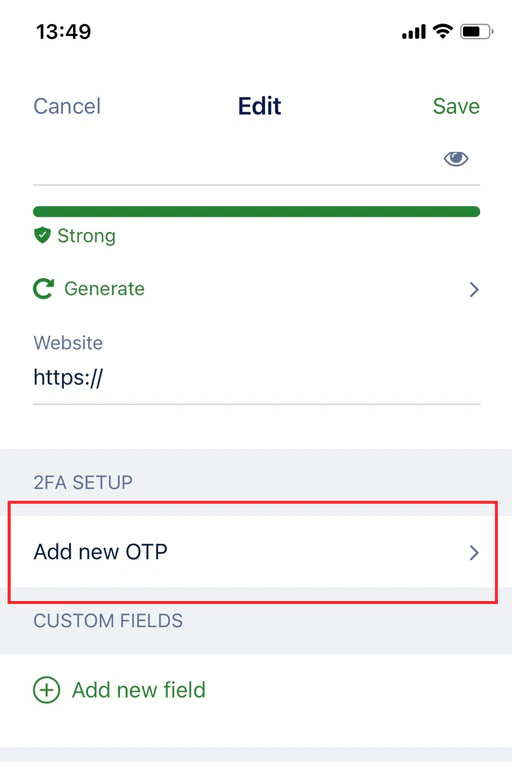 You can choose to **Scan QR Code**, or enter a setup key:
* **Scan QR Code**: Select Scan QR Code. Point your device's camera at the QR code. You will first be prompted to grant Locker access to your device's camera. Tap **OK** to allow.
* **Enter Setup Key**: Select Enter a setup key. Enter the setup key into the fields that Locker requires. Tap **Save**.
You can choose to **Scan QR Code**, or enter a setup key:
* **Scan QR Code**: Select Scan QR Code. Point your device's camera at the QR code. You will first be prompted to grant Locker access to your device's camera. Tap **OK** to allow.
* **Enter Setup Key**: Select Enter a setup key. Enter the setup key into the fields that Locker requires. Tap **Save**.
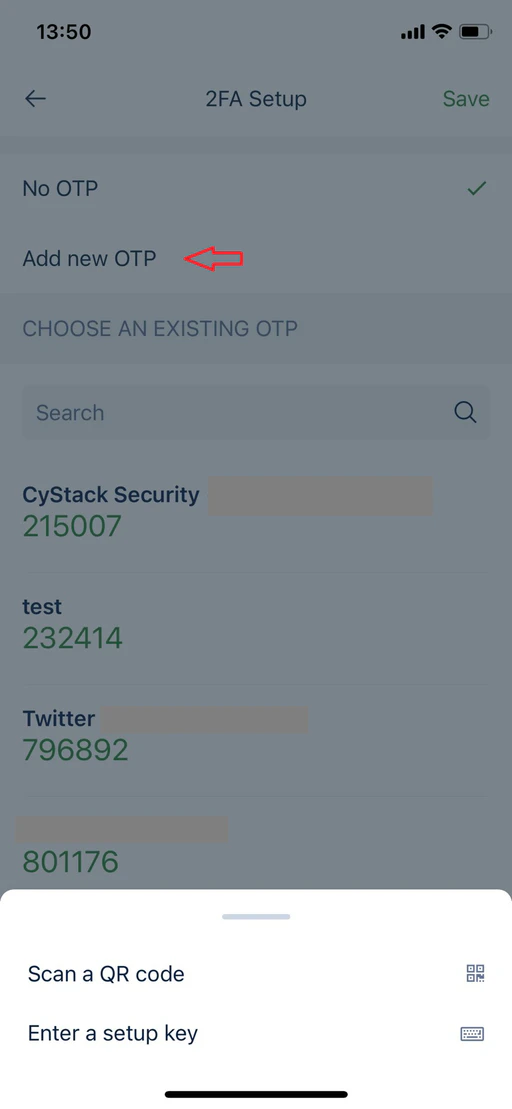 Locker will provide a 6-digit code. Copy this code, go back to the website you want to link, enter the code, and tap confirm.
### By setting up 2FA from the OTP tab
Log in to Locker on the mobile app, then open the **OTP** tab > tap the **Plus** icon in the top-right corner.
You can choose to scan a QR code or enter a setup key.
Locker will provide a 6-digit code. Copy this code, go back to the website you want to link, enter the code, and tap confirm.
### Link an existing OTP to your password
Open the Locker app, then choose to add a new password or edit an existing one.
On the Password form, fill in the required information, then scroll to the **2FA Settings** section > tap to select an option.
Search for the OTP in the **Select existing OTP** list. The selected OTP must match your account's login information. Then tap **Save** > **Update**.
## Generate OTP on the Browser Extension
### When adding or editing a Password
Log in to the Locker extension, then choose to add a new password or edit an existing one.
On the Password form, fill in the required information, then scroll to the **2FA Settings** section.
Locker will provide a 6-digit code. Copy this code, go back to the website you want to link, enter the code, and tap confirm.
### By setting up 2FA from the OTP tab
Log in to Locker on the mobile app, then open the **OTP** tab > tap the **Plus** icon in the top-right corner.
You can choose to scan a QR code or enter a setup key.
Locker will provide a 6-digit code. Copy this code, go back to the website you want to link, enter the code, and tap confirm.
### Link an existing OTP to your password
Open the Locker app, then choose to add a new password or edit an existing one.
On the Password form, fill in the required information, then scroll to the **2FA Settings** section > tap to select an option.
Search for the OTP in the **Select existing OTP** list. The selected OTP must match your account's login information. Then tap **Save** > **Update**.
## Generate OTP on the Browser Extension
### When adding or editing a Password
Log in to the Locker extension, then choose to add a new password or edit an existing one.
On the Password form, fill in the required information, then scroll to the **2FA Settings** section.
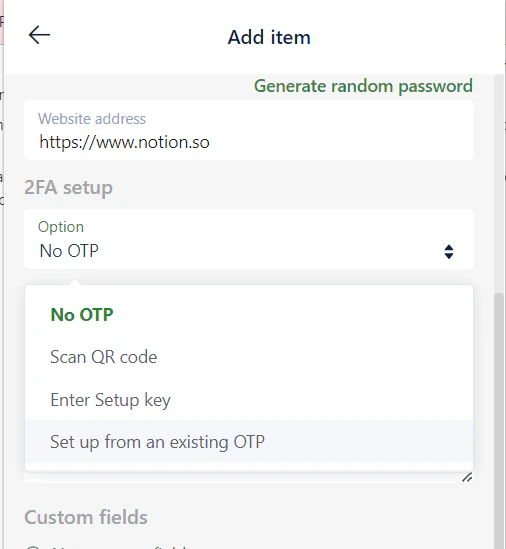 You can choose to set up a new 2FA using a QR code or a setup key.
* **Scan QR Code**: Select the Scan QR Code option. Drag and drop to scan the QR code. Select **Use Image**.
* **Enter Setup Key**: Select **Enter Setup Key**. Enter the title and verification code. Select **Save**.
You can choose to set up a new 2FA using a QR code or a setup key.
* **Scan QR Code**: Select the Scan QR Code option. Drag and drop to scan the QR code. Select **Use Image**.
* **Enter Setup Key**: Select **Enter Setup Key**. Enter the title and verification code. Select **Save**.
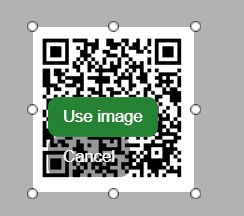 Locker will provide a 6-digit code. Copy this code, go back to the website you want to link, enter the code, and click confirm.
### By setting up 2FA from the OTP tab
Log in to the Locker extension. Click the **OTP** tab.
Click the **Plus** icon in the bottom-left corner and select **Scan QR Code** or **Enter Setup Key**.
Locker will provide a 6-digit code. Copy this code, go back to the website you want to link, enter the code, and click confirm.
### Link an existing OTP to your password
Log in to the Locker extension, then choose to add a new password or edit an existing one.
On the Password form, fill in the required information, then scroll to the **2FA Settings** section. Click the dropdown, then select **Set up from an existing OTP**.
Search for the OTP in the dropdown list. The selected OTP must match your account's login information. Then click **Save/Update**.
Typically, the code is refreshed every 30 seconds as a security measure.
Locker will provide a 6-digit code. Copy this code, go back to the website you want to link, enter the code, and click confirm.
### By setting up 2FA from the OTP tab
Log in to the Locker extension. Click the **OTP** tab.
Click the **Plus** icon in the bottom-left corner and select **Scan QR Code** or **Enter Setup Key**.
Locker will provide a 6-digit code. Copy this code, go back to the website you want to link, enter the code, and click confirm.
### Link an existing OTP to your password
Log in to the Locker extension, then choose to add a new password or edit an existing one.
On the Password form, fill in the required information, then scroll to the **2FA Settings** section. Click the dropdown, then select **Set up from an existing OTP**.
Search for the OTP in the dropdown list. The selected OTP must match your account's login information. Then click **Save/Update**.
Typically, the code is refreshed every 30 seconds as a security measure.