> ## Documentation Index
> Fetch the complete documentation index at: https://support.locker.io/llms.txt
> Use this file to discover all available pages before exploring further.
# Generate Strong Passwords
> Strong passwords are the first line of defense against cyberattacks. Generate the most secure passwords using Locker's built-in password generator.
Strong passwords are the first line of defense against cyberattacks. Generate the most secure passwords using Locker's built-in password generator by following these steps:
## On Web App and Desktop App
Click **Security Tools** on the sidebar.
Click **Password Generator** from the tools list.
Customize the generated password with the following options:
* Drag the length slider to adjust the password length (up to 64 characters)
* Use uppercase letters (A-Z)
* Use lowercase letters (a-z)
* Use digits (0-9)
* Use special characters (@!\$%\*)
* Avoid ambiguous characters
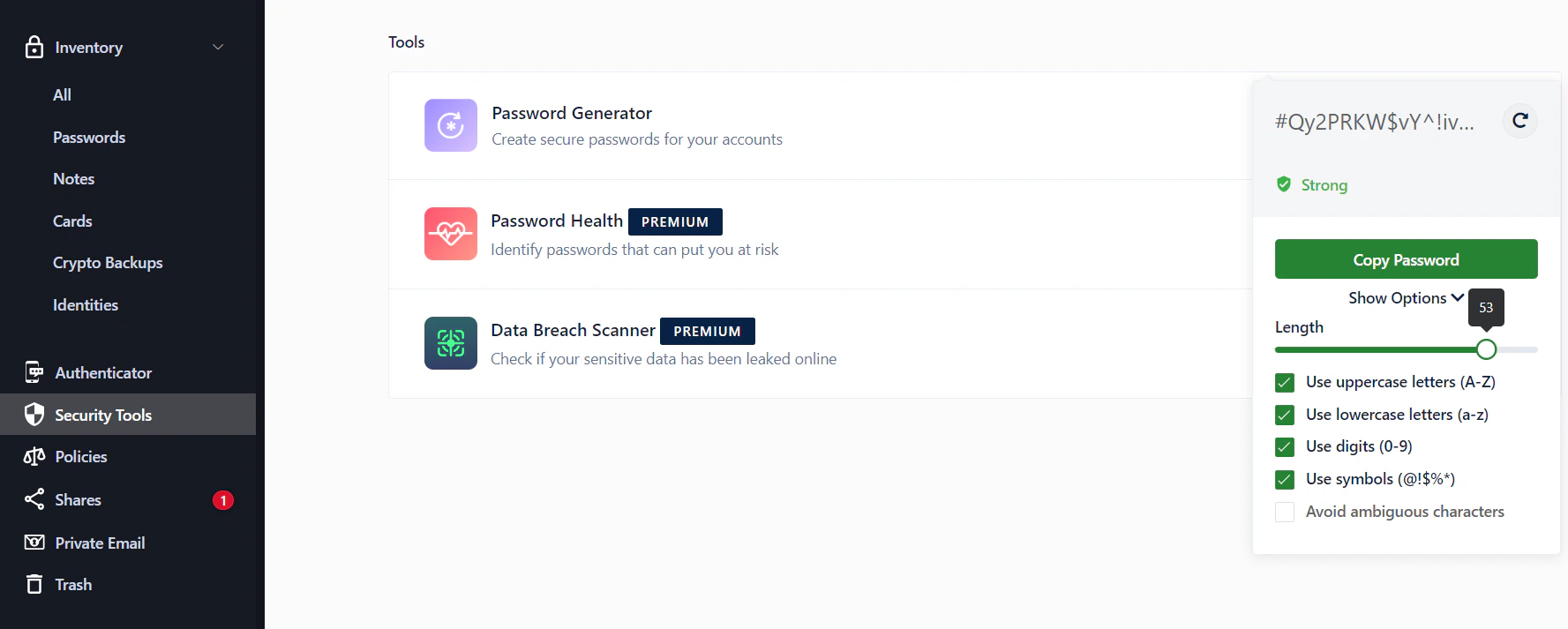 Click **Copy** once you are satisfied with the generated password.
You can also use the Password Generator available on the **Create new password** or **Edit password** screen.
## On Mobile Devices
### Generate a strong password from the Vault
Open the **Locker** app on your iOS or Android device.
Tap **Tools** > **Password Generator**.
Customize the generated password.
Click **Copy** once you are satisfied with the generated password.
You can also use the Password Generator available on the **Create new password** or **Edit password** screen.
## On Mobile Devices
### Generate a strong password from the Vault
Open the **Locker** app on your iOS or Android device.
Tap **Tools** > **Password Generator**.
Customize the generated password.
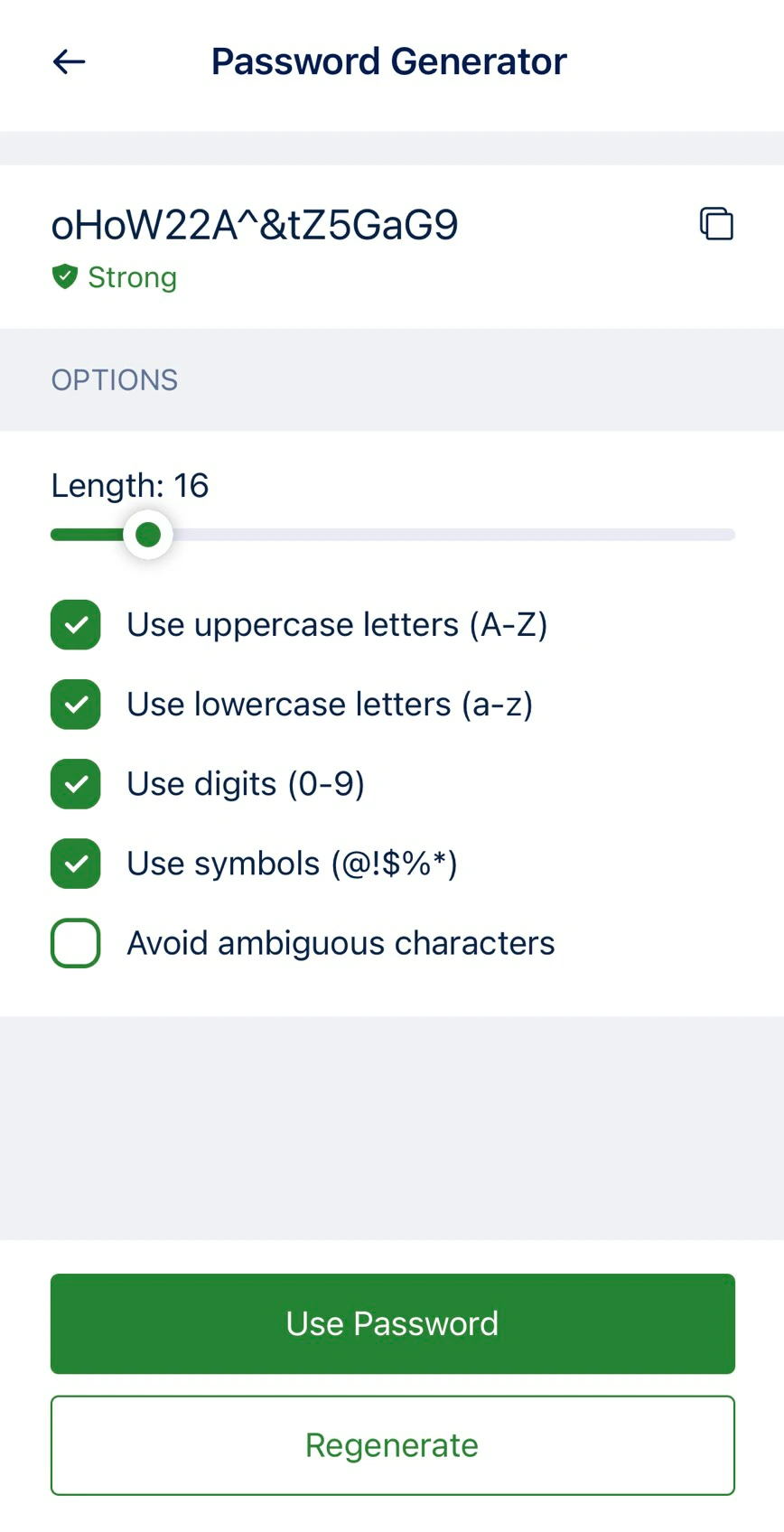 Tap **Use Password** to copy it to the clipboard, or tap **Regenerate** to generate a different password.
### Generate a strong password and fill it on an app / website
First, you need to enable Locker's autofill feature.
On the app or website you are using, navigate to the sign-up or login screen.
Tap the password field, then tap the Locker icon on the keyboard that appears.
* On iOS, you can generate a strong password by tapping the **Password** icon in the top-right corner, or create a new login item by tapping the **Plus** icon.
* On Android, tap the **Plus** icon in the top-right corner to create a new login item.
## On Browser Extension
### Generate a strong password from the Vault
Open the Locker browser extension.
Click the **Generator** tab.
Customize the generated password.
Click **Copy** or **Save with Locker** to add a new item with the generated password.
### Generate a strong password and fill it on a website
On the website you are visiting, navigate to the sign-up or login screen.
Click the password input field and click the Locker icon.
In the Password Generator popup that appears, customize the password and click **Use Password** -- the generated password will be filled into the field.
If the popup does not display the Password Generator, open it by clicking the **...** button in the top-right corner > select **Generate Password**.
Tap **Use Password** to copy it to the clipboard, or tap **Regenerate** to generate a different password.
### Generate a strong password and fill it on an app / website
First, you need to enable Locker's autofill feature.
On the app or website you are using, navigate to the sign-up or login screen.
Tap the password field, then tap the Locker icon on the keyboard that appears.
* On iOS, you can generate a strong password by tapping the **Password** icon in the top-right corner, or create a new login item by tapping the **Plus** icon.
* On Android, tap the **Plus** icon in the top-right corner to create a new login item.
## On Browser Extension
### Generate a strong password from the Vault
Open the Locker browser extension.
Click the **Generator** tab.
Customize the generated password.
Click **Copy** or **Save with Locker** to add a new item with the generated password.
### Generate a strong password and fill it on a website
On the website you are visiting, navigate to the sign-up or login screen.
Click the password input field and click the Locker icon.
In the Password Generator popup that appears, customize the password and click **Use Password** -- the generated password will be filled into the field.
If the popup does not display the Password Generator, open it by clicking the **...** button in the top-right corner > select **Generate Password**.