> ## Documentation Index
> Fetch the complete documentation index at: https://support.locker.io/llms.txt
> Use this file to discover all available pages before exploring further.
# Password Health Checker
> Password Health is a Premium feature that identifies weak, reused, and exposed passwords to help you proactively protect your online accounts.
Password Health is a Premium feature that identifies weak, reused, and exposed passwords to help you proactively protect your online accounts. When any password is identified as weak, reused, or exposed, you should use Locker's password generator to create a strong password for your account.
## On Web Vault and Desktop App
Click **Security Tools** on the sidebar.
Select **Password Health** from the tools list.
The system will automatically scan the passwords stored in your vault and display the results on screen.
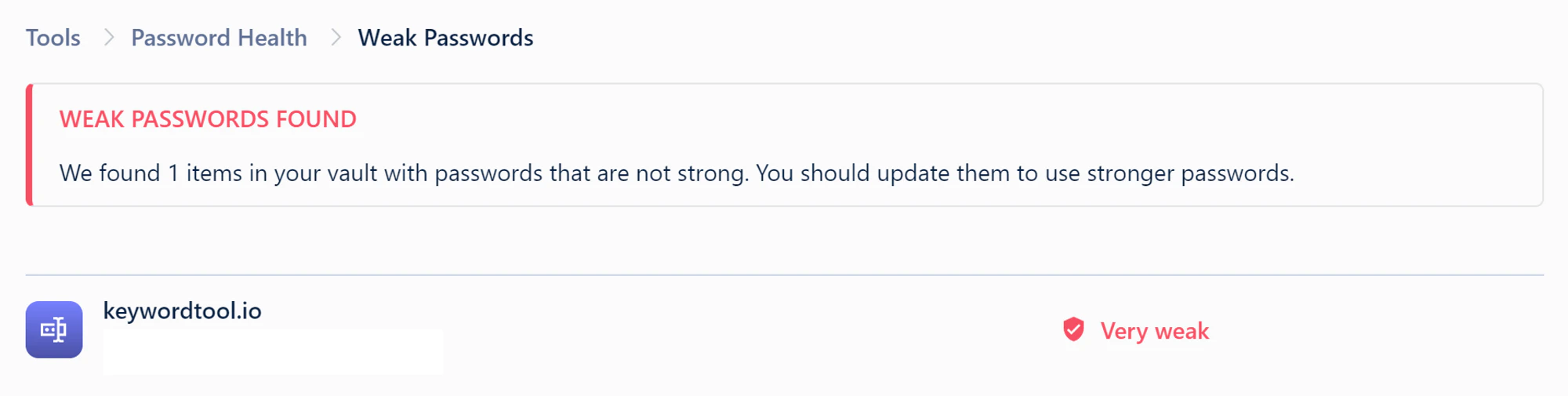
* Click **Weak Passwords** (if any): You will see a list of usernames and associated websites with weak passwords, along with their corresponding strength status.
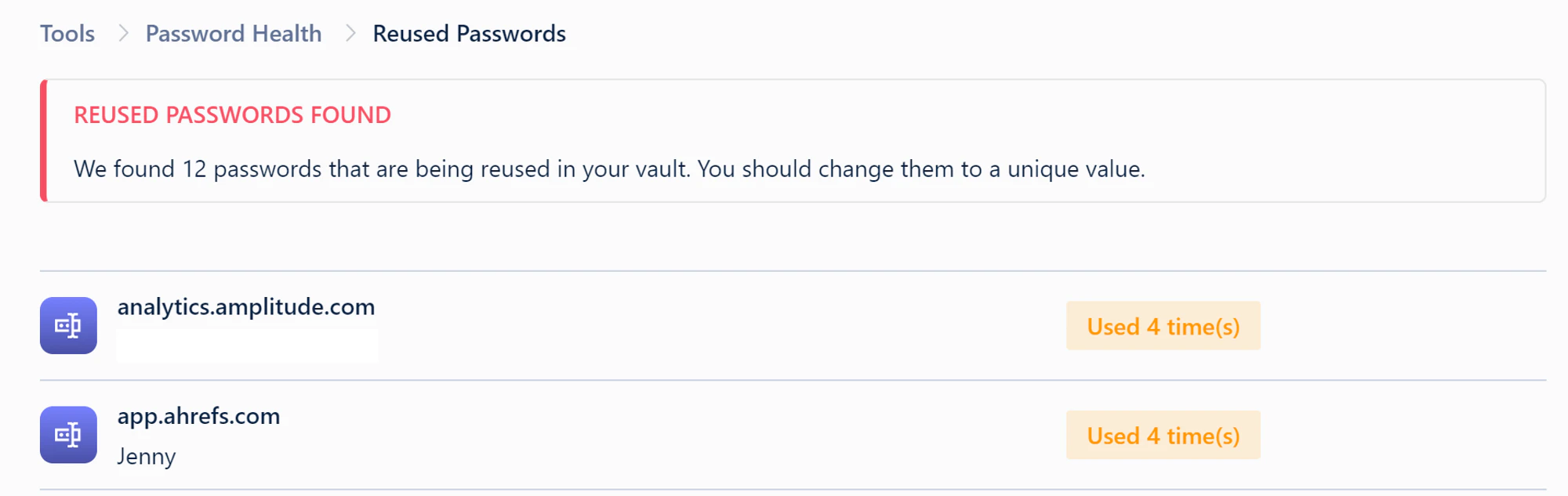
 * Click **Reused Passwords** (if any): You will see a list of usernames and associated websites with reused passwords.
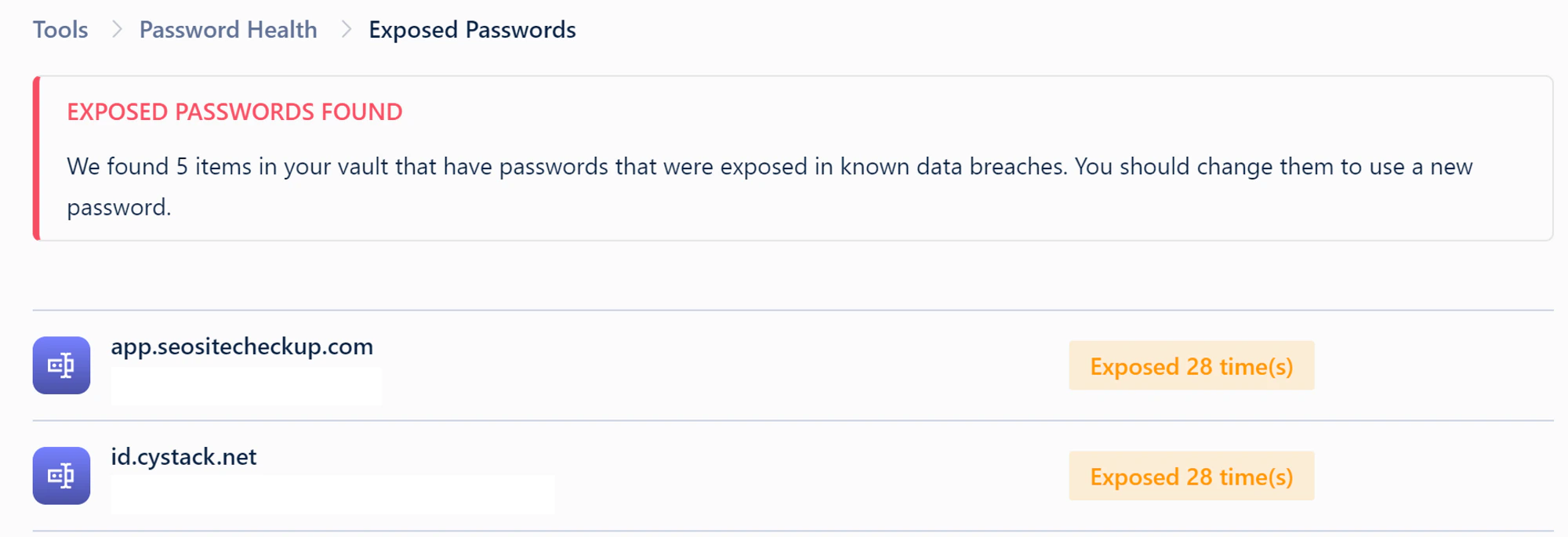
 * Click **Exposed Passwords** (if any): You will see a list of usernames and associated websites with passwords that have been exposed in data breaches. You should change these passwords to keep your accounts safe.
 ## On Mobile Devices
Log in to the Locker app on your phone.
Tap **Tools** > Select **Password Health** from the tools list.
The system will automatically scan the passwords stored in your vault and display the results on screen.
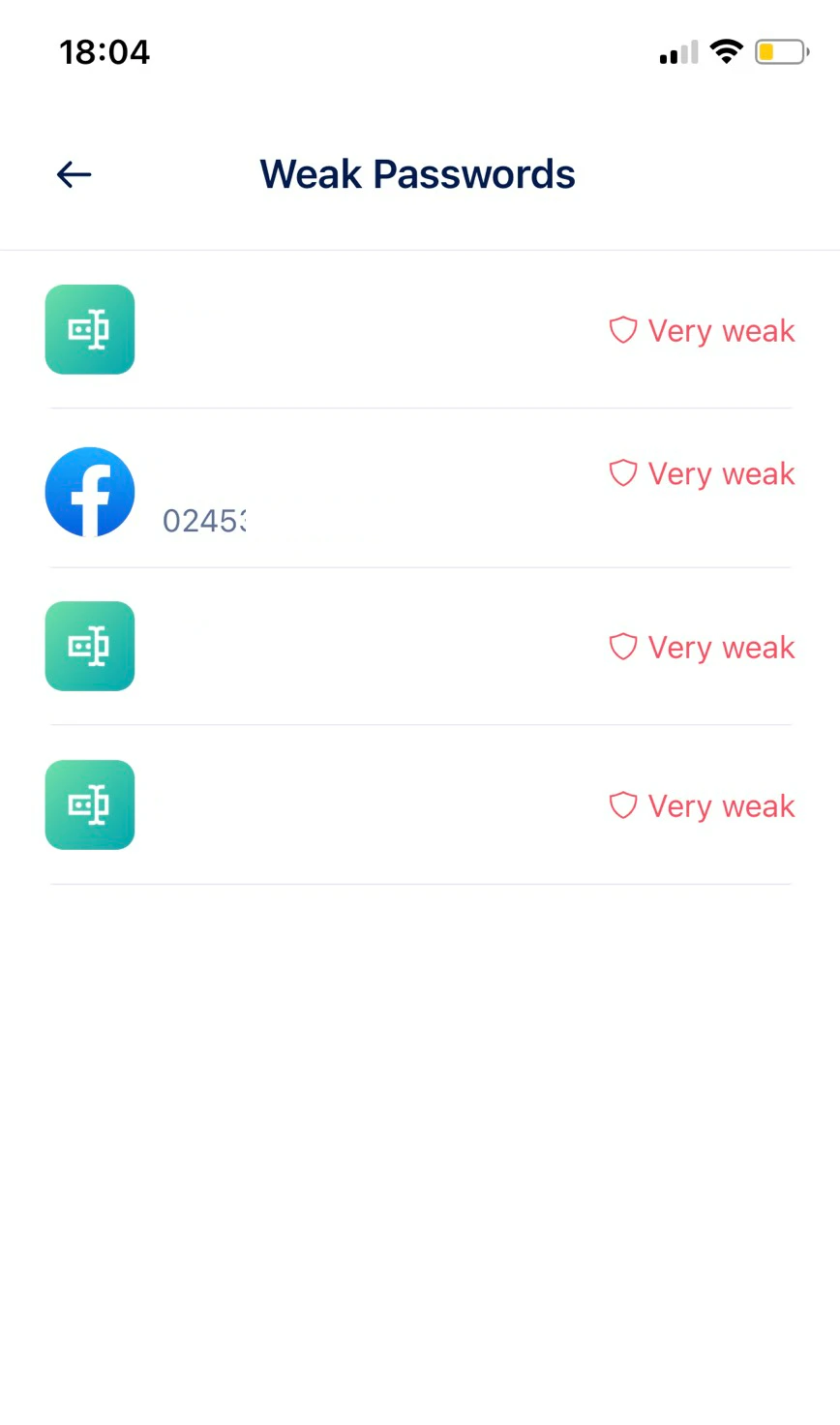
* Tap **Weak Passwords** (if any)
## On Mobile Devices
Log in to the Locker app on your phone.
Tap **Tools** > Select **Password Health** from the tools list.
The system will automatically scan the passwords stored in your vault and display the results on screen.
* Tap **Weak Passwords** (if any)
 * Tap **Reused Passwords** (if any)
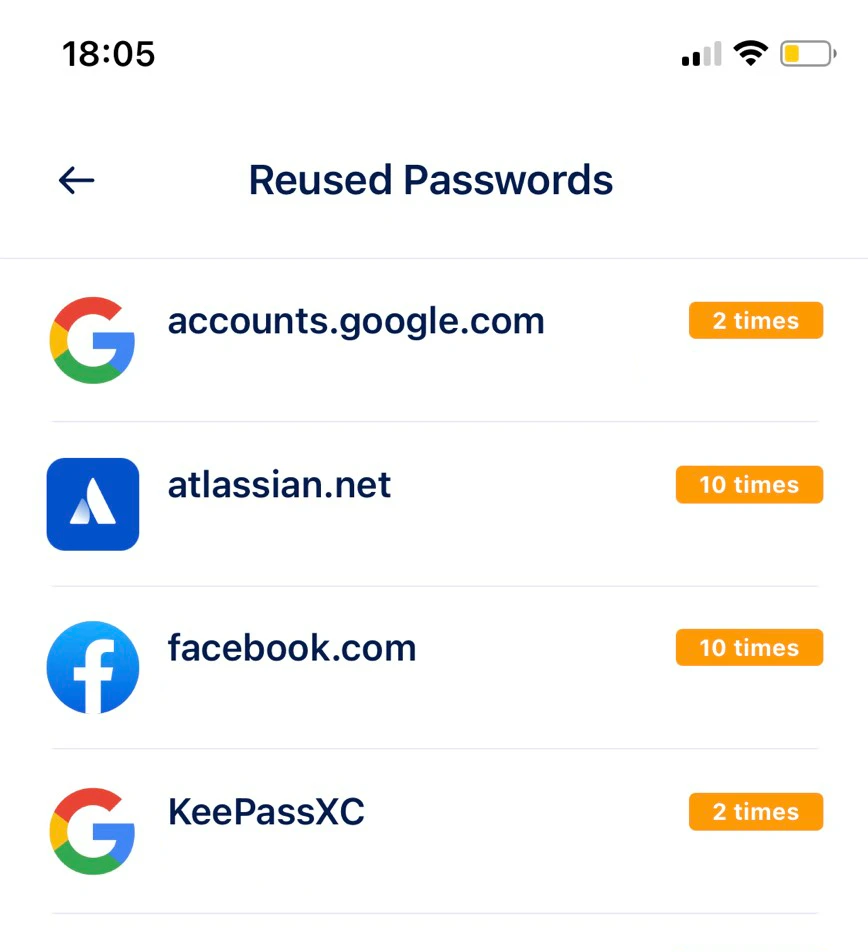 * Tap **Exposed Passwords** (if any): You should change these passwords to keep your accounts safe.