> ## Documentation Index
> Fetch the complete documentation index at: https://support.locker.io/llms.txt
> Use this file to discover all available pages before exploring further.
# Payment Methods
> Locker supports paying for your Locker plan on the web app or on mobile devices.
Locker supports paying for your Locker plan on the web app or on mobile devices.
## Supported Payment Methods
### On the Locker Web App
On the Locker web app, we use the Stripe payment gateway. You can find the card brands supported by Stripe below:
* VISA
* MasterCard
* American Express
* China UnionPay (CUP)
* Discover & Diners
* eftpos Australia
* Japan Credit Bureau (JCB)
Depending on your geographic location, some card brands may be limited by the supported currencies for payment.
### On the Locker Mobile App
On the Locker mobile app, you can make payments via **Apple Pay** on iOS devices or via **Google Pay** on Android devices.
## Change Payment Method
You may want to change your current payment method from Stripe (on the Locker web app) to Apple Pay or Google Pay (on mobile devices), or vice versa.
* On the Web or Desktop app, go to **Settings** > **Plans & Billing** > click **Cancel Subscription**.
* On mobile, open the App Store or Play Store, open your profile in the upper-right corner and scroll down to **Subscriptions** to cancel your current plan.
After canceling, your account will not be downgraded until the end of the current billing cycle.
Start a new subscription on a different device.
## Add Multiple Payment Methods
You can also add multiple cards on the Web Vault to choose a more suitable payment method.
Log in to your Locker account on the web app.
Go to **Settings** > **Plans & Billing**. In the **Payment Methods** section, click **Add Credit Card**.
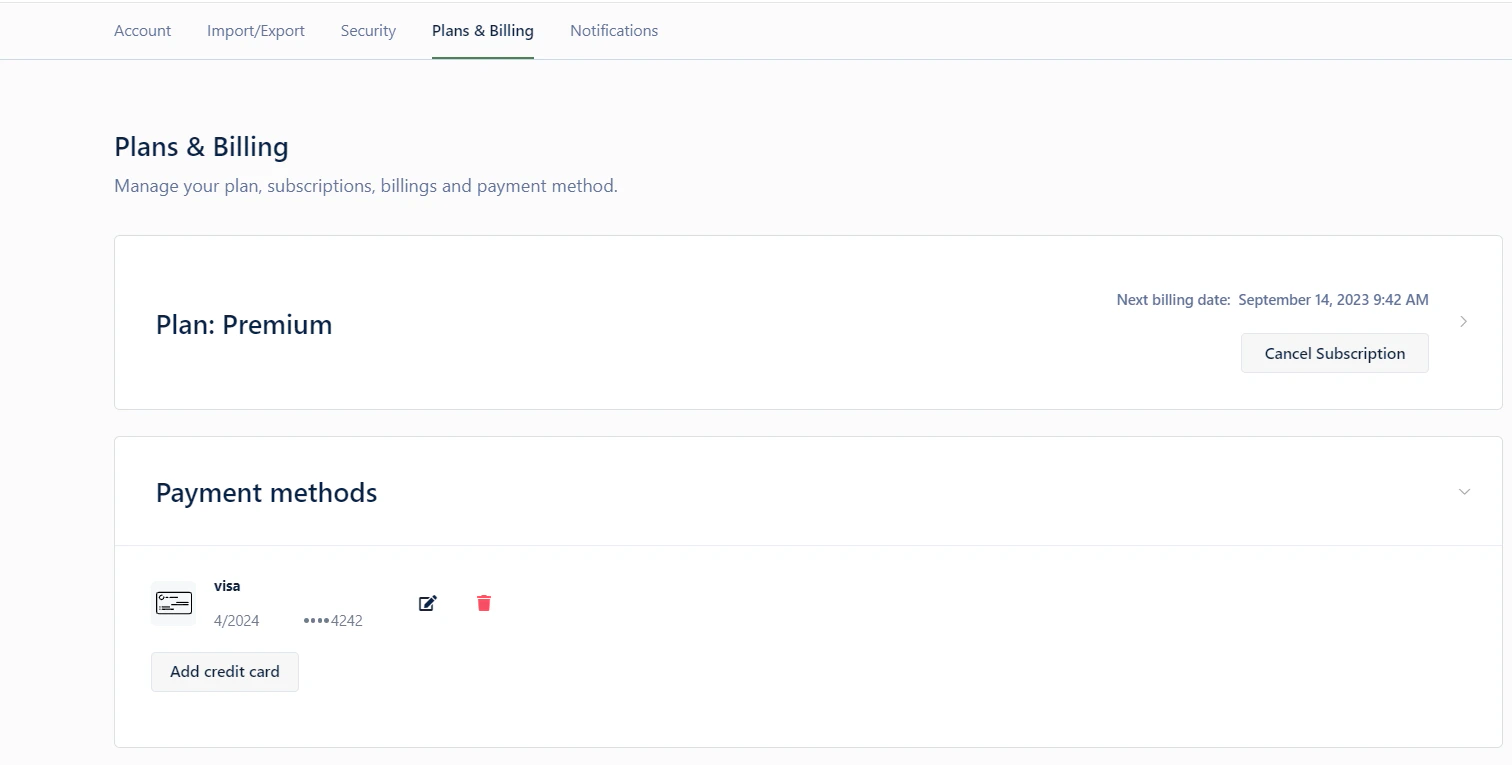 Enter your payment details, then click **Save** to add the new card.