> ## Documentation Index
> Fetch the complete documentation index at: https://support.locker.io/llms.txt
> Use this file to discover all available pages before exploring further.
# Personal Plan Renewal
> Information on how Locker subscriptions renew and how to check your next billing date.
Subscriptions for the Premium or Family Plan renew automatically on a monthly or yearly basis, depending on your chosen duration.
To ensure on-time payment and avoid interruption of your subscription, we recommend keeping your payment method valid as the billing date approaches.
If Locker cannot process your payment for any reason, your account will be downgraded to the **Free Plan**, and you will receive a notification via email.
**Note:** Locker does not store your payment information. We use industry-standard services such as Stripe, Apple Pay, and Google Pay to process all transactions securely.
***
## Renewal Date
You can easily check your renewal date on the Locker Web Vault, Desktop App, or Mobile App.
### On Web Browser and Desktop App
Log in to your Locker account via the browser or desktop application.
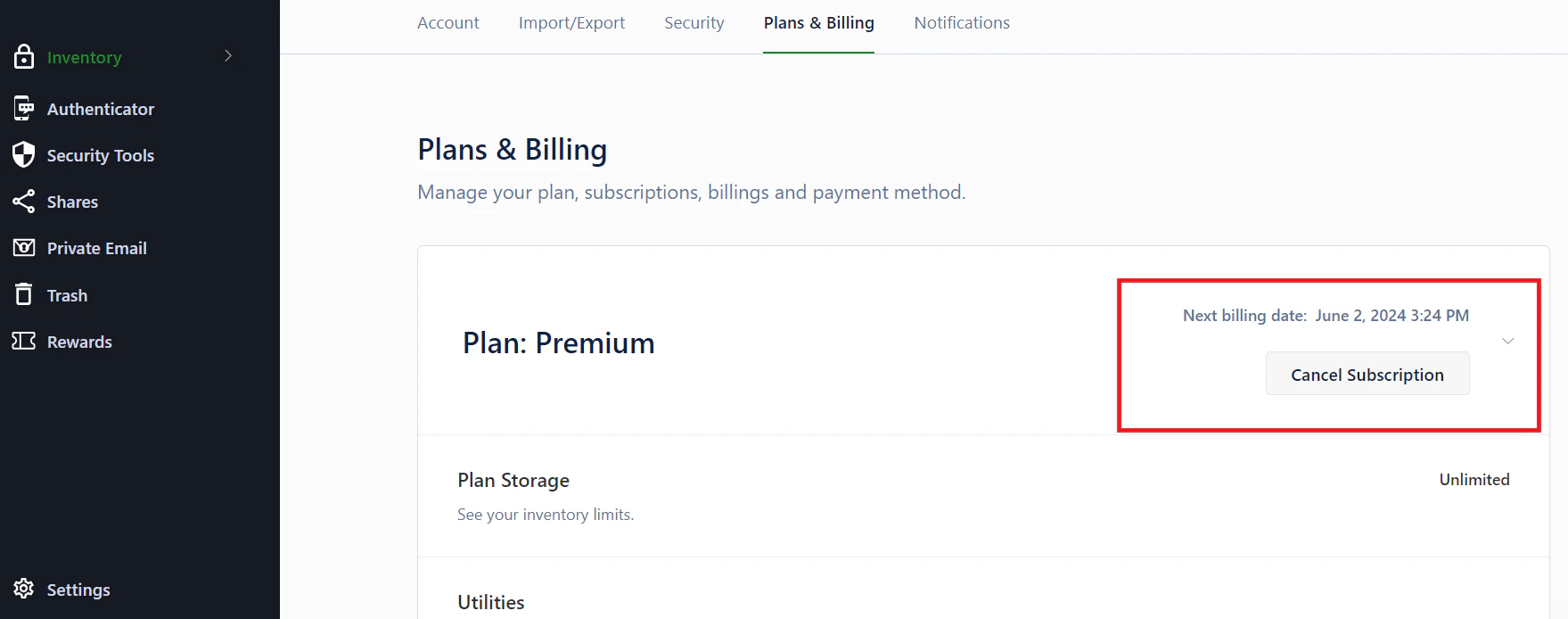
On the left sidebar, click `Settings` → Choose the `Plans & Billing` tab.
Your current subscription details, including the **Next billing date**, will be displayed here.
 ### On Mobile App
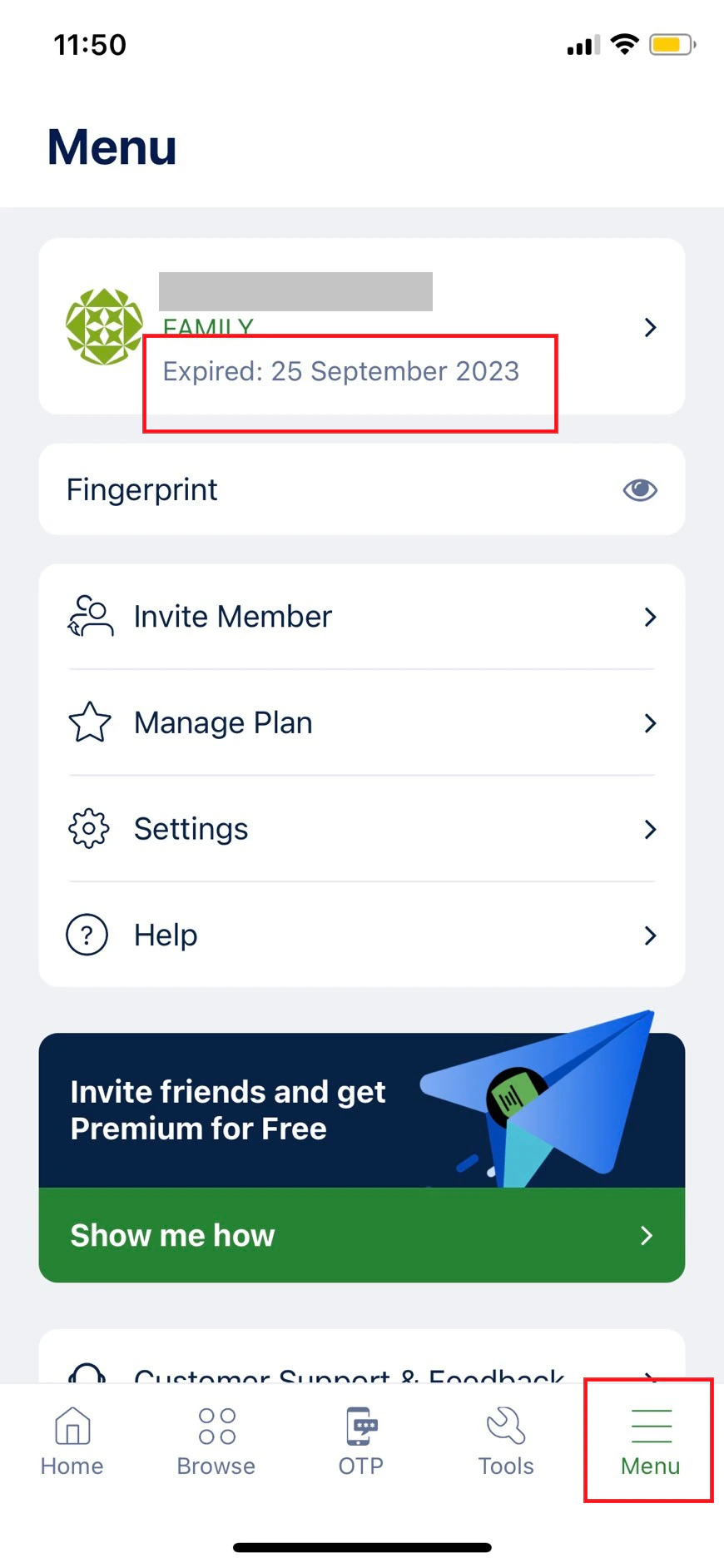
Log in to your Locker mobile app and tap the `Menu` tab.
You will see your current subscription information, including the next billing date, directly on this screen.
### On Mobile App
Log in to your Locker mobile app and tap the `Menu` tab.
You will see your current subscription information, including the next billing date, directly on this screen.
 ***
## Change Payment Method
You can update your payment details at any time to ensure your subscription is renewed using a new method.
Learn more about supported payment methods and how to update them.
***
## Change Payment Method
You can update your payment details at any time to ensure your subscription is renewed using a new method.
Learn more about supported payment methods and how to update them.