> ## Documentation Index
> Fetch the complete documentation index at: https://support.locker.io/llms.txt
> Use this file to discover all available pages before exploring further.
# Import data from Google Sheet or Microsoft Excel to Locker
> Follow the below steps to import passwords from a Google Sheet or Microsoft Excel file into Locker.
If you are managing your passwords in Google Sheet or in a Microsoft Excel Sheet, you can import the file to Locker using the Google Password Manager template.
## Organize data with Google Password Manager template
First, you need to organize all your passwords with a given template. This ensures that the password details are accurately placed in the respective fields when imported into Locker.
Arrange your passwords as in the template below. You can also make a copy of the template by clicking **File** > **Make a copy**.
| name | url | username | password | note |
| -------------- | ---------------------------------------------------- | --------------------------------------------- | ----------------- | ------------------ |
| Github account | [https://github.com/login](https://github.com/login) | [example@gmail.com](mailto:example@gmail.com) | DVRegef32t5rfsacd | This is an example |
## Save your file as CSV format
After organizing your passwords in the correct template, save your Google Sheet file or Excel Sheet file as a CSV file.
### Google Sheet file
Open the Google Sheet file containing your passwords.
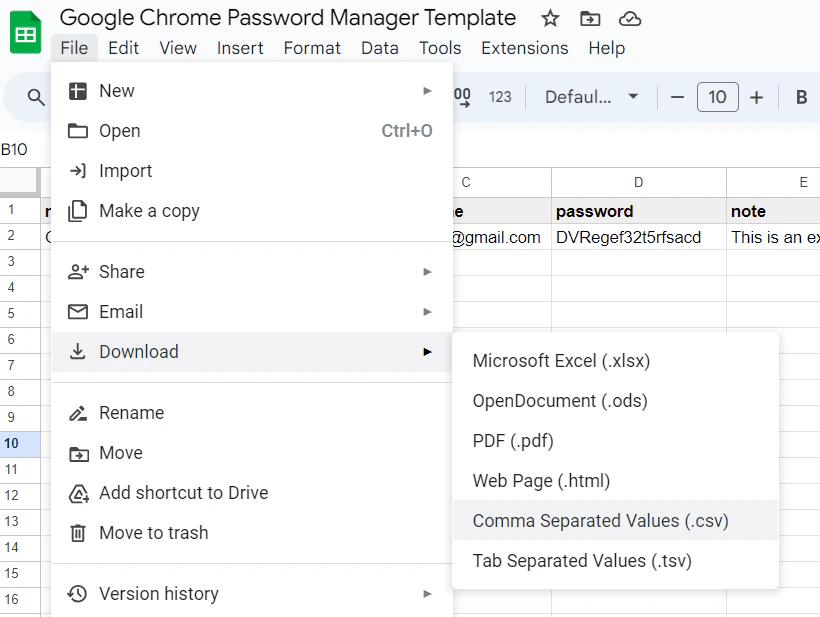
Click **File** > **Download** > **Comma Separated Values (.csv)**.
 ### Excel Sheet file
Open the Excel Sheet file containing your passwords, then click **File** at the top left corner.
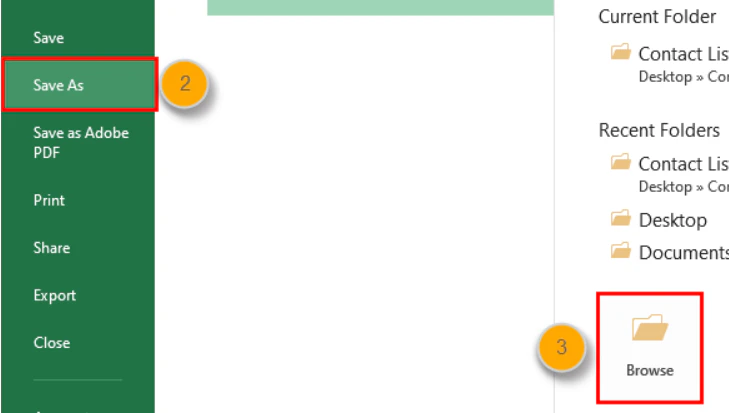
Click **Save as** > click **Browse** to choose where you want to save your file.
### Excel Sheet file
Open the Excel Sheet file containing your passwords, then click **File** at the top left corner.
Click **Save as** > click **Browse** to choose where you want to save your file.
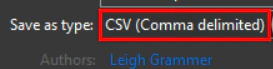
 Select **CSV** from the **Save as type** drop-down menu, then click **Save**.
 ## Import to Locker
Use the Locker web vault to import your data.
Open Locker on your browser.
Select **Settings** > **Import/Export**.
Scroll down to the **Import** section.
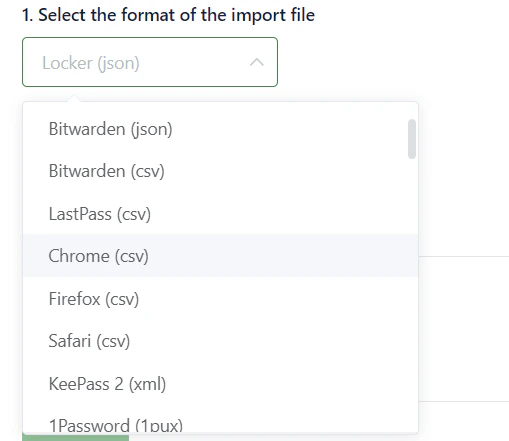
Select **Chrome (csv)** as the format from the drop-down menu.
## Import to Locker
Use the Locker web vault to import your data.
Open Locker on your browser.
Select **Settings** > **Import/Export**.
Scroll down to the **Import** section.
Select **Chrome (csv)** as the format from the drop-down menu.
 Click **Choose File** and upload the import file on your device.
Click **Import**.
Your login credentials have been successfully imported from the CSV file to the Locker vault.
Click **Choose File** and upload the import file on your device.
Click **Import**.
Your login credentials have been successfully imported from the CSV file to the Locker vault.