> ## Documentation Index
> Fetch the complete documentation index at: https://support.locker.io/llms.txt
> Use this file to discover all available pages before exploring further.

# Get to know Locker on Linux

> Learn how to install, manage data, and secure your password vault on the Locker desktop app for Linux.

Locker provides a desktop application for Linux users, delivering a secure and convenient password management experience on popular distributions.

***

## Import data

Quickly transfer data from your browser or other password managers into Locker:

### Popular browsers

<CardGroup cols={2}>
  <Card title="Google Chrome" icon="chrome" href="/en/locker-password-manager/get-started/import-and-export/import-from-google-chrome-to-locker" />

  <Card title="Microsoft Edge" icon="edge" href="/en/locker-password-manager/get-started/import-and-export/import-from-microsoft-edge-to-locker" />

  <Card title="Mozilla Firefox" icon="firefox" href="/en/locker-password-manager/get-started/import-and-export/import-from-mozilla-firefox-to-locker" />

  <Card title="Safari" icon="safari" href="/en/locker-password-manager/get-started/import-and-export/import-from-safari-to-locker" />
</CardGroup>

### Password managers

<CardGroup cols={3}>
  <Card title="1Password" icon="key" href="/en/locker-password-manager/get-started/import-and-export/import-from-1password-to-locker" />

  <Card title="LastPass" icon="vault" href="/en/locker-password-manager/get-started/import-and-export/import-from-lastpass-to-locker" />

  <Card title="Bitwarden" icon="shield-check" href="/en/locker-password-manager/get-started/import-and-export/import-from-bitwarden-to-locker" />

  <Card title="NordPass" icon="lock" href="/en/locker-password-manager/get-started/import-and-export/import-from-nordpass-to-locker" />

  <Card title="Dashlane" icon="fingerprint" href="/en/locker-password-manager/get-started/import-and-export/import-from-dashlane-to-locker" />

  <Card title="Enpass" icon="hard-drive" href="/en/locker-password-manager/get-started/import-and-export/import-from-enpass-to-locker" />

  <Card title="KeePass" icon="file-code" href="/en/locker-password-manager/get-started/import-and-export/import-from-keepass-to-locker" />

  <Card title="KeePassX" icon="file-zipper" href="/en/locker-password-manager/get-started/import-and-export/import-from-keepassx-to-locker" />

  <Card title="RoboForm" icon="robot" href="/en/locker-password-manager/get-started/import-and-export/import-from-roboform-to-locker" />

  <Card title="Keeper" icon="shield-halved" href="/en/locker-password-manager/get-started/import-and-export/import-from-keeper-to-locker" />
</CardGroup>

### Operating systems & Files

<CardGroup cols={2}>
  <Card title="iCloud Keychain" icon="apple" href="/en/locker-password-manager/get-started/import-and-export/import-from-icloud-keychain-to-locker" />

  <Card title="Samsung Pass" icon="mobile-screen" href="/en/locker-password-manager/get-started/import-and-export/import-from-samsung-pass-to-locker" />

  <Card title="Google Sheet / Excel" icon="file-excel" href="/en/locker-password-manager/get-started/import-and-export/import-from-google-sheet-or-microsoft-excel-file" />
</CardGroup>

***

## Add, edit, and delete items

After logging in, you will be taken to the **Vault** screen, where you can centrally manage passwords, notes, cards, and identities.

<Steps>
  <Step title="Add a new item">
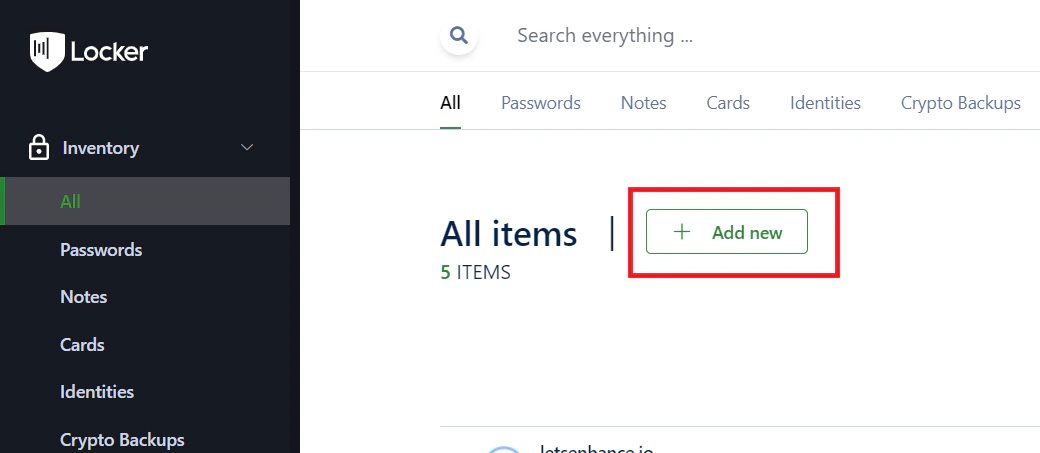
    Click `Add New`, select the item type you want to add, enter the details, and click `Add`.
    <img src="https://mintcdn.com/locker/QUgTEfHYF1luiq3D/images/en/locker-password-manager/get-started/install-and-get-started/linux-add-item.png?fit=max&auto=format&n=QUgTEfHYF1luiq3D&q=85&s=21fe35f650b42f41eaa1a60cb6b77fb2" alt="Add a new item on Linux" style={{display: 'block', margin: '0 auto'}} width="1040" height="453" data-path="images/en/locker-password-manager/get-started/install-and-get-started/linux-add-item.png" />
  </Step>

  <Step title="Edit an item">
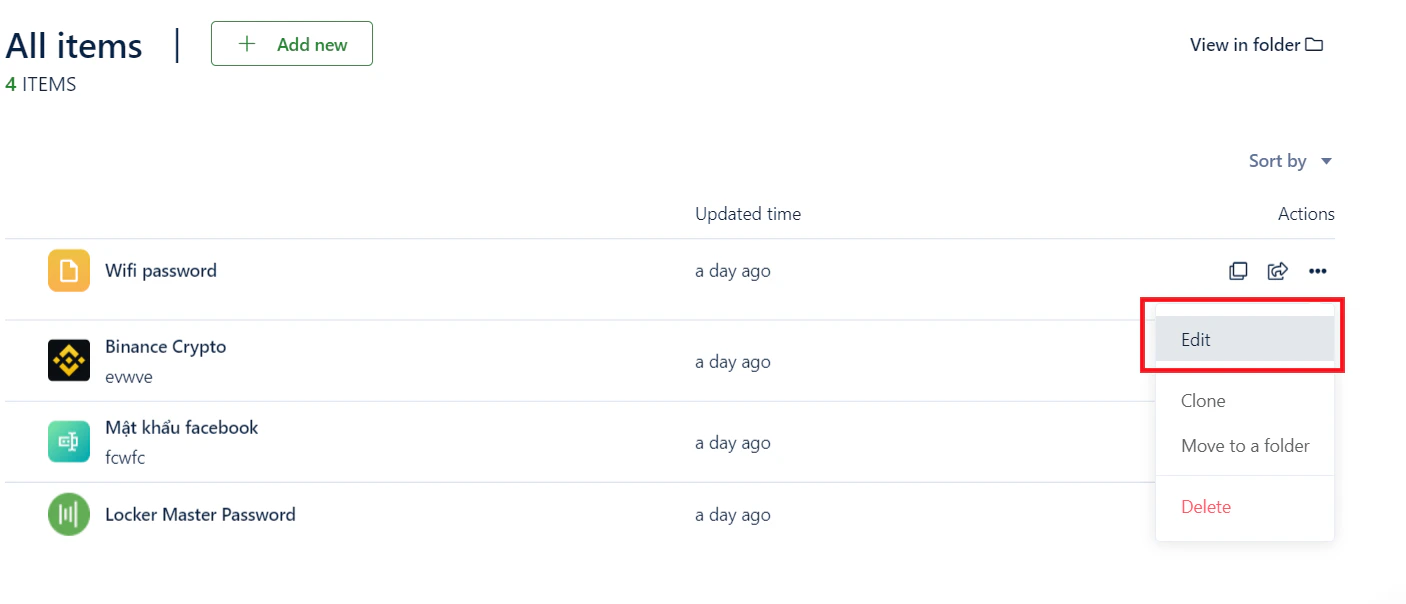
    Hover over the item you want to edit, click the <code>{'\u22EF'}</code> menu, and select `Edit`. After updating the information, click `Save`.
    <img src="https://mintcdn.com/locker/QUgTEfHYF1luiq3D/images/en/locker-password-manager/get-started/install-and-get-started/linux-edit-item.png?fit=max&auto=format&n=QUgTEfHYF1luiq3D&q=85&s=b880f57dd109ff5f97d7394f3d79285d" alt="Edit an item on Linux" style={{display: 'block', margin: '0 auto'}} width="1406" height="604" data-path="images/en/locker-password-manager/get-started/install-and-get-started/linux-edit-item.png" />
  </Step>

  <Step title="Delete an item">
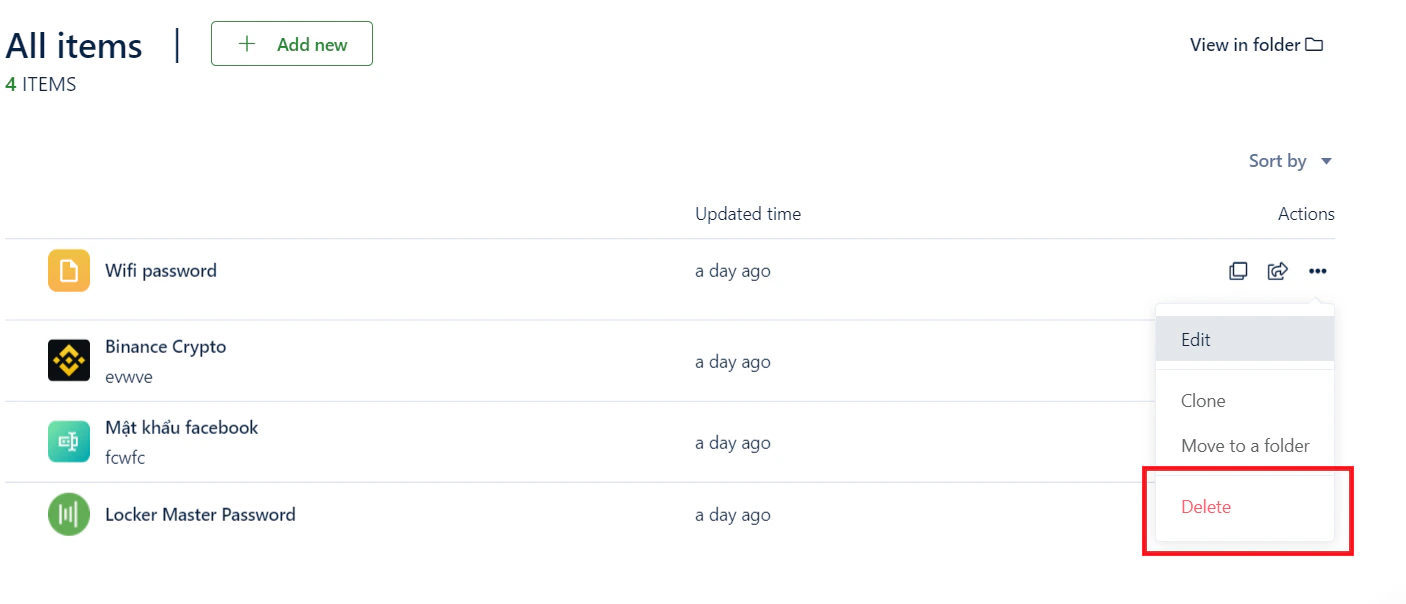
    Hover over the item you want to delete, click the <code>{'\u22EF'}</code> menu, and select `Delete`.

    *You can also delete an item by selecting `Edit` and clicking the **Trash** icon.*
    <img src="https://mintcdn.com/locker/QUgTEfHYF1luiq3D/images/en/locker-password-manager/get-started/install-and-get-started/linux-delete-item.png?fit=max&auto=format&n=QUgTEfHYF1luiq3D&q=85&s=58c7aac3950c3ae65bd0d4bccbc00777" alt="Delete an item on Linux" style={{display: 'block', margin: '0 auto'}} width="1406" height="604" data-path="images/en/locker-password-manager/get-started/install-and-get-started/linux-delete-item.png" />
  </Step>
</Steps>

***

## Security and authentication

* **Set up 2FA:** Add an extra layer of protection to your account. [See the 2FA setup guide](/en/locker-general/security-for-locker-account/2fa-for-locker-account).
* **Master Password:** The only key to decrypt your vault data. [Learn more about Master Password](/en/locker-general/login-unlock/what-is-master-password).

***

## Lock and unlock

To keep your data safe when not in use:

<Steps>
  <Step title="Lock the app">
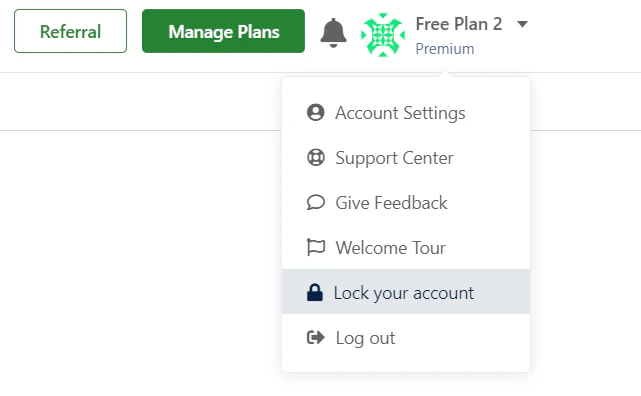
    Click the triangle button next to your username and select `Lock Account`.
    <img src="https://mintcdn.com/locker/QUgTEfHYF1luiq3D/images/en/locker-password-manager/get-started/install-and-get-started/linux-lock-app.png?fit=max&auto=format&n=QUgTEfHYF1luiq3D&q=85&s=d8506ee45d674b76de17cd4791de9cf5" alt="Lock the Linux app" style={{display: 'block', margin: '0 auto'}} width="641" height="396" data-path="images/en/locker-password-manager/get-started/install-and-get-started/linux-lock-app.png" />
  </Step>

  <Step title="Unlock">
    Enter your **Master Password** to continue accessing your vault.
  </Step>
</Steps>
