> ## Documentation Index
> Fetch the complete documentation index at: https://support.locker.io/llms.txt
> Use this file to discover all available pages before exploring further.

# Get to know Locker on macOS

> Learn how to add, save, and fill items on the Locker desktop app for macOS.

Locker has a dedicated desktop application for macOS, helping you manage passwords and sensitive information smoothly and securely.

[Download Locker for macOS](https://locker.io/download#macos)

***

## Import data

Easily transfer login credentials from your browsers or other password managers directly into Locker:

### Popular browsers

<CardGroup cols={2}>
  <Card title="Google Chrome" icon="chrome" href="/en/locker-password-manager/get-started/import-and-export/import-from-google-chrome-to-locker" />

  <Card title="Microsoft Edge" icon="edge" href="/en/locker-password-manager/get-started/import-and-export/import-from-microsoft-edge-to-locker" />

  <Card title="Mozilla Firefox" icon="firefox" href="/en/locker-password-manager/get-started/import-and-export/import-from-mozilla-firefox-to-locker" />

  <Card title="Safari" icon="safari" href="/en/locker-password-manager/get-started/import-and-export/import-from-safari-to-locker" />
</CardGroup>

### Password managers

<CardGroup cols={3}>
  <Card title="1Password" icon="key" href="/en/locker-password-manager/get-started/import-and-export/import-from-1password-to-locker" />

  <Card title="LastPass" icon="vault" href="/en/locker-password-manager/get-started/import-and-export/import-from-lastpass-to-locker" />

  <Card title="Bitwarden" icon="shield-check" href="/en/locker-password-manager/get-started/import-and-export/import-from-bitwarden-to-locker" />

  <Card title="NordPass" icon="lock" href="/en/locker-password-manager/get-started/import-and-export/import-from-nordpass-to-locker" />

  <Card title="Dashlane" icon="fingerprint" href="/en/locker-password-manager/get-started/import-and-export/import-from-dashlane-to-locker" />

  <Card title="Enpass" icon="hard-drive" href="/en/locker-password-manager/get-started/import-and-export/import-from-enpass-to-locker" />

  <Card title="KeePass" icon="file-code" href="/en/locker-password-manager/get-started/import-and-export/import-from-keepass-to-locker" />

  <Card title="KeePassX" icon="file-zipper" href="/en/locker-password-manager/get-started/import-and-export/import-from-keepassx-to-locker" />

  <Card title="RoboForm" icon="robot" href="/en/locker-password-manager/get-started/import-and-export/import-from-roboform-to-locker" />

  <Card title="Keeper" icon="shield-halved" href="/en/locker-password-manager/get-started/import-and-export/import-from-keeper-to-locker" />
</CardGroup>

### Operating systems & Files

<CardGroup cols={2}>
  <Card title="iCloud Keychain" icon="apple" href="/en/locker-password-manager/get-started/import-and-export/import-from-icloud-keychain-to-locker" />

  <Card title="Samsung Pass" icon="mobile-screen" href="/en/locker-password-manager/get-started/import-and-export/import-from-samsung-pass-to-locker" />

  <Card title="Google Sheet / Excel" icon="file-excel" href="/en/locker-password-manager/get-started/import-and-export/import-from-google-sheet-or-microsoft-excel-file" />
</CardGroup>

***

## Add, edit, and delete items

The **Vault** screen is where you manage all your passwords, notes, payment cards, and identities.

<Steps>
  <Step title="Add your first item">
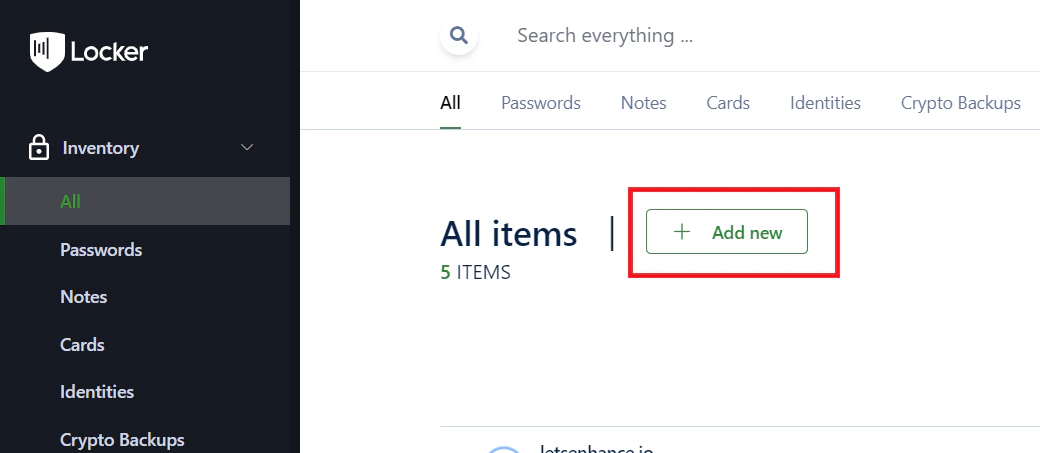
    Click `Add New`, select the item type you want to add, enter the details, and click `Add`.
    <img src="https://mintcdn.com/locker/QUgTEfHYF1luiq3D/images/en/locker-password-manager/get-started/install-and-get-started/macos-add-item.png?fit=max&auto=format&n=QUgTEfHYF1luiq3D&q=85&s=f5693e011c923acabed1bc09a76b4557" alt="Add a new item on macOS" style={{display: 'block', margin: '0 auto'}} width="1040" height="453" data-path="images/en/locker-password-manager/get-started/install-and-get-started/macos-add-item.png" />
  </Step>

  <Step title="Edit an item">
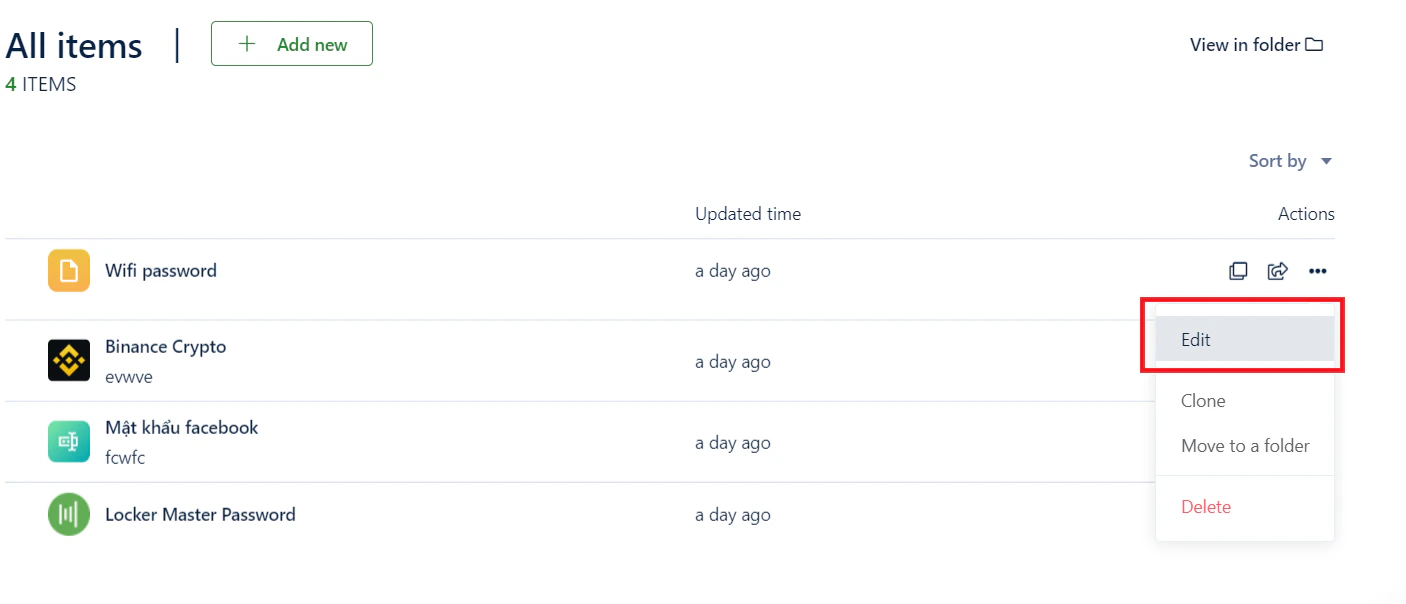
    Hover over the item you want to edit, click the <code>{'\u22EF'}</code> menu, and select `Edit`. After updating the information, click `Save`.
    <img src="https://mintcdn.com/locker/QUgTEfHYF1luiq3D/images/en/locker-password-manager/get-started/install-and-get-started/macos-edit-item.png?fit=max&auto=format&n=QUgTEfHYF1luiq3D&q=85&s=66d0870bc0354544e3156f9ffdfffb51" alt="Edit an item on macOS" style={{display: 'block', margin: '0 auto'}} width="1406" height="604" data-path="images/en/locker-password-manager/get-started/install-and-get-started/macos-edit-item.png" />
  </Step>

  <Step title="Delete an item">
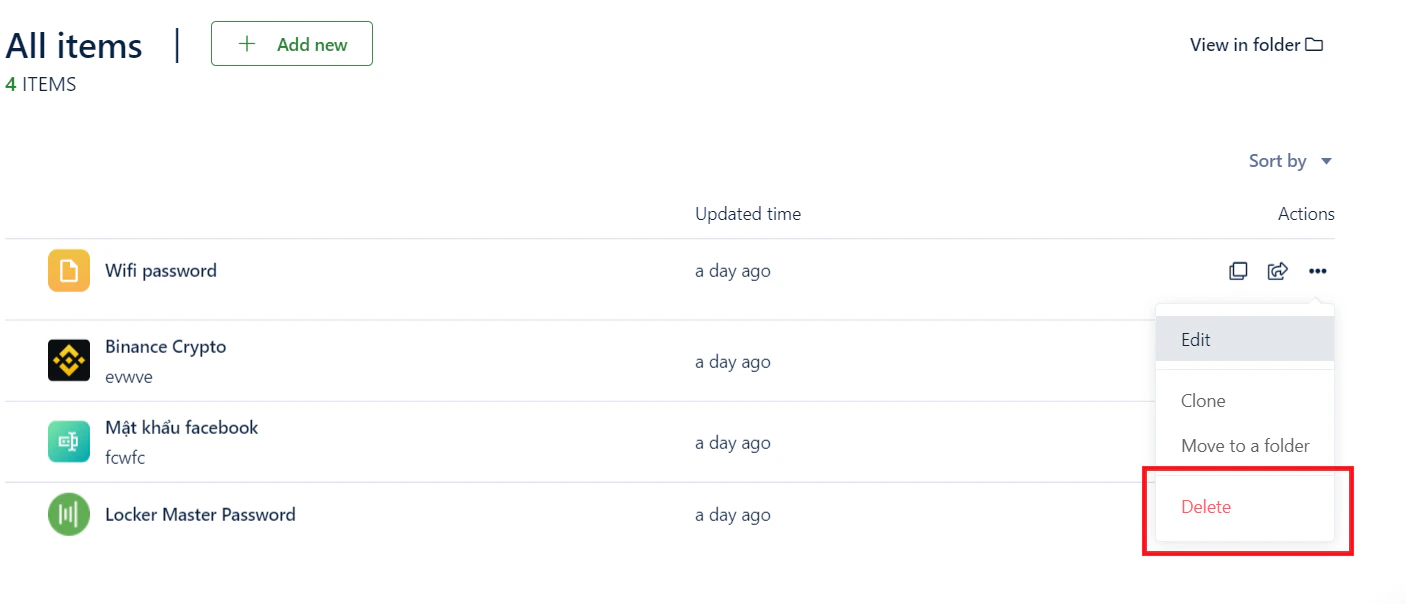
    Hover over the item you want to delete, click the <code>{'\u22EF'}</code> menu, and select `Delete`.

    *You can also delete an item by selecting `Edit` and clicking the **Trash** icon.*
    <img src="https://mintcdn.com/locker/QUgTEfHYF1luiq3D/images/en/locker-password-manager/get-started/install-and-get-started/macos-delete-item.png?fit=max&auto=format&n=QUgTEfHYF1luiq3D&q=85&s=5af11f0e23c07331ec90b0f20fd19a5f" alt="Delete an item on macOS" style={{display: 'block', margin: '0 auto'}} width="1406" height="604" data-path="images/en/locker-password-manager/get-started/install-and-get-started/macos-delete-item.png" />
  </Step>
</Steps>

***

## Secure your account

* **Two-factor authentication (2FA):** We strongly recommend enabling 2FA for maximum account protection. [Set up 2FA guide](/en/locker-general/security-for-locker-account/2fa-for-locker-account).
* **Master Password:** The only key to decrypt your data. [Learn about Master Password](/en/locker-general/login-unlock/what-is-master-password).

***

## Lock and unlock

Keep your vault protected when you step away from your computer:

<Steps>
  <Step title="Lock the app">
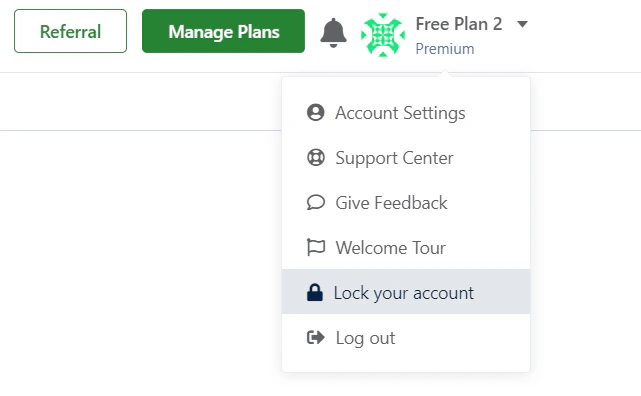
    Click the triangle button next to your username and select `Lock Account`.
    <img src="https://mintcdn.com/locker/QUgTEfHYF1luiq3D/images/en/locker-password-manager/get-started/install-and-get-started/macos-lock-app.png?fit=max&auto=format&n=QUgTEfHYF1luiq3D&q=85&s=708e55f3b4ccfd08af01bf5678370eab" alt="Lock the app on macOS" style={{display: 'block', margin: '0 auto'}} width="641" height="396" data-path="images/en/locker-password-manager/get-started/install-and-get-started/macos-lock-app.png" />
  </Step>

  <Step title="Unlock">
    Use your **Master Password** to unlock and access your vault again.
  </Step>
</Steps>
