> ## Documentation Index
> Fetch the complete documentation index at: https://support.locker.io/llms.txt
> Use this file to discover all available pages before exploring further.

# Get to know Locker on mobile devices

> Store, sync, and autofill passwords anywhere with the Locker app on iOS and Android.

Locker on mobile helps you access your data securely anytime, anywhere. The app fully supports password management, cards, and biometric authentication.

<CardGroup cols={2}>
  <Card title="Download on iOS" icon="apple" href="https://apps.apple.com/us/app/locker-password-manager/id1586927301" />

  <Card title="Download on Android" icon="android" href="https://play.google.com/store/apps/details?id=com.cystack.locker" />
</CardGroup>

***

## Import data

To optimize your experience, you should import data from your browser or other password managers that Locker supports.

### Popular browsers

<CardGroup cols={2}>
  <Card title="Google Chrome" icon="chrome" href="/en/locker-password-manager/get-started/import-and-export/import-from-google-chrome-to-locker" />

  <Card title="Microsoft Edge" icon="edge" href="/en/locker-password-manager/get-started/import-and-export/import-from-microsoft-edge-to-locker" />

  <Card title="Mozilla Firefox" icon="firefox" href="/en/locker-password-manager/get-started/import-and-export/import-from-mozilla-firefox-to-locker" />

  <Card title="Safari" icon="safari" href="/en/locker-password-manager/get-started/import-and-export/import-from-safari-to-locker" />
</CardGroup>

### Password managers

<CardGroup cols={3}>
  <Card title="1Password" icon="key" href="/en/locker-password-manager/get-started/import-and-export/import-from-1password-to-locker" />

  <Card title="LastPass" icon="vault" href="/en/locker-password-manager/get-started/import-and-export/import-from-lastpass-to-locker" />

  <Card title="Bitwarden" icon="shield-check" href="/en/locker-password-manager/get-started/import-and-export/import-from-bitwarden-to-locker" />

  <Card title="NordPass" icon="lock" href="/en/locker-password-manager/get-started/import-and-export/import-from-nordpass-to-locker" />

  <Card title="Dashlane" icon="fingerprint" href="/en/locker-password-manager/get-started/import-and-export/import-from-dashlane-to-locker" />

  <Card title="Enpass" icon="hard-drive" href="/en/locker-password-manager/get-started/import-and-export/import-from-enpass-to-locker" />

  <Card title="KeePass" icon="file-code" href="/en/locker-password-manager/get-started/import-and-export/import-from-keepass-to-locker" />

  <Card title="KeePassX" icon="file-zipper" href="/en/locker-password-manager/get-started/import-and-export/import-from-keepassx-to-locker" />

  <Card title="RoboForm" icon="robot" href="/en/locker-password-manager/get-started/import-and-export/import-from-roboform-to-locker" />

  <Card title="Keeper" icon="shield-halved" href="/en/locker-password-manager/get-started/import-and-export/import-from-keeper-to-locker" />
</CardGroup>

### Operating systems & Files

<CardGroup cols={2}>
  <Card title="iCloud Keychain" icon="apple" href="/en/locker-password-manager/get-started/import-and-export/import-from-icloud-keychain-to-locker" />

  <Card title="Samsung Pass" icon="mobile-screen" href="/en/locker-password-manager/get-started/import-and-export/import-from-samsung-pass-to-locker" />

  <Card title="Google Sheet / Excel" icon="file-excel" href="/en/locker-password-manager/get-started/import-and-export/import-from-google-sheet-or-microsoft-excel-file" />
</CardGroup>

***

## Manage items

When you log in, you will be on the **Home** tab. All items such as passwords, cards, notes, and crypto wallets can be managed here or in the **Vault** tab.

<Steps>
  <Step title="Add a new item">
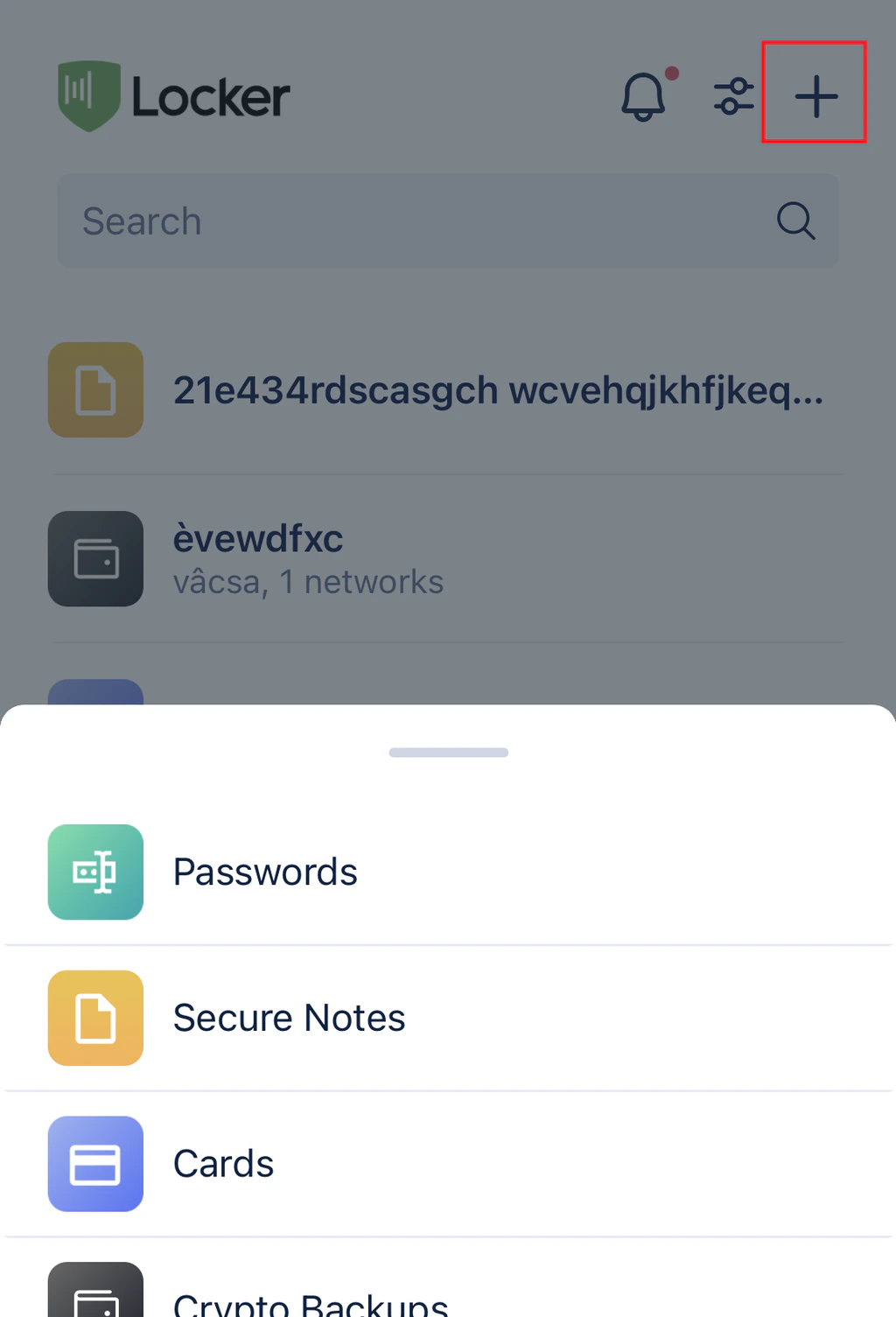
    Tap the **Plus (+)** button, select the item type, enter the information, and tap `Save`.
    <img src="https://mintcdn.com/locker/QUgTEfHYF1luiq3D/images/en/locker-password-manager/get-started/install-and-get-started/mobile-add-item.png?fit=max&auto=format&n=QUgTEfHYF1luiq3D&q=85&s=78b5032fb544bfb0e1087308d033da71" alt="Add a new item on mobile" style={{display: 'block', margin: '0 auto'}} width="1024" height="1505" data-path="images/en/locker-password-manager/get-started/install-and-get-started/mobile-add-item.png" />
  </Step>

  <Step title="Edit an item">
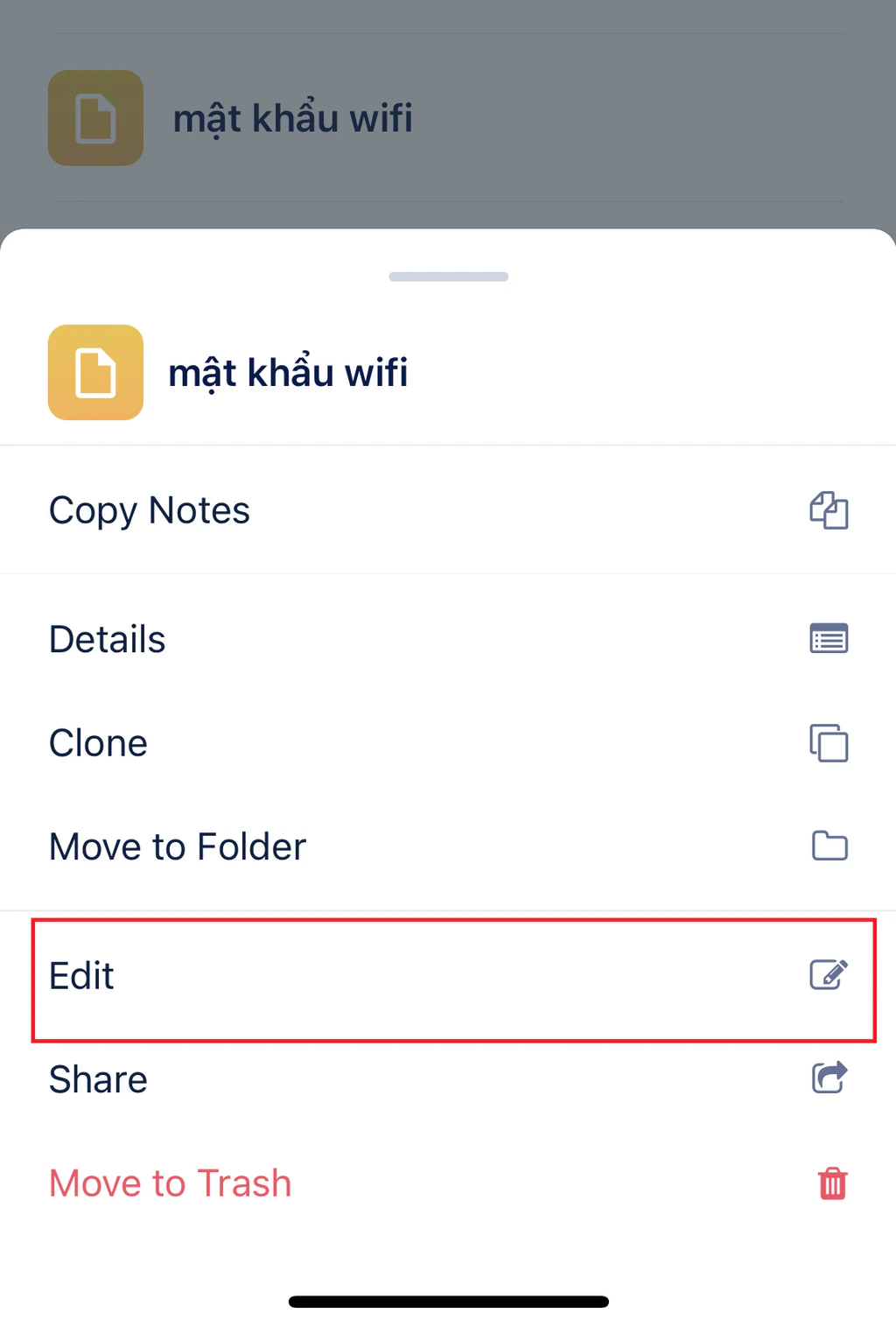
    Tap the item you want to modify, tap `Edit`, update the information, and select `Save`.
    <img src="https://mintcdn.com/locker/QUgTEfHYF1luiq3D/images/en/locker-password-manager/get-started/install-and-get-started/mobile-edit-item.png?fit=max&auto=format&n=QUgTEfHYF1luiq3D&q=85&s=06725ea033a220f3e8cab2b3613130a7" alt="Edit an item on mobile" style={{display: 'block', margin: '0 auto'}} width="1024" height="1516" data-path="images/en/locker-password-manager/get-started/install-and-get-started/mobile-edit-item.png" />
  </Step>

  <Step title="Delete an item">
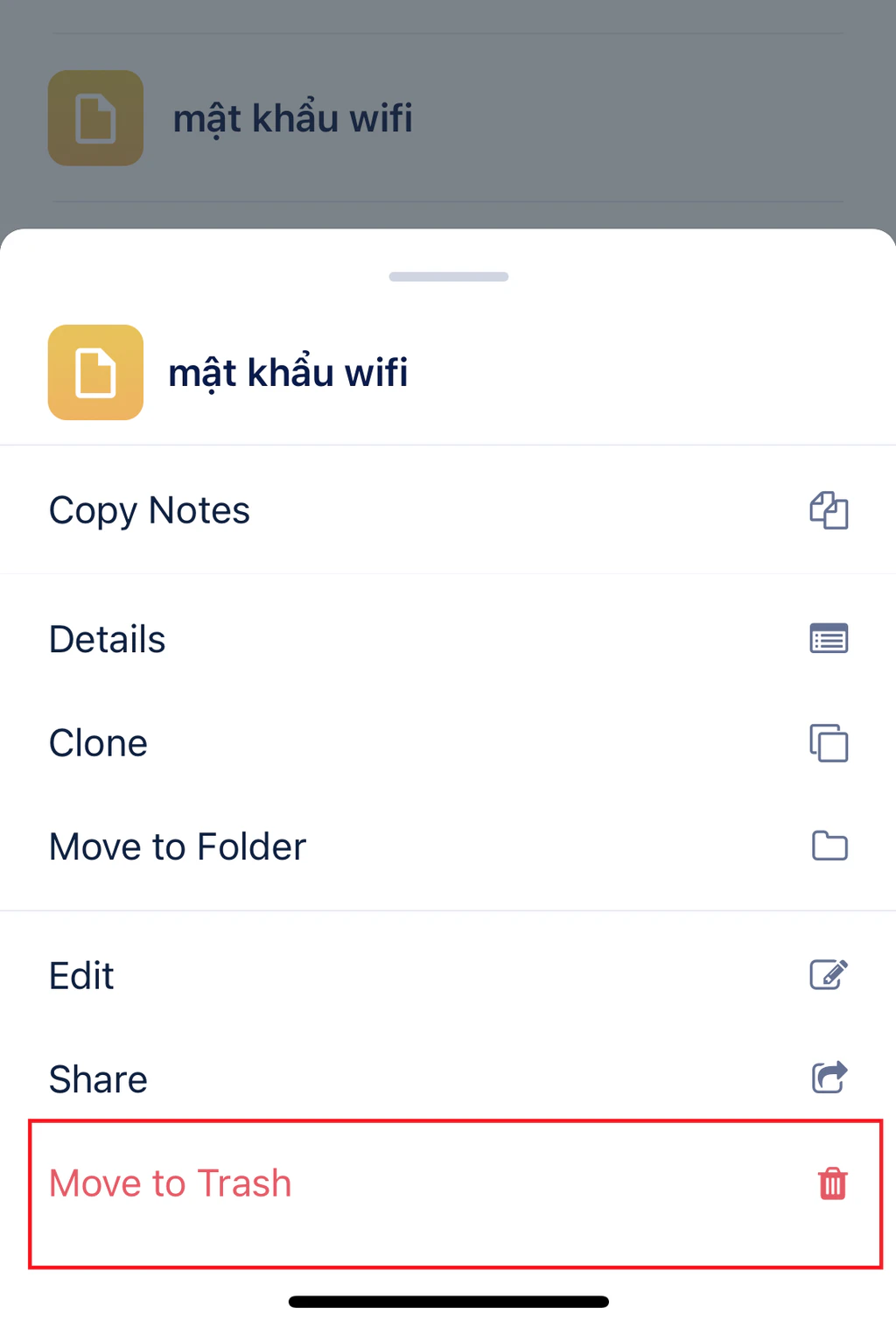
    Select the item you want to delete and tap `Move to Trash`.
    <img src="https://mintcdn.com/locker/QUgTEfHYF1luiq3D/images/en/locker-password-manager/get-started/install-and-get-started/mobile-delete-item.png?fit=max&auto=format&n=QUgTEfHYF1luiq3D&q=85&s=3c603e0937bdc54fb390b42b2e5d295b" alt="Delete an item on mobile" style={{display: 'block', margin: '0 auto'}} width="1024" height="1516" data-path="images/en/locker-password-manager/get-started/install-and-get-started/mobile-delete-item.png" />
  </Step>
</Steps>

***

## Set up autofill

Enable this feature so Locker can automatically fill in login information on other apps and websites.

<Tabs>
  <Tab title="On iOS">
    <Steps>
      <Step title="Open System Settings">
        Open the **Settings** app on your iOS device.
      </Step>

      <Step title="Open password options">
        Go to **Passwords**, then select **Password Options**.
      </Step>

      <Step title="Enable autofill">
        Toggle on **AutoFill Passwords**.
      </Step>

      <Step title="Select the data source">
        Under **Allow Filling From**, check **Locker**.
      </Step>
    </Steps>
  </Tab>

  <Tab title="On Android">
    <Steps>
      <Step title="Open the Locker menu">
        Open the Locker app and go to the **Menu** tab.
      </Step>

      <Step title="Open service settings">
        Select **Settings** and then **Autofill Service**, then tap **Open Settings**.
      </Step>

      <Step title="Select the default service">
        In the list of available services, select **Locker** as the default autofill service.
      </Step>

      <Step title="Confirm trust">
        Tap **OK** in the confirmation dialog to grant Locker autofill permission.
      </Step>
    </Steps>
  </Tab>
</Tabs>

***

## Lock and unlock

Keep your data safe by locking the app when not in use.

### Quick lock

* **iOS:** Swipe right or go to `Menu` and select `Lock`.
* **Android:** Go to the `Menu` tab and select `Lock`.

<Tip>
  You can go to `Menu` then `Settings` then `Timeout` to set up automatic locking after a specified period of time.
</Tip>

### Unlock

Use your **Master Password** or conveniently unlock with **Biometrics** (Fingerprint/Face).
