> ## Documentation Index
> Fetch the complete documentation index at: https://support.locker.io/llms.txt
> Use this file to discover all available pages before exploring further.

# Get to know Locker on Windows

> Learn how to install, manage data, and secure your account on the Locker desktop app for Windows.

The Locker app on Windows helps you manage passwords and sensitive data right from your desktop with optimal performance.

[Download Locker for Windows](https://locker.io/download#windows)

***

## Import data

To optimize your experience, you should import data from your browser or other password managers that Locker supports.

### Popular browsers

<CardGroup cols={2}>
  <Card title="Google Chrome" icon="chrome" href="/en/locker-password-manager/get-started/import-and-export/import-from-google-chrome-to-locker" />

  <Card title="Microsoft Edge" icon="edge" href="/en/locker-password-manager/get-started/import-and-export/import-from-microsoft-edge-to-locker" />

  <Card title="Mozilla Firefox" icon="firefox" href="/en/locker-password-manager/get-started/import-and-export/import-from-mozilla-firefox-to-locker" />

  <Card title="Safari" icon="safari" href="/en/locker-password-manager/get-started/import-and-export/import-from-safari-to-locker" />
</CardGroup>

### Password managers

<CardGroup cols={3}>
  <Card title="1Password" icon="key" href="/en/locker-password-manager/get-started/import-and-export/import-from-1password-to-locker" />

  <Card title="LastPass" icon="vault" href="/en/locker-password-manager/get-started/import-and-export/import-from-lastpass-to-locker" />

  <Card title="Bitwarden" icon="shield-check" href="/en/locker-password-manager/get-started/import-and-export/import-from-bitwarden-to-locker" />

  <Card title="NordPass" icon="lock" href="/en/locker-password-manager/get-started/import-and-export/import-from-nordpass-to-locker" />

  <Card title="Dashlane" icon="fingerprint" href="/en/locker-password-manager/get-started/import-and-export/import-from-dashlane-to-locker" />

  <Card title="Enpass" icon="hard-drive" href="/en/locker-password-manager/get-started/import-and-export/import-from-enpass-to-locker" />

  <Card title="KeePass" icon="file-code" href="/en/locker-password-manager/get-started/import-and-export/import-from-keepass-to-locker" />

  <Card title="KeePassX" icon="file-zipper" href="/en/locker-password-manager/get-started/import-and-export/import-from-keepassx-to-locker" />

  <Card title="RoboForm" icon="robot" href="/en/locker-password-manager/get-started/import-and-export/import-from-roboform-to-locker" />

  <Card title="Keeper" icon="shield-halved" href="/en/locker-password-manager/get-started/import-and-export/import-from-keeper-to-locker" />
</CardGroup>

### Operating systems & Files

<CardGroup cols={2}>
  <Card title="iCloud Keychain" icon="apple" href="/en/locker-password-manager/get-started/import-and-export/import-from-icloud-keychain-to-locker" />

  <Card title="Samsung Pass" icon="mobile-screen" href="/en/locker-password-manager/get-started/import-and-export/import-from-samsung-pass-to-locker" />

  <Card title="Google Sheet / Excel" icon="file-excel" href="/en/locker-password-manager/get-started/import-and-export/import-from-google-sheet-or-microsoft-excel-file" />
</CardGroup>

***

## Add, edit, and delete items

Manage your vault (passwords, notes, cards, identities) directly in the app.

<Steps>
  <Step title="Add a new item">
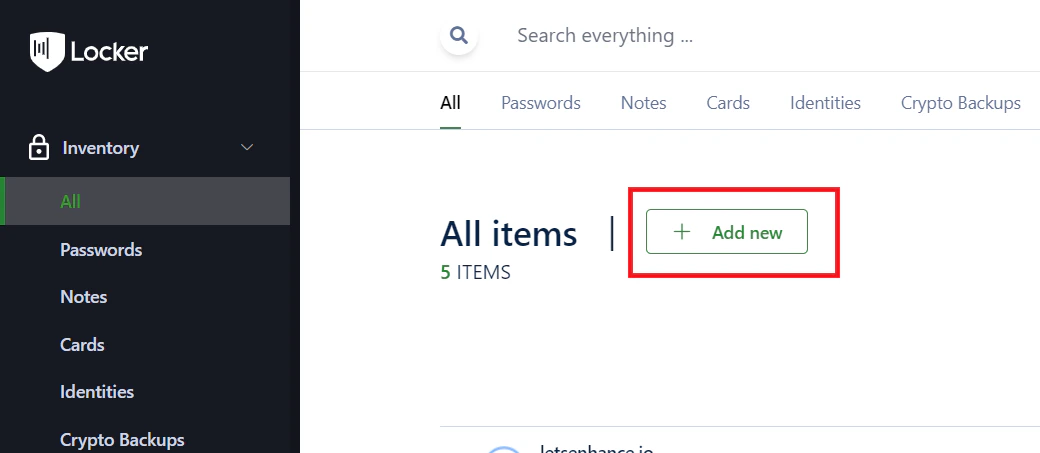
    In the **Vault** screen, click `Add New`, select the item type you want to add, enter the details, and click `Add`.
    <img src="https://mintcdn.com/locker/QUgTEfHYF1luiq3D/images/en/locker-password-manager/get-started/install-and-get-started/windows-add-item.png?fit=max&auto=format&n=QUgTEfHYF1luiq3D&q=85&s=02bebe04773891e187ef93356b4ebb0d" alt="Add a new item on Windows" style={{display: 'block', margin: '0 auto'}} width="1040" height="453" data-path="images/en/locker-password-manager/get-started/install-and-get-started/windows-add-item.png" />
  </Step>

  <Step title="Edit an item">
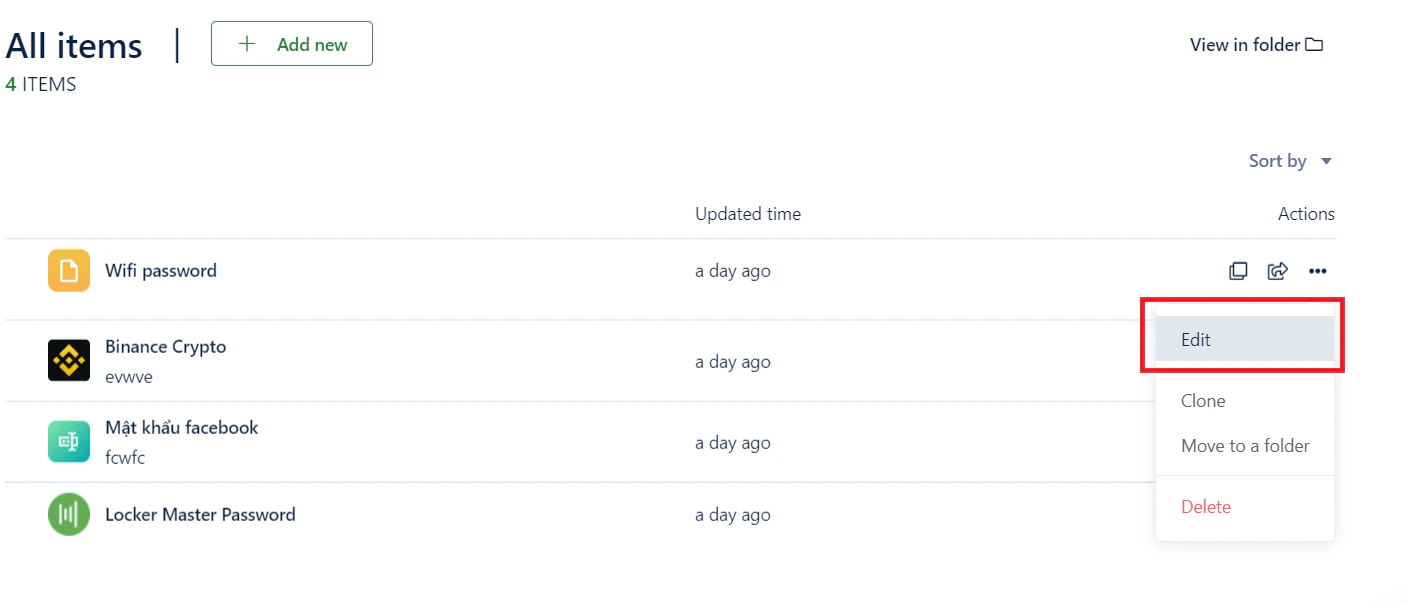
    Hover over the item you want to edit, click the <code>{'\u22EF'}</code> menu, and select `Edit`. After updating, click `Save`.
    <img src="https://mintcdn.com/locker/QUgTEfHYF1luiq3D/images/en/locker-password-manager/get-started/install-and-get-started/windows-edit-item.png?fit=max&auto=format&n=QUgTEfHYF1luiq3D&q=85&s=216ae0c0bb5c5b82f76d53b31684039a" alt="Edit an item on Windows" style={{display: 'block', margin: '0 auto'}} width="1406" height="604" data-path="images/en/locker-password-manager/get-started/install-and-get-started/windows-edit-item.png" />
  </Step>

  <Step title="Delete an item">
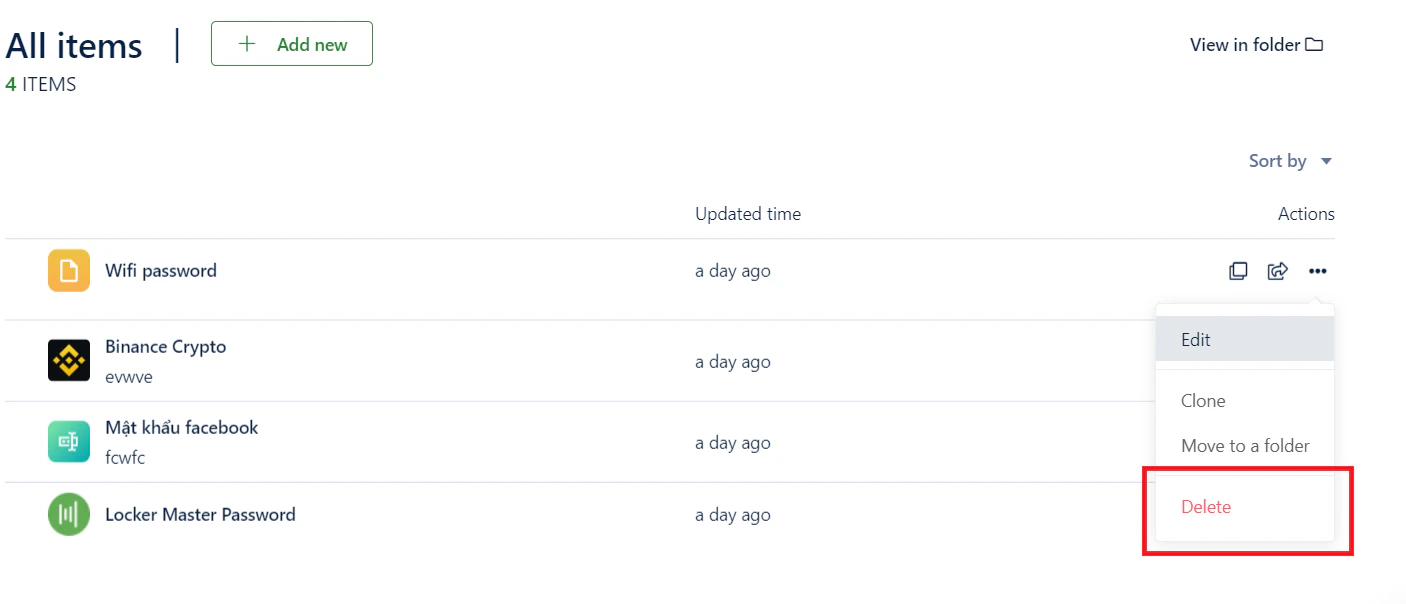
    Hover over the item you want to delete, click the <code>{'\u22EF'}</code> menu, and select `Delete`.

    *Alternatively, you can select `Edit` and click the **Trash** icon in the detail screen.*
    <img src="https://mintcdn.com/locker/QUgTEfHYF1luiq3D/images/en/locker-password-manager/get-started/install-and-get-started/windows-delete-item.png?fit=max&auto=format&n=QUgTEfHYF1luiq3D&q=85&s=d71fc5aebe5d1e472f51b8eb0061dac0" alt="Delete an item on Windows" style={{display: 'block', margin: '0 auto'}} width="1406" height="604" data-path="images/en/locker-password-manager/get-started/install-and-get-started/windows-delete-item.png" />
  </Step>
</Steps>

***

## Security settings

* **Two-factor authentication (2FA):** Enhance your account security. [Learn how to set up 2FA](/en/locker-general/security-for-locker-account/2fa-for-locker-account).
* **Master Password:** The most important key to unlock your data. [Learn about Master Password](/en/locker-general/login-unlock/what-is-master-password).

***

## Lock and unlock

Protect your privacy when you are not using your computer:

<Steps>
  <Step title="Lock your account">
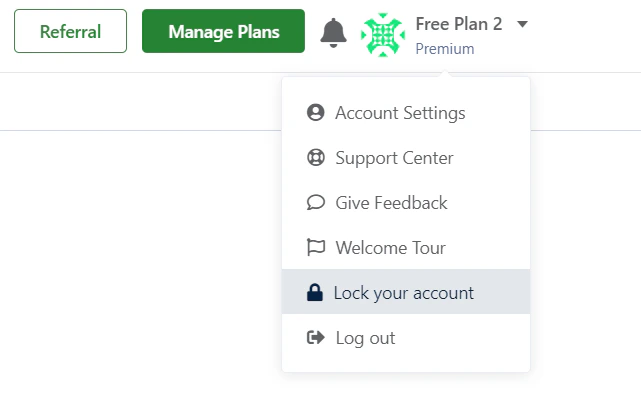
    Click the triangle button next to your username and select `Lock Account`.
    <img src="https://mintcdn.com/locker/QUgTEfHYF1luiq3D/images/en/locker-password-manager/get-started/install-and-get-started/windows-lock-app.png?fit=max&auto=format&n=QUgTEfHYF1luiq3D&q=85&s=85c4f9ca120c78485993cfb1b060f05f" alt="Lock the Windows app" style={{display: 'block', margin: '0 auto'}} width="641" height="396" data-path="images/en/locker-password-manager/get-started/install-and-get-started/windows-lock-app.png" />
  </Step>

  <Step title="Unlock">
    Enter your **Master Password** to continue accessing your vault.
  </Step>
</Steps>

<Tip>
  You can configure auto-lock in **Settings** to ensure the app stays secure even if you forget to lock it manually.
</Tip>
