> ## Documentation Index
> Fetch the complete documentation index at: https://support.locker.io/llms.txt
> Use this file to discover all available pages before exploring further.
# Get to know the Locker browser extension
> Learn how to manage data, organize folders, and use the password generator on the Locker browser extension.
The Locker browser extension is a powerful tool that helps you manage passwords and autofill data directly in your browser quickly and conveniently.
## Add, edit, and delete items
You can manage items directly from the **Vault** screen.
Select the item type from the dropdown list, click the + button, enter the details, and click `Save`.
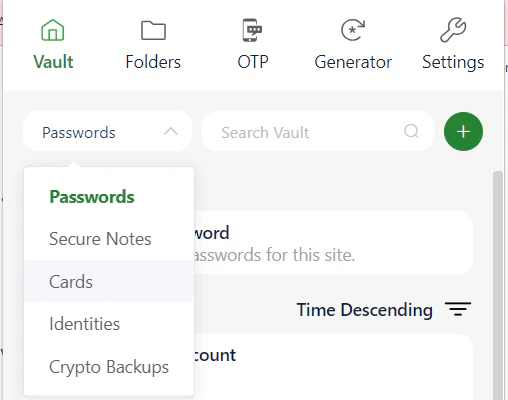 Hover over the item you want to edit, click the
 {'\u22EF'} icon, and select `Edit`. After updating the information, click `Save`.
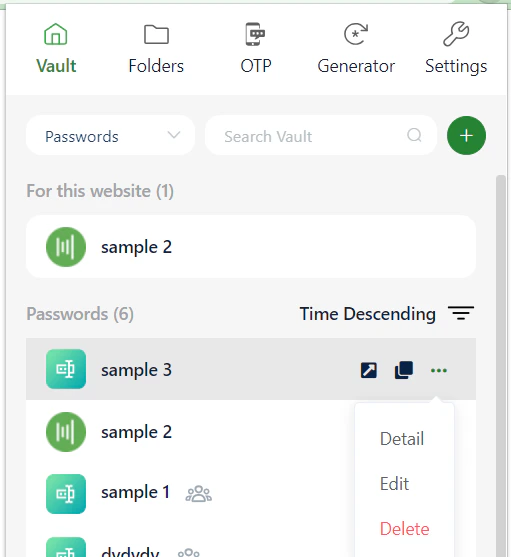 Hover over the item you want to delete, click the
 {'\u22EF'} icon, and select `Delete`.
***
## Manage items with folders
Folders help you categorize passwords and data more effectively.
### Create a new folder
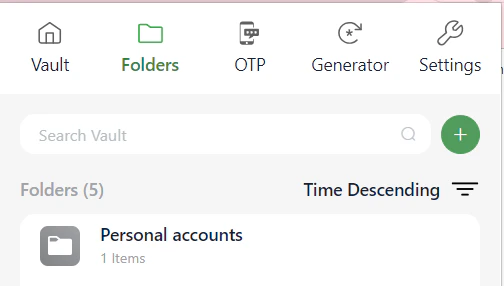
Open the **Folders** tab on the extension's navigation bar.
Click the + button next to the search bar.
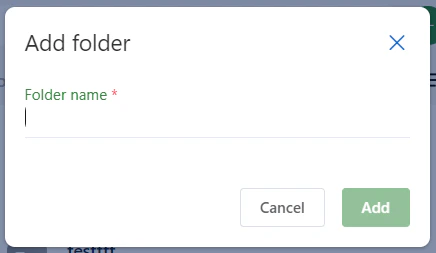
 In the popup window, enter the folder name and click `Add`.
 ### Add items to a folder
In the **Vault** screen, click the
### Add items to a folder
In the **Vault** screen, click the {'\u22EF'} button next to the item you want to move, then select `Edit`.
Scroll down to the **Select folder** section and click the field to choose the desired folder.
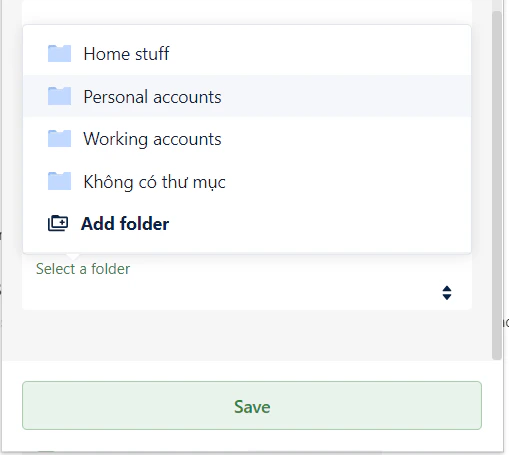 Click `Save` to finish moving the item to the folder.
In the **Folders** screen, click the folder where you want to add a new item.
Click the
Click `Save` to finish moving the item to the folder.
In the **Folders** screen, click the folder where you want to add a new item.
Click the + button in the top right corner.
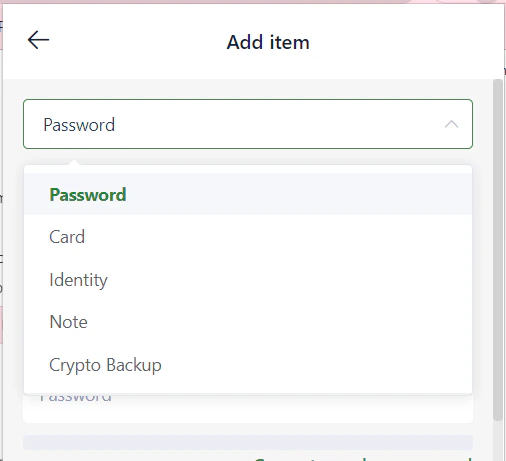
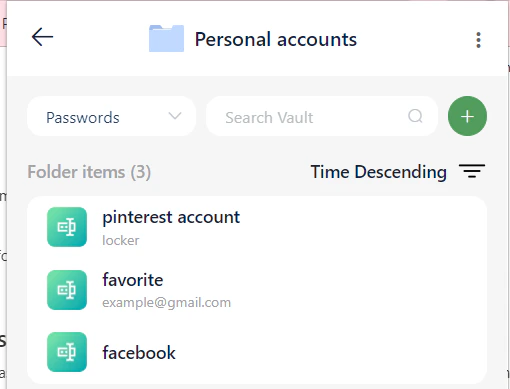 Select the item type, fill in the details, and click `Save`. The new item will be placed in this folder.
 ***
## Generate strong passwords
This feature helps you create complex passwords to enhance your security.
Switch to the **Password Generator** screen on the extension.
Adjust the length and character types according to your security requirements.
***
## Generate strong passwords
This feature helps you create complex passwords to enhance your security.
Switch to the **Password Generator** screen on the extension.
Adjust the length and character types according to your security requirements.
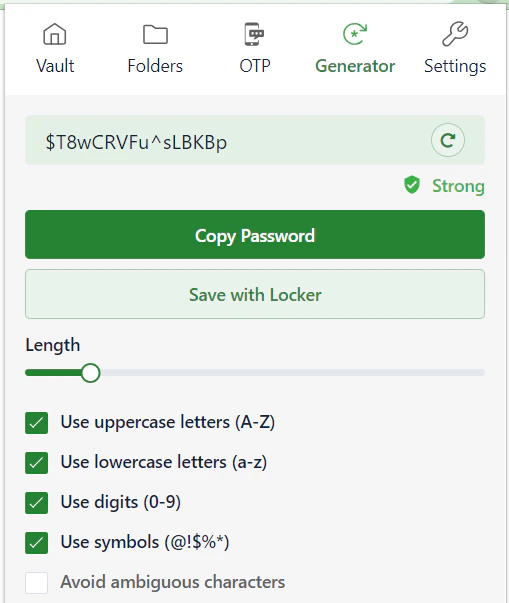 Click `Copy` to use it immediately, or `Save with Locker` to create a new item with this password.
***
## Other settings
### Account security
To enhance security, you should enable two-factor authentication. See the details at [Set up 2FA guide](/en/locker-general/security-for-locker-account/2fa-for-locker-account).
### Autofill
Locker automatically detects login and payment forms to fill in your information quickly. You can learn more about:
* [Autofill logins from extensions](/en/locker-password-manager/general-features/autofill/autofill-logins-from-extensions)
* [Autofill cards and identities](/en/locker-password-manager/general-features/autofill/autofill-cards-and-identities)
Click `Copy` to use it immediately, or `Save with Locker` to create a new item with this password.
***
## Other settings
### Account security
To enhance security, you should enable two-factor authentication. See the details at [Set up 2FA guide](/en/locker-general/security-for-locker-account/2fa-for-locker-account).
### Autofill
Locker automatically detects login and payment forms to fill in your information quickly. You can learn more about:
* [Autofill logins from extensions](/en/locker-password-manager/general-features/autofill/autofill-logins-from-extensions)
* [Autofill cards and identities](/en/locker-password-manager/general-features/autofill/autofill-cards-and-identities)