> ## Documentation Index
> Fetch the complete documentation index at: https://support.locker.io/llms.txt
> Use this file to discover all available pages before exploring further.
# Sign Up for Online Services Using a Private Email
> Learn how to use Locker private email to sign up for online services without revealing your real email address.
You can use a private email created in Locker to sign up for online services. This way, you do not have to reveal your real email address, thereby protecting your online identity.
## Sign Up for a Service on a Website
You can create a private email in the Locker app, then copy and paste it into the website you want to sign up for. Or you can install the Locker extension for a seamless signup flow as described below. [Download the Extension here](https://locker.io/download).
Navigate to the signup form of the website or app you want to create an account for.
In the email field, click the Locker icon.
A popup of your private email list will appear. If the list does not show up, click the three-dot button on the popup and click the **Hide Your Email** button.
You can select any private email you have already created. Or you can click **Create New Private Email** to create a new one.
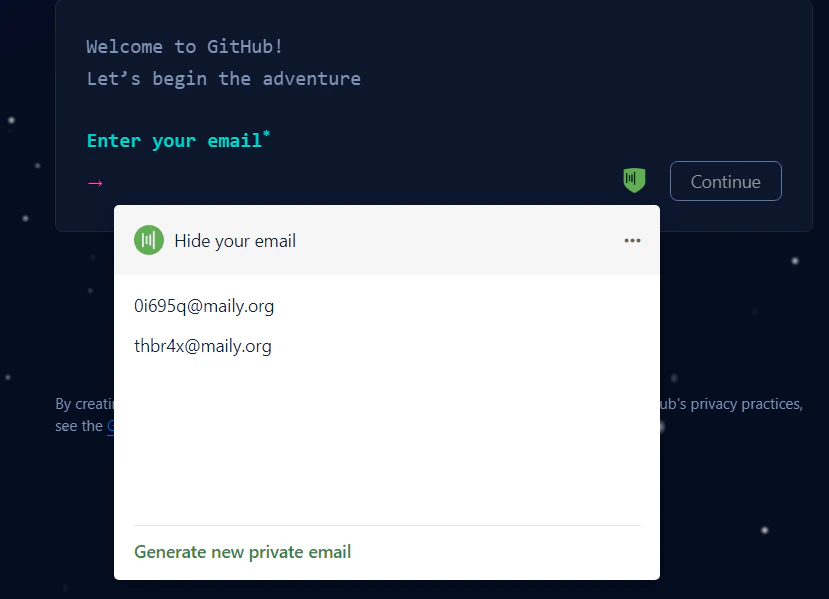 The selected (or newly created) private email will be filled into the email field.
You can then continue the signup flow. If any email is sent to the private email, it will be forwarded to your Locker email.
## Sign Up on Mobile Devices
You can open the Locker mobile app, create a private email from the Locker app, and then copy and paste it into the website or app you want to sign up for. Or you can use the autofill feature to create an account directly on the app or website as described below:
Navigate to the website or app you want to sign up for and go to the signup form.
Tap the email field to bring up the keyboard. On the keyboard, tap the **Locker Password Manager** icon (Android) or the **Passwords** option (iOS).
On the autofill screen that appears, tap the **+** button to create a new login item.
In the email field, tap the **Hide Your Email** button.
You can select any private email you have already created by tapping **Use Existing Private Email** and choosing one. Or you can tap **Create New Private Email** to create a new one.
The selected (or newly created) private email will be filled into the email field.
You can then continue the signup flow. If any email is sent to the private email, it will be forwarded to your Locker email.
## Sign Up on Mobile Devices
You can open the Locker mobile app, create a private email from the Locker app, and then copy and paste it into the website or app you want to sign up for. Or you can use the autofill feature to create an account directly on the app or website as described below:
Navigate to the website or app you want to sign up for and go to the signup form.
Tap the email field to bring up the keyboard. On the keyboard, tap the **Locker Password Manager** icon (Android) or the **Passwords** option (iOS).
On the autofill screen that appears, tap the **+** button to create a new login item.
In the email field, tap the **Hide Your Email** button.
You can select any private email you have already created by tapping **Use Existing Private Email** and choosing one. Or you can tap **Create New Private Email** to create a new one.
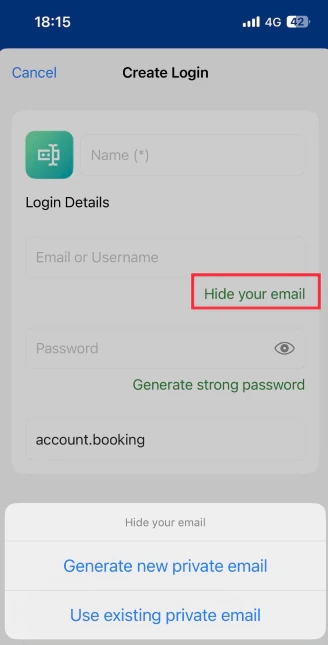 The selected (or newly created) private email will be filled into the email field.
You can then continue creating your account and tap **Save and Autofill** to fill the login credentials into the app or website you are signing up for.
If any email is sent to the private email address, it will be forwarded to your Locker email.
## Create Login Credentials with a Private Email in the Locker App
In the Locker app on any platform (web app, desktop app, mobile app, or browser extension), you can quickly use a private email to hide your real email when creating new login credentials.
On any platform, click to open the password creation form.
In the email field, click the **Hide My Email** button.
Select a private email from the list you have created or click **Create New Private Email**.
Fill in the required information and click **Save** to save the item.
The selected (or newly created) private email will be filled into the email field.
You can then continue creating your account and tap **Save and Autofill** to fill the login credentials into the app or website you are signing up for.
If any email is sent to the private email address, it will be forwarded to your Locker email.
## Create Login Credentials with a Private Email in the Locker App
In the Locker app on any platform (web app, desktop app, mobile app, or browser extension), you can quickly use a private email to hide your real email when creating new login credentials.
On any platform, click to open the password creation form.
In the email field, click the **Hide My Email** button.
Select a private email from the list you have created or click **Create New Private Email**.
Fill in the required information and click **Save** to save the item.