> ## Documentation Index
> Fetch the complete documentation index at: https://support.locker.io/llms.txt
> Use this file to discover all available pages before exploring further.
# Create, organize, and delete folders
> Your vault can be organized using folders. You can place your items into separate folders by type.
Your vault can be organized using folders. You can place your items into separate folders by their type: Passwords, Secure Notes, Cards, Identities, and Crypto Backup, or any custom category.
## On Web App or Desktop App
### Create a folder
Log in to your web vault. You will be navigated to the Vault screen.
Click the **Add New** button and select **Folder** from the dropdown menu.
 Enter the folder name.
Click **Add**. You can view your folder by clicking the **View Folders** button.
### Move items to a folder
Click the **three-dot** button in the Action column of the item you want to move.
From the dropdown menu, click **Move to folder**. In the **Select a folder** box, browse to select an existing folder or click **Add folder** to create a new one.
Click **Update**. You will then see your item in the selected folder.
You can select multiple items by hovering over the icon next to the item name and checking the checkbox that appears on screen.
### Rename a folder
On the **Vault** screen, click **View Folders** to see all folders.
Click the **three-dot menu** of the folder you want to rename > Select **Rename**. Change the folder name.
Click **Update**.
### Delete a folder
On the Vault page, click **View Folders** to see all folders.
Click the **three-dot menu** of the folder you want to delete > Select **Delete** > Click **OK** to confirm.
When you delete a folder, all items in that folder will be moved to the Trash.
## On Mobile Devices
### Create a folder
Open Locker on your device.
Tap **Vault** > **Folders**.
Tap the **Plus** icon in the top-right corner. Enter the folder name.
Tap **Create**.
### Move items to a folder
On the home screen, tap the item you want to move to a folder.
Tap **Move to folder**. Tap an existing folder or create a new one by tapping **New Folder**.
Tap **Save**.
### Rename a folder
On the **Vault** screen, select **Folders** > tap the three-dot button next to the folder > **Rename** > enter the new name > **Save**.
### Delete a folder
On the **Vault** screen, select **Folders** > tap the three-dot button next to the folder > **Delete folder** > tap **OK** to confirm.
## On Browser Extension
### Create a folder
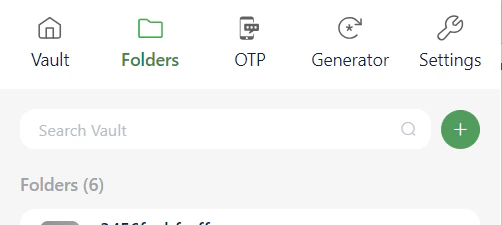
Log in to your Locker account on the Extension. Click the **Folders** tab.
Enter the folder name.
Click **Add**. You can view your folder by clicking the **View Folders** button.
### Move items to a folder
Click the **three-dot** button in the Action column of the item you want to move.
From the dropdown menu, click **Move to folder**. In the **Select a folder** box, browse to select an existing folder or click **Add folder** to create a new one.
Click **Update**. You will then see your item in the selected folder.
You can select multiple items by hovering over the icon next to the item name and checking the checkbox that appears on screen.
### Rename a folder
On the **Vault** screen, click **View Folders** to see all folders.
Click the **three-dot menu** of the folder you want to rename > Select **Rename**. Change the folder name.
Click **Update**.
### Delete a folder
On the Vault page, click **View Folders** to see all folders.
Click the **three-dot menu** of the folder you want to delete > Select **Delete** > Click **OK** to confirm.
When you delete a folder, all items in that folder will be moved to the Trash.
## On Mobile Devices
### Create a folder
Open Locker on your device.
Tap **Vault** > **Folders**.
Tap the **Plus** icon in the top-right corner. Enter the folder name.
Tap **Create**.
### Move items to a folder
On the home screen, tap the item you want to move to a folder.
Tap **Move to folder**. Tap an existing folder or create a new one by tapping **New Folder**.
Tap **Save**.
### Rename a folder
On the **Vault** screen, select **Folders** > tap the three-dot button next to the folder > **Rename** > enter the new name > **Save**.
### Delete a folder
On the **Vault** screen, select **Folders** > tap the three-dot button next to the folder > **Delete folder** > tap **OK** to confirm.
## On Browser Extension
### Create a folder
Log in to your Locker account on the Extension. Click the **Folders** tab.
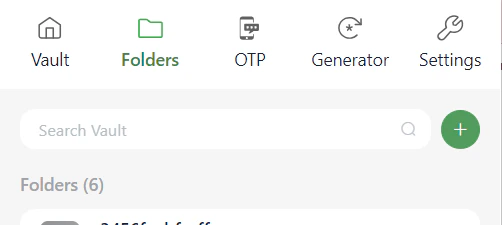 Click the **Plus** icon next to the search bar. Enter the folder name.
Click **Add**.
### Move items to a folder
For the item you want to move to a folder, click the three-dot button next to it > Click **Edit**.
In the **Edit** form, scroll down to the **Select a folder** section. Then select a folder from the dropdown list.
Click the **Plus** icon next to the search bar. Enter the folder name.
Click **Add**.
### Move items to a folder
For the item you want to move to a folder, click the three-dot button next to it > Click **Edit**.
In the **Edit** form, scroll down to the **Select a folder** section. Then select a folder from the dropdown list.
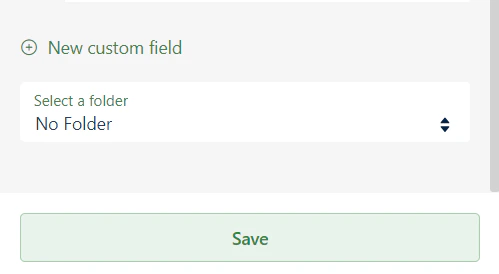 Click **Save** to add the item to the selected folder.
You can create a new item from within a folder. Open a folder and click the **Plus** icon to add a new item.
### Rename / Delete a folder
Click the **Folders** tab > hover over the **three-dot** icon of the folder > select **Rename** or **Delete**.
Click **Save** to add the item to the selected folder.
You can create a new item from within a folder. Open a folder and click the **Plus** icon to add a new item.
### Rename / Delete a folder
Click the **Folders** tab > hover over the **three-dot** icon of the folder > select **Rename** or **Delete**.