> ## Documentation Index
> Fetch the complete documentation index at: https://support.locker.io/llms.txt
> Use this file to discover all available pages before exploring further.
# Share folders
> In addition to sharing individual items, you can also share an entire folder with other Locker users.
In addition to sharing individual items, you can also share an entire folder with other Locker users. All items within the folder will be shared.
The internal sharing feature within Locker is only available for Premium plan users and above.
## On Web App or Desktop App
### Share a folder
Log in to your Locker account.
On the **Vault** tab, click **View Folders**.
Click the three-dot icon next to the folder you want to share, then select **Share**.
Add the email associated with the recipient's Locker account and select how you want to share under **Permission**:
* **Can view:** The recipient can only view the items in the shared folder.
* **Can edit:** The recipient can view and edit the items in the shared folder.
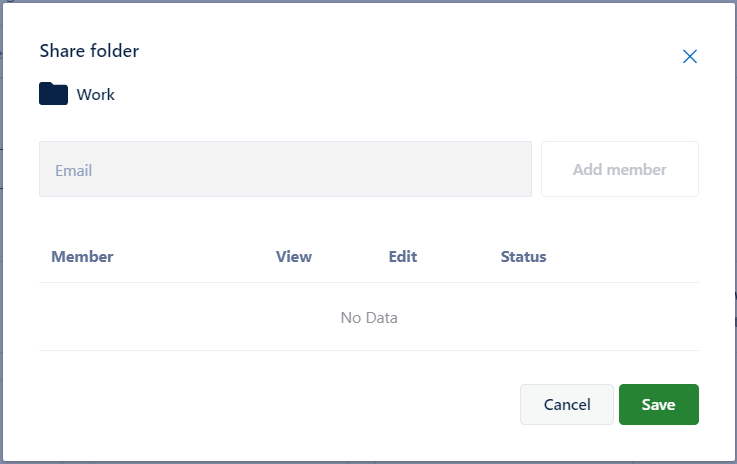 Click **Share**.
### Receive a shared folder
When any Locker user shares a folder with you, you will receive an email notification.
Open the email and click **Log in to Web Vault** or log in directly at Locker.io.
In your Locker vault, click **Sharing**. You will see the shared folder and all related information.
Click **Accept** or **Decline**. When you accept, the folder will be automatically added to your vault.
## On Mobile Devices
### Share a folder
Open the Locker mobile app.
Tap **Vault** > **Folders**.
Tap the **three-dot** icon next to the folder you want to share, then select **Share**.
Enter the email associated with the recipient's Locker account. The permission is automatically set to **View** mode.
Tap **Done**.
### Receive a shared folder
Open the Locker app > **Vault** > **Sharing** > **Shared with me**. You will see shared folders with a yellow **Pending** label. Tap the item and select **Accept** or **Decline**.
Click **Share**.
### Receive a shared folder
When any Locker user shares a folder with you, you will receive an email notification.
Open the email and click **Log in to Web Vault** or log in directly at Locker.io.
In your Locker vault, click **Sharing**. You will see the shared folder and all related information.
Click **Accept** or **Decline**. When you accept, the folder will be automatically added to your vault.
## On Mobile Devices
### Share a folder
Open the Locker mobile app.
Tap **Vault** > **Folders**.
Tap the **three-dot** icon next to the folder you want to share, then select **Share**.
Enter the email associated with the recipient's Locker account. The permission is automatically set to **View** mode.
Tap **Done**.
### Receive a shared folder
Open the Locker app > **Vault** > **Sharing** > **Shared with me**. You will see shared folders with a yellow **Pending** label. Tap the item and select **Accept** or **Decline**.