> ## Documentation Index
> Fetch the complete documentation index at: https://support.locker.io/llms.txt
> Use this file to discover all available pages before exploring further.
# Add attachments for an item
> Locker allows you to add file attachments to an item to store that data securely.
Locker allows you to add file attachments to an item to store that data securely. You can add attachments on the web app, desktop app, or mobile app.
The file attachment feature is only available for Premium plan users and above. Each user has 1 GB of storage space for file attachments.
## Add attachments on the web or desktop app
In the item list, click **Add** or **Edit** an item.
Fill in the fields as needed, then scroll down to the **Attachments** section.
Upload or drag a file from your file explorer to add it to the item.
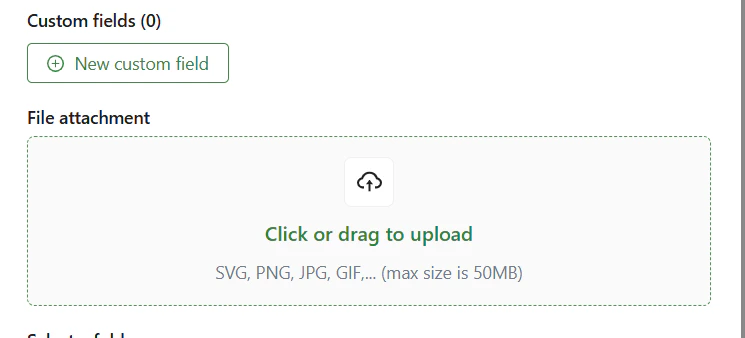 The file will appear on the form once it has been added successfully. Click **Save** to save your changes.
You can also quickly attach a file to any previously created item. In the item list, hover over the item you want to add a file to > click the **Action** button > select **Attachments** > upload the file.
## Add attachments on mobile
In the item list, select **Add** or **Edit** an item.
Fill in the fields as needed, then scroll down to the **Attachments** section.
Choose to upload a file from your device's Photos or Files folder. Select the file you want to upload.
The file will appear on the form once it has been added successfully. Tap **Save** to save your changes.
You can also quickly attach a file to any existing item. In the item list, tap the item you want to add a file to > select **Attachments** > upload the file.
The file will appear on the form once it has been added successfully. Click **Save** to save your changes.
You can also quickly attach a file to any previously created item. In the item list, hover over the item you want to add a file to > click the **Action** button > select **Attachments** > upload the file.
## Add attachments on mobile
In the item list, select **Add** or **Edit** an item.
Fill in the fields as needed, then scroll down to the **Attachments** section.
Choose to upload a file from your device's Photos or Files folder. Select the file you want to upload.
The file will appear on the form once it has been added successfully. Tap **Save** to save your changes.
You can also quickly attach a file to any existing item. In the item list, tap the item you want to add a file to > select **Attachments** > upload the file.