> ## Documentation Index
> Fetch the complete documentation index at: https://support.locker.io/llms.txt
> Use this file to discover all available pages before exploring further.
# Add, edit, and manage items
> Locker can securely store and manage five types of items including passwords, secure notes, cards, identities, and crypto backup.
Locker can securely store and manage five types of items including passwords, secure notes, cards, identities, and crypto backup.
## On Web Vault or Desktop App
### Add an item
On the home page, click the **Add New** button to create a new item.
Select the type of item you want to create.
Fill in all required fields.
Click **Save**.
You can directly import items from other popular password managers into Locker.
### Edit an item
Click on the item or select the **Edit** option from the three-dot menu > Edit the item > Click **Save**.
### Delete items
**Delete a single item:** Click on the item or select **Delete** from the three-dot menu > Click **OK** to confirm.
**Delete multiple items:**
Hover over the items you want to delete. Click the checkbox that appears next to each item.
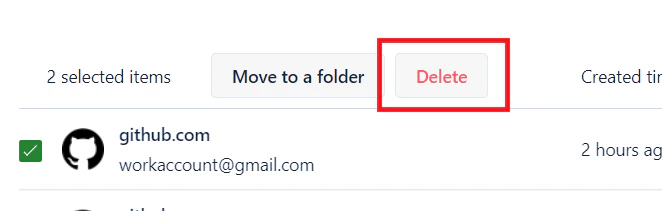 Click the **Delete** button above the item list > then click **OK** in the pop-up window to confirm.
### Clone an item
You can duplicate any item you own by clicking the three-dot menu and selecting the **Clone** button.
### Restore deleted items
Deleted items are sent to the Trash for 30 days. After 30 days, they will be permanently deleted. You can always restore an item from the Trash or permanently delete it immediately.
## On Mobile Devices
### Add an item
On the home screen, tap the **Plus** icon in the top-right corner and select the type of item you want to create. Fill in all required fields > Tap **Save**.
### Edit an item
Tap the item > select the **Edit** option > Edit the item > Tap **Save**.
### Delete items
**Delete a single item:** Tap the item > select the **Move to Trash** option > Tap **OK**.
**Delete multiple items:**
Press and hold any item until you see a circular checkbox appear next to each item. Select the items you want to delete.
Click the **Delete** button above the item list > then click **OK** in the pop-up window to confirm.
### Clone an item
You can duplicate any item you own by clicking the three-dot menu and selecting the **Clone** button.
### Restore deleted items
Deleted items are sent to the Trash for 30 days. After 30 days, they will be permanently deleted. You can always restore an item from the Trash or permanently delete it immediately.
## On Mobile Devices
### Add an item
On the home screen, tap the **Plus** icon in the top-right corner and select the type of item you want to create. Fill in all required fields > Tap **Save**.
### Edit an item
Tap the item > select the **Edit** option > Edit the item > Tap **Save**.
### Delete items
**Delete a single item:** Tap the item > select the **Move to Trash** option > Tap **OK**.
**Delete multiple items:**
Press and hold any item until you see a circular checkbox appear next to each item. Select the items you want to delete.
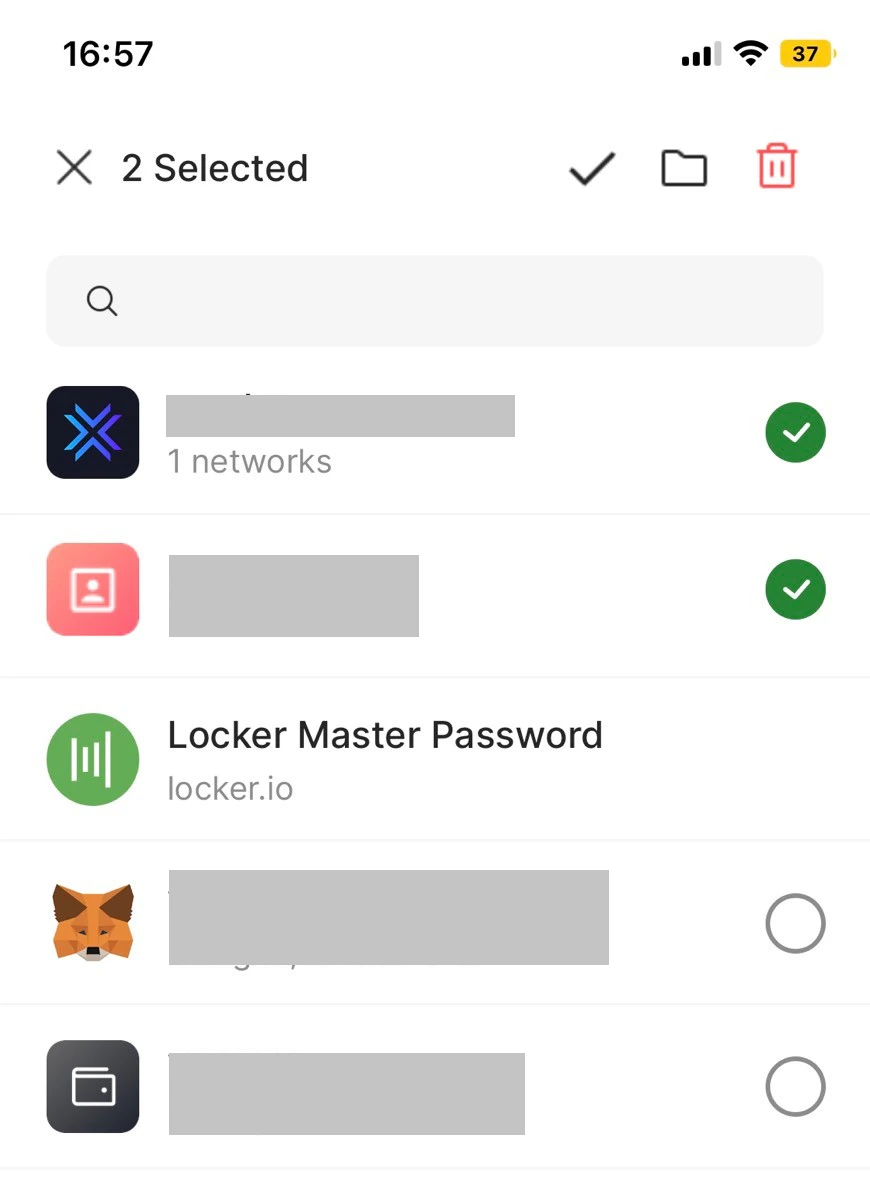 Tap the **Trash** icon in the top-right corner, then tap **OK** to confirm.
### Restore deleted items
On the **Vault** screen, select **Trash** > Tap the item you want to restore > Tap **Restore**.
## On Browser Extension
### Add an item
Click the **Plus** icon next to the search bar > Select the item type > Fill in the required fields > Click **Save**.
### Edit an item
Click **Vault** > Click the **Pencil** icon next to the item name > Edit the item > Click **Update**.
### Delete an item
Click the **Pencil** icon next to the item name > click the **Three-dot** button in the top-right corner > Click **Delete** > **OK**.
Tap the **Trash** icon in the top-right corner, then tap **OK** to confirm.
### Restore deleted items
On the **Vault** screen, select **Trash** > Tap the item you want to restore > Tap **Restore**.
## On Browser Extension
### Add an item
Click the **Plus** icon next to the search bar > Select the item type > Fill in the required fields > Click **Save**.
### Edit an item
Click **Vault** > Click the **Pencil** icon next to the item name > Edit the item > Click **Update**.
### Delete an item
Click the **Pencil** icon next to the item name > click the **Three-dot** button in the top-right corner > Click **Delete** > **OK**.