> ## Documentation Index
> Fetch the complete documentation index at: https://support.locker.io/llms.txt
> Use this file to discover all available pages before exploring further.
# Custom fields
> Custom fields are additional pieces of information that you can add when creating a new item or editing an existing one.
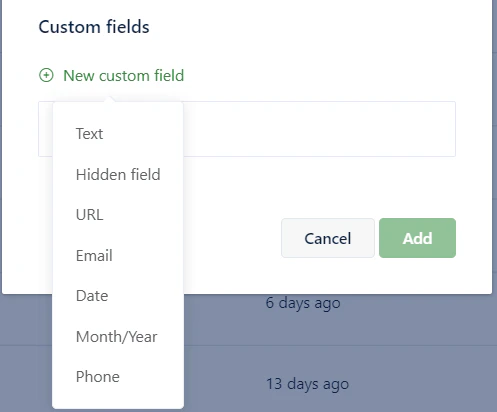
Custom fields are additional pieces of information that you can add when creating a new item or editing an existing one. The available custom field types include:
* **Text:** Allows you to add any form of text including words, numbers, and symbols.
* **Password:** Content is hidden unless you click the **Eye** icon, suitable for passwords, PINs, and secret keys.
* **URL:** Add a URL of any website.
* **Email:** Enter any email address.
* **Date:** Select any date from a calendar.
* **Month/Year:** Enter a time value in MM/YY format.
* **Phone:** Save a phone number.
 ## Add a custom field
To add a custom field to a new or existing item, click **New Custom Field** > select a field type. Enter the field name and content. The custom field will be saved when you save the item.
## Add a custom field
To add a custom field to a new or existing item, click **New Custom Field** > select a field type. Enter the field name and content. The custom field will be saved when you save the item.
 ## Edit a custom field
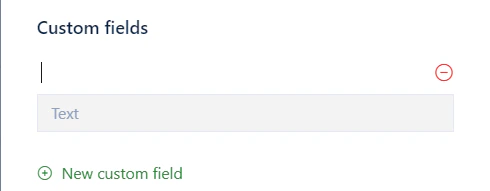
To edit the custom field of any item, select the item and click **Edit**. In the edit form, click the field name or content to make changes. The custom field will be updated when you update the item.
## Delete a custom field
To delete a custom field, select the item and click **Edit**. In the edit form, click the **Delete** icon of the custom field. The custom field will be removed when you update the item.
## Edit a custom field
To edit the custom field of any item, select the item and click **Edit**. In the edit form, click the field name or content to make changes. The custom field will be updated when you update the item.
## Delete a custom field
To delete a custom field, select the item and click **Edit**. In the edit form, click the **Delete** icon of the custom field. The custom field will be removed when you update the item.