> ## Documentation Index
> Fetch the complete documentation index at: https://support.locker.io/llms.txt
> Use this file to discover all available pages before exploring further.

# Password history of an item

> When you change the password of a login item stored in Locker, Locker automatically saves the old password for that item.

When you change the password of a login item stored in Locker, Locker automatically saves the old password for that item. By maintaining these old passwords, you can gain better insight into your password practices.

<Note>
  When an item is shared, its password history is not shared along with it.
</Note>

## View password history on the web or desktop app

<Steps>
  <Step title="Log in">
    Log in to your account on the Locker web app or desktop app.
  </Step>

  <Step title="Open the action menu">
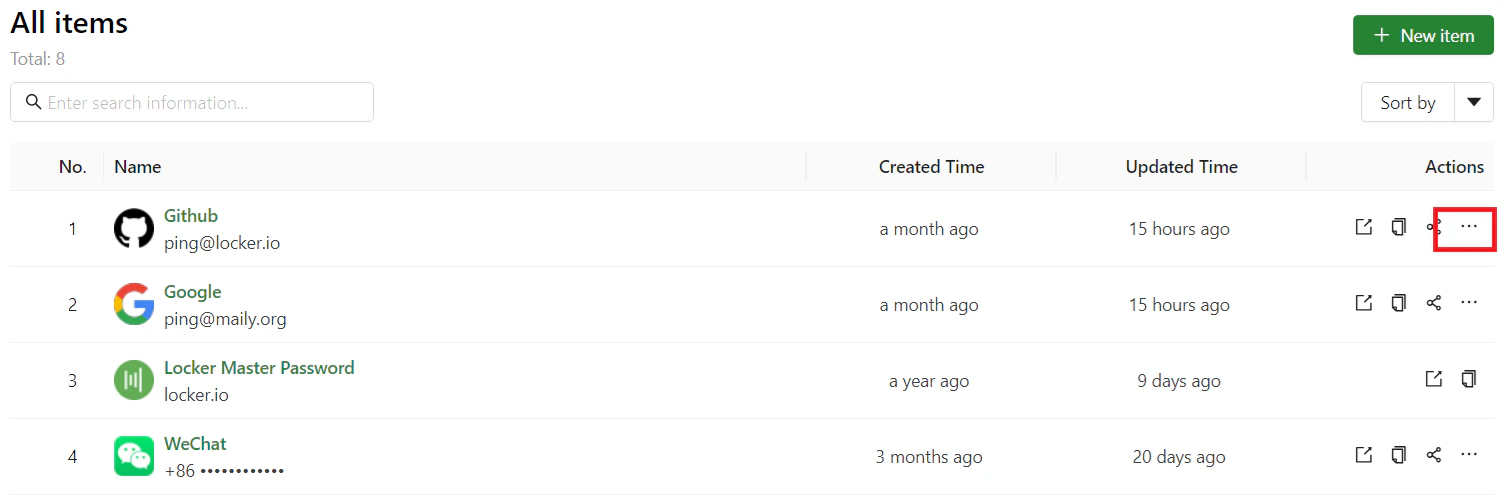
    In the item list, click the **three-dot** icon next to the item whose password history you want to view.
    <img src="https://mintcdn.com/locker/QUgTEfHYF1luiq3D/images/en/locker-password-manager/vault-management/item-management/password-history-web-menu.png?fit=max&auto=format&n=QUgTEfHYF1luiq3D&q=85&s=78dd9690851da8a6ff04e25e7b7b730c" alt="Action menu on web" style={{display: 'block', margin: '0 auto'}} width="1509" height="501" data-path="images/en/locker-password-manager/vault-management/item-management/password-history-web-menu.png" />
  </Step>

  <Step title="View history">
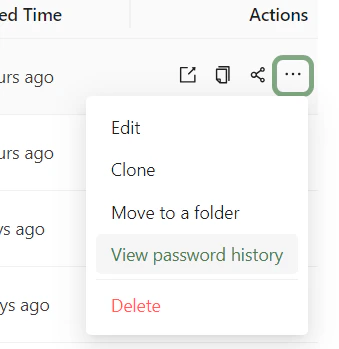
    In the dropdown menu, click **View password history**.
    <img src="https://mintcdn.com/locker/QUgTEfHYF1luiq3D/images/en/locker-password-manager/vault-management/item-management/password-history-web-dropdown.png?fit=max&auto=format&n=QUgTEfHYF1luiq3D&q=85&s=25c32c467a7db2f0d6f82c8e8ba8afb7" alt="View password history menu" style={{display: 'block', margin: '0 auto'}} width="339" height="349" data-path="images/en/locker-password-manager/vault-management/item-management/password-history-web-dropdown.png" />
  </Step>

  <Step title="View the list of old passwords">
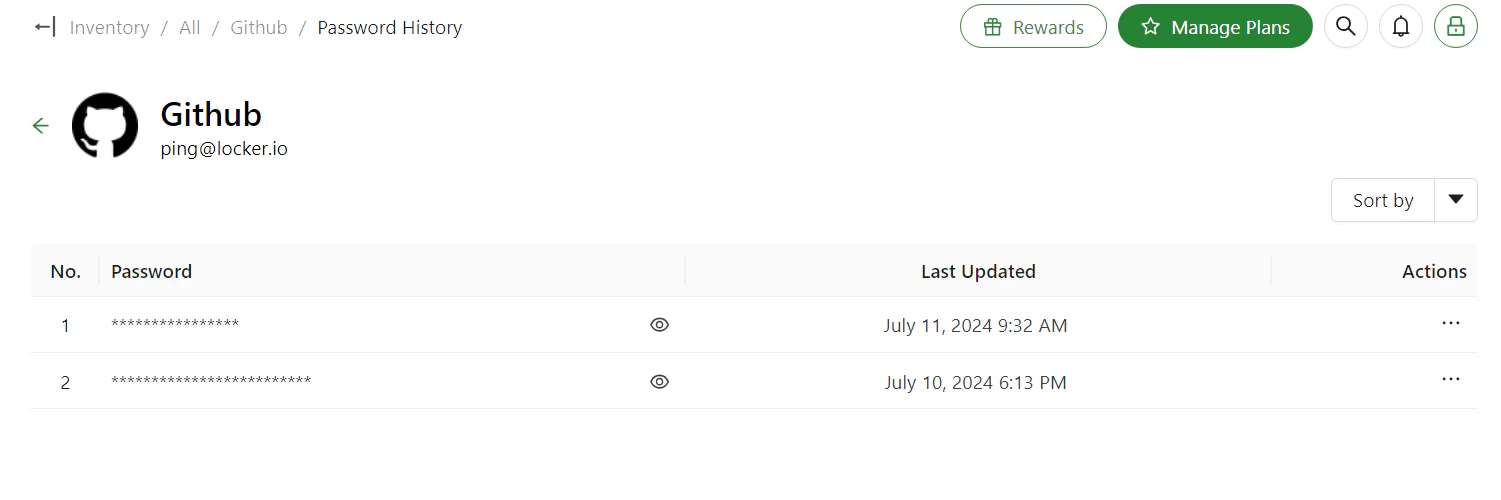
    You will see a list of old passwords for that item.
    <img src="https://mintcdn.com/locker/QUgTEfHYF1luiq3D/images/en/locker-password-manager/vault-management/item-management/password-history-web-list.png?fit=max&auto=format&n=QUgTEfHYF1luiq3D&q=85&s=324d5ab92fb9ff0a73599e718058faa2" alt="Password history list" style={{display: 'block', margin: '0 auto'}} width="1501" height="500" data-path="images/en/locker-password-manager/vault-management/item-management/password-history-web-list.png" />
  </Step>

  <Step title="Restore an old password">
    You can restore an old password by clicking the **three-dot** button next to it and selecting **Restore**. This password will replace the item's current password.

    <img src="https://mintcdn.com/locker/QUgTEfHYF1luiq3D/images/en/locker-password-manager/vault-management/item-management/password-history-web-restore.png?fit=max&auto=format&n=QUgTEfHYF1luiq3D&q=85&s=2e3d22076e780a4eb24994d41fafa42c" alt="Restore old password" style={{display: 'block', margin: '0 auto'}} width="1473" height="285" data-path="images/en/locker-password-manager/vault-management/item-management/password-history-web-restore.png" />
  </Step>
</Steps>

## View password history on mobile

<Steps>
  <Step title="Log in">
    Log in to your account on the Locker mobile app.
  </Step>

  <Step title="Select an item">
    In the item list, tap the item whose password history you want to view.
  </Step>

  <Step title="View history">
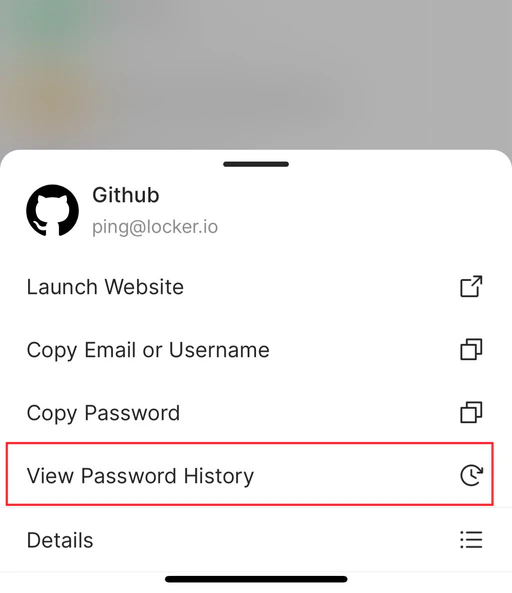
    In the options that appear on screen, tap **View password history**.
    <img src="https://mintcdn.com/locker/QUgTEfHYF1luiq3D/images/en/locker-password-manager/vault-management/item-management/password-history-mobile-options.png?fit=max&auto=format&n=QUgTEfHYF1luiq3D&q=85&s=ae9de6d95874b710e604e14c5c761c8c" alt="View history options on mobile" style={{display: 'block', margin: '0 auto', maxWidth: '400px'}} width="512" height="593" data-path="images/en/locker-password-manager/vault-management/item-management/password-history-mobile-options.png" />
  </Step>

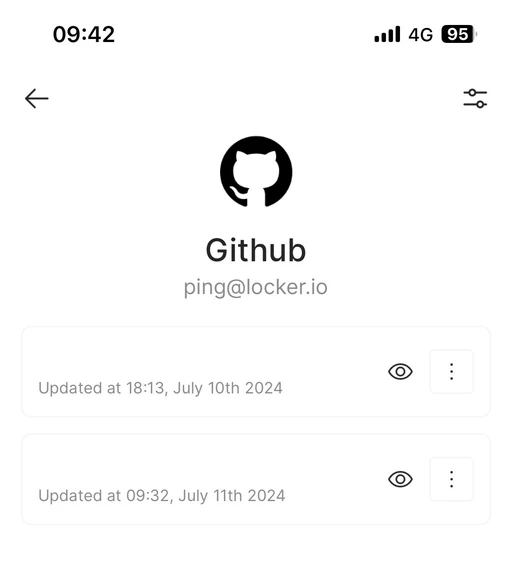
  <Step title="View the list">
    You will see a list of old passwords for that item.
    <img src="https://mintcdn.com/locker/QUgTEfHYF1luiq3D/images/en/locker-password-manager/vault-management/item-management/password-history-mobile-list.png?fit=max&auto=format&n=QUgTEfHYF1luiq3D&q=85&s=cf7827a08ef8c14be08cf6c1ff6820d6" alt="Password history list on mobile" style={{display: 'block', margin: '0 auto', maxWidth: '400px'}} width="512" height="579" data-path="images/en/locker-password-manager/vault-management/item-management/password-history-mobile-list.png" />
  </Step>

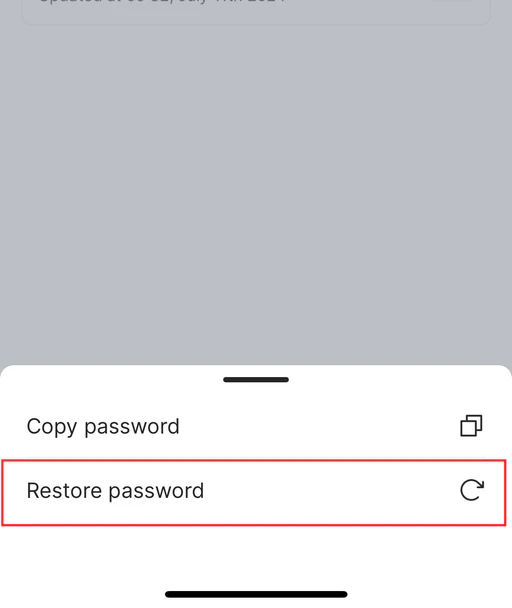
  <Step title="Restore an old password">
    You can restore an old password by tapping the **three-dot** button next to it and selecting **Restore**. This password will replace the item's current password.
    <img src="https://mintcdn.com/locker/QUgTEfHYF1luiq3D/images/en/locker-password-manager/vault-management/item-management/password-history-mobile-restore.png?fit=max&auto=format&n=QUgTEfHYF1luiq3D&q=85&s=edf103b018c8c642ea67e7f50ec89ea0" alt="Restore password on mobile" style={{display: 'block', margin: '0 auto', maxWidth: '400px'}} width="512" height="608" data-path="images/en/locker-password-manager/vault-management/item-management/password-history-mobile-restore.png" />
  </Step>
</Steps>
