> ## Documentation Index
> Fetch the complete documentation index at: https://support.locker.io/llms.txt
> Use this file to discover all available pages before exploring further.
# Share items
> Securely share passwords and other items with your friends and family members using Locker.
Securely share passwords and other items with your friends and family members using Locker.
## Why use Locker to share data?
Sharing confidential data via email or text messages is **NOT** safe, as messaging and email services typically transmit plain text over the network without encrypting the data. This means your information could be exposed to third-party providers.
Locker, on the other hand, uses the strongest encryption system to encrypt your data before sending it over the internet, ensuring maximum security for you.
The internal sharing feature within Locker is only available for Premium plan users and above.
## On Web Vault or Desktop App
### Share items
You have two ways to share your data with other Locker users.
#### From the Sharing screen
Log in to your Locker web vault.
Click **Sharing** on the sidebar, then click the **Shared by you** tab.
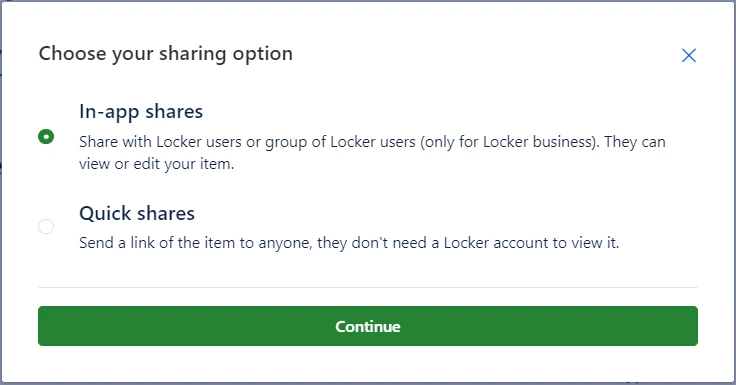
Click **New Share**, then select **Internal Sharing**.
 Select items or folders by searching through the list. You can share multiple items at once.
Add the email associated with the recipient's Locker account and select the **Permission**:
* **View permission:** The recipient can only view and use the password.
* **Edit permission:** The recipient can view, use, and edit the password.
Select items or folders by searching through the list. You can share multiple items at once.
Add the email associated with the recipient's Locker account and select the **Permission**:
* **View permission:** The recipient can only view and use the password.
* **Edit permission:** The recipient can view, use, and edit the password.
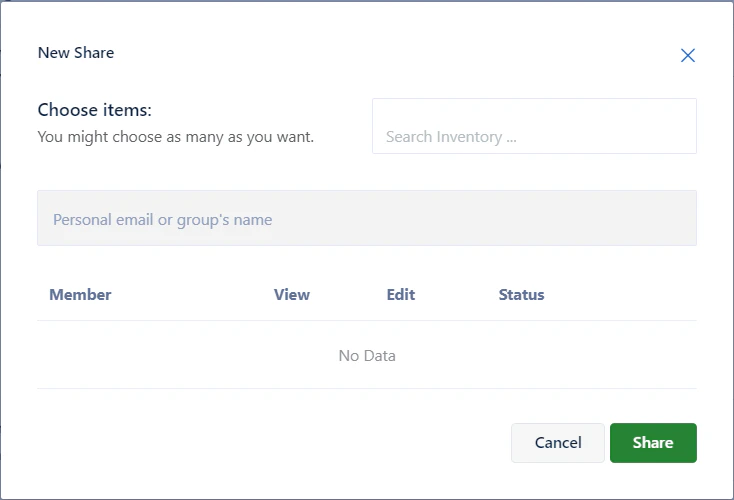 Click **Share**.
#### From the item you want to share
Navigate to your web vault.
Click the **Share** button next to the item you want to share.
Add the recipient's email and set the **Permission**.
Click **Share**.
### Receive shared items
When any Locker user shares an item with you, you will receive an email notification.
Open the email and click **Log in to Web Vault** or log in directly at Locker.io.
In your Locker vault, click **Sharing**. You will see the shared item and all related information.
Click **Accept** or **Decline**. When you accept, the item will be automatically added to your vault.
## On Mobile Devices
### Share items
#### From the Sharing screen
Open the Locker mobile app.
Tap **Vault** > **Sharing** > **Internal Sharing**.
Tap the **Plus** icon in the top-right corner.
Select the items you want to share. You can select multiple items at once.
Tap the **Share** icon. Enter the email associated with the recipient's Locker account.
Tap **Done**.
#### From the item you want to share
Tap the item and press **Share** > select **Internal Sharing** > Enter the recipient's email address > Tap **Share**.
To share multiple items: Press and hold an item > select other items > tap the **Share** icon > enter the email > **Share**.
### Receive shared items
Open the Locker app > **Vault** > **Sharing** > **Shared with me**. You will see shared items with a yellow **Pending** label. Tap the item and select **Accept** or **Decline**.
Click **Share**.
#### From the item you want to share
Navigate to your web vault.
Click the **Share** button next to the item you want to share.
Add the recipient's email and set the **Permission**.
Click **Share**.
### Receive shared items
When any Locker user shares an item with you, you will receive an email notification.
Open the email and click **Log in to Web Vault** or log in directly at Locker.io.
In your Locker vault, click **Sharing**. You will see the shared item and all related information.
Click **Accept** or **Decline**. When you accept, the item will be automatically added to your vault.
## On Mobile Devices
### Share items
#### From the Sharing screen
Open the Locker mobile app.
Tap **Vault** > **Sharing** > **Internal Sharing**.
Tap the **Plus** icon in the top-right corner.
Select the items you want to share. You can select multiple items at once.
Tap the **Share** icon. Enter the email associated with the recipient's Locker account.
Tap **Done**.
#### From the item you want to share
Tap the item and press **Share** > select **Internal Sharing** > Enter the recipient's email address > Tap **Share**.
To share multiple items: Press and hold an item > select other items > tap the **Share** icon > enter the email > **Share**.
### Receive shared items
Open the Locker app > **Vault** > **Sharing** > **Shared with me**. You will see shared items with a yellow **Pending** label. Tap the item and select **Accept** or **Decline**.