> ## Documentation Index
> Fetch the complete documentation index at: https://support.locker.io/llms.txt
> Use this file to discover all available pages before exploring further.
# Create, Edit and Delete Projects
> Guide on how to create, edit information and delete projects in Locker Secrets Manager
## Create, Edit and Delete Projects in a Workspace
A project represents a collection of secrets and environments stored together logically and secured within Locker Secrets Manager. These collections can be accessed by members of your development team.
A workspace can contain multiple projects.
### Create a Project
Log in to your Locker account and access the workspace where you want to create a new project. If you are using the self-hosted version, you can only access one workspace.
1. Click the **New Project** button.
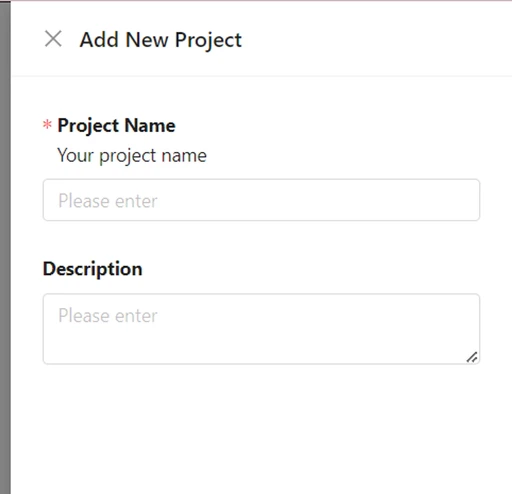
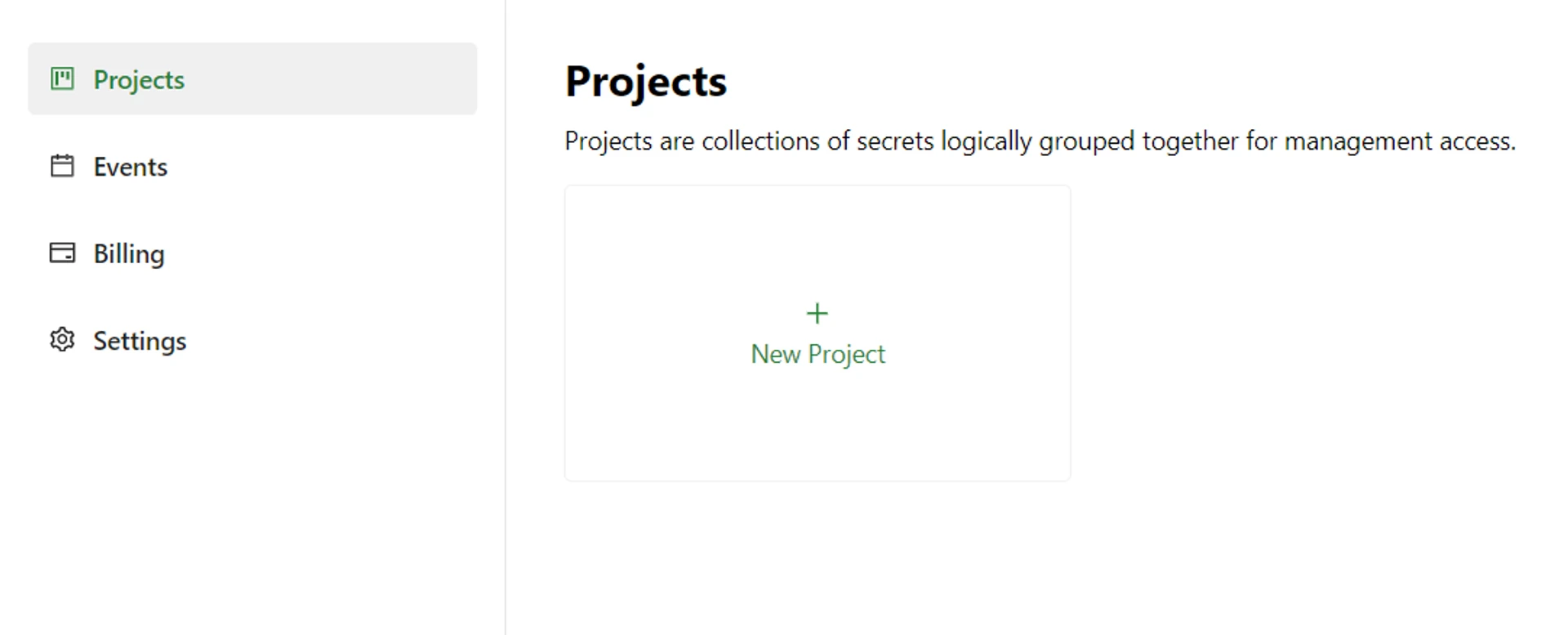 2. Enter a name for the project and add a description if you want. Then click the **Create** button.
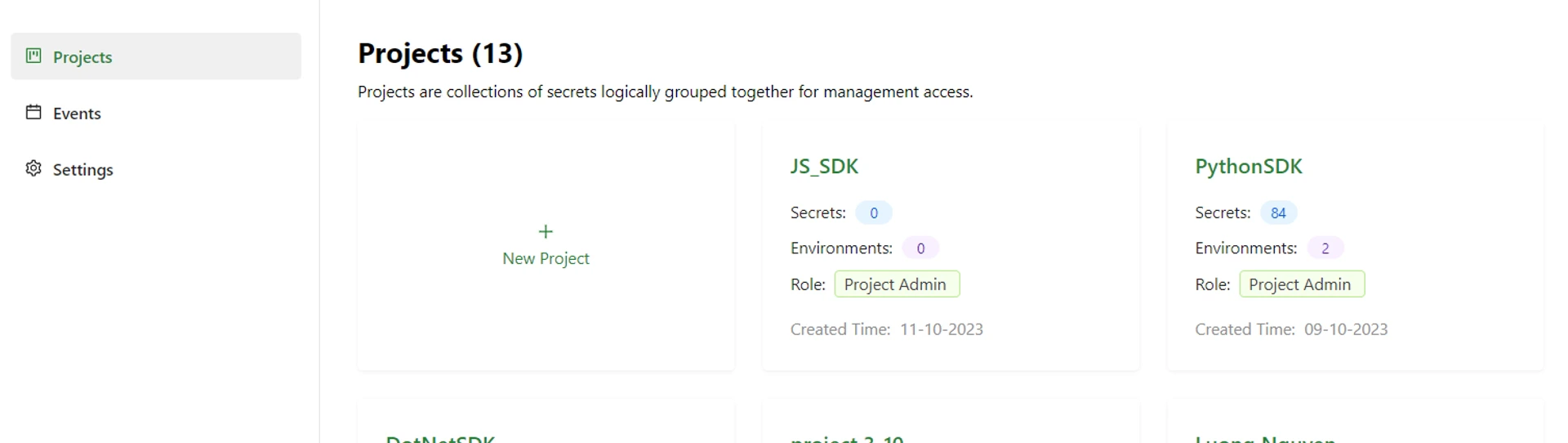
 The newly created project will be displayed on the projects screen.
 ### Edit Project Information
1. Click to open the project you want to edit.
2. Click the **Project Info** button on the left navigation bar.
### Edit Project Information
1. Click to open the project you want to edit.
2. Click the **Project Info** button on the left navigation bar.
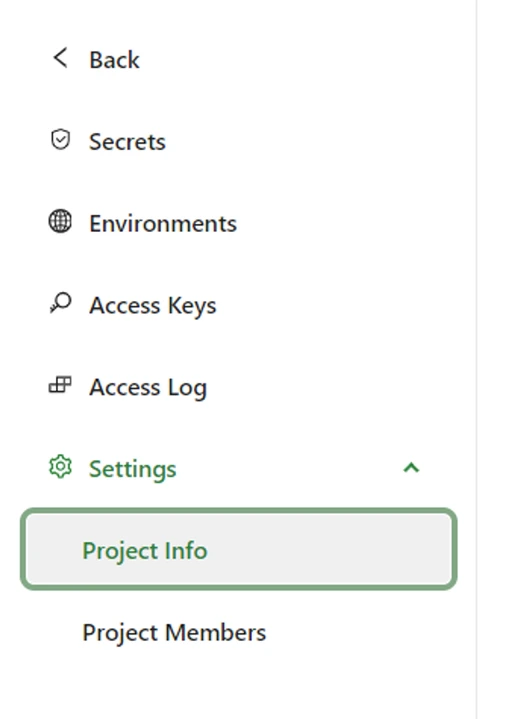 3. On the Project Info screen, click the **Edit** button.
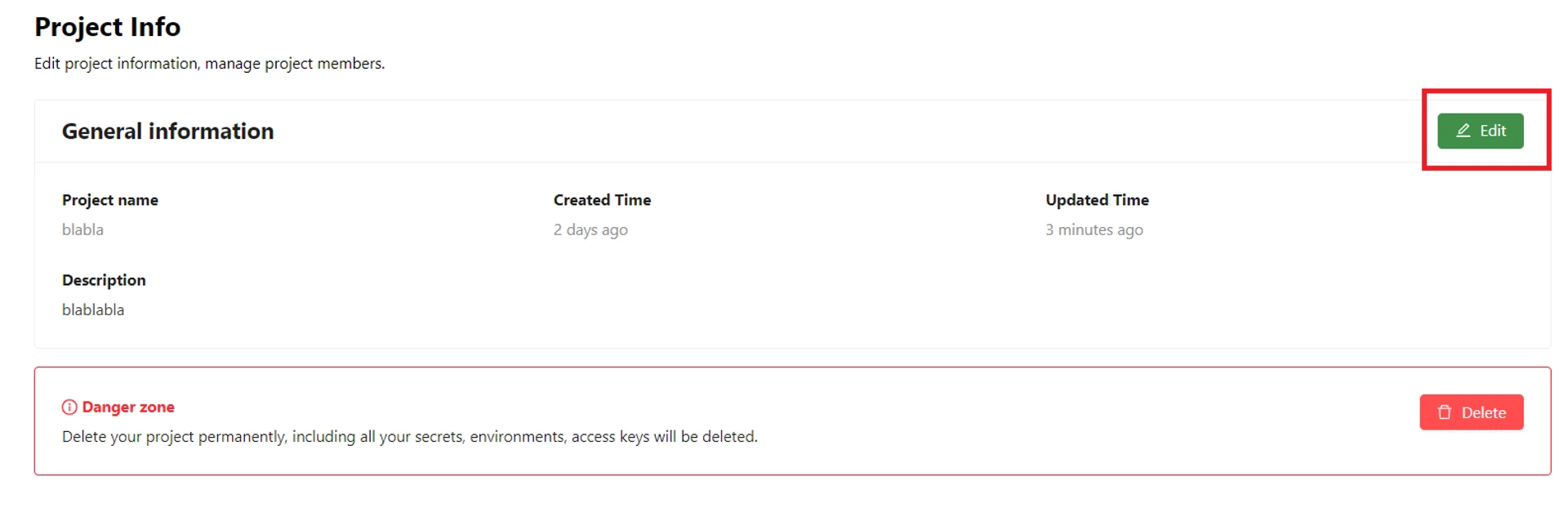 4. Edit the project name or description, then click the **Save** button to update.
### Delete a Project
1. To delete a project, open the project you want to delete > open the **Project Info** screen as described above.
2. Click the **Delete** button.
4. Edit the project name or description, then click the **Save** button to update.
### Delete a Project
1. To delete a project, open the project you want to delete > open the **Project Info** screen as described above.
2. Click the **Delete** button.
 3. On the popup that appears, click the **Delete** button to confirm the deletion. That project and the secrets within it will be permanently deleted.