> ## Documentation Index
> Fetch the complete documentation index at: https://support.locker.io/llms.txt
> Use this file to discover all available pages before exploring further.
# View Access Logs
> Guide on how to view project access logs in Locker Secrets Manager
## View Access Logs
Access logs display information about the actions and events performed on Locker CLI and Locker SDK for secrets in a project using access keys. Access logs are displayed for the most recent 30-day period.
Only Project Admin and Project Regular are allowed to view access logs of a project.
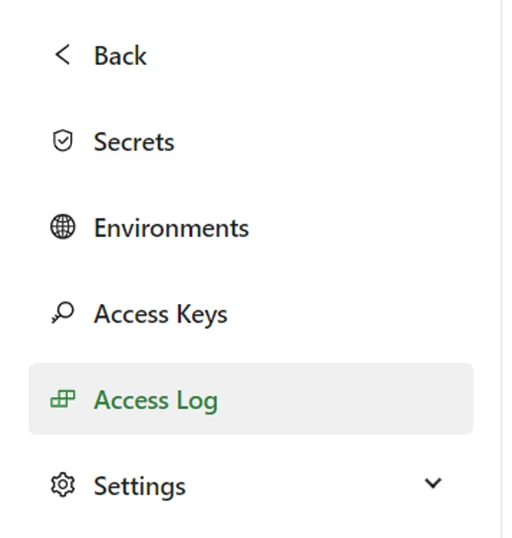
1. Open a project for which you want to view access logs. Open the **Access Logs** page from the left navigation bar.
 2. You will see a list of access logs, including the following information:
* **Access Key ID**: The identifier of the access key used on Locker CLI or Locker SDKs.
* **IP Address**: The IP address where the access key was used.
* **Access Type**: The access permission of the access keys, either `Read` or `Write`.
* **Access Time**: The time when the access key was used.
* **Location**: The geographic location where the access key was used.
* **Client**: The application that sent the request to the Locker Secrets Manager server.
2. You will see a list of access logs, including the following information:
* **Access Key ID**: The identifier of the access key used on Locker CLI or Locker SDKs.
* **IP Address**: The IP address where the access key was used.
* **Access Type**: The access permission of the access keys, either `Read` or `Write`.
* **Access Time**: The time when the access key was used.
* **Location**: The geographic location where the access key was used.
* **Client**: The application that sent the request to the Locker Secrets Manager server.
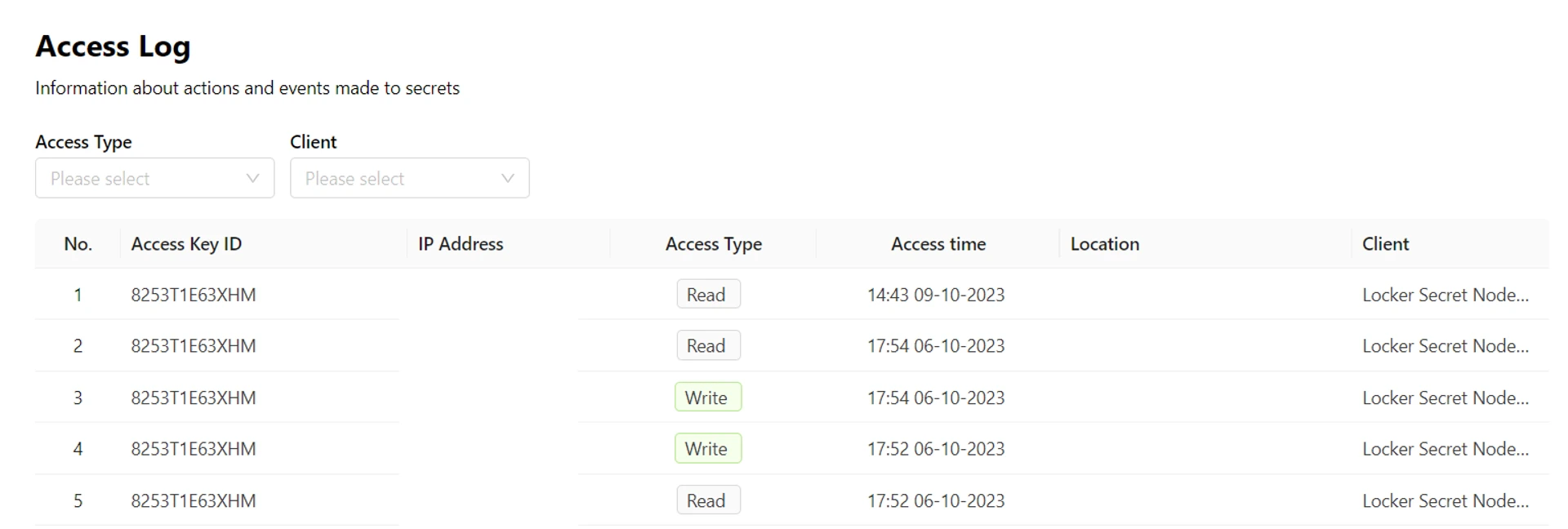 3. You can also filter results by access type or client to view the corresponding access logs.