> ## Documentation Index
> Fetch the complete documentation index at: https://support.locker.io/llms.txt
> Use this file to discover all available pages before exploring further.
# Cloud
> Guide on how to invite, view and remove members in a workspace on Locker Secrets Manager Cloud version
## Manage Workspace Members (Cloud Version)
With a Cloud account of Locker Secrets Manager, you can create your own workspace and invite other Locker users to it. This helps you and your team collaborate effectively during software development.
### Invite Members to a Workspace
1. Open the workspace you want to invite members to by clicking **Profile** > **Workspace** > select a workspace.
You can only invite members to workspaces that you created.
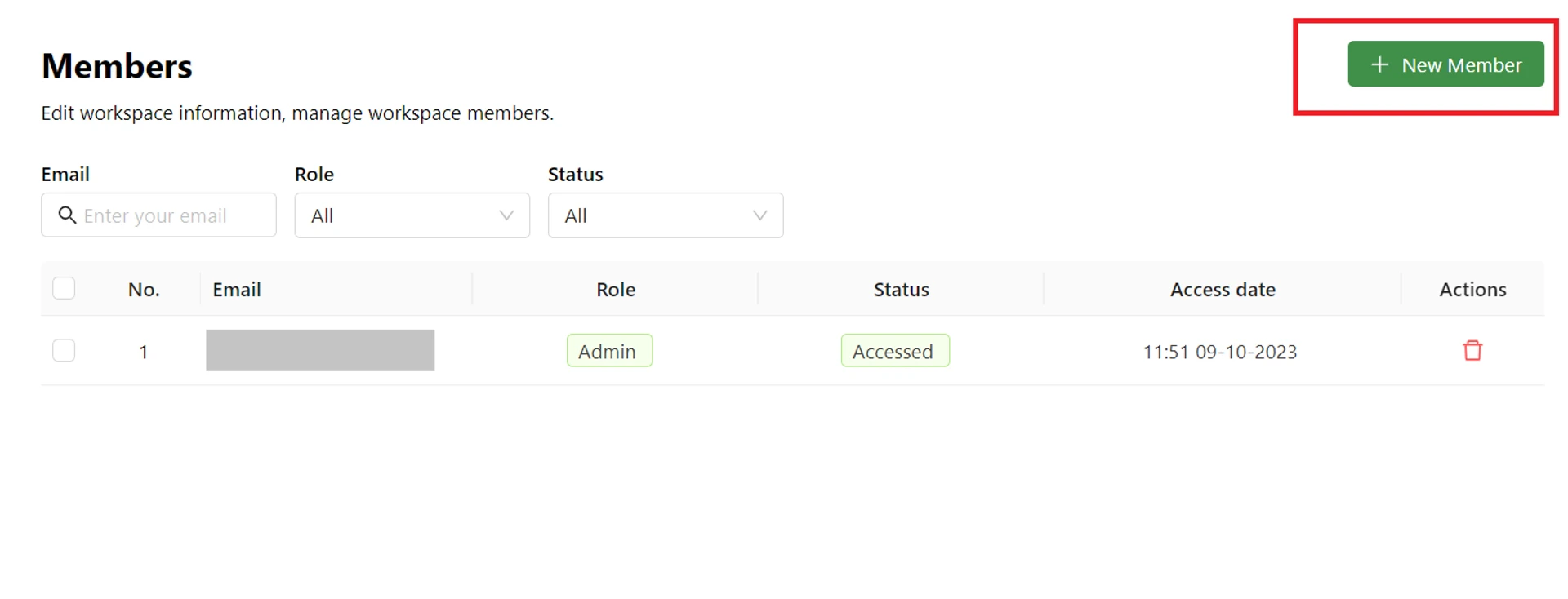
2. On the left navigation bar > open **Settings** > open the **Members** page > click the **New member** button.
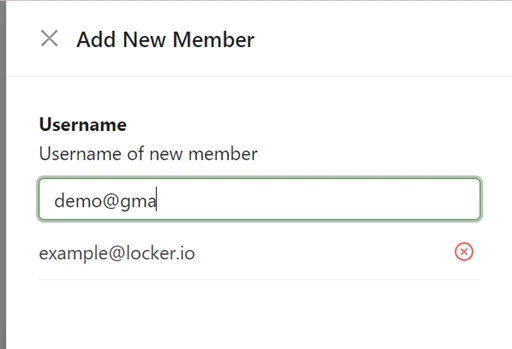
 3. Enter the email of the new member. You can add multiple members at once.
 4. Click the **Invite** button. The new member will receive a notification email and be added directly to your workspace.
### View Member List
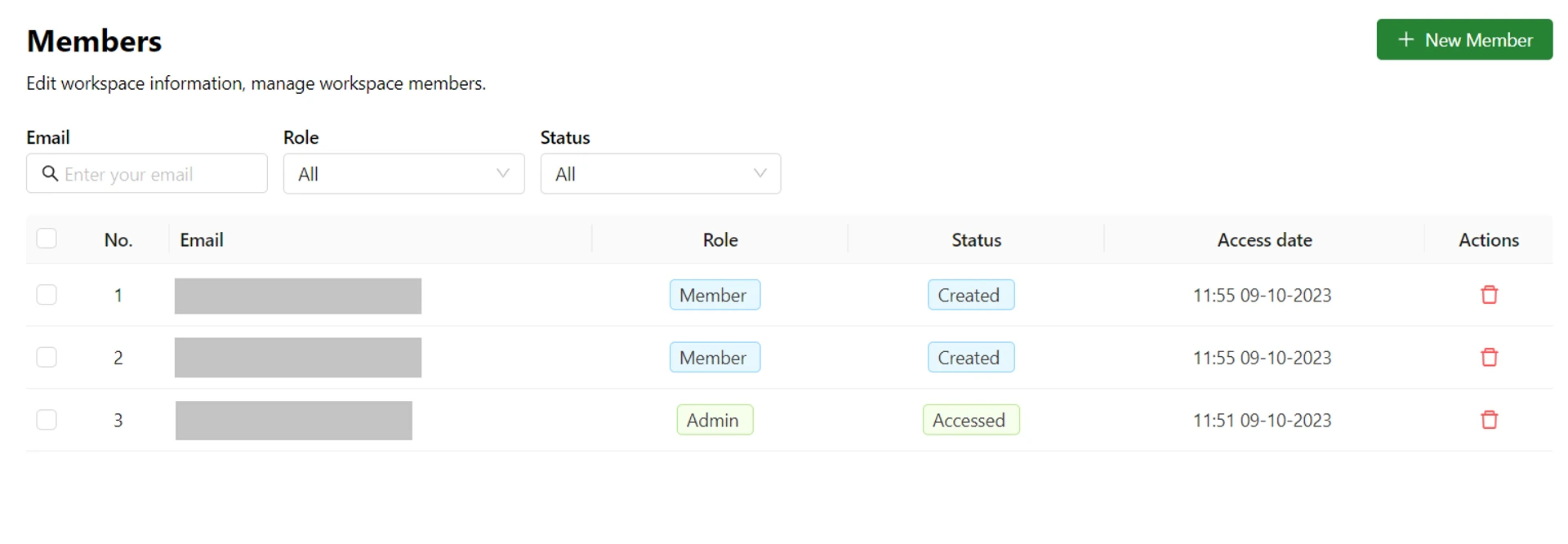
The list of members added to your workspace will be displayed on the **Members** screen. You can view their information and email addresses along with other details.
4. Click the **Invite** button. The new member will receive a notification email and be added directly to your workspace.
### View Member List
The list of members added to your workspace will be displayed on the **Members** screen. You can view their information and email addresses along with other details.
 ### Remove Members from a Workspace
1. To remove a member, navigate to the **Members** screen as described above.
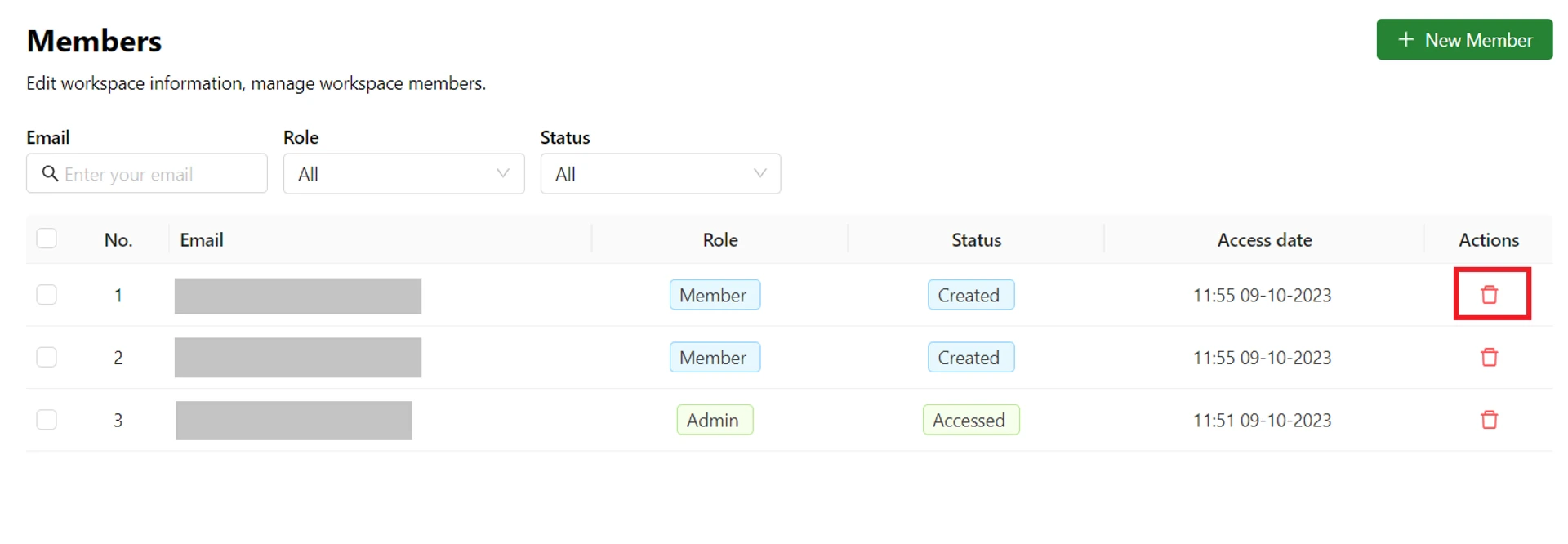
2. Click the **Trash** icon corresponding to the member you want to remove.
### Remove Members from a Workspace
1. To remove a member, navigate to the **Members** screen as described above.
2. Click the **Trash** icon corresponding to the member you want to remove.
 3. On the popup that appears, click the **Delete** button to confirm.