> ## Documentation Index
> Fetch the complete documentation index at: https://support.locker.io/llms.txt
> Use this file to discover all available pages before exploring further.
# Add and Manage Environments
> How to create, edit, and delete environments in your project.
## Add and Manage Environments
An environment is where the code in a software project is executed. Environments allow you to track your application deployments. Any secrets stored in an environment are only available to jobs that reference that environment.
### Add an environment
1. Log in to your Locker Secrets Manager account, open the workspace and the project where you want to add a new environment.
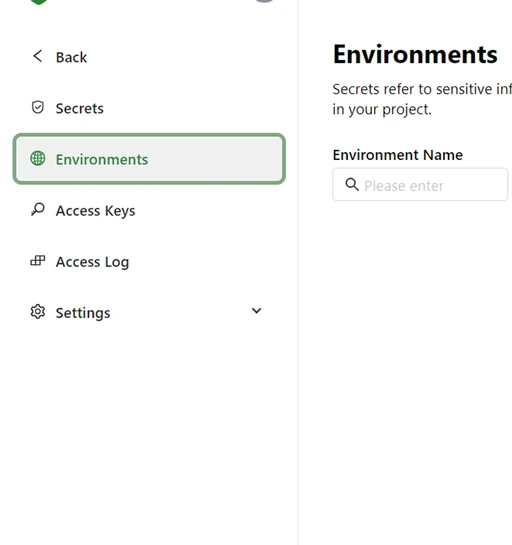
2. Open the **Environments** screen from the left navigation bar.
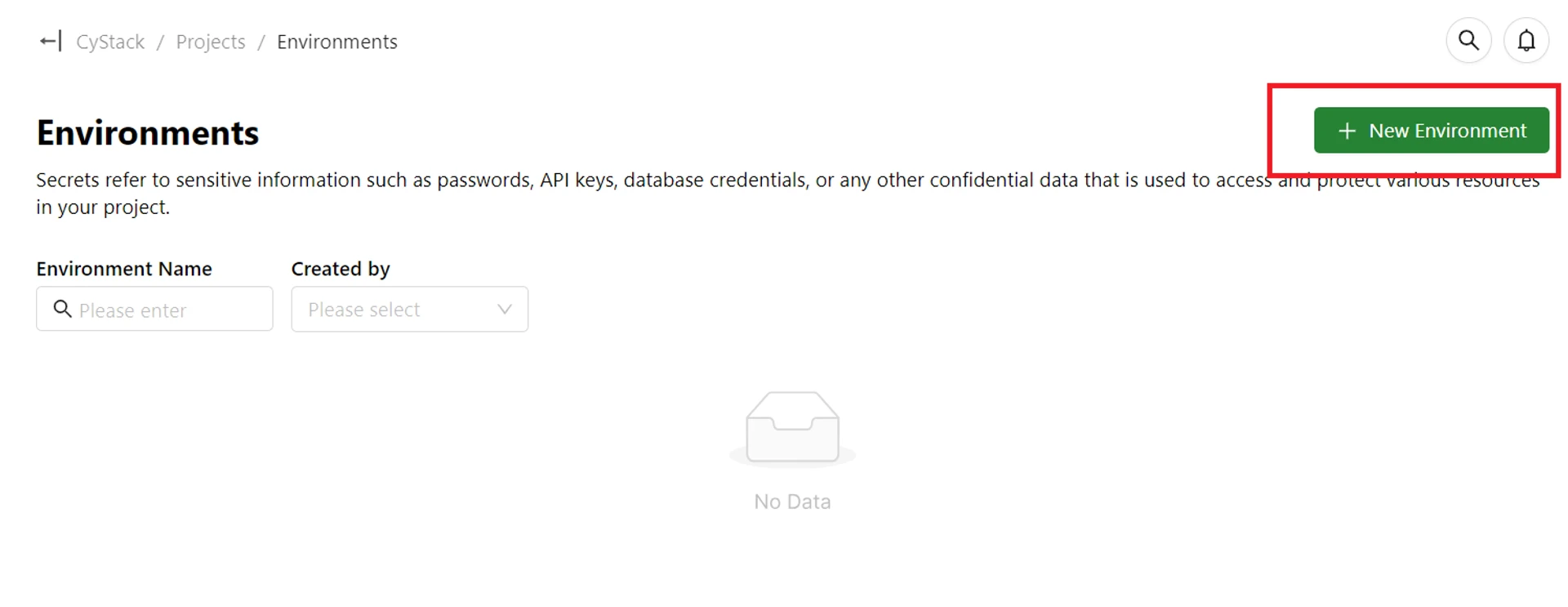
 3. Click the **New Environment** button in the upper right corner of the screen.
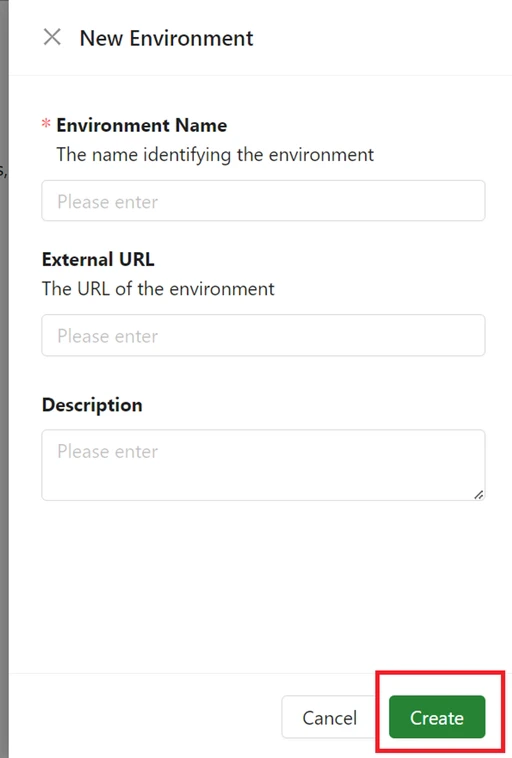
 4. Enter the environment information and click the **Create** button.
 You can also create an environment while creating a secret on the Secrets screen.
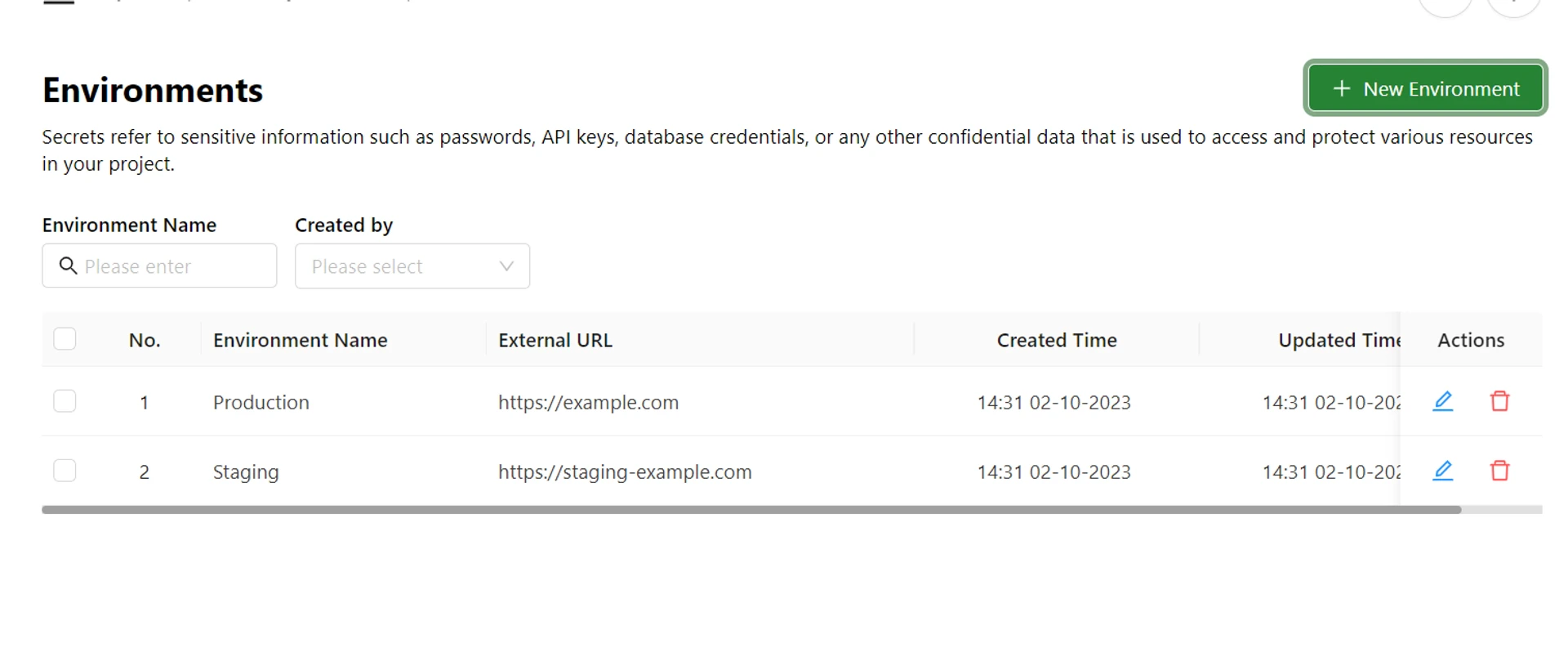
The newly created environment will be displayed in the environments list as shown below.
You can also create an environment while creating a secret on the Secrets screen.
The newly created environment will be displayed in the environments list as shown below.
 ### Edit an environment
To edit an environment, go to the **Environments** page.
1. Click the **Pencil** icon corresponding to the environment you want to edit.
### Edit an environment
To edit an environment, go to the **Environments** page.
1. Click the **Pencil** icon corresponding to the environment you want to edit.
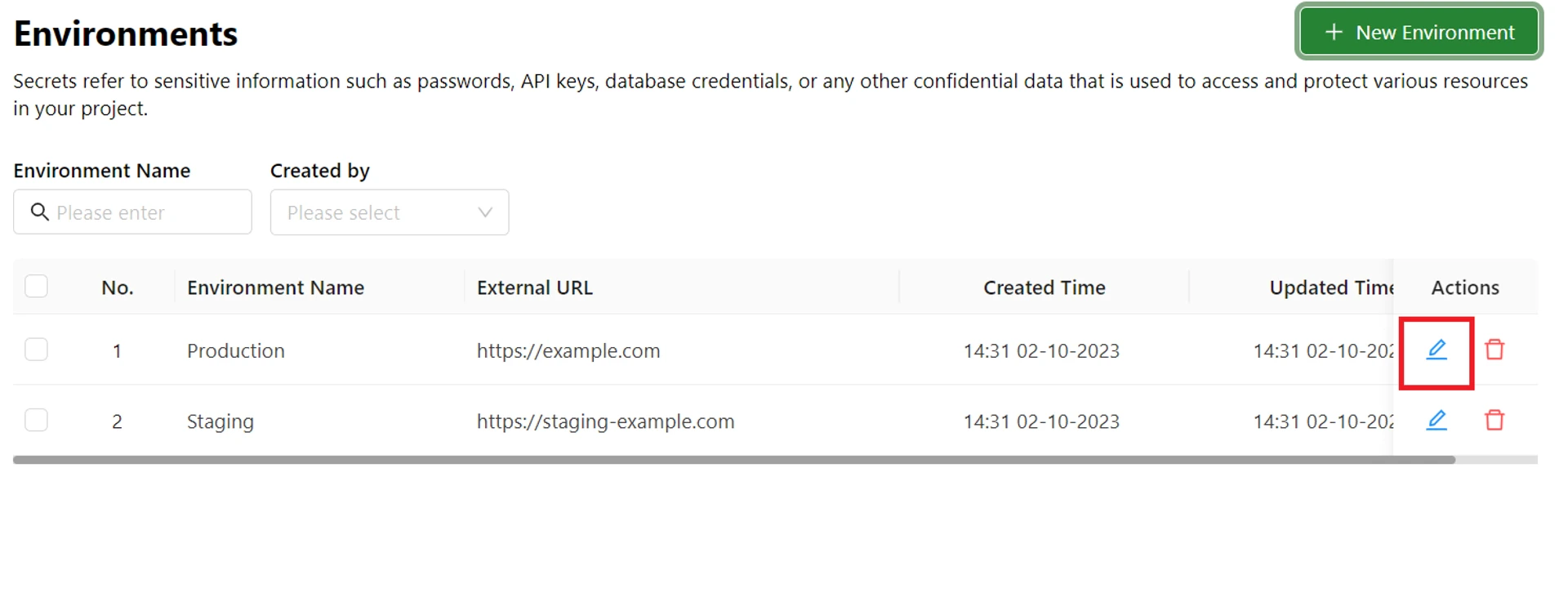 2. Edit the information and click the **Save** button to save your changes.
### Delete an environment
To delete an environment, go to the **Environments** page.
1. Click the **Trash** icon corresponding to the environment you want to delete.
2. Edit the information and click the **Save** button to save your changes.
### Delete an environment
To delete an environment, go to the **Environments** page.
1. Click the **Trash** icon corresponding to the environment you want to delete.
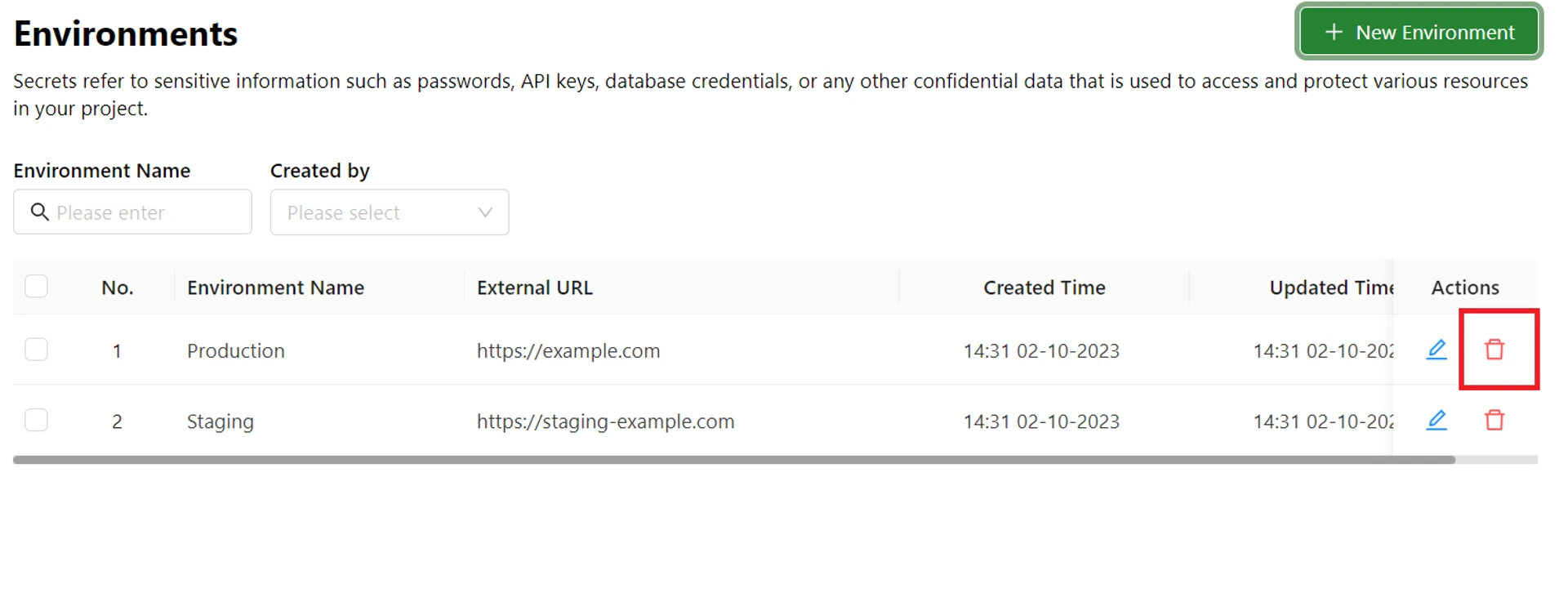 2. In the pop-up window that appears, click the **Confirm** button to delete the environment.
3. The environment will be permanently deleted.
2. In the pop-up window that appears, click the **Confirm** button to delete the environment.
3. The environment will be permanently deleted.