> ## Documentation Index
> Fetch the complete documentation index at: https://support.locker.io/llms.txt
> Use this file to discover all available pages before exploring further.
# Add and Manage Secrets
> How to create, edit, and delete secrets in your project.
## Add and Manage Secrets
Secrets are sensitive information, including passwords, API keys, database credentials, or any secure data used to access and protect resources in a software project.
You can create, manage, and access this data from the management dashboard.
A secret belongs to a single project within a workspace.
### Create a new secret
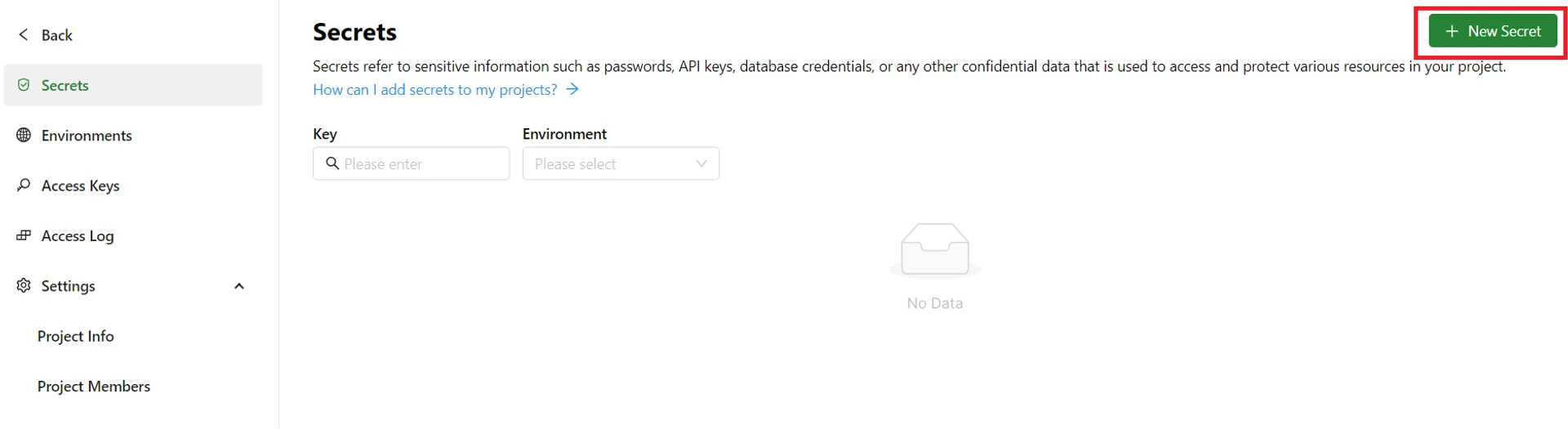
1. Log in to your Locker Secrets Manager account, open a workspace and the project where you want to add a secret. You will be navigated to the **Secrets** screen.
2. Click the **New Secret** button in the upper right corner of the screen.
 3. Enter the key and value for the secret you want to create. You can add a description if desired.
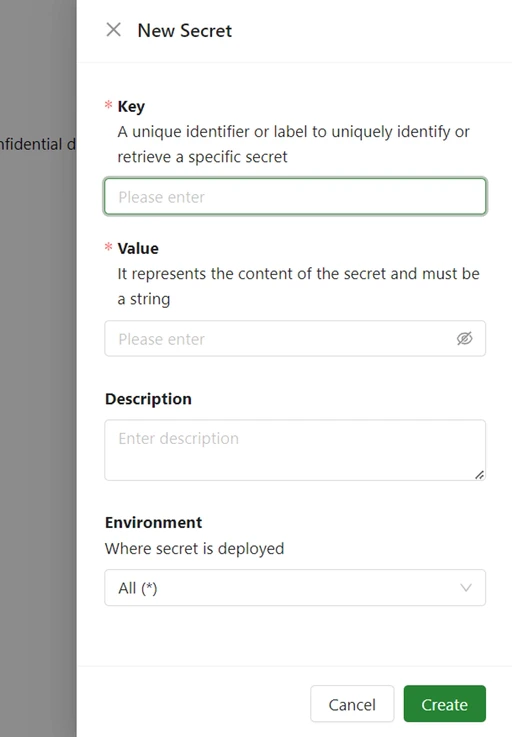 4. Select an environment where the secret will be deployed. You can choose an existing environment or create a new one.
The default environment value is `All (*)`, which means the created secret will be deployed across all environments in your project.
You cannot create two or more secrets with the same key in the same environment. Each secret's key must be unique within an environment.
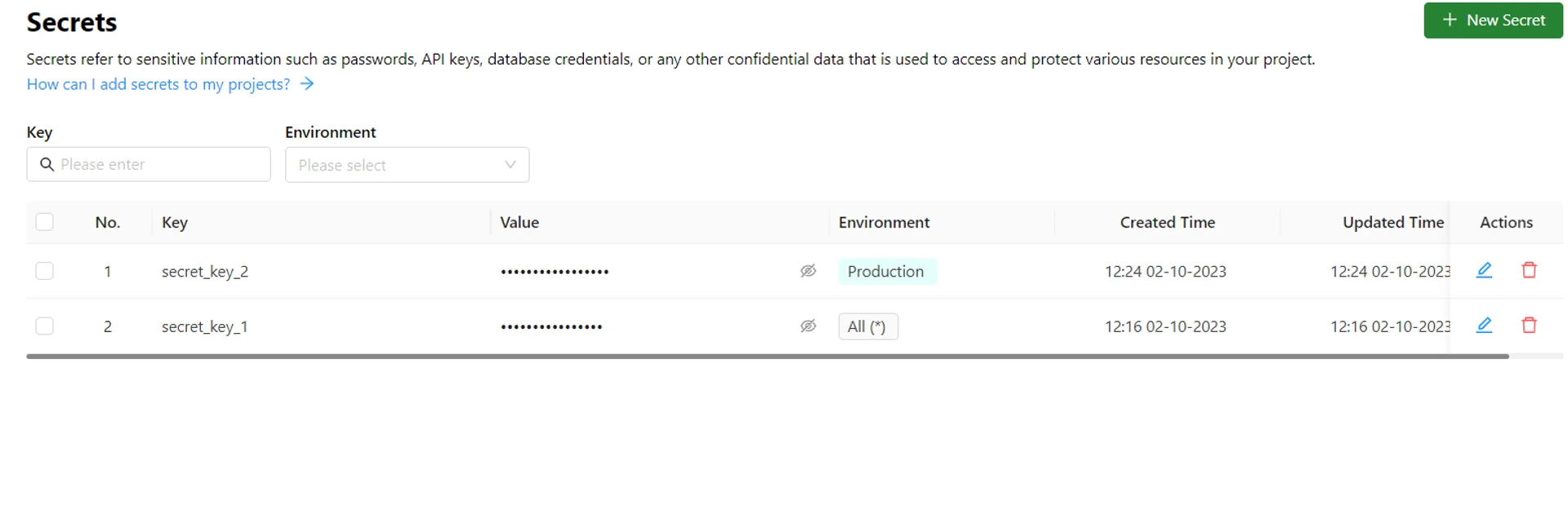
5. Click the **Create** button. You will see the newly created secret appear in the list.
4. Select an environment where the secret will be deployed. You can choose an existing environment or create a new one.
The default environment value is `All (*)`, which means the created secret will be deployed across all environments in your project.
You cannot create two or more secrets with the same key in the same environment. Each secret's key must be unique within an environment.
5. Click the **Create** button. You will see the newly created secret appear in the list.
 ### Edit a secret
To edit a secret, go to the **Secrets** screen.
1. Click the **Pencil** icon corresponding to the secret you want to edit.
### Edit a secret
To edit a secret, go to the **Secrets** screen.
1. Click the **Pencil** icon corresponding to the secret you want to edit.
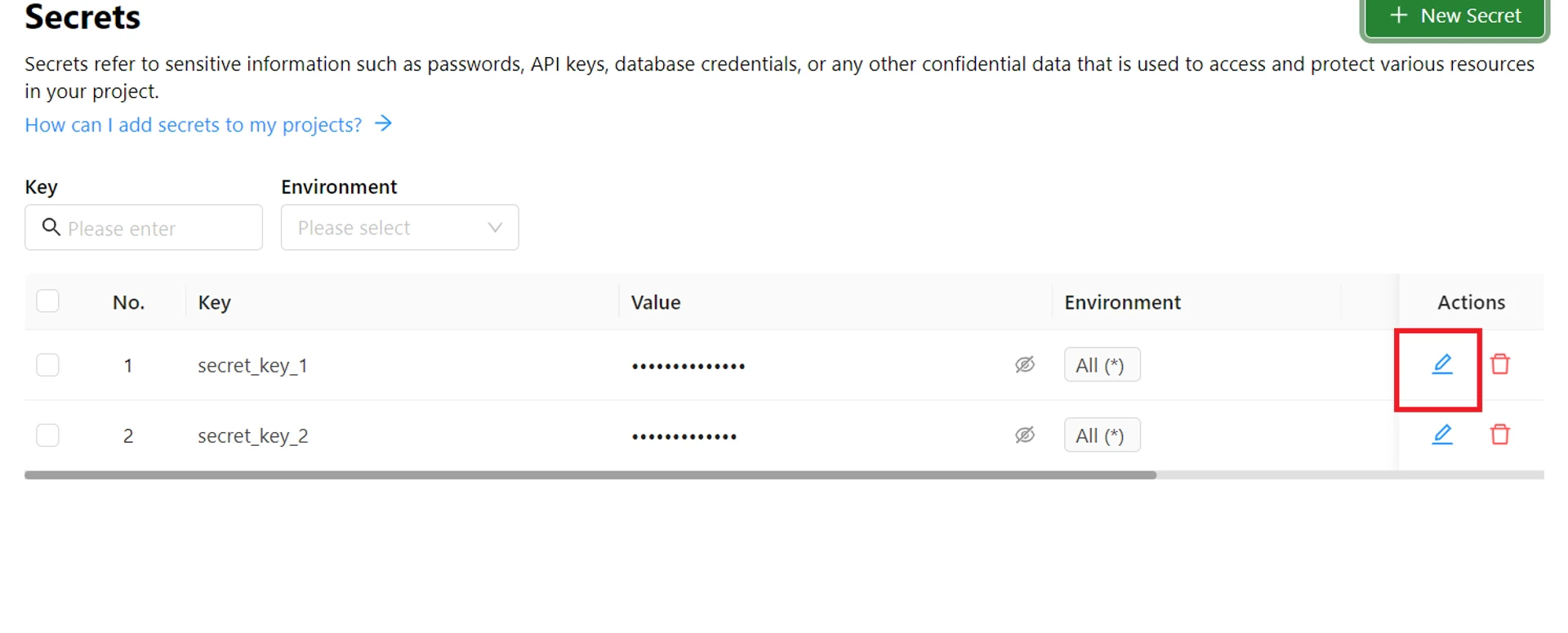 2. Edit the key, value, description, or environment fields of the secret as desired.
3. Click the **Save** button to save your changes.
### Delete a secret
To delete a secret, go to the **Secrets** screen.
1. Click the **Trash** icon corresponding to the secret you want to delete.
2. Edit the key, value, description, or environment fields of the secret as desired.
3. Click the **Save** button to save your changes.
### Delete a secret
To delete a secret, go to the **Secrets** screen.
1. Click the **Trash** icon corresponding to the secret you want to delete.
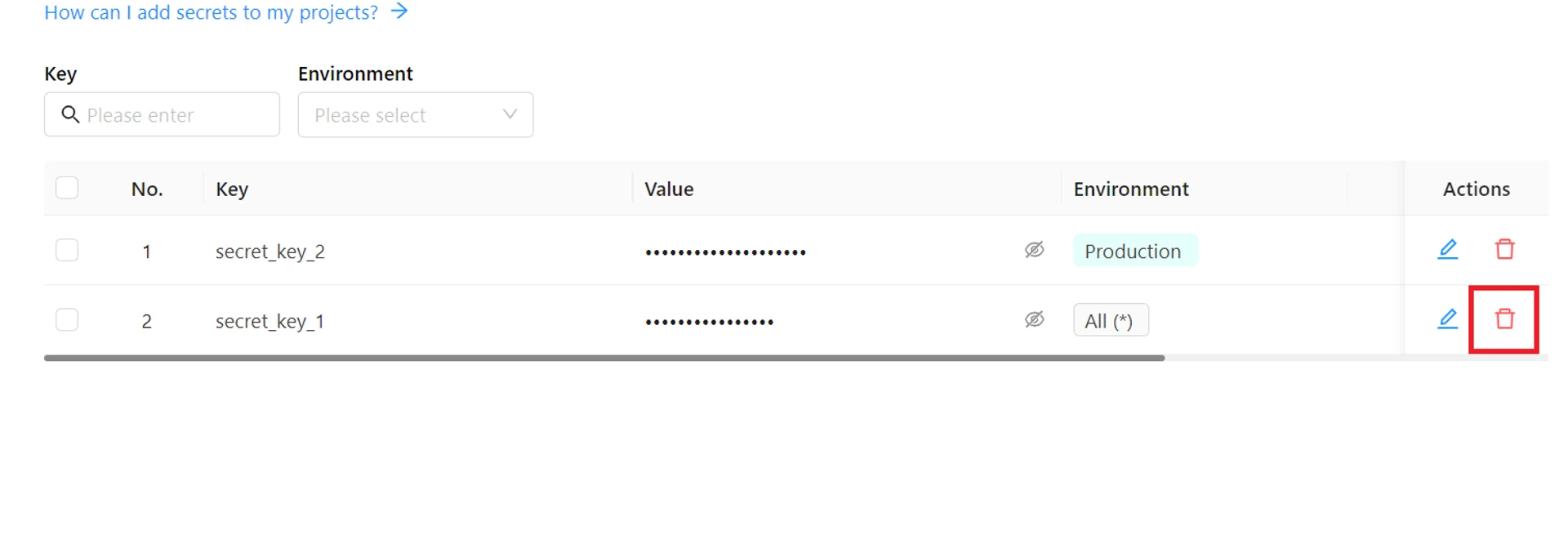 2. In the pop-up window that appears, click the **Confirm** button to delete the secret.
3. The secret will be permanently deleted.
2. In the pop-up window that appears, click the **Confirm** button to delete the secret.
3. The secret will be permanently deleted.