

Manage Workspace Members (Cloud Version)
With a Cloud account of Locker Secrets Manager, you can create your own workspace and invite other Locker users to it. This helps you and your team collaborate effectively during software development.Invite Members to a Workspace
- Open the workspace you want to invite members to by clicking Profile > Workspace > select a workspace.
You can only invite members to workspaces that you created.
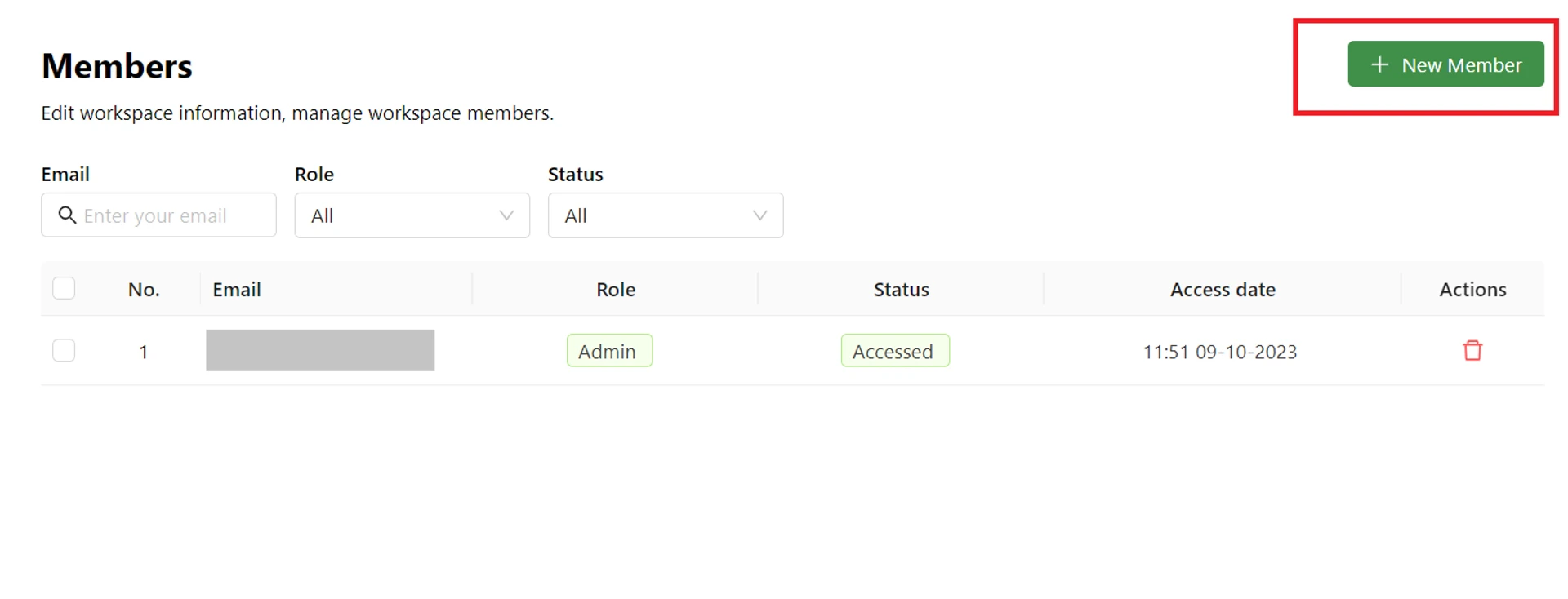
- On the left navigation bar > open Settings > open the Members page > click the New member button.
- Enter the email of the new member. You can add multiple members at once.
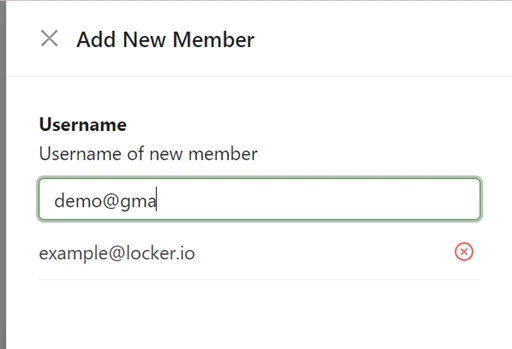
- Click the Invite button. The new member will receive a notification email and be added directly to your workspace.
View Member List
The list of members added to your workspace will be displayed on the Members screen. You can view their information and email addresses along with other details.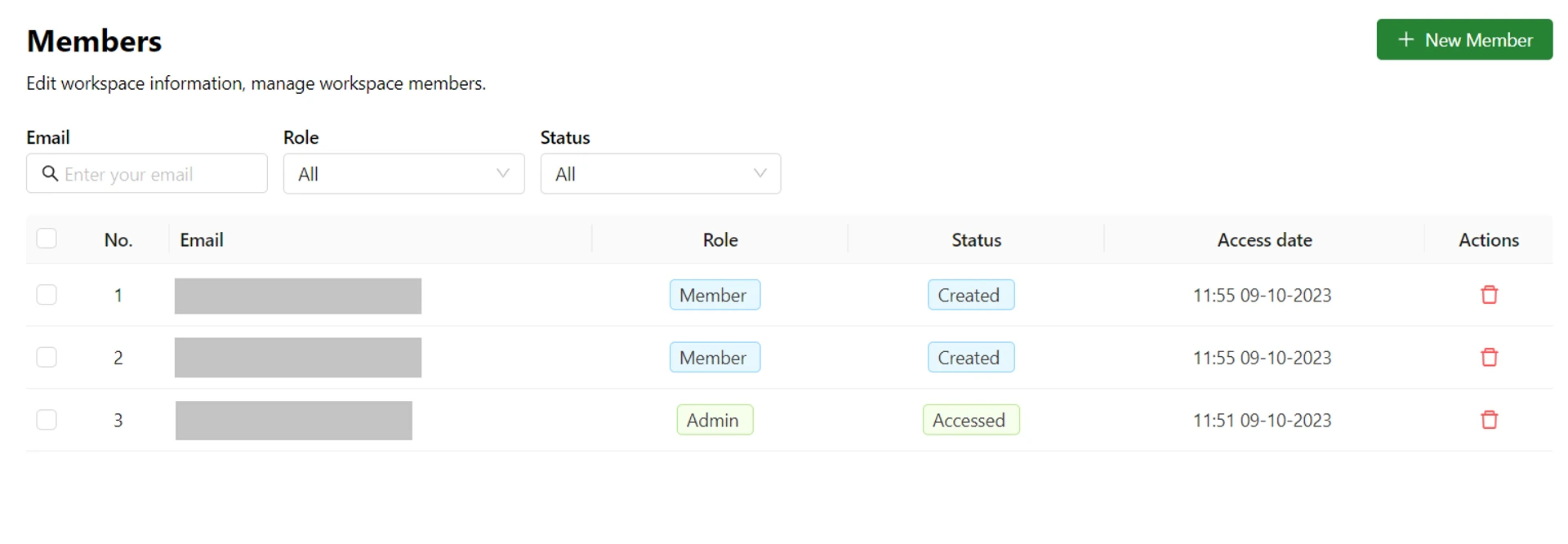
Remove Members from a Workspace
- To remove a member, navigate to the Members screen as described above.
- Click the Trash icon corresponding to the member you want to remove.
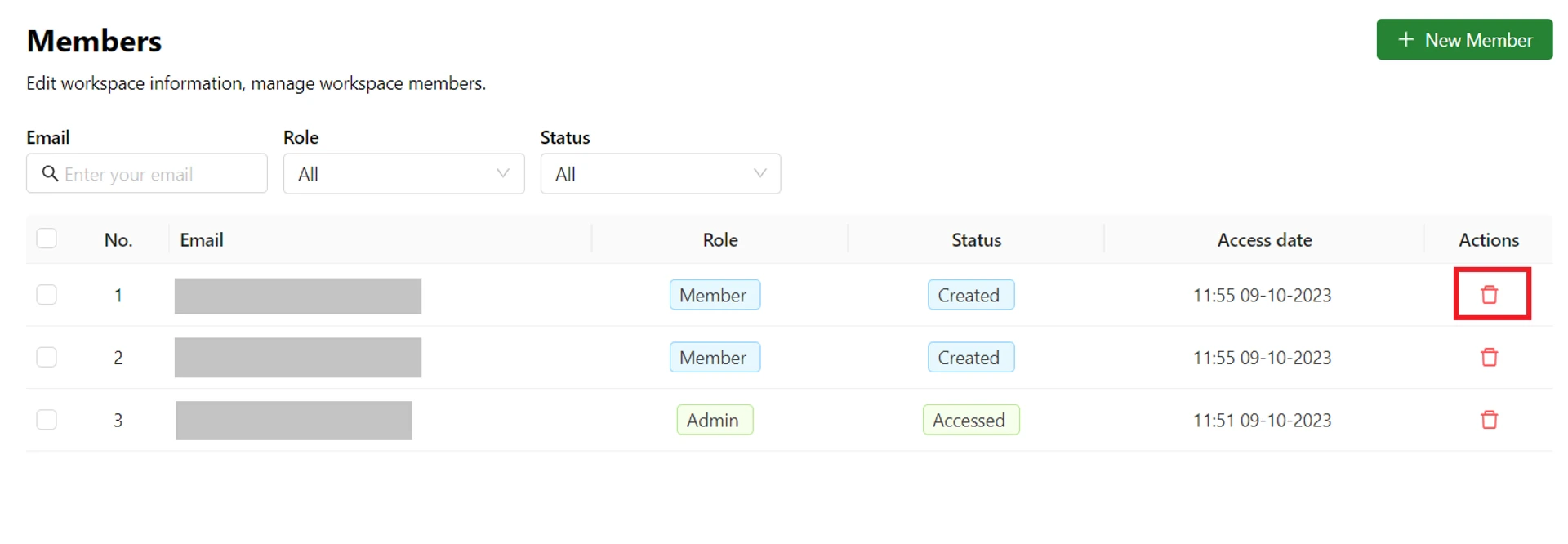
- On the popup that appears, click the Delete button to confirm.