

Unlock with Master Password
Master Password is the only decryption key. You are always required to create this password when setting up your account.1
Log in
Log in to your Locker account.
2
Decrypt the Vault
On the unlock screen, enter your Master Password and click 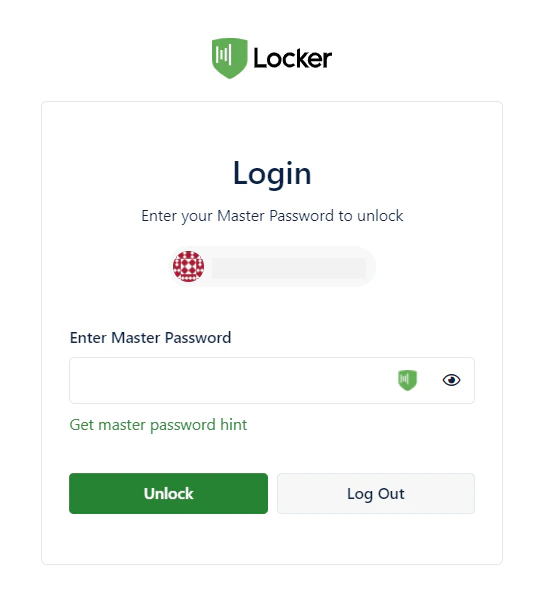
Unlock.On the mobile app, after unlocking with your Master Password, you can enable Biometrics for faster access next time.
Unlock with a Passkey
Use biometrics or a device PIN to authenticate instead of your Master Password.Currently, unlocking with a passkey is only available on the web platform (Chromium-based browsers). You can use an Android phone or a security key to store this passkey.
Create a passkey for unlocking
1
Access settings
Log in and unlock the web app. Go to
Settings > Security > Unlock Methods.2
Add a passkey
Under Passkeys, click the 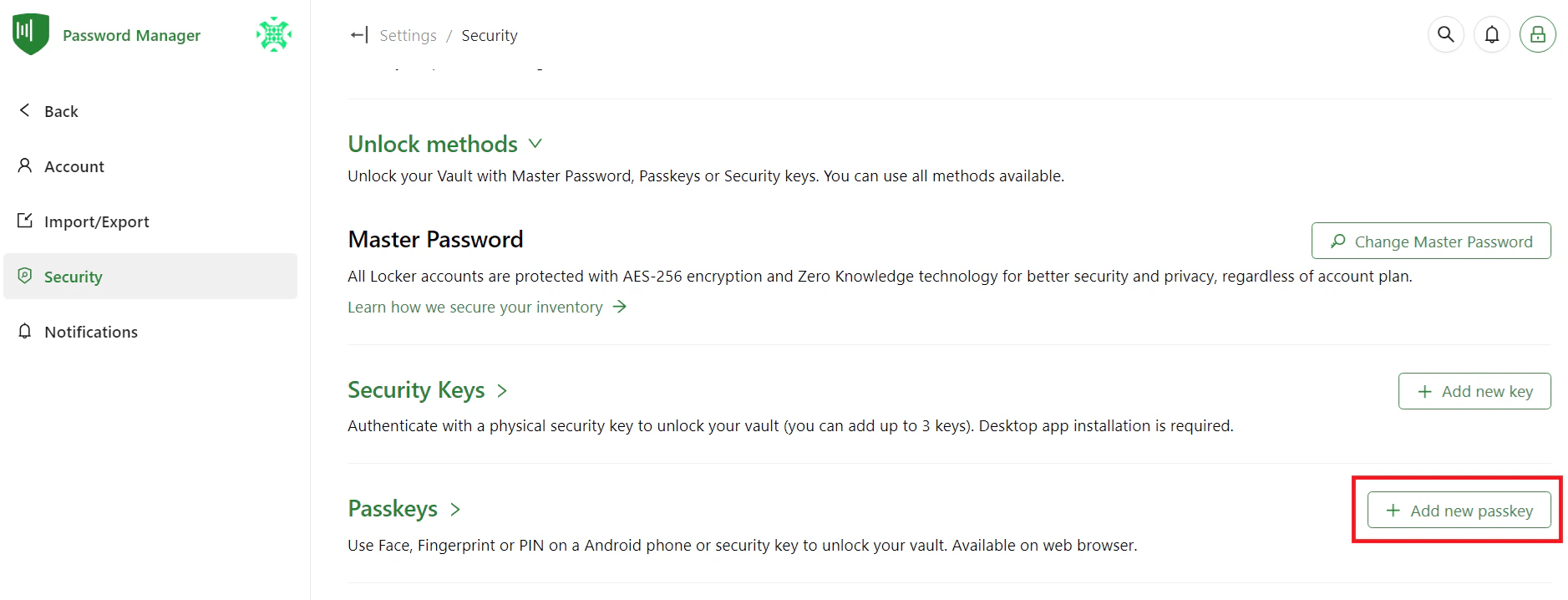
Add New Passkey button.3
Configure the passkey
Enter a Passkey name (we recommend naming it after your device), choose the storage method (Android or Security Key), and click
Next.4
Authenticate your device
- Android phone: Use your phone to scan the QR code on the screen, then verify with fingerprint/face on your phone.
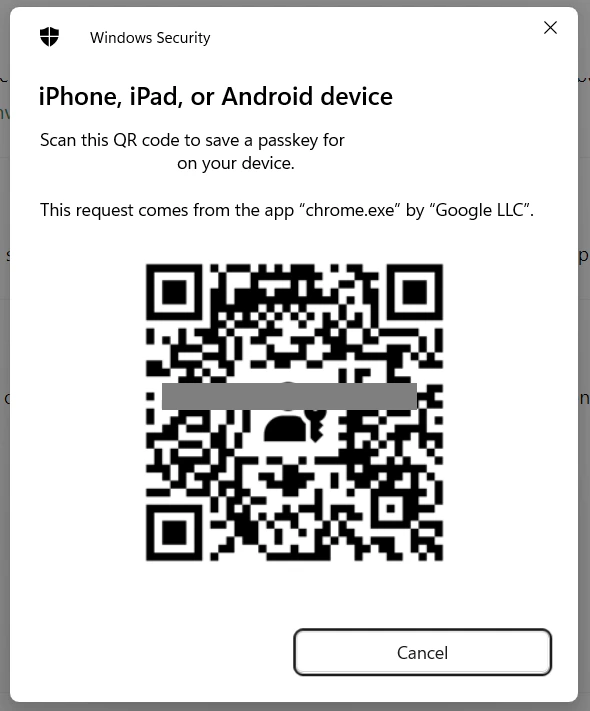
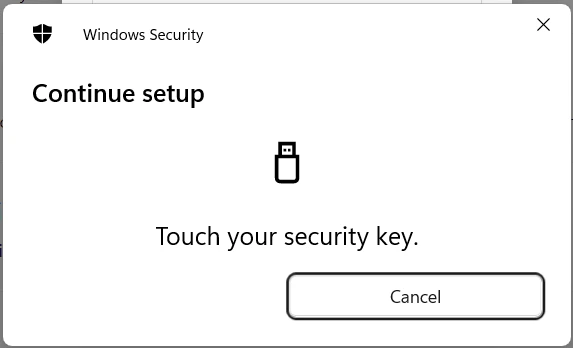
- Security key: Connect the key to your computer, click
OKin the browser, and scan your fingerprint or enter the key’s PIN.
Use a passkey to unlock
1
Choose the method
On the unlock page, select 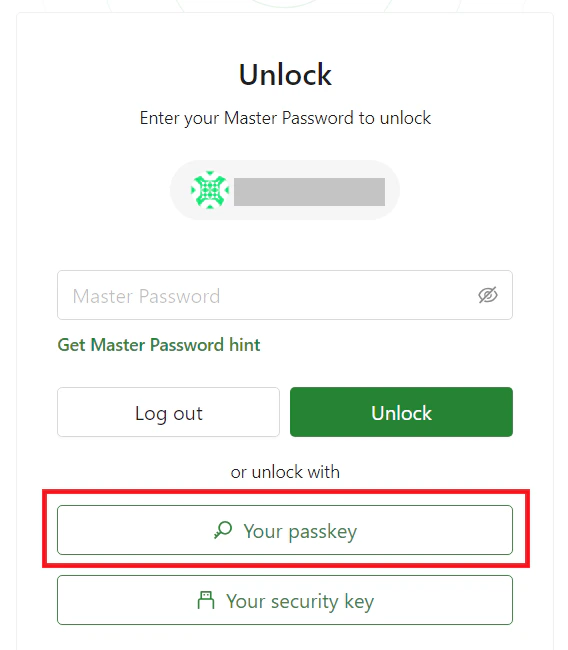
Unlock with your Passkey and click Continue.2
Authenticate
Select the device where your passkey is stored. Scan your fingerprint, face, or enter your PIN on that device to access the Vault.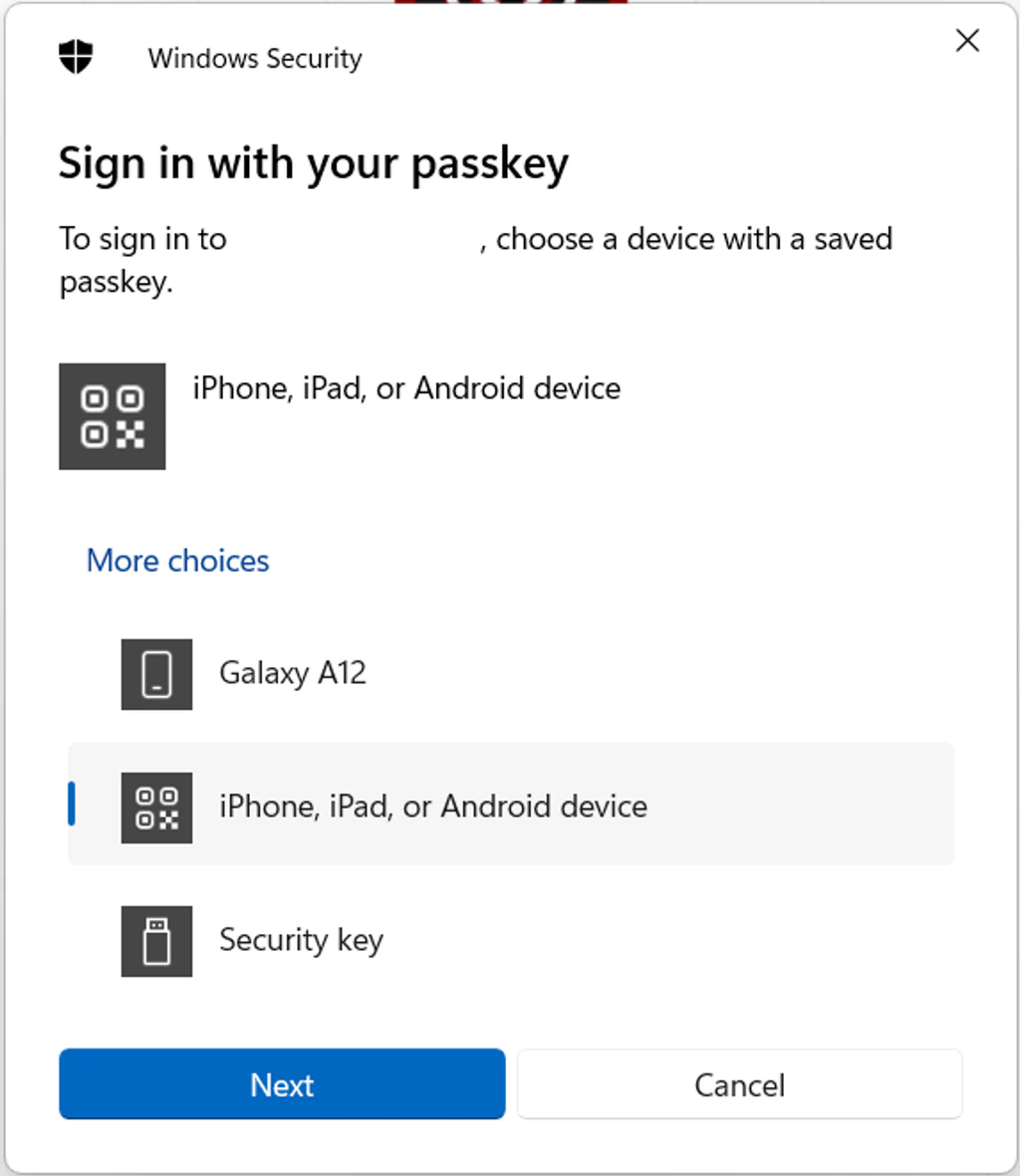
Unlock with a physical security key
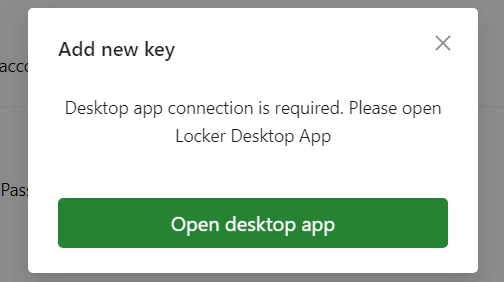
Security keys (YubiKey, VinCSS, etc.) can fully replace your Master Password and help protect against phishing attacks.Requirement: You need to install the Desktop app to enable this feature. Download the app here.
- On Desktop App
- On Web App
1
Go to Security settings
Open the Desktop app, go to
Settings > Security > Unlock Methods.2
Connect the key
Under Security Keys, click the 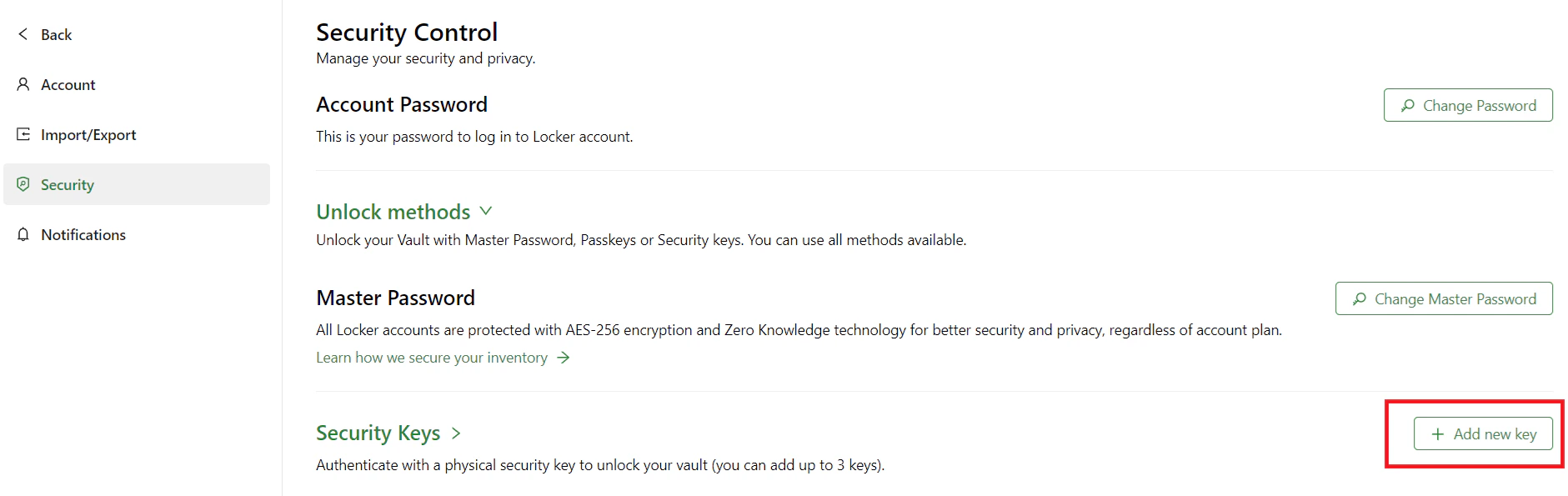
Add New Key button. Connect the physical key to your computer via USB or BLE.If the key does not appear on screen, try clicking the Reload device list button.
3
Authenticate
Scan your fingerprint or enter the key’s PIN.
Note: You will need to perform the authentication on the key 2 times as required by the system to complete the setup. Afterward, the system will automatically log you out.
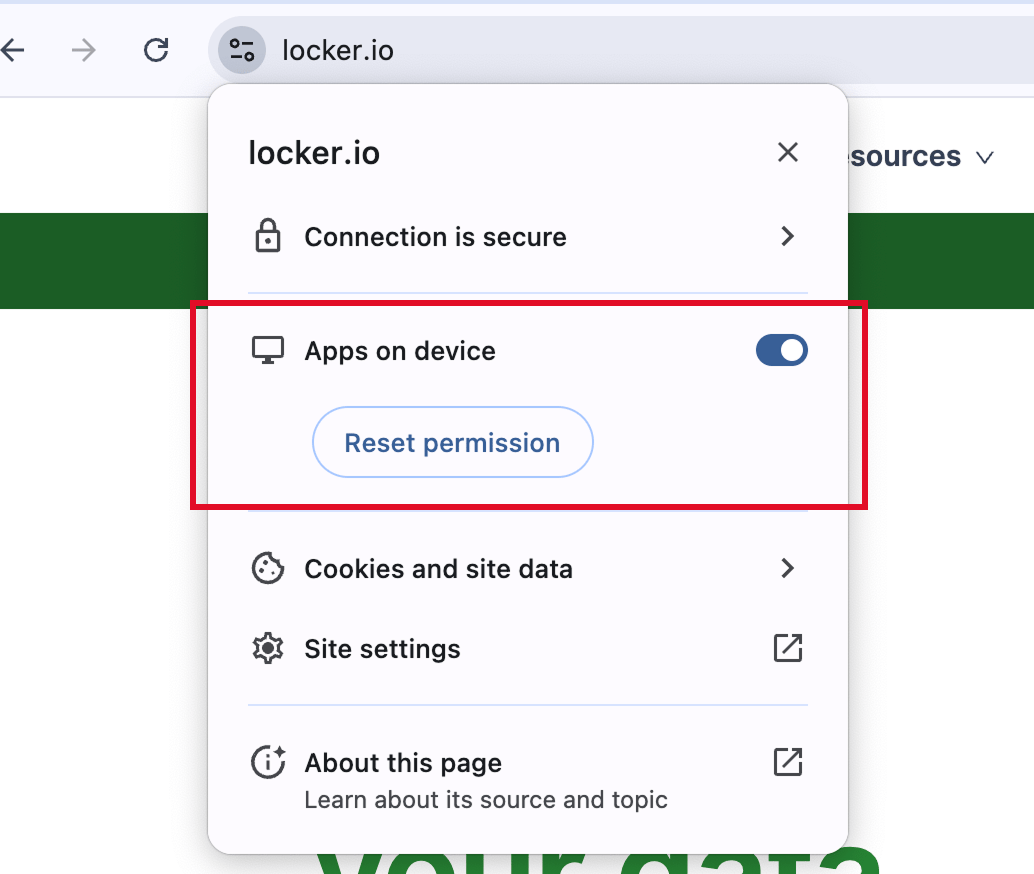
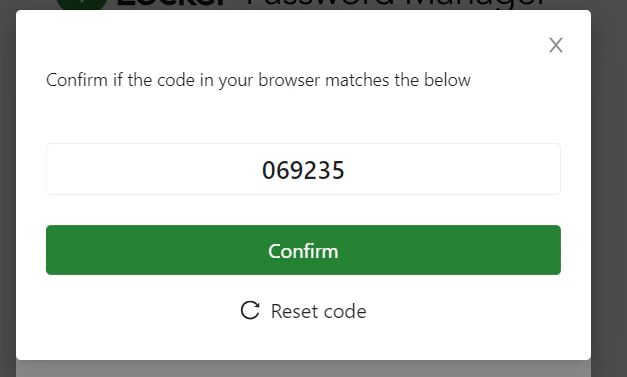
Unlock with biometrics
This method is available exclusively on the mobile app (iOS/Android), using Face ID, Touch ID, or fingerprint scanning.If your device supports both face and fingerprint recognition, Locker will prioritize face recognition.
How to enable
1
Open Settings
Open the Locker mobile app, go to the
Menu tab > Settings.2
Enable the feature
Scroll down to the Security section and toggle on
Unlock with Face ID/Touch ID (or Biometrics).3
Confirm
Scan your face or fingerprint so the system registers your unlock method.
Remove an unlock method
You can manage and remove previously configured unlock methods at any time to keep your account secure:1
Access the list
Go to
Settings > Security > Unlock Methods and expand the Passkeys or Security Keys section.2
Select the method to remove
Find the device or key you want to remove and click the
Trash (Delete) icon next to it.3
Confirm
In the confirmation dialog, click
Delete to confirm. Once removed, this method will no longer work to unlock the Vault.