

What are Passkeys?
Passkeys are a replacement for passwords. While a password is something you memorize and type in, a passkey is a public-private key pair stored on your device, unlocked with biometrics or a device PIN.Devices that support Passkeys
You can create passkeys on the following devices
- Laptops or desktops running Windows 10, macOS Ventura, or ChromeOS 109 or later.
- Mobile devices running iOS 16 or Android 9 or later.
- Hardware security keys supporting the FIDO2 protocol, such as YubiKey or VinCSS security keys.
Using passkeys across multiple devices
Passkeys created on iOS or iPadOS can be used on:- The same iPhone or iPad where they were created.
- Other iPhones, iPads, and Macs signed in with the same Apple ID (synced via iCloud Keychain).
- Other devices using cross-device authentication: Windows (Edge/Chrome), Chromebook, Ubuntu.
- The same Android device where they were created.
- Other Android devices signed in with the same Google Account.
- Other devices (iPhone, Mac, Windows) by scanning a QR code.
Create and manage passkeys with Locker
You can create multiple passkeys on your devices to log in to Locker instead of using a password and two-factor authentication (2FA).Create a passkey with Locker
1
Access settings
Go to id.locker.io in your browser and log in.
Or on the mobile app, go to
Menu > Settings > Login with passkeys.2
Choose the method
Click the 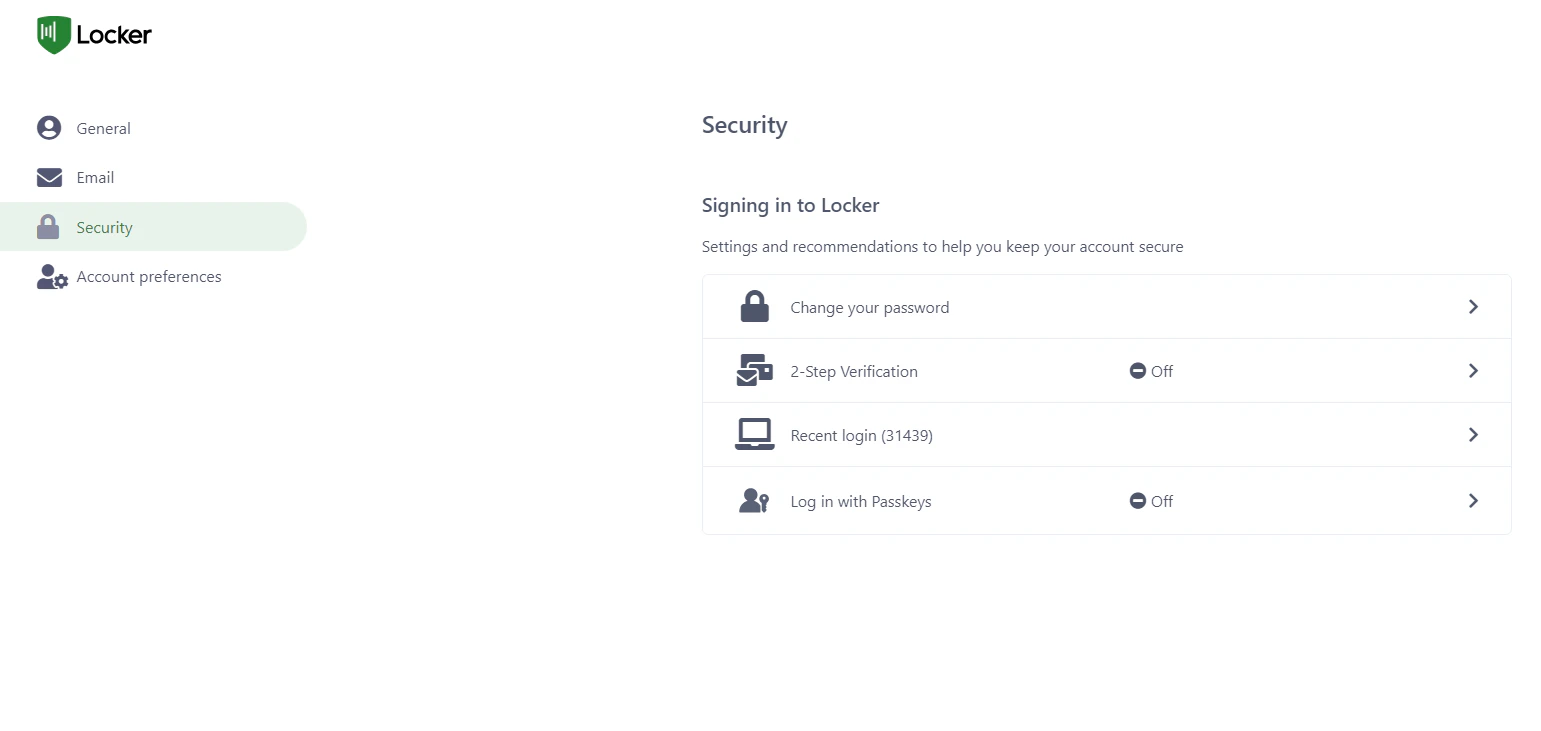
Security tab and select Login with Passkey.3
Start creating
Click the 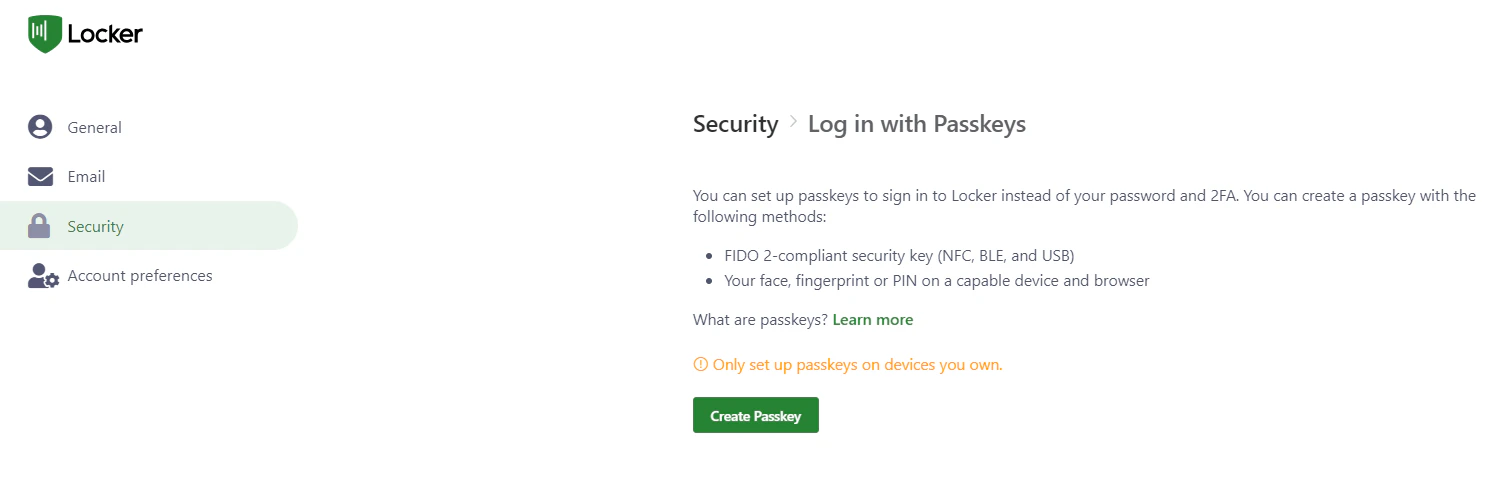
Create Passkey button.4
Authenticate your device
The system will display an authentication window. Choose the method that suits you: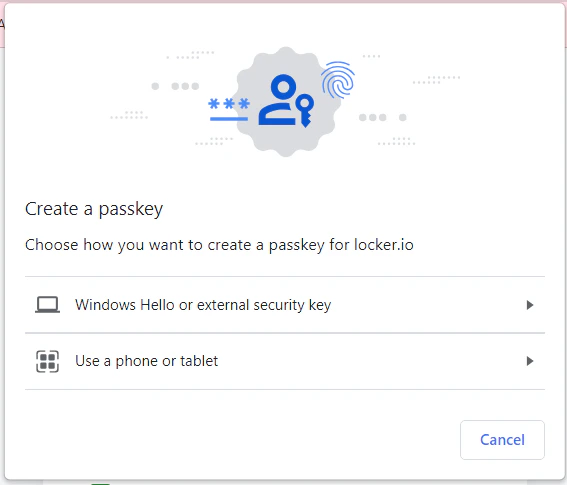
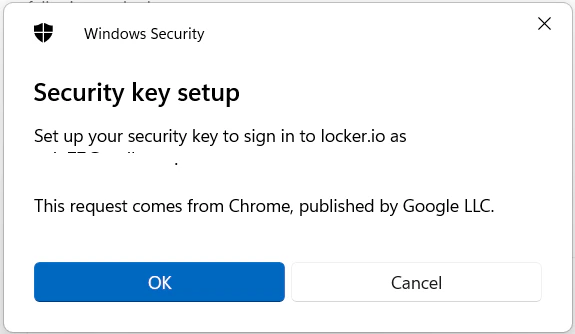
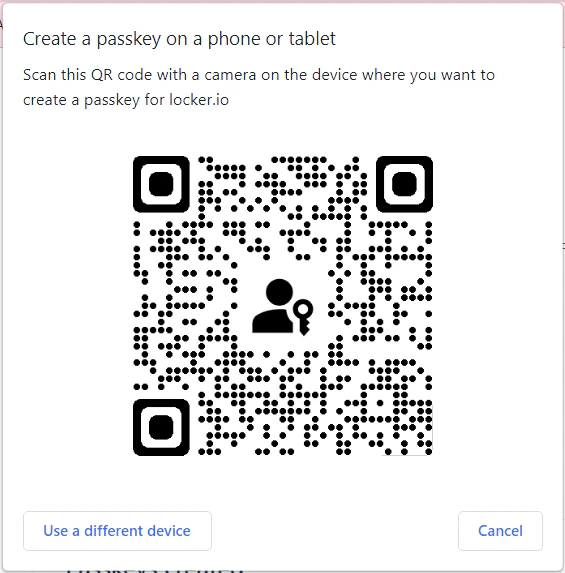
Using Windows Hello
- Select
Windows Hello or external security key> ChooseFingerprintorPIN.
- Scan your fingerprint or enter your computer PIN to confirm.
Using a physical security key
If you own a security key (such as YubiKey or VinCSS) and have connected it to your computer (via USB/BLE):- Select
Windows Hello or external security key> chooseSecurity key.
- Scan your fingerprint or enter the security key PIN to confirm.
Using a phone or tablet
You can save your login credential on a personal mobile device:- Select
Use a phone or tablet. A QR code will appear on your computer screen.
- Use your phone or tablet to scan the QR code and confirm with face, fingerprint, or device PIN.
5
Done
You are all set! You can now log in to Locker using the passkey you just created.
View your created passkeys
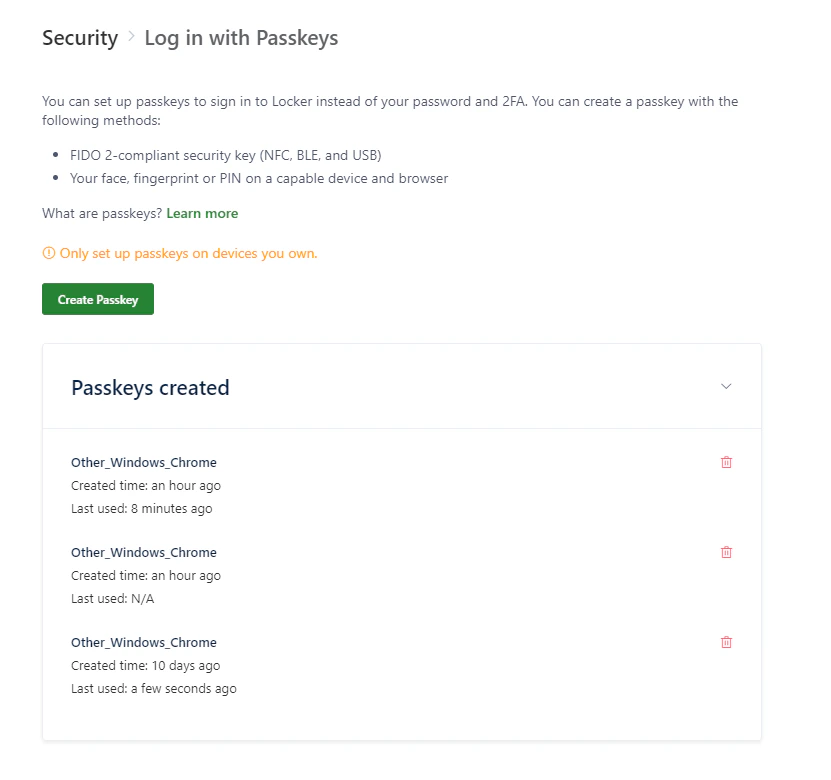
To view and manage your passkeys, go toSecurity > Login with Passkey. The list shows:
- The device where the passkey was created.
- Creation date.
- Last used date.
Delete a passkey
If you no longer want to use a specific passkey, you can remove it from your account:1
Select the passkey to delete
In the list of created passkeys, click the 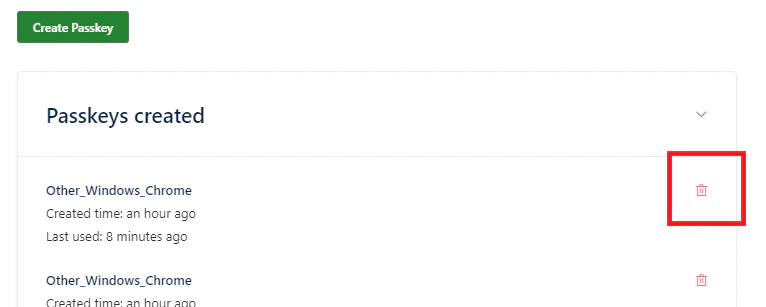
Delete (trash) icon next to the passkey you want to remove.2
Set up an alternative password (if needed)
Note: If you delete your last or only passkey, the system will require you to create a password as an alternative login method.Enter a new password and click 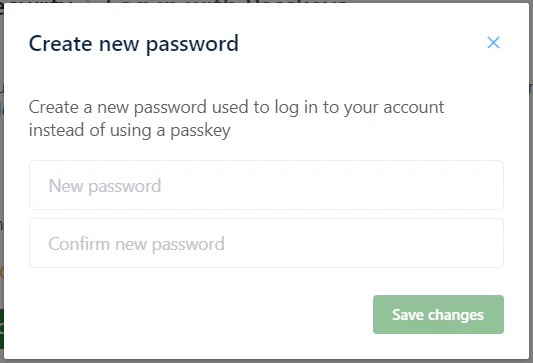
Save Changes to complete the deletion.