

What is OTP?
OTP (One-Time Password) is a common form of two-factor authentication (2FA) that enhances access security by requiring two login steps — in addition to your username and password — to verify your identity. You can use the Locker app on your mobile device as an authenticator app to sign in to accounts where you have enabled 2FA. Specifically, Locker can generate, store, and display a unique six-digit security code that you will need to complete the login process for your online accounts.You can use Locker as an authenticator app to sign in to your Locker account as well.
- Open the website or service you want to secure with two-step verification.
- Go to Account Settings > Security and follow the steps to enable 2FA. At the end of the process, you will receive a QR code or a setup key to configure 2FA.
- You can then choose to scan the QR code or enter the setup key to enable 2FA for that account.
Generate OTP on the Web App
The Locker web app only supports setting up 2FA using a setup key.When adding or editing a Password
Open the Password form
Log in to your Locker account on the Web Vault, then choose to add a new password or edit an existing one.
Add a new OTP
On the Password form, fill in the required information, then scroll to the 2FA Settings section > select Add New OTP.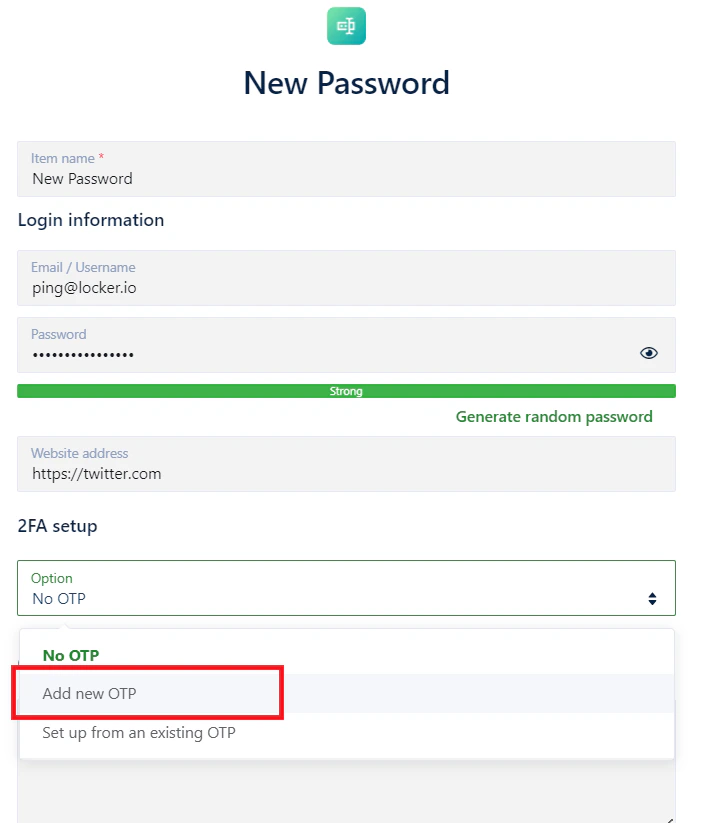
Enter the setup key
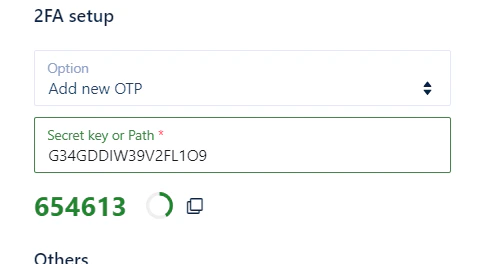
Enter the setup key obtained in the previous step into the field that Locker requires.
By setting up 2FA from the Authenticator page
Open the Authenticator tab
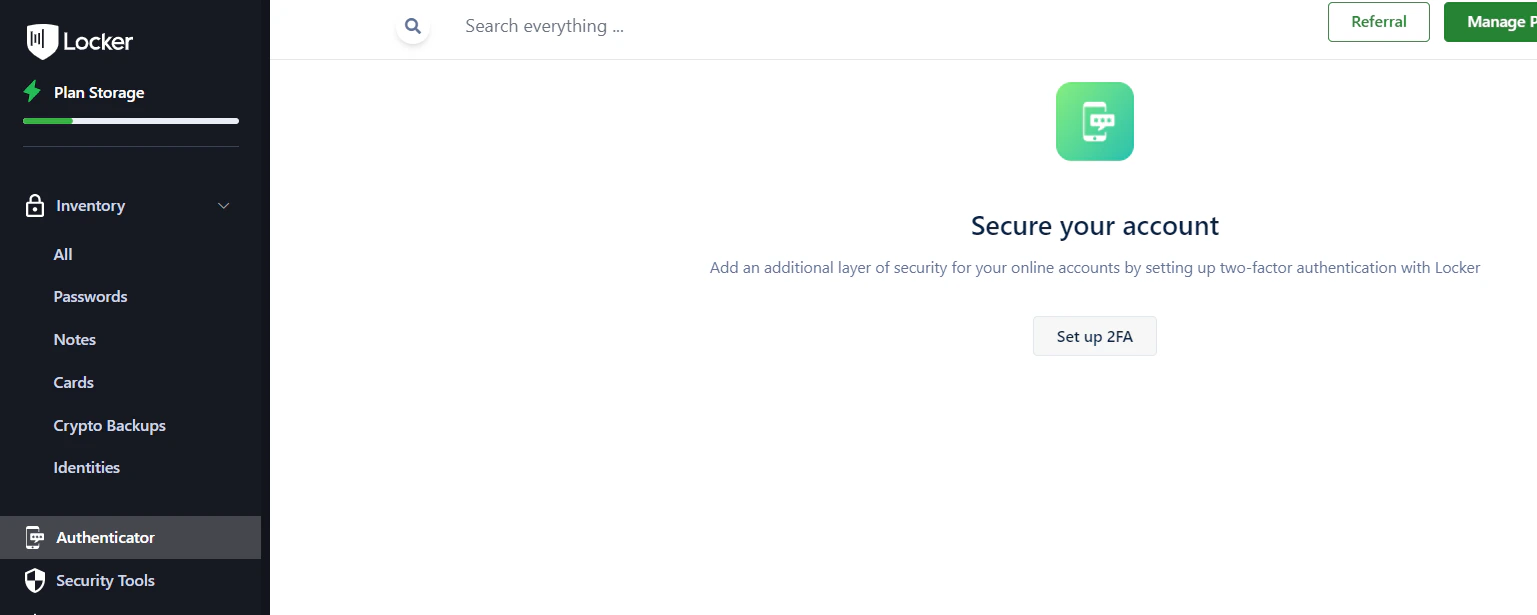
Log in to your Locker account on the Web Vault, then go to the Authenticator tab on the sidebar.
Enter information
Enter the OTP name and the setup key into the fields that Locker requires. Click Add.
Link an existing OTP to your password
If you have already added an OTP from the Authenticator tab, you can link it to a new or existing password.Open the Password form
Log in to your Locker account on the Web Vault, then choose to add a new password or edit an existing one.
Select an existing OTP
On the Password form, fill in the required information, then scroll to the 2FA Settings section > select Set up from an existing OTP.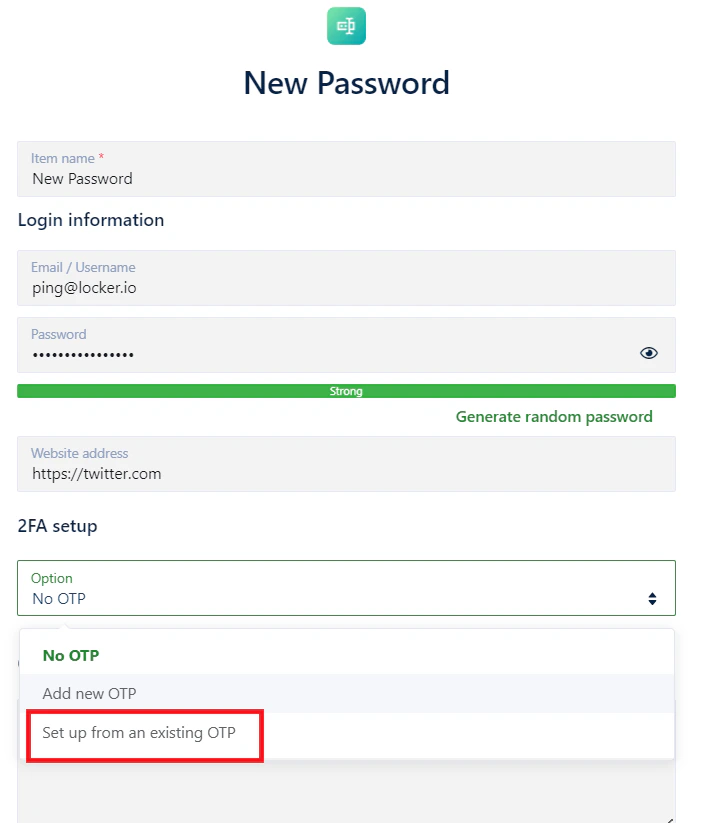
Generate OTP on the Locker Mobile App
When adding or editing a Password
Open the Password form
Open the Locker app, then choose to add a new password or edit an existing one.
Add a new OTP
On the Password form, fill in the required information, then scroll down to the 2FA Settings section > select Add New OTP.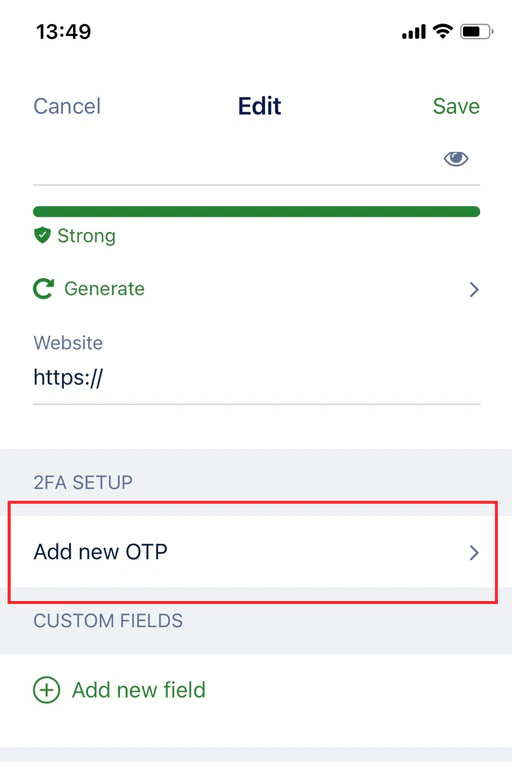
Scan QR code or enter key
You can choose to Scan QR Code, or enter a setup key: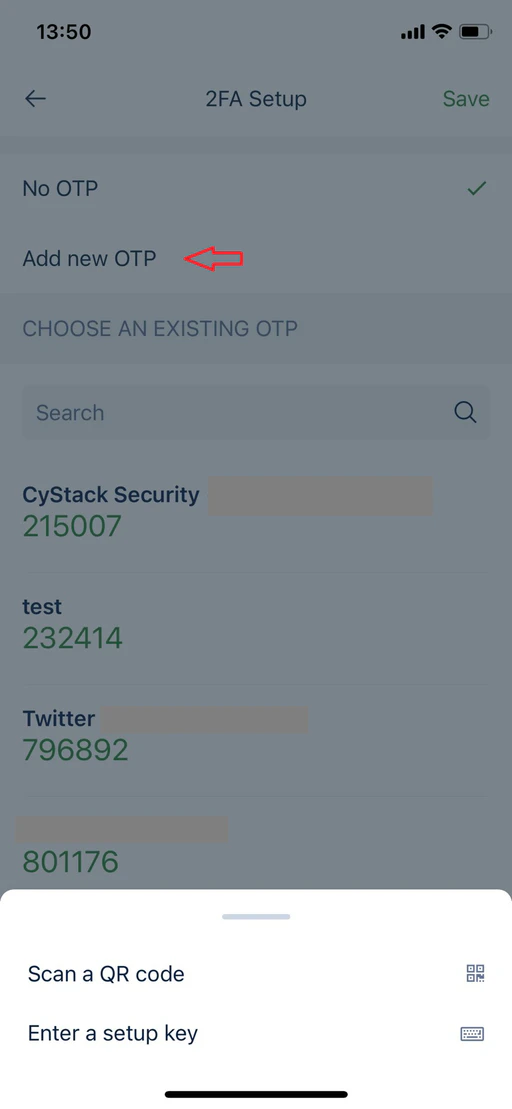
- Scan QR Code: Select Scan QR Code. Point your device’s camera at the QR code. You will first be prompted to grant Locker access to your device’s camera. Tap OK to allow.
- Enter Setup Key: Select Enter a setup key. Enter the setup key into the fields that Locker requires. Tap Save.
By setting up 2FA from the OTP tab
Open the OTP tab
Log in to Locker on the mobile app, then open the OTP tab > tap the Plus icon in the top-right corner.
Link an existing OTP to your password
Open the Password form
Open the Locker app, then choose to add a new password or edit an existing one.
Select an existing OTP
On the Password form, fill in the required information, then scroll to the 2FA Settings section > tap to select an option.
Generate OTP on the Browser Extension
When adding or editing a Password
Open the Password form
Log in to the Locker extension, then choose to add a new password or edit an existing one.
Open 2FA Settings
On the Password form, fill in the required information, then scroll to the 2FA Settings section.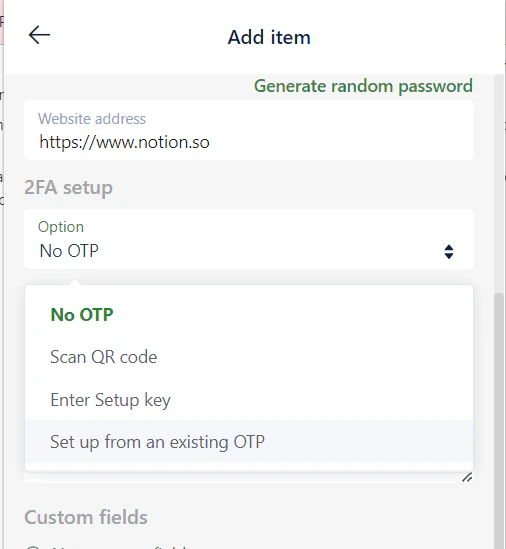
Scan QR code or enter key
You can choose to set up a new 2FA using a QR code or a setup key.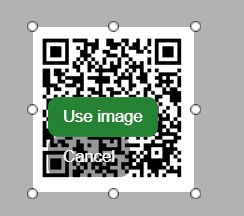
- Scan QR Code: Select the Scan QR Code option. Drag and drop to scan the QR code. Select Use Image.
- Enter Setup Key: Select Enter Setup Key. Enter the title and verification code. Select Save.
By setting up 2FA from the OTP tab
Link an existing OTP to your password
Open the Password form
Log in to the Locker extension, then choose to add a new password or edit an existing one.
Select an existing OTP
On the Password form, fill in the required information, then scroll to the 2FA Settings section. Click the dropdown, then select Set up from an existing OTP.
Typically, the code is refreshed every 30 seconds as a security measure.