

On Web Vault and Desktop App
1
Log in to Locker
Log in to Locker in your browser.
2
Open the Private Email tab
On the left sidebar, click the Private Email tab.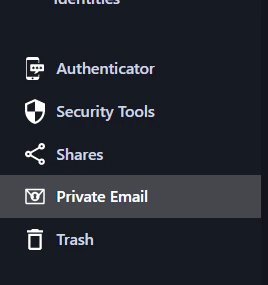
3
Identify your root email
The email address used to register your Locker account will automatically be identified as your root email.Below your root email, you can see the number of aliases you have created. On the Free plan, you can create up to 5 aliases and 1 editable alias.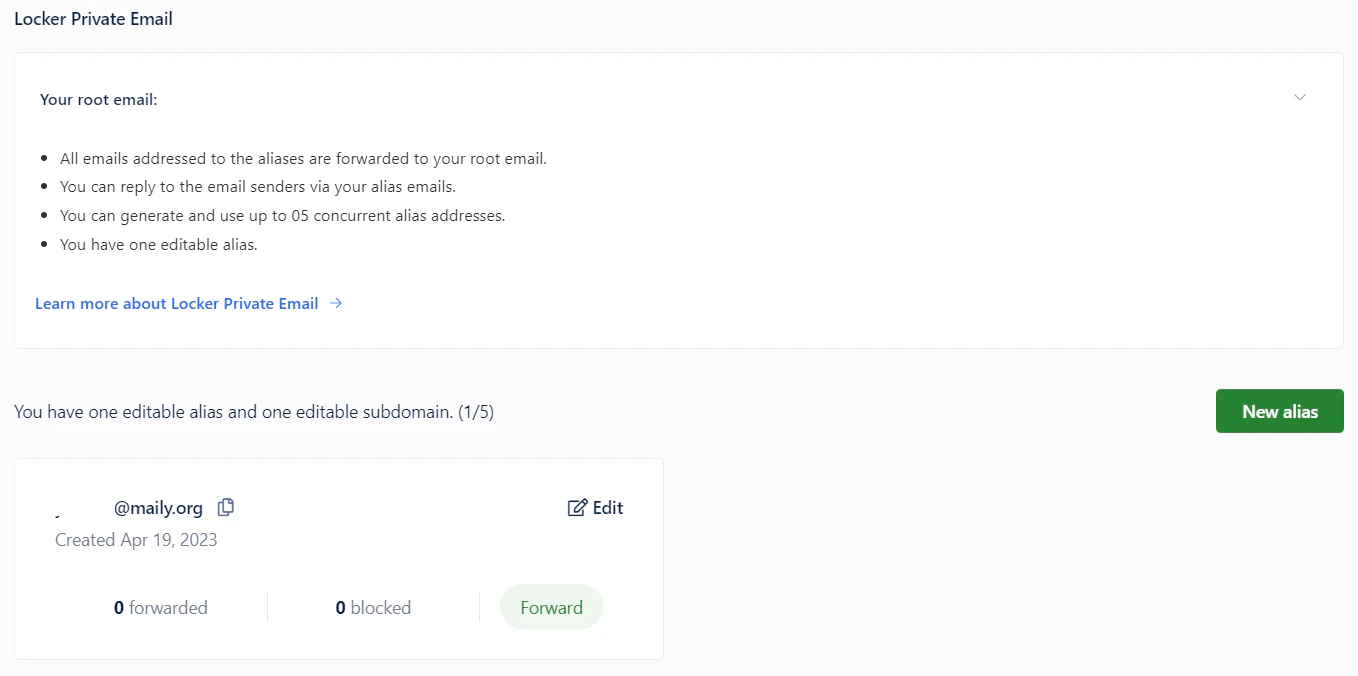
4
Create a new alias
Click Add to create a new alias. The system will automatically generate a new email address linked to your root email.
5
Edit or delete an alias
Click Edit to change your alias username if you wish. To delete an alias, click Delete.
6
Use your alias
Start using your alias to sign up for new apps or promotions. Any email sent to your alias will be forwarded to your root email.
Reply to Forwarded Emails
When you use your root email to reply to emails sent to any of your aliases, the recipient will see the reply as coming from that alias. Therefore, your root email address remains private.1
Open your inbox
Open the inbox of your root email address.
2
Reply to the email
You will see forwarded emails from your aliases in your inbox. Click on the forwarded email and click Reply. Write your response and click Send.
On Mobile Devices
1
Log in to Locker
Log in to Locker on your mobile device.
2
Open Tools
Tap Tools.
3
Open Private Email
Tap Private Email.You can see all the aliases you have created on the screen and the number of remaining aliases. For example, 3/5 means you have created 3 aliases and only have 2 remaining.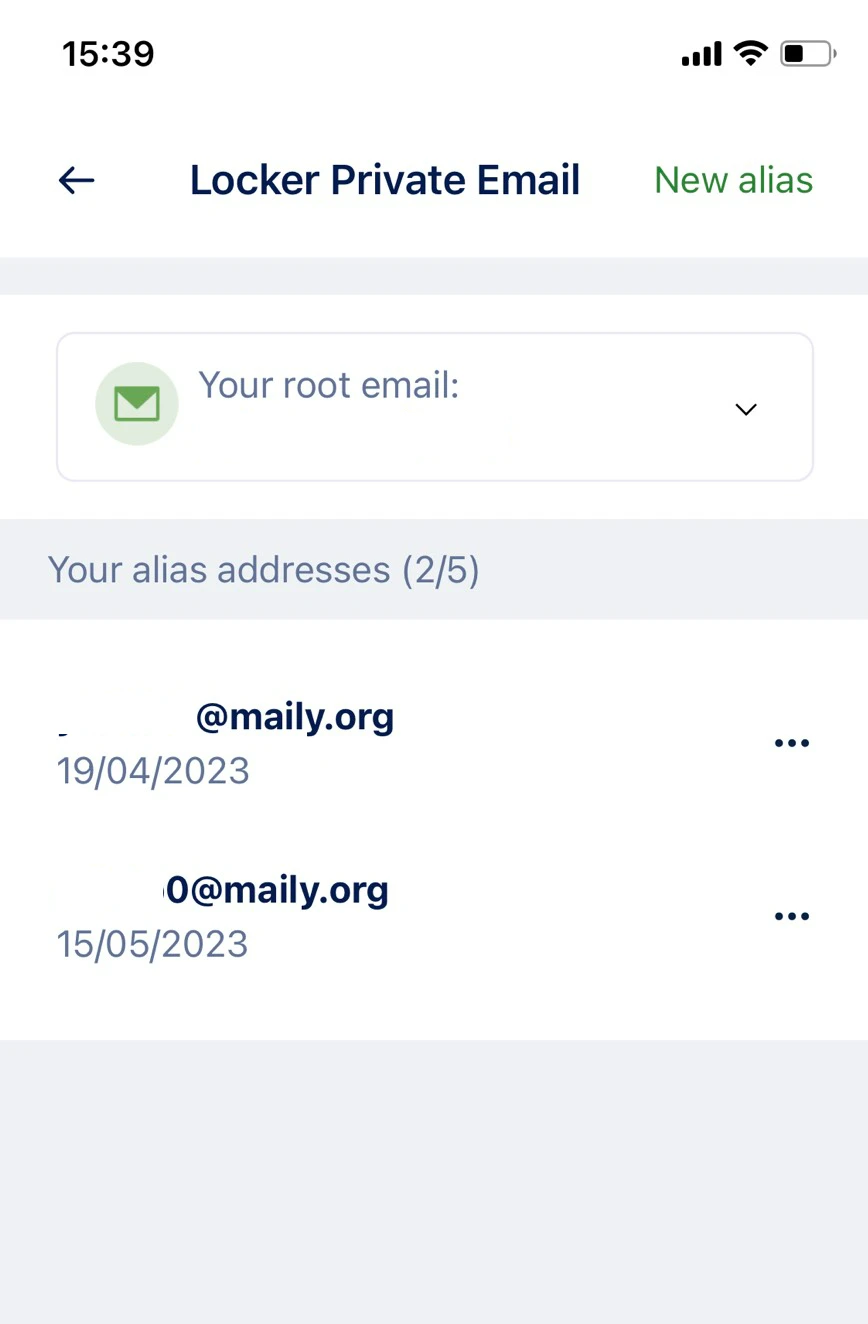
4
Create a new alias
Tap Add to create a new alias. The system will automatically generate a new email address linked to your root email.
5
Edit or delete an alias
To edit your first created alias, tap the three-dot icon next to it. Tap Edit Email Address and change it to any name you want. To delete an alias, tap Delete.
6
Use your alias
Start using your alias to sign up for new apps or promotions. Any email sent to your alias will be forwarded to your root email.