

Import data
To optimize your experience, you should import data from your browser or other password managers that Locker supports.Popular browsers
Google Chrome
Microsoft Edge
Mozilla Firefox
Safari
Password managers
1Password
LastPass
Bitwarden
NordPass
Dashlane
Enpass
KeePass
KeePassX
RoboForm
Keeper
Operating systems & Files
iCloud Keychain
Samsung Pass
Google Sheet / Excel
Add, edit, and delete items
Manage your vault (passwords, notes, cards, identities) directly in the app.1
Add a new item
In the Vault screen, click 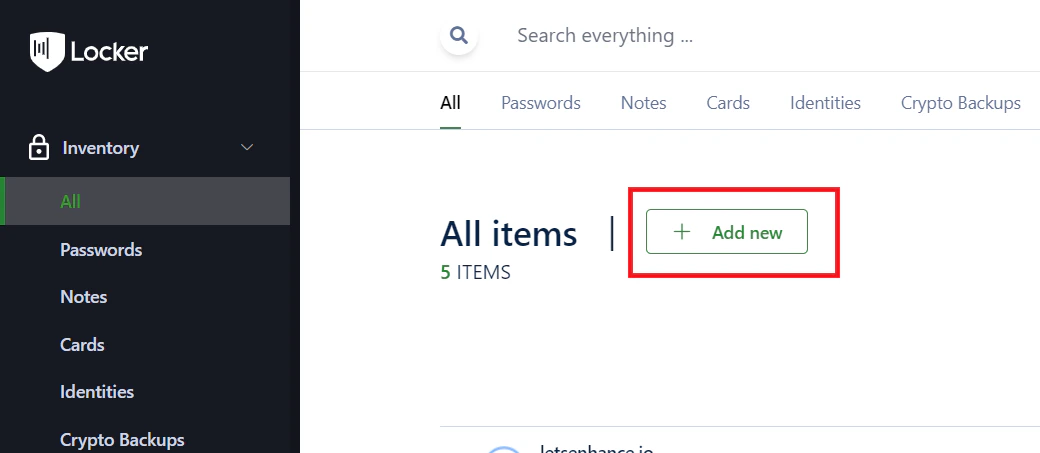
Add New, select the item type you want to add, enter the details, and click Add.2
Edit an item
Hover over the item you want to edit, click the menu, and select 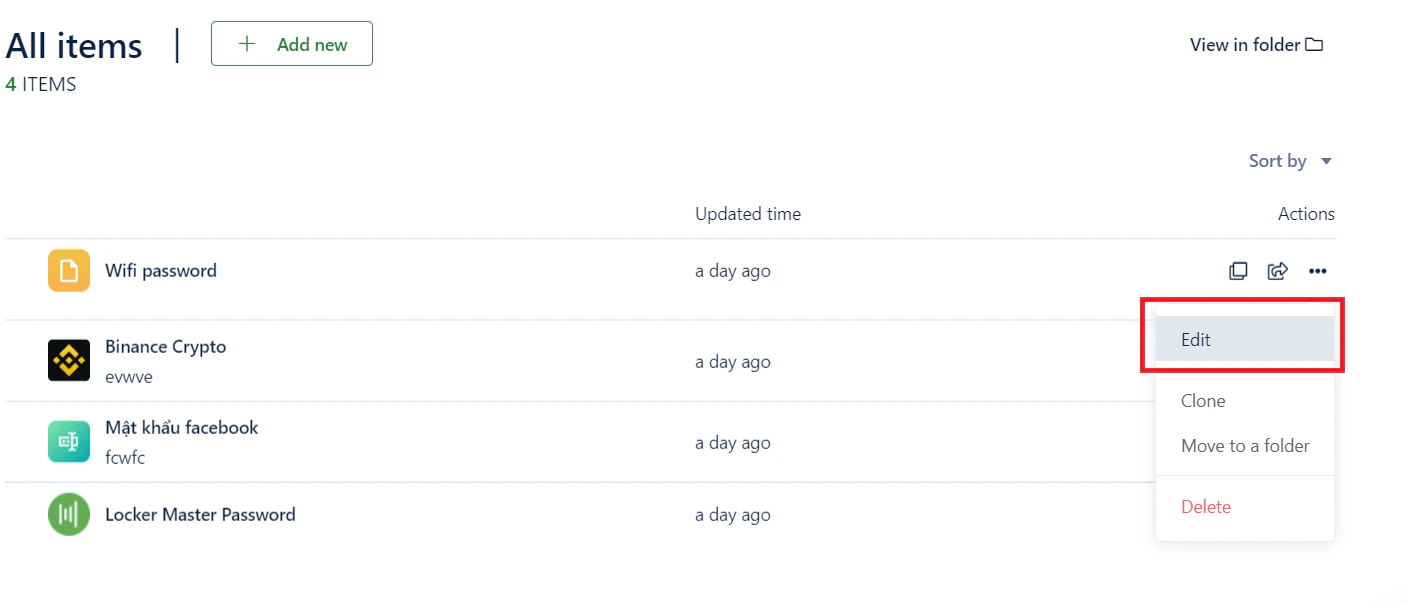
Edit. After updating, click Save.3
Delete an item
Hover over the item you want to delete, click the menu, and select 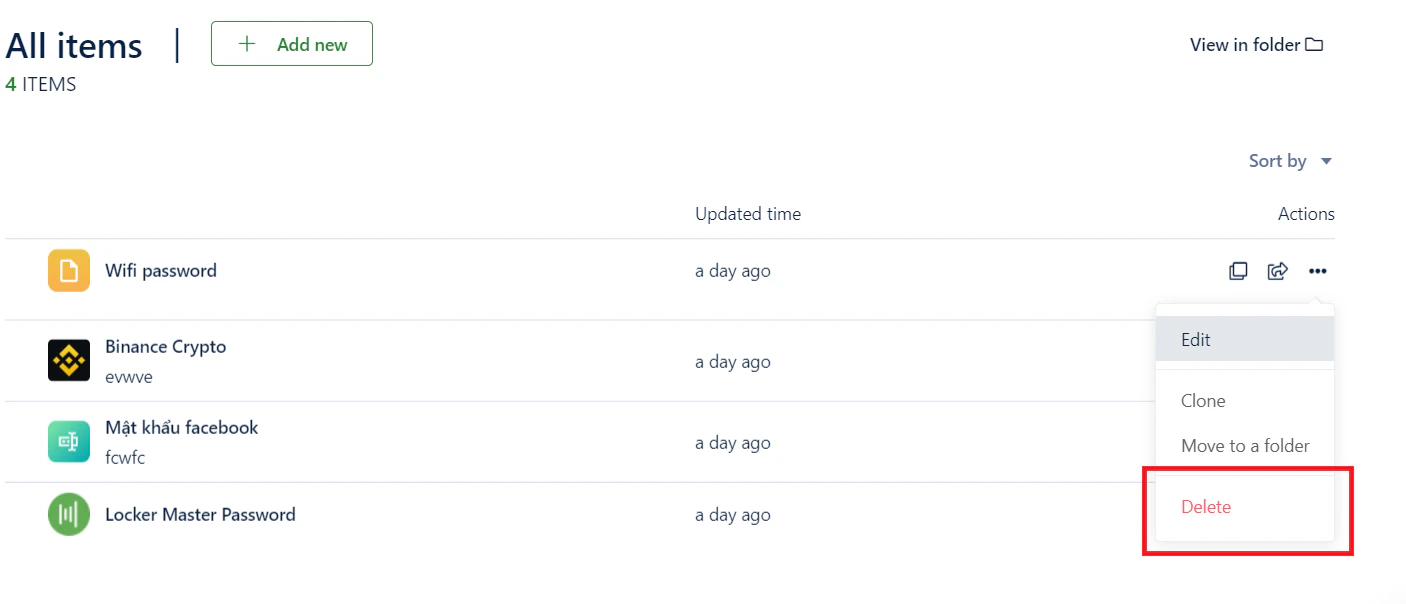
Delete.Alternatively, you can select Edit and click the Trash icon in the detail screen.Security settings
- Two-factor authentication (2FA): Enhance your account security. Learn how to set up 2FA.
- Master Password: The most important key to unlock your data. Learn about Master Password.
Lock and unlock
Protect your privacy when you are not using your computer:1
Lock your account
Click the triangle button next to your username and select 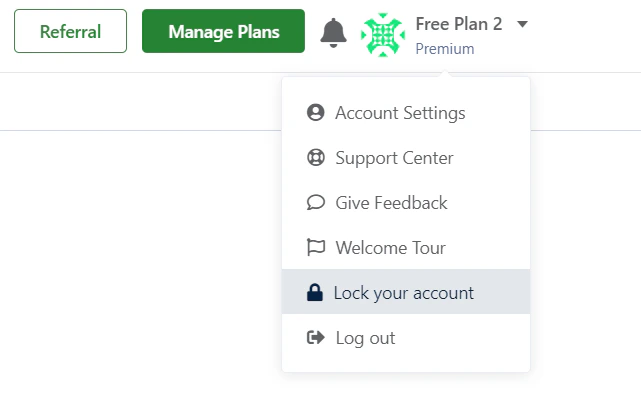
Lock Account.2
Unlock
Enter your Master Password to continue accessing your vault.